Developing application flows
Build, debug, and optimize application flows in the LangStudio IDE by combining Large Language Models (LLMs), Python nodes, and other tools.
Due to a product strategy adjustment, PAI-LangStudio will be retired on March 9, 2027 at 16:00. After the retirement date, you will no longer be able to use LangStudio features in the PAI console, and all associated support services will also be discontinued. For more information, see PAI-LangStudio retirement and migration guide.
Quick start
Creation methods
Create from template: Quickly build AI applications from pre-built templates for various scenarios.
Create by type:
Standard: For general-purpose application development. Combine LLMs, custom Python code, and other tools to build your application flow.
Conversational: For conversational application development. Extends the Standard type with conversation history management, inputs and outputs, and a dialog-style testing interface.
Import from OSS: Select the ZIP package or the OSS path of the application flow to import. This path must directly contain the application flow's flow.dag.yaml file and other code files.
You can export an application flow by using the Export feature in the Actions column of the application flow list in LangStudio, and then share it with others to import.
After you convert a Dify DSL file to the LangStudio application flow format, you can import it by using this method. For more information, see Dify-to-LangStudio migration practice guide.
Configure environment variables
You can add environment variables that an application flow requires at runtime. The system automatically loads these variables before execution, making them available for Python nodes, tool calls, or custom logic.
Use cases
Sensitive information management: Store API keys, authentication tokens, and other secrets instead of hard-coding them.
Configuration parameterization: Flexibly set runtime parameters such as model endpoints and timeouts.
Configuration and usage
In the application flow editor, click Settings in the upper-right corner to add environment variables.
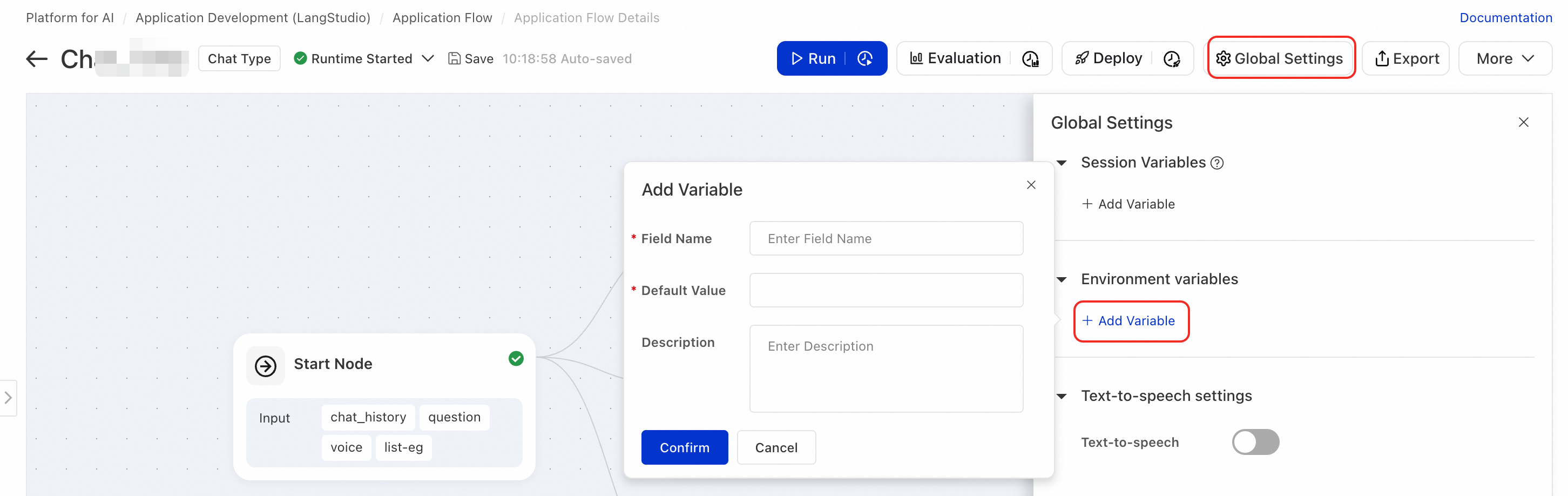
In a Python node, you can access configured environment variables by using standard Python's
os.environ:import os # Example: Get an API key api_key = os.environ["OPENAI_API_KEY"]
Configure speech interaction
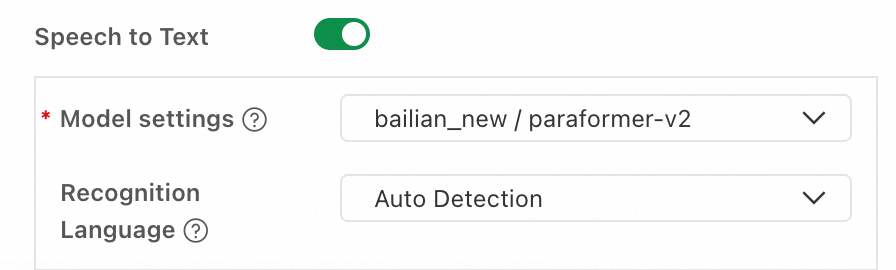
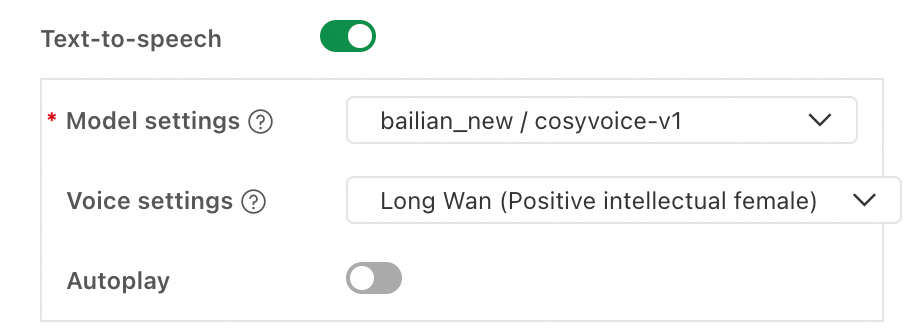
In the application flow editor, click Settings in the upper-right corner and configure speech interaction on the Global Settings tab.
Speech-to-Text (STT)
The STT feature converts a user's voice input into text and populates the " Chat Input " field in the Start node.
Parameter | Description |
Model settings | Select a configured model service connection and an ASR model. Currently, models in the Paraformer series are supported. |
Recognition language | Set the language for speech recognition. Currently, only the paraformer-v2 model supports specifying the recognition language. |
Text-to-speech (TTS)
The TTS feature automatically converts the conversational output of an application flow to speech.
Parameter | Description |
Model settings | Select a configured model service connection and a TTS model. Currently, models in the CosyVoice series are supported. |
Voice settings | Select the voice for the synthesized speech. Multiple preset voices are supported. |
Autoplay | If enabled, the synthesized speech plays automatically during a conversation. |
Deployment and API calls
After you deploy the application flow to PAI-EAS, you can enable speech interaction through API calls. For general API usage, see Deploy an application flow. This section covers the API changes specific to speech interaction.
Speech input
In the request body, add the system.audio_input field with the audio file URL (for the file data structure, see File Type Input and Output). The system automatically converts the audio to text and populates the dialogue input field.
{
  "question": "",
  "system": {
    "audio_input": {
      "source_uri": "oss://your-bucket.oss-cn-hangzhou.aliyuncs.com/audio/input.wav"
    }
  }
}
Speech output
To retrieve TTS-synthesized audio data, call the <Endpoint>/run endpoint. The simple mode does not return audio data.
Field | Description |
audio_data | A Base64-encoded audio data fragment. The client must decode and concatenate the fragments for playback. |
tts_metadata | Audio metadata, including format (pcm), sample rate (22050 Hz), number of channels (1), and bit depth (16-bit). |
Streaming response
TTS audio is returned via the TTSOutput event in the SSE event stream:
{
  "event": "TTSOutput",
  "audio_data": "<base64-encoded audio data>",
  "tts_metadata": {
    "format": "pcm",
    "sample_rate": 22050,
    "channels": 1,
    "bit_depth": 16
  }
}
Non-streaming response
The TTS audio is returned in the JSON response as the output.tts_audio field:
{
  "output": {
    "answer": "xxx",
    "tts_audio": {
      "audio_data": "<base64-encoded full audio data>",
      "tts_metadata": {
        "format": "pcm",
        "sample_rate": 22050,
        "channels": 1,
        "bit_depth": 16
      }
    }
  }
}
Pre-built components
For more information, see Application flow node reference.
Next steps
After you develop and debug your application flow, you can evaluate the application flow. When it meets your business requirements, you can deploy the application flow to PAI-EAS for production use.