CLI integration example
This topic provides an example of how to call a Platform for AI (PAI) OpenAPI operation using the Alibaba Cloud CLI. In this example, the ListWorkspaces API of Platform for AI - AI Workspace is called to retrieve a list of workspaces.
Prerequisites
-
The Alibaba Cloud Command Line Interface (CLI) is a general-purpose command-line tool built on OpenAPI. You can use the Alibaba Cloud CLI to automate the management and maintenance of Platform for AI. For more information, see What is Alibaba Cloud CLI?.
-
The Alibaba Cloud CLI supports calls to the following Platform for AI OpenAPI operations:
Step 1: Install the Alibaba Cloud CLI
Before you use the Alibaba Cloud CLI, you must install it. The Alibaba Cloud CLI can be installed on Windows, Linux, and macOS. Follow the installation instructions for your operating system.
-
Windows: Install the CLI on Windows.
-
Linux: Install the CLI on Linux.
-
macOS: Install the CLI on macOS.
Cloud Shell is pre-installed with the Alibaba Cloud CLI, and its version is updated regularly. You can test Alibaba Cloud CLI commands in Cloud Shell. For more information, see What is Cloud Shell?.
Step 2: Configure the Alibaba Cloud CLI
An Alibaba Cloud account has full management and access permissions for all product OpenAPI operations. Using an Alibaba Cloud account directly poses a high security risk. For improved security, create a Resource Access Management (RAM) user, grant permissions based on the principle of least privilege, and then use the RAM user's identity to access OpenAPI operations. For information about the access policies that Platform for AI supports, see Manage permissions.
Before you use the Alibaba Cloud CLI, you must configure your identity credentials and region ID. You can configure credentials using the AccessKey of a RAM user. The procedure is as follows:
-
Create a RAM user and an AccessKey pair. For more information, see Create a RAM user and Create an AccessKey pair.
-
Attach the
AliyunPAIFullAccesspolicy to the RAM user. This policy grants full permissions to manage Platform for AI. For more information, see Manage RAM user permissions. -
Obtain an available region ID. The Alibaba Cloud CLI initiates OpenAPI calls in the region that you specify. For the available regions of
Platform for AI - AI Workspace, see Endpoints.NoteIf you use the Alibaba Cloud CLI, you can use the
--regionoption to specify a region for a specific command. This option overrides the region specified in the configuration file and environment variables. For more information, see Command-line options. -
Configure the credentials using the AccessKey of the RAM user and save the configuration under the profile name
AkProfile. For more information, see Configuration Example.
Step 3: Generate a sample CLI command
-
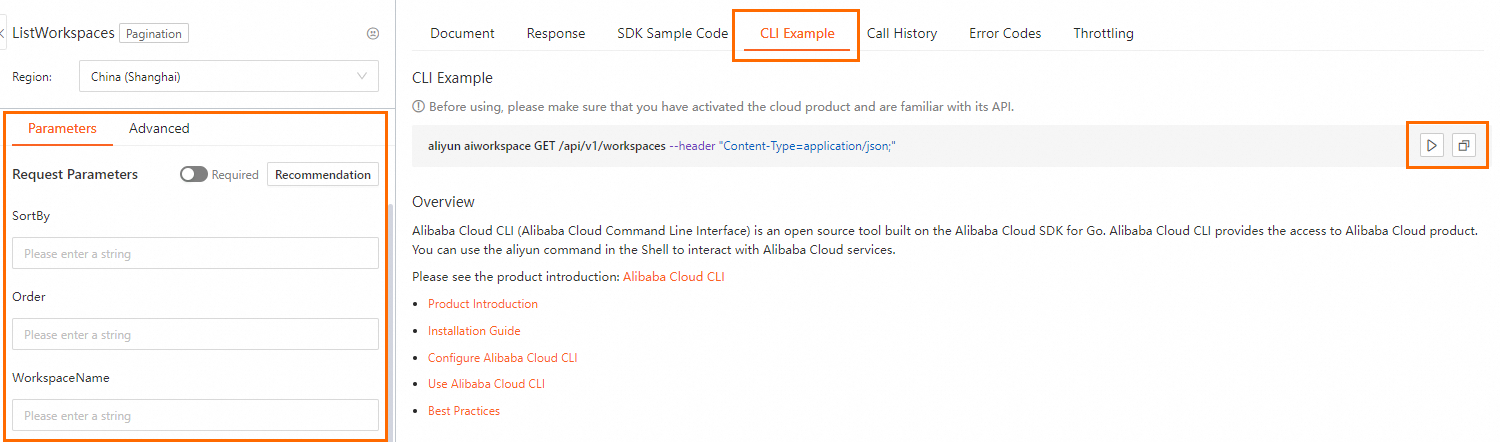
In the OpenAPI Explorer, go to the debug page for ListWorkspaces.
-
In the Parameter settings section, specify the request parameters. Click the CLI Example tab to view the sample command.
-
Copy the sample CLI command or run it directly in Cloud Shell:
-
Click the Run Command button
 to open Cloud Shell and test the command.
 -
Click the Copy button
 to copy the sample CLI command to the clipboard. You can then paste it into your local shell to run the command or use it to create a script.
Note-
If you copy the sample CLI command to a local shell for testing, ensure that the parameter format is correct. For more information about the parameter format for Alibaba Cloud CLI commands, see Parameter formats.
-
The sample command generated in OpenAPI Explorer includes the
--regionoption by default. If you run the command locally, the region specified in the command takes precedence over the region specified in your configuration file and environment variables. You can remove or keep this option as needed.
-
Step 4: Call the OpenAPI
Example 1: Get a list of OpenAPI operations that can be called using the Alibaba Cloud CLI
The following example shows how to use the --help option to retrieve a list of Platform for AI - AI Workspace OpenAPI operations that the Alibaba Cloud CLI supports. For more information, see API overview.
-
Run the following command.
aliyun aiworkspace --help -
Expected output (partial):
Product: AIWorkSpace ()
Version: 2021-02-04

Available Api List:
  AcceptDataworksEvent           : POST /api/v1/workspaces/action/acceptdataworksevent
  AddImage                       : POST /api/v1/images
  AddImageLabels                 : POST /api/v1/images/[ImageId]/labels
  ...
  UpdateWorkspace                : PUT /api/v1/workspaces/[WorkspaceId]
  UpdateWorkspaceResource        : PUT /api/v1/workspaces/[WorkspaceId]/resources
Example 2: Get a list of workspaces
The following example shows how to use the Alibaba Cloud CLI to call the ListWorkspaces API of Platform for AI - AI Workspace. This call retrieves a list of workspaces that are in the ENABLED state. The results are sorted by creation time in descending order.
-
Run the following command.
aliyun aiworkspace GET /api/v1/workspaces --Status ENABLED --Order DESC --SortBy GmtCreateTime -
Expected output.
{ "RequestId": "8D7B2E70-F770-505B-A672-09F1D8F2EC1E", "Workspaces": [ { "WorkspaceId": "123", "WorkspaceName": "workspace-example", "GmtCreateTime": "2021-01-21T17:12:35.232Z", "GmtModifiedTime": "2021-01-21T17:12:35.232Z", "Description": "workspace description example", "Creator": "122424353535", "EnvTypes": [ "prod" ], "Status": "ENABLED", "AdminNames": [ "demo_test@***.aliyunid.com" ], "IsDefault": false, "ExtraInfos": { "TenantId": "4286******98" } } ], "TotalCount": 1, "ResourceLimits": { "MaxCompute_share": 1, "MaxCompute_isolate": 1, "DLC_share": 1 } }Note-
If an error is returned when you call a
Platform for AI - AI WorkspaceOpenAPI operation, use the returned error code to verify that the request parameters and their values are correct. -
You can use the RequestID or SDK error message from the response to perform self-service diagnostics on the Alibaba Cloud OpenAPI Diagnostic Platform.
-