Exam Center
Administrators use the Exam Center to train and assess new annotators. This process verifies their knowledge and ensures they have the required skills. It improves annotation accuracy and consistency and helps select qualified personnel. The Exam Center also supports continuous education and skill enhancement. This topic describes how to create, associate, and manage exams.
Workflow

Create an exam
Go to iTAG.
Log on to the PAI console.
In the navigation pane on the left, click Workspace List. On the Workspace List page, click the name of the target workspace.
In the navigation pane on the left, choose Data Preparation > iTAG.
Click Exam Center to go to the Exam Center tab on the Tenant Configuration page in the Management Center.
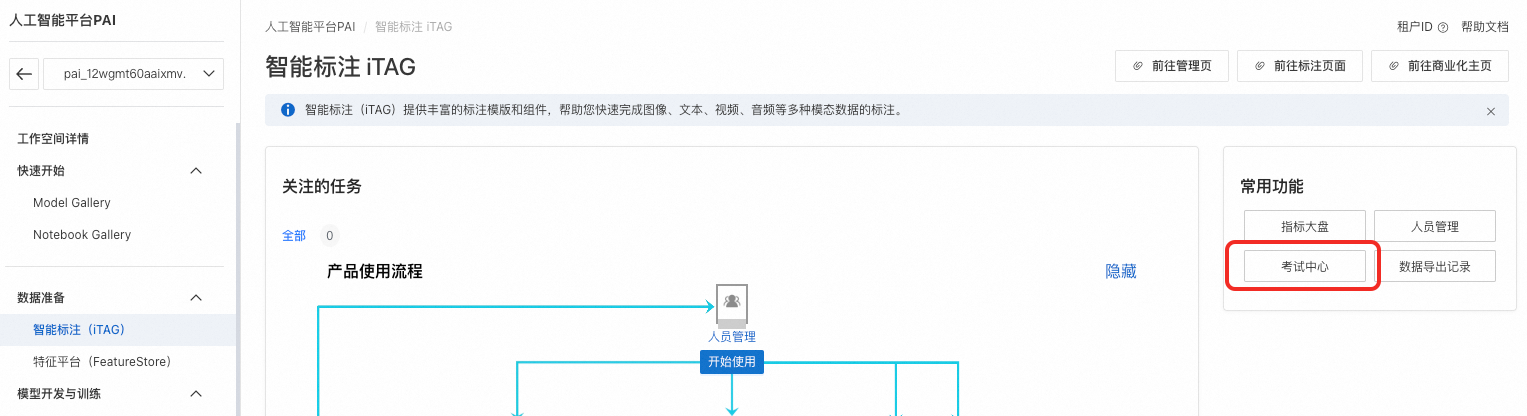
Click Create Exam.
Select data
Select a dataset and click Next.
NoteiTAG does not support selecting dataset versions. By default, version v1 is used.
Preview the dataset content, set the package policy, and click Next.
Select a template
Select a template and click Edit to configure it.
After you complete the configuration, click Next. For more information about template configuration, see Labeling templates.
Configure the exam
Parameter
Description
Basic Information
Exam Name
A custom name for the exam.
Exam Mode
The following exam modes are available.
Auto Grading: Automatically maps answers to grade the exam. The dataset must contain an answer field for mapping.
Manual Grading: A reviewer manually grades each exam. You must specify reviewers. No answer key is required.
Examinees/Groups
Set the examinees and administrators. If you later create a formal task and associate it with this exam, the examinees and groups are automatically added.
Administrators/Groups
Passing Threshold
The value can be from 1% to 100%. An exam is passed if the accuracy score reaches this threshold.
Maximum Exam Attempts
The number of times an examinee can retry the exam.
Exam Instructions
You can provide supplementary instructions for the exam by selecting Associate Document, Upload File, Enter Instructions, or Image Guide.
Intelligent Annotation
Annotation Method
The following methods are available:
Do not use: Does not use intelligent labeling configurations.
Use offline pre-labeling results: The uploaded dataset already contains pre-labeling results. The iTAG platform can display these results.
Advanced Configuration
Discard Subtask Package on Timeout
If you enable this option, a subtask package is discarded if it is not claimed within the specified time.
Click Create Task.
Associate an exam
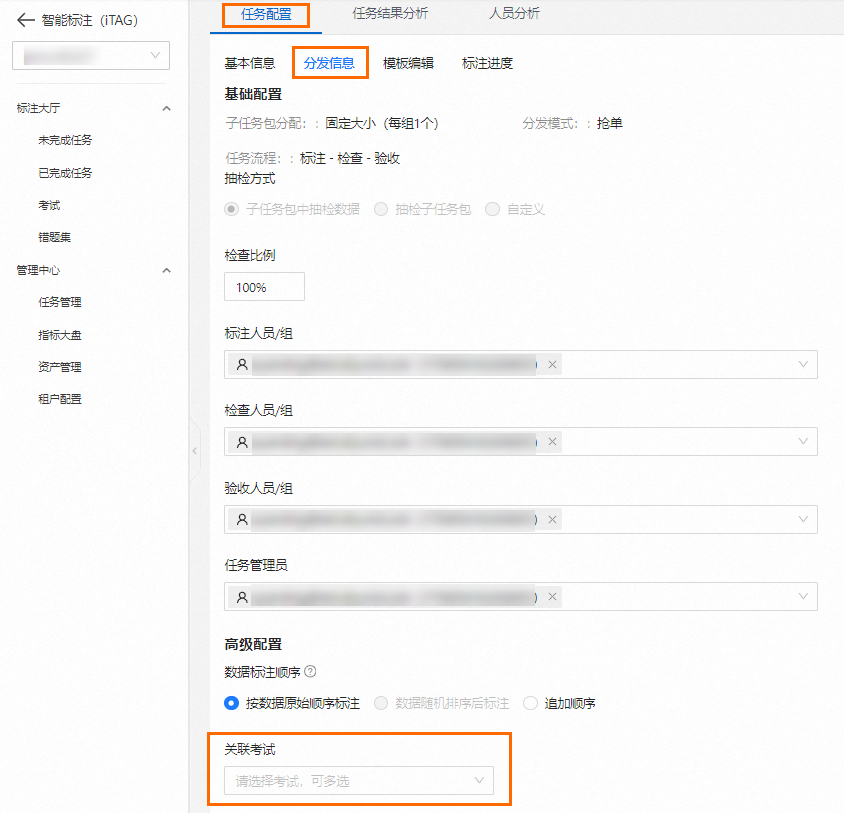
You can associate one or more exams with an annotation task. After an exam is associated, annotators must pass it before they can work on the task.
In the navigation pane on the left, choose Management Center > Task Management.
On the Task Management tab, click the name of the target task to go to the task details page.
On the tab bar, choose Task Configuration > Distribution Information and then associate the target exam.
Manage exams
On the Exam Center tab of the Tenant Configuration page in the Management Center, you can perform the following operations on exams:
In the Actions column, click Exam Details to view the subtask packages in the exam and the exam details page.
For a completed exam, click Export Exam in the Actions column to download the exam results for in-depth analysis, such as identifying common mistakes.
In the Actions column, click Append Exam Papers to increase the number of exam papers.
In the Actions column, click Get Annotation Results to obtain the annotation results. For more information, see Export annotation result data.
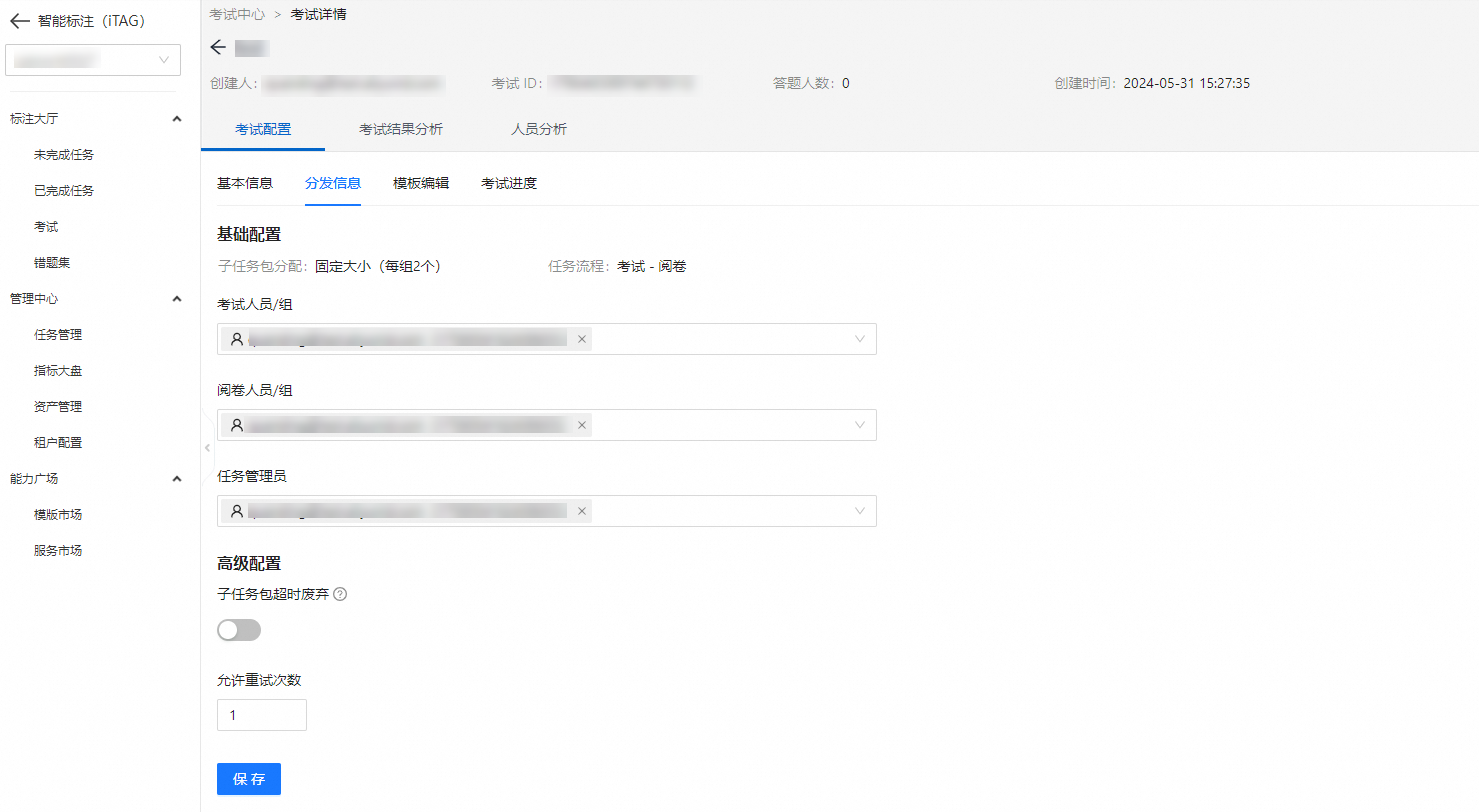
Click an exam name. On the Distribution Information page in the Exam Configuration section, an administrator can modify the Allowed Retries.
If an examinee does not pass the exam on the first attempt, they can retry based on the predefined rules. If they still do not pass after the maximum number of retries, their exam eligibility is revoked and they are removed from the task.
Take an exam
In the navigation pane on the left, choose Annotation Hall > Exams. On the Exam Tasks tab, find the exam in the Available Exams section and click Start Exam.
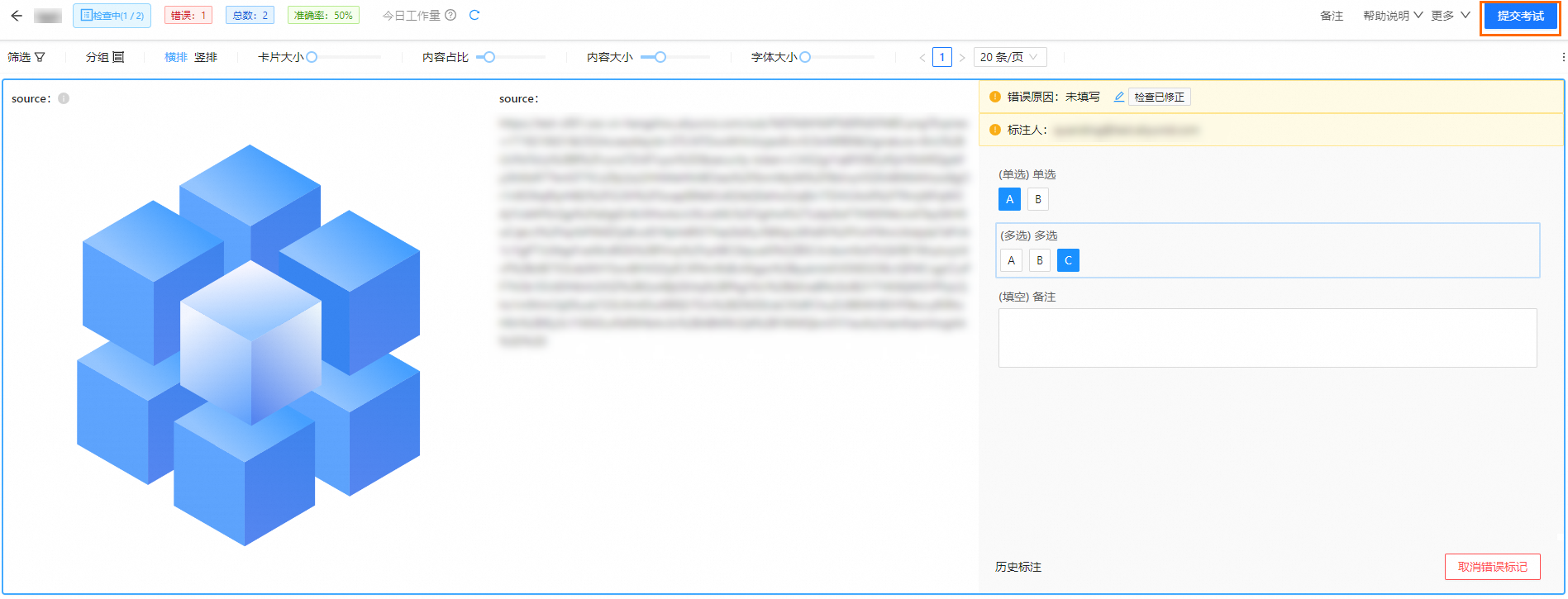
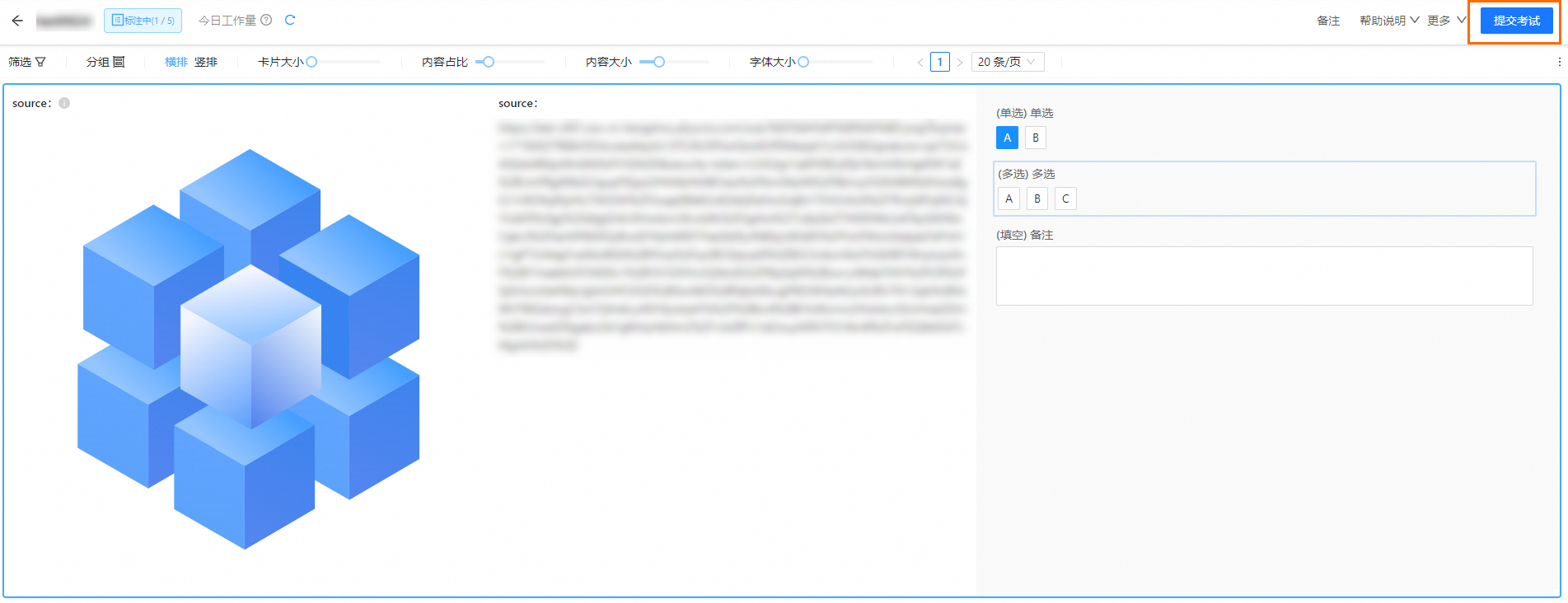
On the exam page, complete the labeling. When you are finished, click Submit Exam in the upper-right corner.
Grade an exam
If an exam is set to the Manual Grading mode, a reviewer must grade it manually after an annotator completes it.
In the navigation pane on the left, choose Annotation Hall > Exams. On the Quality Inspection Tasks tab, find the exam in the Exams to Be Graded section and click Inspect.
On the verification page, review or make changes as needed. Then, click Submit Exam in the upper-right corner.