LLM data processing algorithms allow you to edit, transform, filter, and deduplicate data samples. By combining these algorithms, you can produce high-quality data for subsequent LLM training. This article uses a small dataset from the open-source Alpaca-CoT project to demonstrate how to use PAI's large language model data processing components to clean and process SFT data. The DLC components use the distributed Ray framework for large-scale data processing and feature intelligent aggregation to improve efficiency, optimize resource use, and reduce unnecessary storage operations. For detailed instructions, see Group large model data processing components by aggregation.
Dataset
The "LLM Data Processing-Alpaca-CoT (SFT data)-DLC component" preset template in Designer uses a dataset of 5,000 samples from the open-source Alpaca-CoT project.
Create and run the workflow
Go to the Designer page.
Log on to the PAI console.
In the upper-left corner, select a region.
In the left-side navigation pane, click Workspaces and then click the name of your workspace.
In the left-side navigation pane, choose Model Training > Visualized Modeling (Designer).
Create a workflow.
On the Preset Templates tab, choose Business Area > LLM, and then click Create on the LLM Data Processing-Alpaca-CoT (SFT data)-DLC component template card.
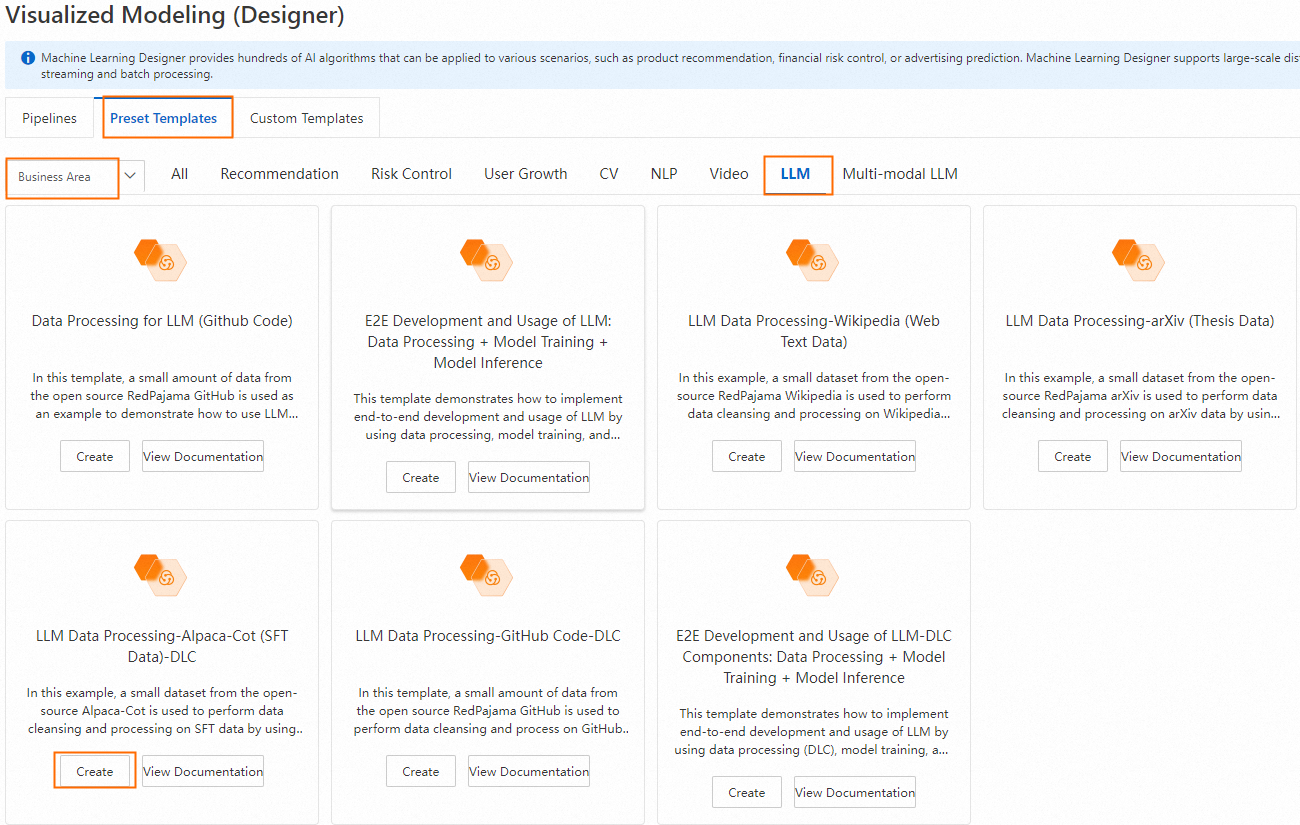
Configure the workflow parameters (or keep the default settings), and then click Confirm.
In the workflow list, select the workflow you created and click Open.
Workflow description:
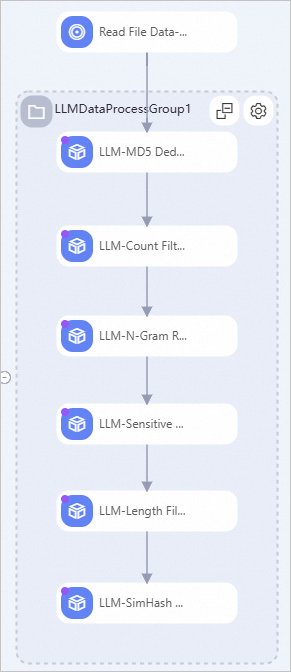
Key algorithm components in the workflow:
LLM-MD5 Deduplication (DLC)-1
Computes a hash value for the "text" field and uses it to remove duplicate text, keeping only one instance per unique hash value.
LLM-Count Filter (DLC)-1
Removes samples in the "text" field that do not meet the configured ratio of digits and letters. In SFT data, most characters are letters and digits, so this component helps remove some dirty data.
LLM-N-Gram Repetition Ratio Filter (DLC)-1
This component slides a window of size N on the text to create a sequence of N-length segments, known as grams. It then counts the occurrences of all grams and filters samples based on the ratio of
(total occurrences of grams that appear more than once) / (total occurrences of all grams).LLM-Sensitive Word Filter (DLC)-1
Filters samples in the "text" field that contain words from a preset list of sensitive words.
LLM-Length Filter (DLC)-1
Filters samples based on the length of the "text" field and the maximum line length. The maximum line length is the longest line in the sample, where lines are separated by the
\nnewline character.LLM-SimHash Similarity Deduplication (DLC)-1
Removes similar samples based on the configured window_size, num_blocks, and hamming_distance values.
Run the workflow.
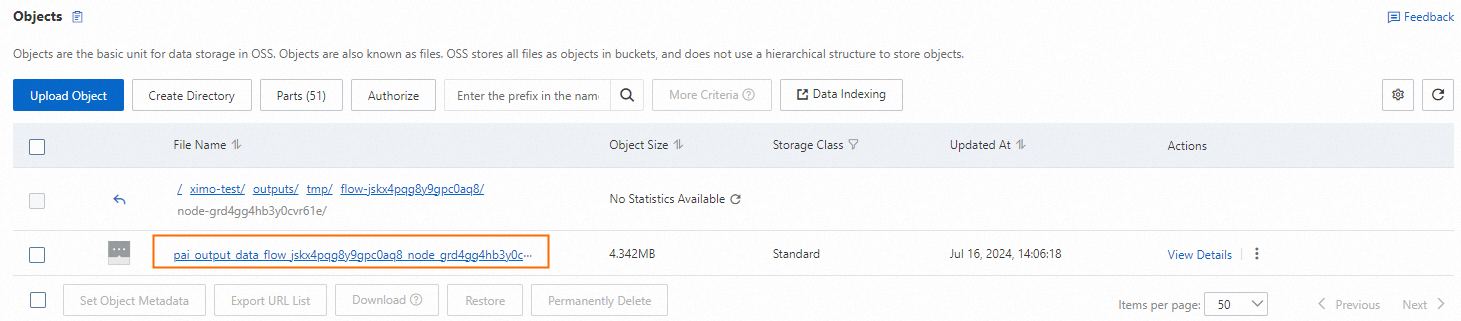
When the workflow finishes, right-click the LLM-SimHash Similarity Deduplication (DLC)-1 component and choose View Data > Output Data (OSS) to view the processed sample files.
Related references
See LLM data processing (DLC) for a detailed description of the LLM algorithm components.