LangStudio workflows can accept files from users, route them through processing nodes, and return file outputs — without writing file-handling infrastructure from scratch. Use file-type variables to connect file uploads at the Start node to Python or document parsing nodes, and return processed files from the End node.
Prerequisites
Before you begin, ensure that you have:
A LangStudio application flow with at least a Start node and an End node
Read and write access to an OSS bucket (required for all
Filetype operations)
Accept file uploads in the Start node
Define a file-type input variable in the Start node to accept files from users at the start of a workflow.
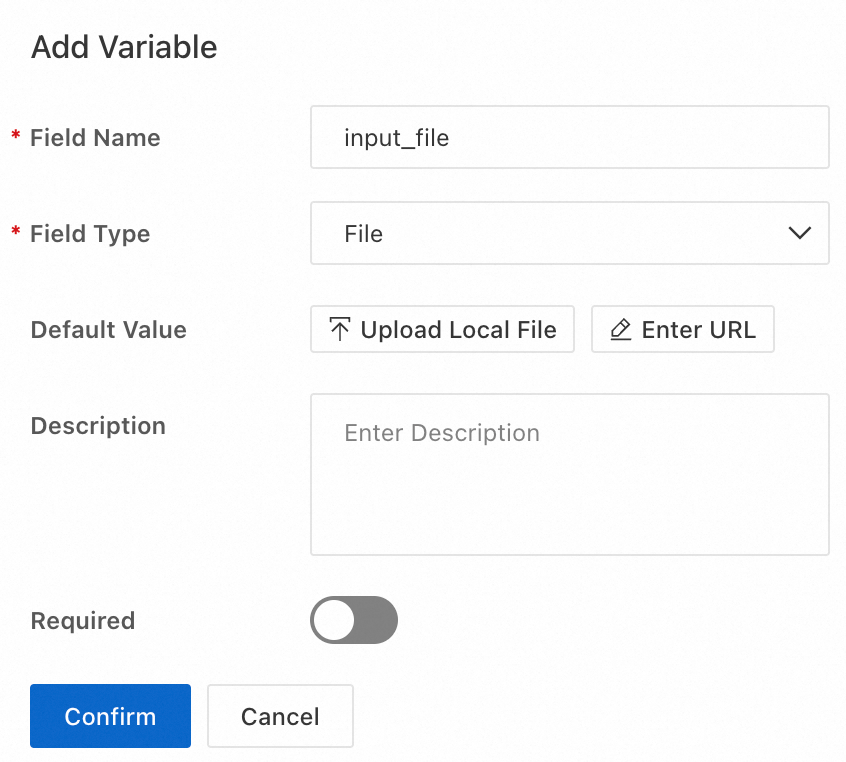
LangStudio supports the following file types for Start node input:
Document types: PDF, DOCX, PPTX, XLSX, XLS, TXT, MD, CSV, JSONL, HTML, and HTM
Image types: JPG, JPEG, PNG, BMP, and TIFF
Audio types: MP3, WAV, and AAC
Video types: MP4, MOV, AVI, MKV, M4V, WMV, FLV, ASF, and QT
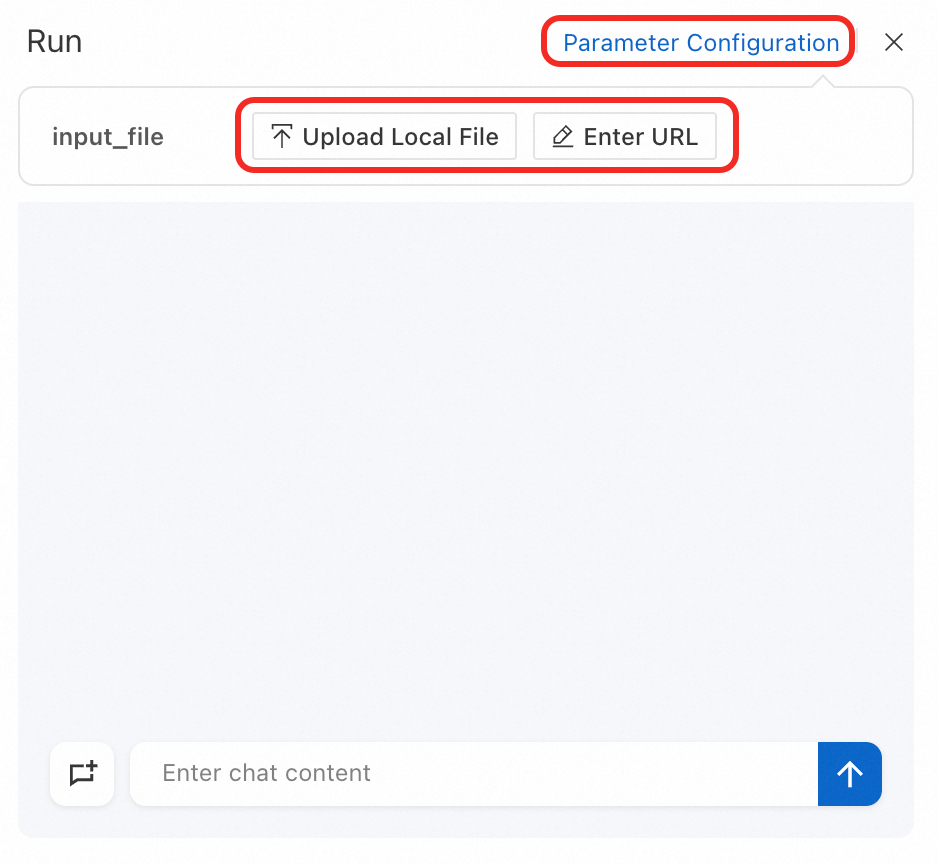
After you define a file-type variable, users can upload files from the conversation panel via Parameter Configuration. Two upload methods are available:
Upload From Local: Upload a file directly from the user's device.
Enter URL: Provide a URL pointing to the file. Two URL formats are accepted:
OSS URI: A file path in Alibaba Cloud OSS, such as
oss://bucket-name/path/to/file.pdf.HTTP/HTTPS link: A publicly accessible download link, such as
https://example.com/file.docx.
Process files
The Start node collects the file — it does not read or parse the content. Pass the file to a downstream node for processing.
Which approach to use
| Scenario | Recommended approach |
|---|---|
| Extract text from standard document formats (PDF, DOCX, TXT, and similar) for LLM processing | Document Parsing node |
| Custom binary processing, format conversion, or generating new files programmatically | Python node |
Document Parsing node
Route uploaded documents to a Document Parsing node to extract their text content for use in LLM nodes. For details, see Document Parsing.
Common scenario: A user uploads a PDF, the Document Parsing node extracts the text, and an LLM node answers questions based on the content.
Python node
In a Python node, reference a file-type variable as a node input or generate a File object as a node output.
File is the core type LangStudio uses to represent files. Import it with from langstudio.types import File.
LangStudio provides five methods to construct File objects.
Direct construction
Use File() to reference an existing file by its location. This is the simplest method and works for files already stored in OSS or accessible via URL.
| Parameter | Type | Required | Description | Example |
|---|---|---|---|---|
source_uri | str | Yes | The file's location. Accepts an HTTP/HTTPS URL, an OSS URI (oss://), or a local path within the container's mount path. | "https://files.example.com/report.pdf" |
download_url | str | No | A downloadable HTTP/HTTPS link. If not provided, the system generates one automatically. For OSS URIs, a signed URL valid for seven days is generated — call File.get_download_url() to refresh it after expiry. | "https://oss-cn-beijing.aliyuncs.com/my-bucket/...?Expires=...&OSSAccessKeyId=..." |
file_id | str | No | A unique identifier for the file. If not provided, the system generates an 8-digit universally unique identifier (UUID). | "a1b2c3d4" |
file_name | str | No | The file name. If not provided, the system infers it from source_uri. | "annual_summary_report.docx" |
file_type | str | No | The Multipurpose Internet Mail Extensions (MIME) type, such as application/pdf. If not provided, the system infers it from the file name extension. | "application/vnd.openxmlformats-officedocument.wordprocessingml.document" |
from langstudio.types import File

file = File(source_uri="https://example.com/report.pdf")
file = File(source_uri="oss://my-bucket/docs/file.docx")
Construction from a string
Use File.from_content() to create a file from string content. This method is suitable for generating text-based files such as Markdown, TXT, and CSV.
| Parameter | Type | Required | Description | Example |
|---|---|---|---|---|
content | str | Yes | The string content to save. The content is encoded in UTF-8 before upload. | "# Generate Report\nThis content is automatically generated by the system." |
file_name | str | Yes | The name of the generated file. | "report.md" |
from langstudio.types import File

content = "# Generate Report\nThis content is automatically generated by the system."
file = File.from_content(content=content, file_name="report.md")
Construction from a byte sequence
Use File.from_bytes() to create a file from binary data. This method is suitable for binary formats such as PDF files, images, and Office documents.
| Parameter | Type | Required | Description | Example |
|---|---|---|---|---|
content | bytes | Yes | The binary data to save. | b"%PDF-1.4\n1 0 obj\n<< /Type /Catalog >>\nendobj\n" |
file_name | str | Yes | The name of the generated file. | "test.pdf" |
from langstudio.types import File

# pdf_data is a bytes object
file = File.from_bytes(content=pdf_data, file_name="test.pdf")
Construction from a local file
Use File.from_local_file() to upload a file from the container's local file system. This method is suitable for files that exist at a known path within the container.
| Parameter | Type | Required | Description | Example |
|---|---|---|---|---|
local_path | str | Yes | The file's path in the local file system. | "/tmp/report.docx" |
file_name | str | No | The name of the generated file. If not provided, the file name from local_path is used. | "final_report.docx" |
from langstudio.types import File

# The file already exists at /tmp/output.pptx
file = File.from_local_file(local_path="/tmp/output.pptx", file_name="presentation.pptx")
Construction from a data stream
Use File.from_stream() to create a file from a stream source. This method is suitable for large files or when data arrives as a network stream, a BytesIO object, or another iterable.
| Parameter | Type | Required | Description | Example |
|---|---|---|---|---|
stream | str | bytes | BinaryIO | Iterator[bytes] | Yes | The data source. Accepts an HTTP/HTTPS URL string, a bytes object, an io.BytesIO stream, a requests.Response object (with stream=True), or any iterable of bytes. | "https://example.com/large-video.mp4" |
file_name | str | Yes | The name of the generated file. | "downloaded_video.mp4" |
import io
from langstudio.types import File

url = "https://example.com/data.jsonl"
file = File.from_stream(stream=url, file_name="data.jsonl")
Return file output from the End node
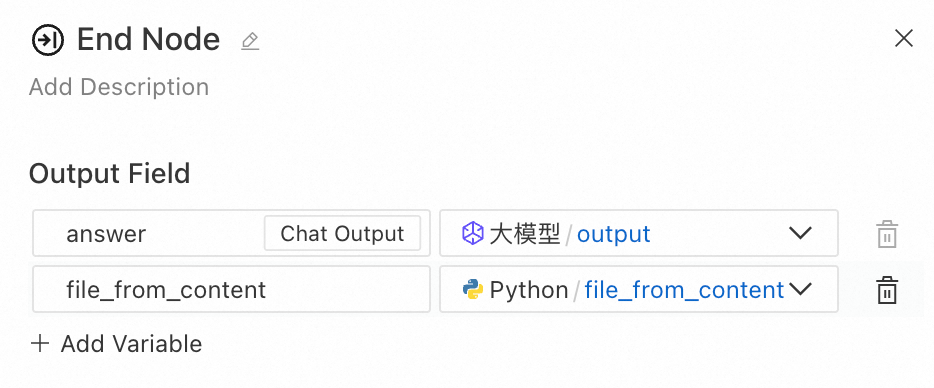
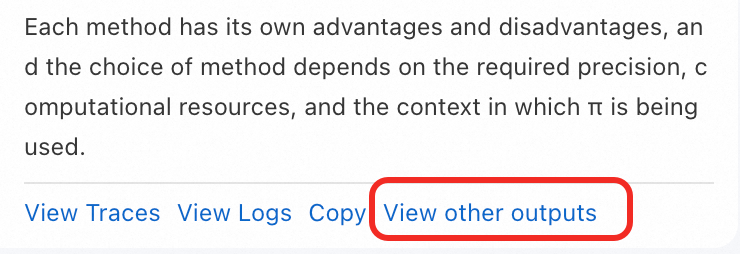
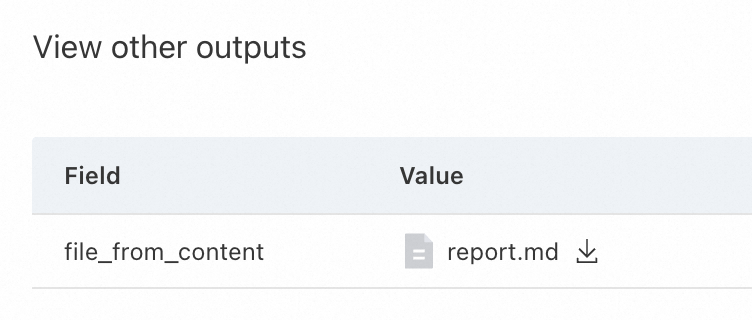
Use a File object as the output of the End node to return a file from the workflow. In the conversation panel, click View other outputs to view and download the output file.
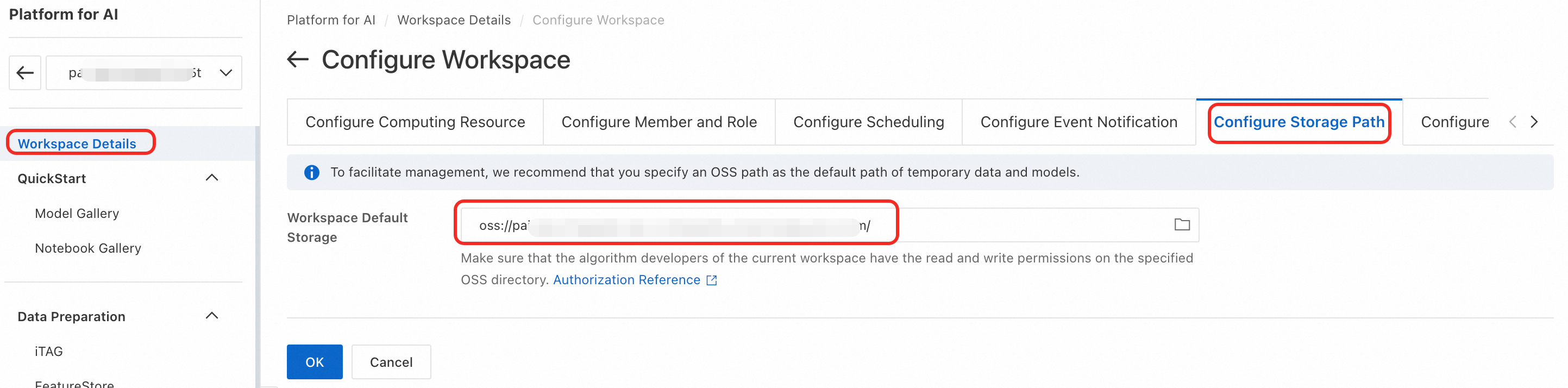
Configure OSS permissions
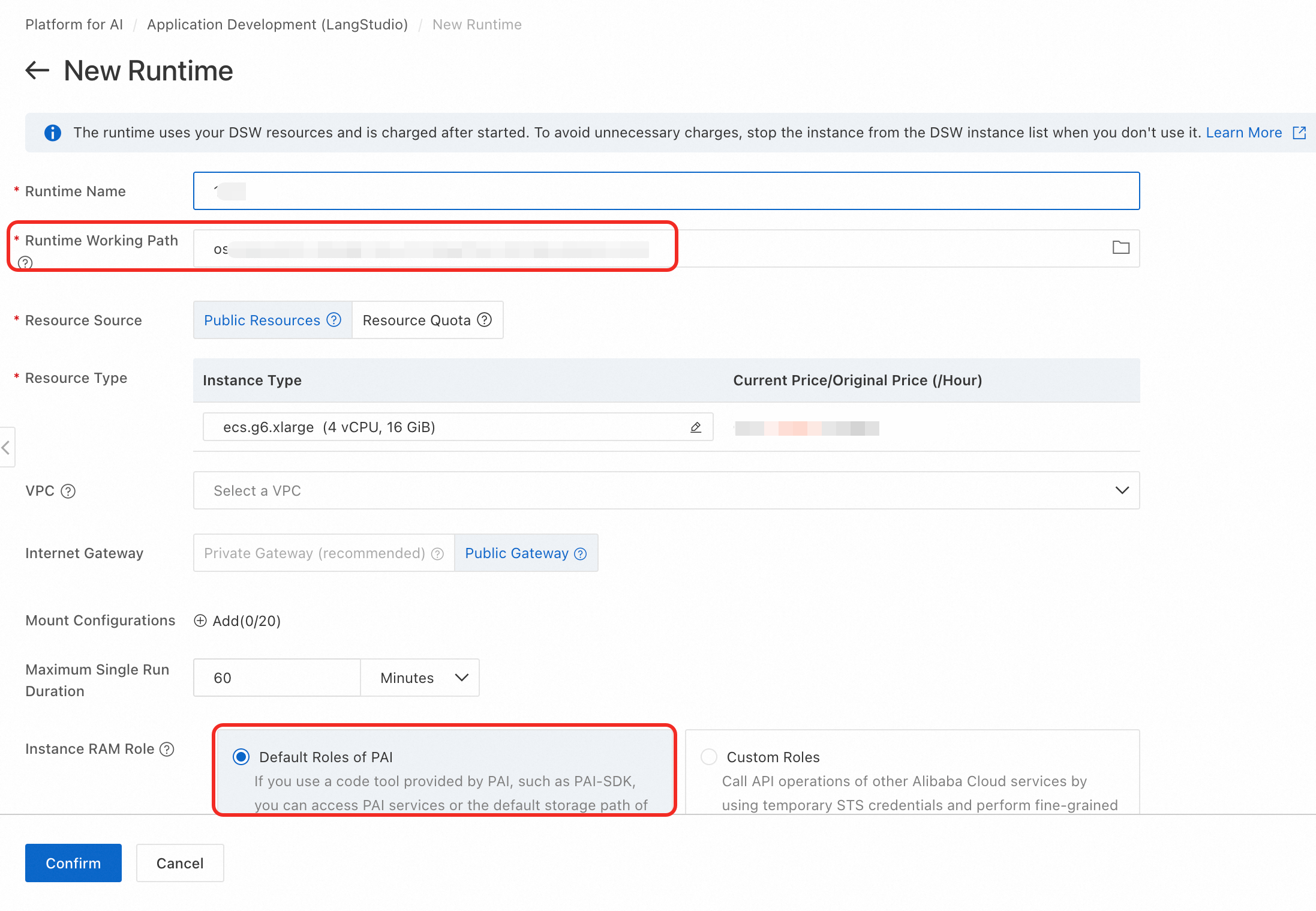
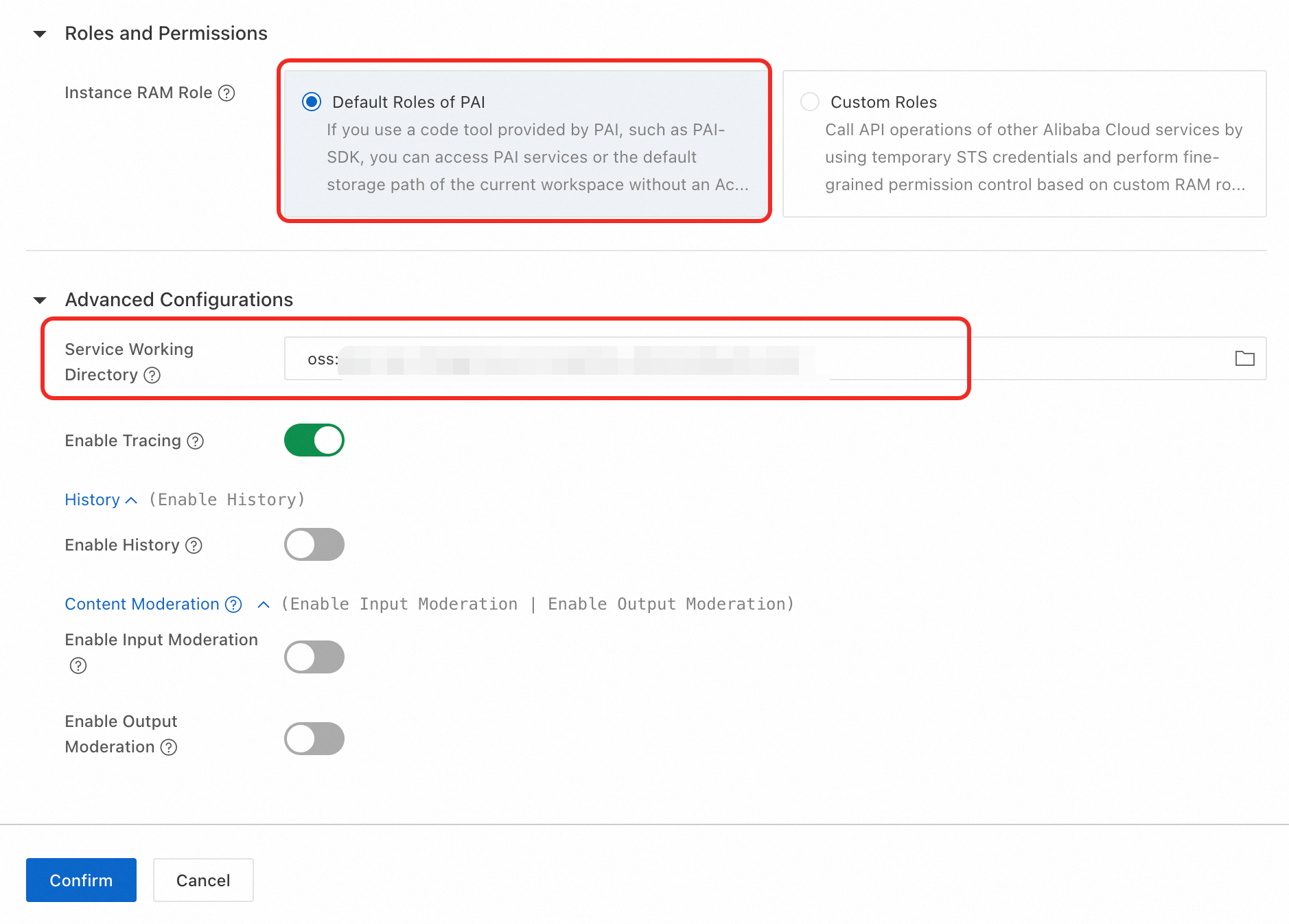
All File type operations require read and write access to an OSS bucket. Configure the following settings when creating a runtime and deploying an application flow:
Select the default workspace path as the current working path.

For Instance RAM Role, select PAI Default Role. If you select Custom Role instead, grant the
AliyunOSSFullAccesspermission to the custom role. Without this permission, LangStudio cannot perform file input and output operations.Create a runtime:
Deploy an application flow: