The parameter server (PS) is designed for large-scale offline and online training tasks. Scalable Multiple Additive Regression Tree (SMART) is an iterative algorithm based on a gradient boosting decision tree (GBDT) that is implemented on a PS. PS-SMART can handle training tasks with tens of billions of samples and hundreds of thousands of features across thousands of nodes. It also supports multiple data formats and optimization techniques, such as histogram approximation.
Limits
This component supports only the MaxCompute computing engine.
Usage notes
The target column for the PS-SMART Binary Classification Training component must be of a numeric type, where 0 represents a negative sample and 1 represents a positive sample. If the data in your MaxCompute table is of the STRING type, you must convert the data type. For example, you can convert the classification target strings Good/Bad to 1/0.
If your data is in key-value (KV) format, feature IDs must be positive integers and feature values must be real numbers. If your feature IDs are of the STRING type, you must use the serialization component to serialize them. If your feature values are categorical strings, you must perform feature engineering, such as feature discretization.
Although the PS-SMART Binary Classification training component supports tasks with hundreds of thousands of features, the training is resource-intensive and slow. For better performance, you can use GBDT-like algorithms because they can be trained directly on continuous features. Apart from applying One-Hot encoding to categorical features and filtering out low-frequency features, do not discretize other continuous numerical features.
The PS-SMART algorithm introduces randomness. For example, randomness is introduced by data and feature sampling, which are controlled by the data_sample_ratio and fea_sample_ratio parameters, the histogram approximation optimization, and the random order in which local sketches are merged into a global sketch. Although the tree structures may be different when multiple workers run in a distributed manner, the model performance is theoretically similar. Therefore, it is normal to obtain inconsistent results from multiple runs that use the same data and parameters.
To accelerate training, you can increase the number of computing cores. The PS-SMART algorithm starts training only after all servers have obtained the required resources. Therefore, requesting more resources when the cluster is busy may increase the waiting time.
Component configuration
You can configure the PS-SMART Binary Classification component parameters using one of the following methods.
Method 1: Use the UI
Configure the component parameters on the Designer workflow page.
Tab | Parameter | Description |
Fields Setting | Use Sparse Format | In sparse format, use spaces to separate KV pairs and colons (:) to separate a key from a value. Example: 1:0.3 3:0.9. |
Feature Columns | The feature columns from the input table for training. If the input data is in dense format, you can select only columns of numeric types (BIGINT or DOUBLE). If the input data is in sparse KV format and the key and value are numeric types, you can select only columns of the STRING type. | |
Label Column | The label column of the input table. It supports STRING and numeric types. However, the column content supports only numeric values, such as 0 and 1 in binary classification. | |
Weight Column | The column used to weigh each sample row. It supports numeric types. | |
Parameter Settings | Evaluation Metric Type | The supported types are:
|
Number of Trees | The number of trees. This must be a positive integer. The number of trees is proportional to the training time. | |
Maximum Tree Depth | The default value is 5, which means a maximum of 16 leaf nodes. The value must be a positive integer. | |
Data Sampling Ratio | When building each tree, a portion of the data is sampled to build a weak learner, which accelerates training. | |
Feature Sampling Ratio | When building each tree, a portion of the features are sampled to build a weak learner, which accelerates training. | |
L1 Penalty Coefficient | Controls the size of leaf nodes. The larger the value, the more uniform the distribution of leaf node sizes. If overfitting occurs, increase this value. | |
L2 Penalty Coefficient | Controls the size of leaf nodes. The larger the value, the more uniform the distribution of leaf node sizes. If overfitting occurs, increase this value. | |
Learning Rate | The value range is (0,1). | |
Approximate Sketch Precision | The quantile threshold for splitting when constructing a sketch. The smaller the value, the more buckets are created. Typically, use the default value 0.03. Manual configuration is not required. | |
Minimum Split Loss Change | The minimum loss change required to split a node. The larger the value, the more conservative the split. | |
Number of Features | The number of features or the maximum feature ID. If this parameter is not configured when estimating resource usage, the system starts an SQL task to calculate it automatically. | |
Global Bias Term | The initial prediction value for all samples. | |
Random Number Generator Seed | The random number seed. It must be an integer. | |
Feature Importance Type | The supported types are:
| |
Execution Tuning | Number of Computing Cores | The system automatically allocates cores by default. |
Memory Size per Core | The memory used by a single core, in MB. Manual configuration is usually not required. The system allocates memory automatically. |
Method 2: Use PAI commands
You can use Platform for AI (PAI) commands to configure the component parameters. You can use the SQL script component to call PAI commands. For more information, see SQL Script.
# Train.
PAI -name ps_smart
    -project algo_public
    -DinputTableName="smart_binary_input"
    -DmodelName="xlab_m_pai_ps_smart_bi_545859_v0"
    -DoutputTableName="pai_temp_24515_545859_2"
    -DoutputImportanceTableName="pai_temp_24515_545859_3"
    -DlabelColName="label"
    -DfeatureColNames="f0,f1,f2,f3,f4,f5"
    -DenableSparse="false"
    -Dobjective="binary:logistic"
    -Dmetric="error"
    -DfeatureImportanceType="gain"
    -DtreeCount="5"
    -DmaxDepth="5"
    -Dshrinkage="0.3"
    -Dl2="1.0"
    -Dl1="0"
    -Dlifecycle="3"
    -DsketchEps="0.03"
    -DsampleRatio="1.0"
    -DfeatureRatio="1.0"
    -DbaseScore="0.5"
    -DminSplitLoss="0";

# Predict.
PAI -name prediction
    -project algo_public
    -DinputTableName="smart_binary_input"
    -DmodelName="xlab_m_pai_ps_smart_bi_545859_v0"
    -DoutputTableName="pai_temp_24515_545860_1"
    -DfeatureColNames="f0,f1,f2,f3,f4,f5"
    -DappendColNames="label,qid,f0,f1,f2,f3,f4,f5"
    -DenableSparse="false"
    -Dlifecycle="28";
Module | Parameter | Required | Description | Default value |
Data parameters | featureColNames | Yes | The feature columns from the input table for training. If the input table is in dense format, you can select only columns of numeric types (BIGINT or DOUBLE). If the input table is in sparse KV format and the key and value are numeric types, you can select only columns of the STRING type. | None |
labelColName | Yes | The label column of the input table. It supports STRING and numeric types. For internal storage, only numeric types are supported. For example, 0 and 1 in binary classification. | None | |
weightCol | No | The column used to weigh each sample row. It supports numeric types. | None | |
enableSparse | No | Specifies whether the format is sparse. Valid values: {true,false}. In sparse format, use spaces to separate KV pairs and colons (:) to separate a key from a value. Example: 1:0.3 3:0.9. | false | |
inputTableName | Yes | The name of the input table. | None | |
modelName | Yes | The name of the output model. | None | |
outputImportanceTableName | No | The name of the output table for feature importance. | None | |
inputTablePartitions | No | The format is ds=1/pt=1. | None | |
outputTableName | No | The output table in MaxCompute. The table is in binary format and cannot be read. It can only be obtained through the SMART prediction component. | None | |
lifecycle | No | The lifecycle of the output table, in days. | 3 | |
Algorithm parameters | objective | Yes | The type of the objective function. For binary classification training, select binary:logistic. | None |
metric | No | The evaluation metric type for the training dataset. The output is written to the stdout file in the Coordinator section of Logview. The supported types are:
| None | |
treeCount | No | The number of trees. It is proportional to the training time. | 1 | |
maxDepth | No | The maximum depth of the tree. It must be a positive integer from 1 to 20. | 5 | |
sampleRatio | No | The data sampling ratio. The value range is (0,1]. A value of 1.0 means no sampling. | 1.0 | |
featureRatio | No | The feature sampling ratio. The value range is (0,1]. A value of 1.0 means no sampling. | 1.0 | |
l1 | No | The L1 penalty coefficient. The larger the value, the more uniform the distribution of leaf nodes. If overfitting occurs, increase this value. | 0 | |
l2 | No | The L2 penalty coefficient. The larger the value, the more uniform the distribution of leaf nodes. If overfitting occurs, increase this value. | 1.0 | |
shrinkage | No | The value range is (0,1). | 0.3 | |
sketchEps | No | The quantile threshold for splitting when constructing a sketch. The number of buckets is O(1.0/sketchEps). The smaller the value, the more buckets are created. Manual configuration is usually not required. The value range is (0,1). | 0.03 | |
minSplitLoss | No | The minimum loss change required to split a node. The larger the value, the more conservative the split. | 0 | |
featureNum | No | The number of features or the maximum feature ID. If this parameter is not configured when estimating resource usage, the system starts an SQL task to calculate it automatically. | None | |
baseScore | No | The initial prediction value for all samples. | 0.5 | |
randSeed | No | The random number seed. It must be an integer. | None | |
featureImportanceType | No | The type of feature importance to calculate. It includes:
| gain | |
Tuning parameters | coreNum | No | The number of cores. The larger the value, the faster the algorithm runs. | System allocated |
memSizePerCore | No | The memory used by each core, in MB. | System allocated |
Example
Use an ODPS SQL node to run the following SQL statement to generate training data. This example uses data in a dense format.
drop table if exists smart_binary_input;
create table smart_binary_input lifecycle 3 as
select
*
from
(
select 0.72 as f0, 0.42 as f1, 0.55 as f2, -0.09 as f3, 1.79 as f4, -1.2 as f5, 0 as label
union all
select 1.23 as f0, -0.33 as f1, -1.55 as f2, 0.92 as f3, -0.04 as f4, -0.1 as f5, 1 as label
union all
select -0.2 as f0, -0.55 as f1, -1.28 as f2, 0.48 as f3, -1.7 as f4, 1.13 as f5, 1 as label
union all
select 1.24 as f0, -0.68 as f1, 1.82 as f2, 1.57 as f3, 1.18 as f4, 0.2 as f5, 0 as label
union all
select -0.85 as f0, 0.19 as f1, -0.06 as f2, -0.55 as f3, 0.31 as f4, 0.08 as f5, 1 as label
union all
select 0.58 as f0, -1.39 as f1, 0.05 as f2, 2.18 as f3, -0.02 as f4, 1.71 as f5, 0 as label
union all
select -0.48 as f0, 0.79 as f1, 2.52 as f2, -1.19 as f3, 0.9 as f4, -1.04 as f5, 1 as label
union all
select 1.02 as f0, -0.88 as f1, 0.82 as f2, 1.82 as f3, 1.55 as f4, 0.53 as f5, 0 as label
union all
select 1.19 as f0, -1.18 as f1, -1.1 as f2, 2.26 as f3, 1.22 as f4, 0.92 as f5, 0 as label
union all
select -2.78 as f0, 2.33 as f1, 1.18 as f2, -4.5 as f3, -1.31 as f4, -1.8 as f5, 1 as label
) tmp;
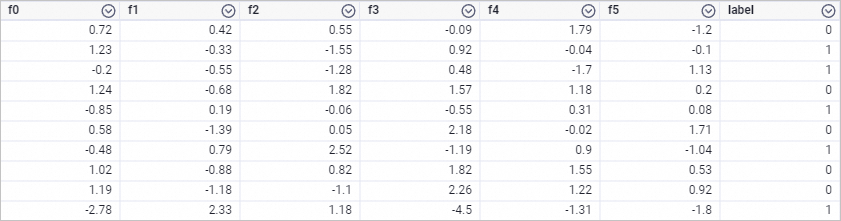
The generated training data is shown in the following figure.
Build the workflow as shown in the following figure and run the components. For more information, see Algorithm modeling.
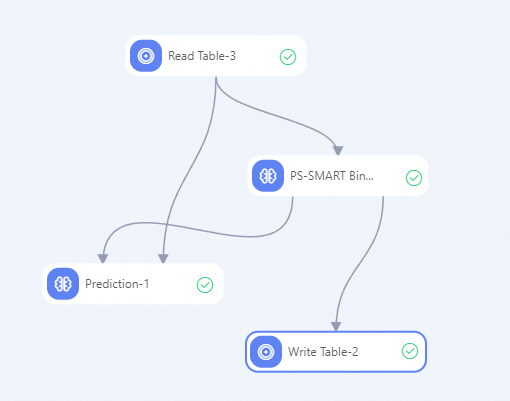
In the component list on the left side of the Designer canvas, search for and drag the Read Table, PS-SMART Binary Classification Training, Prediction, and Write Table components to the canvas.
Connect the components as shown in the preceding figure to build a workflow with upstream and downstream relationships.
Configure the component parameters.
On the canvas, click the Read Table-1 component. On the Select Table tab in the right pane, set Table Name to smart_binary_input.
On the canvas, click the PS-SMART Binary Classification Training-1 component. In the right pane, configure the parameters as described in the following table. Use the default values for other parameters.
Tab
Parameter
Description
Fields Setting
Feature Columns
Select the f0, f1, f2, f3, f4, and f5 columns.
Label Column
Select the label column.
Parameter Settings
Evaluation Metric Type
Select Area under curve for classification.
Number of Trees
Enter 5.
On the canvas, click the Prediction-1 component. On the Fields Setting tab in the right pane, set Reserved Columns to Select All. Use the default values for other parameters.
On the canvas, click the Write Table-1 component. On the Select Table tab in the right pane, set Output Table Name to smart_binary_output.
After you configure the parameters, click the Run button
 to run the workflow.
Right-click the Prediction-1 component and choose to view the prediction result.
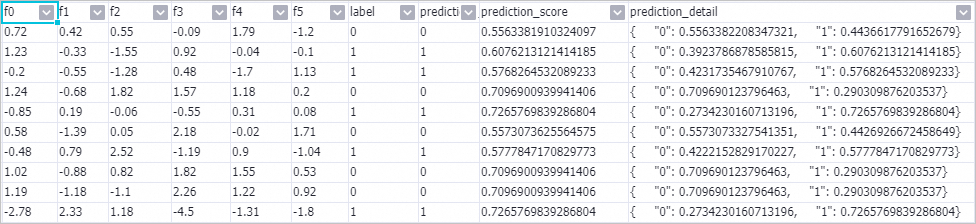 In the prediction_detail column, 1 represents a positive sample and 0 represents a negative sample.
Right-click the PS-SMART Binary Classification Training-1 component and choose to view the feature importance table.
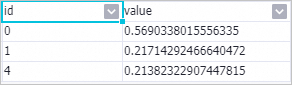 The parameters are described as follows:
id: The ordinal number of an input feature. In this example, the input features are f0, f1, f2, f3, f4, and f5. Therefore, the value 0 in the id column represents the f0 feature column, and the value 4 in the id column represents the f4 feature column. If the input data is in key-value (KV) format, the id column represents the key.
value: The feature importance type. The default value is gain, which is the sum of information gain that the feature brings to the model.
The feature importance table contains only three features. This means that only these three features are used in the tree splitting process. The importance of the other features is considered to be 0.
PS-SMART model deployment instructions
To deploy the model generated by the PS-SMART component as an online service, you must add the General-purpose Model Export component downstream of the PS-SMART component. You can configure the component parameters in the same way as for other PS-series components. For more information, see General-purpose Model Export.
Upon successful execution, you can go to the PAI-EAS Model Online Service page to deploy the model service. For more information, see Deploy a service in the console.
References
For more information about Designer components, see Designer overview.
Designer provides a variety of algorithm components. You can select the appropriate components for data processing based on your scenario. For more information, see Component reference: All components.