The Export General-Purpose Model component saves a trained MaxCompute model to Object Storage Service (OSS). Use it as the final step in a PAI Designer pipeline after training — the exported model is then available for deployment or sharing.
Prerequisites
Before you begin, ensure that you have:
Completed OSS authorization for Designer. For details, see Cloud product dependencies and authorization: Designer
Supported upstream components
The following training components can connect to the Export General-Purpose Model component. Port requirements and supported export formats differ by component type.
| Upstream component | Type | Supported formats | Port connection |
|---|---|---|---|
| Gradient Boosting Decision Trees (GBDT) Binary Classification | General ML | original, pmml | Port 1 only |
| Linear Support Vector Machine | General ML | original, pmml | Port 1 only |
| Logistic Regression Binary Classification | General ML | original, pmml | Port 1 only |
| GBDT Regression | General ML | original, pmml | Port 1 only |
| Linear Regression | General ML | original, pmml | Port 1 only |
| k-means Clustering | General ML | original, pmml | Port 1 only |
| Logistic Regression Multiclass Classification | General ML | original, pmml | Port 1 only |
| Naive Bayes | General ML | original, pmml | Port 1 only |
| PS-SMART Binary Classification Training | PS-series | original only | Port 1 and port 2 |
| PS-SMART Multiclass Classification | PS-series | original only | Port 1 and port 2 |
| PS-SMART Regression | PS-series | original only | Port 1 and port 2 |
| PS Linear Regression | PS-series | original only | Port 1 and port 2 |
Port connection rules:
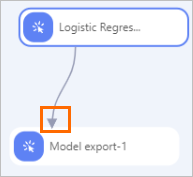
General ML components — connect the output model to port 1 of the Export General-Purpose Model component.
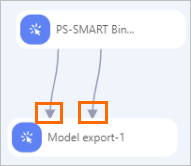
PS-series components — connect to both port 1 and port 2.
Configure the component in Designer
On the Parameters tab of the Export General-Purpose Model component, configure the following parameters.
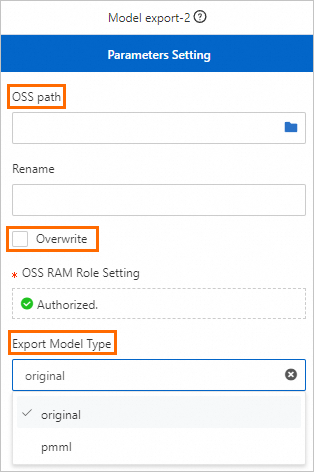
| Parameter | Required | Description | Default |
|---|---|---|---|
| Rename | No | A new name for the exported model. If left blank, the model is saved using the name of the upstream output model. | None (model keeps upstream name) |
| Overwrite Existing Model | No | When used together with Rename, overwrites the previously exported model on each run. Configure this to avoid accumulating multiple exports at the same OSS path. | Not selected |
| Overwrite | No | Overwrites any model file of the same name at the specified OSS path. | Not selected |
| Export Model Format | Yes | The format of the exported model file. Supported values: original (exports a .meta file and a .model file) or pmml (exports a .xml file). Check the table above to confirm which formats your upstream component supports. | None |
To overwrite the previously exported model on every run, set Rename and select Overwrite Existing Model.
Configure the component using PAI commands
Run the following PAI command in an SQL script or an ODPS SQL node in DataWorks.
PAI -name generalmodeltransfer2oss
-project algo_public
-Dformat="original"
-Drename="model_export"
-Doverwrite="false"
-DossPath="oss://examplebucket-cn-hangzhou-internal.aliyuncs.com/export/"
-Darn="acs:ram::xxxxxxxxxx:role/aliyunodpspaidefaultrole"
-DmodelName="model_flow_aius5tamq5rv4x****_node_anprs9ufo40opc****_model"| Parameter | Required | Description | Default |
|---|---|---|---|
format | Yes | Export format: original or pmml. | None |
rename | No | New name for the exported model. | None (model keeps upstream name) |
overwrite | No | Whether to overwrite a model of the same name at the target path. Accepted values: true or false. | false |
ossPath | Yes | The OSS path to export the model to. | None |
arn | Yes | The authorization information (ARN of the RAM role). To get this value, go to the PAI console, navigate to All Product Dependencies, find the Designer section, and click View Authorization Information in the Actions column. For details, see Cloud product dependencies and authorization: Designer. | None |
inputTable | No | Required when exporting from a PS-series component. Specify the model table generated by the training component. | None |
modelName | Yes | The name of the offline model to export. | None |