You can use the Text Summarization Predict component to test a trained text summarization model and evaluate its inference performance based on the prediction results. This topic describes how to configure the Text Summarization Predict component.
Prerequisites
OSS is activated, and Machine Learning Studio is authorized to access OSS. For more information, see Activate OSS and Grant the permissions that are required to use Machine Learning Designer.
Limits
The Text Summarization Training component can use only Deep Learning Containers (DLC) computing resources.
Configure component parameters in the UI
In Designer, you can configure the component parameters in the UI.
Input
Input port (from left to right)
Type
Recommended upstream component
Required
Prediction data
OSS
Yes
Prediction model
Component output
No
Component configuration
Tab
Parameter
Description
Field Settings
Input data format
The text columns of the input file. The default value is target:str:1,source:str:1.
Source text column
The column name for the source text in the input table. The default value is source.
Appended output columns
Appends specified text columns from the input file to the output text columns. Separate multiple column names with a comma (,). The default value is source.
Output columns
The column names for the sink table. The default value is predictions,beams.
Prediction data output
The path in an OSS Bucket where the prediction result file is stored.
Use custom model
Specifies whether to use the default PAI model for direct prediction. Valid values:
Yes
No (default)
Is Megatron model
Only pre-trained models with the `mg` prefix listed in the Text Summarization Train component are supported. Valid values:
Yes
No (default)
Model path
This parameter is required only when Use custom model is set to Yes.
The storage path of the custom model in an OSS Bucket.
Parameter Settings
Batch size
The batch processing size during training. This is an INT type. The default value is 8.
If you use multi-GPU servers, this parameter specifies the batch size for each GPU.
Maximum text length
The maximum length of the entire sequence. This is an INT type. The value must be in the range (1, 512). The default value is 512.
Language
The language for text processing:
zh: Chinese.
en: English.
Copy text from source
Specifies whether to use a copy mechanism. Valid values:
false (default)
true
Minimum decoder length
The minimum length of the decoder. This is an INT type. The default value is 12. The model output length must be greater than this value.
Maximum decoder length
The maximum length of the decoder. This is an INT type. The default value is 32. The model output length must be less than this value.
Minimal Unique Field
The size of the non-repeating segment (n-gram). This is an INT type. The default value is 2.
Beam search size
The size for beam search. This is an INT type. The default value is 5.
Number of returned candidates
The number of results to return. This is an INT type. The default value is 5.
ImportantThis parameter must be the same as Beam search size.
Execution Tuning
GPU type
The GPU type of the compute resource. The default value is gn5-c8g1.2xlarge.
Example
You can use the Text Summarization Predict component to build a workflow. There are two ways to call the workflow.
Method 1: Use a model fine-tuned by the Text Summarization Train component.
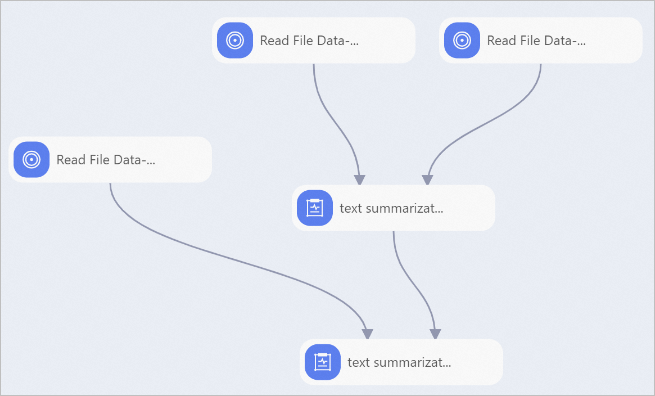
Method 2: Use a custom model.
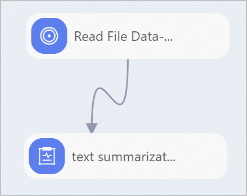
In this example, configure the component and run the workflow as follows:
Build a workflow. For more information, see the Example section of the Text Summarization Train topic.
Prepare the data that you want to summarize (predict_data.txt) and upload it to an OSS bucket. The test data in this example is a tab-delimited TXT file.
CSV files are also supported. You can use the Tunnel command of the MaxCompute client to upload the dataset to MaxCompute. For more information about how to install and configure the MaxCompute client, see Connect to MaxCompute using the client (odpscmd). For more information about the Tunnel command, see Tunnel commands.
Use the Read OSS Data-3 component in Method 1 or the Read OSS Data-1 component in Method 2 to read the test dataset. To do this, set the OSS Data Path parameter of the Read OSS Data component to the OSS path where the test dataset is stored.
Connect the model file and the test dataset to the Text Summarization Predict component and configure its parameters. For more information, see Configure component parameters in the UI.
If you use a model fine-tuned by the Text Summarization Train component, connect the model output port of the Text Summarization Train component to the model input port of the Text Summarization Predict component.
If you use a custom model, on the Field Settings tab, set the Use custom model parameter to Yes and set the Model path parameter to the OSS path where the model is stored.
Click the
 button to run the workflow. After the workflow runs successfully, you can view the output summary in the OSS path that you specified for the Prediction data output parameter of the Text Summarization Predict component.
References
For more information about how to configure the Text Summarization Train component, see Text Summarization Train.
You can use the Text Summarization Train and Text Summarization Predict components to perform various text generation tasks, such as text summarization and news headline generation. For more information, see Intelligent content creation solutions.