SQL Explorer
The SQL Explorer feature for PolarDB for PostgreSQL and is a value-added service that provides health diagnostics and performance issue troubleshooting for your database.
Features
DAS integrates Search, SQL Explorer, Security Audit, and Traffic Replay and Stress Testing based on full request data collection. These features help you retrieve SQL details, troubleshoot performance issues, identify high-risk sources, and assess scaling needs.
-
Search feature: Queries and exports SQL statements and related information such as database, status, and execution time. Audit.
NoteEnabling or disabling audit logs on the SQL Explorer and Audit console page changes the
log_statementkernel parameter.-
Enabling audit logs sets
log_statement = all. -
Disabling audit logs sets
log_statement = ddl.
-
-
SQL Explorer: Diagnoses SQL health, troubleshoots performance issues, and analyzes service traffic. SQL Explorer.
-
SQL Review: Identifies suspicious SQL statements across database instances and provides optimization suggestions. SQL Review.
-
Traffic Replay and Stress Testing: Validates whether your instance specifications can handle traffic peaks. Traffic Replay and Stress Testing.
-
The Security audit feature identifies risks such as high-risk SQL, SQL injection, and new access sources. Security Audit.
-
The Transaction Analysis feature displays transaction types, counts, and details for a specific process within a time period, helping you analyze and optimize database performance. Transaction Analysis.
-
Quick Transaction Analysis: Identifies the start and end statements of a transaction to determine whether it was committed or rolled back. Quick Transaction Analysis.
-
Supported regions
SQL Explorer and Audit requires DAS Enterprise Edition. Supported regions vary by edition. Databases and regions supported by different editions.
Impact
SQL Explorer records all DQL, DML, and DDL operations. The data is output by the database kernel with minimal CPU overhead.
Usage notes
To use the Search feature, RAM users must have the AliyunPolardbReadOnlyWithSQLLogArchiveAccess permission. Create and manage RAM users.
You can also use custom policies to grant Search (Audit) and log export permissions. Use custom policies to grant a RAM user permissions to use the Search (and export) feature of SQL Explorer and Audit.
Billing
Enterprise Edition V0
SQL Explorer on Enterprise Edition V0 is billed on a pay-as-you-go basis. Subscription billing is not supported. Charges appear under PolarDB in your bill.
Prices
-
Regions in the Chinese mainland: CNY 0.008/GB/hour.
-
Hong Kong (China) and other regions outside China: CNY 0.0122/GB/hour.
Enterprise Edition V0 or later
For SQL Explorer billing on Enterprise Edition V0 or later, see DAS billing.
Enable SQL Explorer
-
Log on to the PolarDB console.
-
In the upper-left corner of the console, select a region.
-
Click the ID of the destination cluster.
-
In the navigation pane on the left, choose .
-
Enable SQL Explorer.
If DAS Enterprise Edition is not enabled for your Alibaba Cloud account, follow the on-screen instructions to enable it.
-
Click a feature tab to view related information.
-
Range View: Select a time range to view the SQL Explorer results. You can view the Execution Time Distribution, Execution Duration, and Executions for all SQL statements within the selected time range. You can also view detailed information about all SQL statements in the Full Request Statistics section and export the information to your local computer.
NoteYou can export a maximum of 1,000 SQL logs. To retrieve more SQL logs over a longer time range, you can use the Audit feature.
-
Display by Comparison: Select time points to compare the SQL Explorer results. You can view a comparison of the Execution Time Distribution, Execution Duration, and Executions for all SQL statements. You can also view detailed comparison results in the Requests by Comparison section.
-
Source Statistics: Select a time range to view statistics about SQL sources. You can view the source information for all SQL statements within the selected time range.
-
Parameter descriptions
-
Execution Time Distribution: Shows the execution duration distribution of all SQL statements within the selected time range. The execution duration is divided into seven intervals and is calculated every minute:
-
[0, 1] ms: The percentage of SQL executions where the execution duration is between 0 ms and 1 ms, inclusive. -
(1, 2] ms: The percentage of SQL executions where the execution duration is greater than 1 ms and less than or equal to 2 ms. -
(2, 3] ms: The percentage of SQL executions where the execution duration is greater than 2 ms and less than or equal to 3 ms. -
(3, 10] ms: The percentage of SQL executions where the execution duration is greater than 3 ms and less than or equal to 10 ms. -
(10, 100] ms: The percentage of SQL executions where the execution duration is greater than 10 ms and less than or equal to 100 ms. -
(0.1, 1] s: The percentage of SQL executions where the execution duration is greater than 0.1s and less than or equal to 1s. -
>1 s: The percentage of SQL executions where the execution duration is greater than 1s.
NoteIf the Execution Time Distribution for a cluster is closer to blue, the SQL health of the instance is good. If it is closer to orange and red, the SQL health is poor.
-
-
Execution Duration: Shows the execution duration of SQL statements within the selected time range.
-
Full Request Statistics: Shows information for each type of SQL statement within the selected time range, such as the SQL text, duration percentage, average execution duration, and execution trend.
NoteDuration Percentage = (Execution Duration of This SQL Type × Number of Executions) / (Execution Duration of All SQL Statements × Total Number of Executions) × 100%. A higher duration percentage indicates that the SQL statement type consumes more cluster resources.
-
SQL ID: Click an SQL ID to view the performance trend, SQL samples, and other information for that type of SQL statement.
-
SQL Sample: Use the SQL Sample to identify which application initiated the SQL statement.
NoteSQL samples are encoded in the UTF-8 character set.
Modify the storage duration of SQL logs
-
Log on to the PolarDB console.
-
In the upper-left corner of the console, select a region.
-
Click the ID of the destination cluster.
-
In the navigation pane on the left, choose .
-
In the upper-right corner, click Service Settings.
-
Modify the storage duration, and click OK.
If you have enabled DAS Enterprise Edition V3, you can modify the data storage duration for different sub-features.
NoteThe storage space for SQL Explorer data is provided by DAS and does not occupy the storage space of the database instance.
Export SQL records
-
Log on to the PolarDB console.
-
In the upper-left corner of the console, select a region.
-
Click the ID of the destination cluster.
-
In the navigation pane on the left, choose .
-
Click the Audit tab, and then click Export.
-
In the dialog box that appears, select the required Export Field, specify an Export Time Range, and click OK.
-
In the Are you sure that you want to export SQL details? dialog box, set the Task Name and CSV Separator, and then click Are you sure you want to submit the task?.
Note-
Once a task is submitted, it cannot be canceled.
-
No fees are charged if the task fails.
-
Task-related data is retained for only 7 days.
-
A maximum of 10 million records can be exported for a task. If the number of records to export exceeds 10 million, you must reduce the time range for the export.
-
The system requires approximately 5 minutes to process and archive the latest data. To export the latest data, wait for a few minutes and then try again.
-
-
After the export is complete, click Tasks in the upper-right corner of the SQL Explorer page. In the Actions column of the target task, click Download to download the exported file.
Disable SQL Explorer
After you disable the SQL Explorer feature, the SQL audit logs are deleted. Before you disable the SQL Explorer and SQL Audit features, you must export and save the SQL audit logs to your local computer. If you re-enable the features, SQL audit logs are recorded from the time of re-enabling.
-
Log on to the PolarDB console.
-
In the upper-left corner of the console, select a region.
-
Click the ID of the destination cluster.
-
In the navigation pane on the left, choose .
-
Click Service Settings to disable SQL Explorer and SQL Audit.
If you have enabled DAS Enterprise Edition V3, clear the check boxes for all SQL Explorer and SQL Audit features, and then click Submit.
NoteApproximately one hour after you disable the SQL Explorer and SQL Audit features, the system releases the storage space that is occupied by the SQL Explorer and SQL Audit data.
-
Select the check box to acknowledge the prompt, and then click Submit and Unsubscribe.
View audit log size and consumption
-
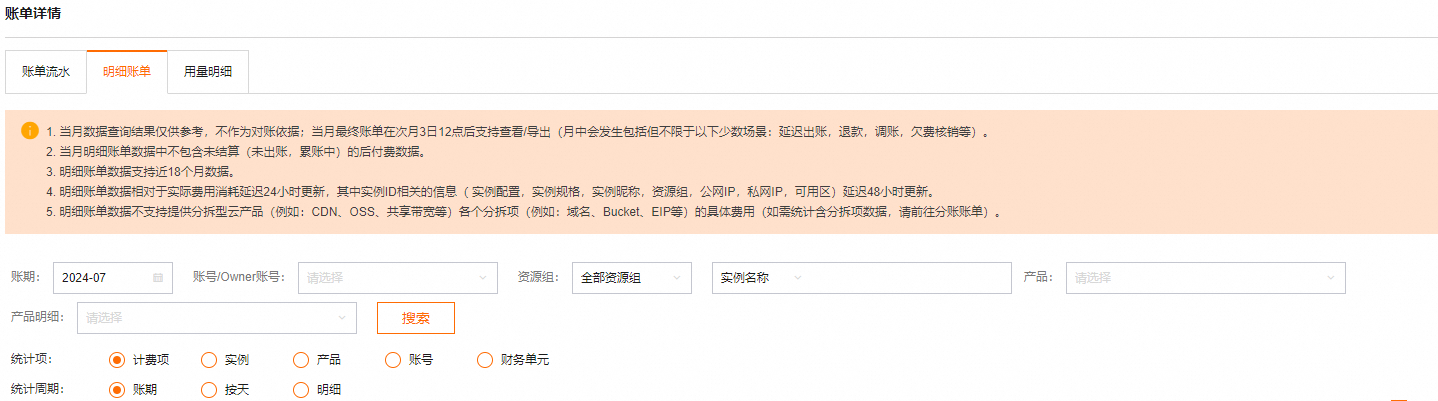
Log on to the Alibaba Cloud Console. In the upper-right corner of the page, choose Expenses.
-
In the left-side Expenses and Costs navigation pane, choose . View the cost details where the Billable Item column is sql_explorer.
-
On the Bill Details page, search by Instance ID. View the cost details where the Billable Item column is sql_explorer.