This topic describes how to use the Parameter Files feature in Performance Testing Service (PTS) to centrally manage parameter files.
Background
In Performance Testing Service (PTS), the Parameter Files feature lets you centrally manage parameter files. This feature decouples parameter file management from scenario management. You can associate uploaded parameter files with existing stress testing scenarios directly on the Parameter Files page, without editing the scenarios. This centralized approach reduces management overhead. For example, if you need to reuse parameter files, such as those containing user or product information, you can select an existing file instead of repeatedly uploading the same one for different stress testing scenarios.
Parameter file specifications
CSV and ZIP files are supported. A ZIP compressed package can contain only one CSV file.
NoteDo not change the file extension of an XLSX file to generate a CSV file. We recommend that you use programs, such as Excel or Numbers, to save an XLSX file as a CSV file or use the Apache Commons CSV program to generate a CSV file.
-
You can upload multiple files.
-
For a resource pack with 5,000 or more virtual users, a single file can be up to 600 MB. Larger files must be compressed into a ZIP file.
-
For a resource pack with fewer than 5,000 virtual users, a single file can be up to 100 MB. Larger files must be compressed into a ZIP file.
-
If a file still exceeds the 600 MB or 100 MB limit after being compressed, you can upload it from an Object Storage Service (OSS) address.
NoteThe maximum file size for uploads from an OSS address is 2 GB.
-
-
A file can contain up to 2.1 billion rows, and each row can contain up to 20,000 characters.
-
If you need to combine data from multiple sources into a parameter set, you do not need to place all related data in a single file. You can use the file parameter settings in the data configuration node to combine data across files.
-
If you reference parameters from multiple files, you can set a combination baseline by specifying a baseline file. If you do not configure the Baseline Column or Use Once parameters, the system randomly selects a file to serve as the baseline. For more information, see How PTS reads parameters from multiple files in virtual user and RPS modes.
-
If your parameters have a strict one-to-one mapping, you must place them in a single file and ensure the mapping is correct. Make sure that the data in all columns for each row is complete. Otherwise, this can result in empty fields, which may affect the performance testing data.
The following sample code provides an example of the file content. If the data in the first row of a parameter file is not parameter names, you must specify a parameter name for each column based on your business scenario.
username,password
user1,Password1
user2,Password2
user3,Password3
Upload a parameter file
You can upload parameter files to Data Source for centralized management.
-
Log on to the PTS console, and in the left-side navigation pane, choose Performance Test > Data Sources.
-
On the Parameter Files page, click Upload File in the upper-left corner. For more information about how to upload a parameter file, see file data source and OSS data source.
View parameter files
The Parameter Files page displays information about each parameter file, including its file name, creator, last modified time, and file size.
|
Parameter |
Description |
|
File Name |
The name of the parameter file. |
|
Created By |
The user who created the parameter file. |
|
Last Modified At |
The time when the parameter file was last updated. |
|
File size |
The size of the parameter file. |
|
Rows |
The number of rows in the parameter file. |
|
Default Parameter |
The default names of the parameters that can be exported from the file, listed in column order. |
|
Scenarios |
The stress testing scenarios that reference the parameter file. |
|
Actions |
Available actions, such as Delete, Add Scenarios, and Download. |
Manage parameter files
After uploading a parameter file, you can perform actions such as Add Scenarios, Delete, and Download.
-
Add Scenarios
After uploading a parameter file, you can associate it with scenarios. You can then directly use the parameter file when you edit those scenarios.
-
On the Parameter Files page, find the target parameter file and click Add Scenarios in the Actions column.
-
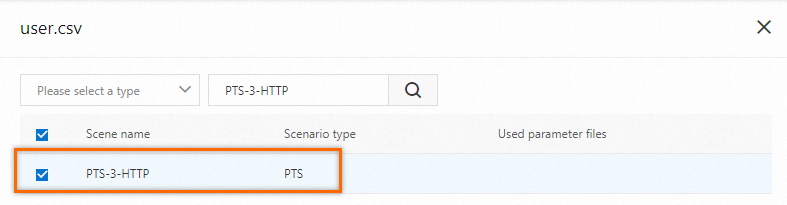
Select the desired scenarios. You can filter and search by scenario type (currently, only PTS scenarios are supported), scenario name, or scenario ID.
-
Click OK.
After you add them, the scenarios appear in the Scenarios column for the parameter file.
-
-
Download a parameter file
In the Actions column of the target parameter file, click Download. After the download is complete, you can view the file on your local machine.
-
Delete a parameter file
You can delete parameter files that are not referenced by any stress testing scenario.
In the Actions column of the target parameter file, click Delete. In the confirmation dialog box, click Confirm.