When you run a performance test with static request values, server-side caching can skew your results. Parameterized requests replace those static values with dynamic data at runtime, producing realistic metrics and enabling multi-user simulation.
Performance Testing (PTS) collects all parameters you create -- file parameters, custom parameters, and output parameters -- in the Session Parameters panel. Copy any parameter from this panel and paste it into a text input field, such as a request body, to parameterize your API requests.
Parameter syntax
PTS parameters use the ${parameterName} syntax. At runtime, each placeholder is replaced with the actual value from its data source.
| Component | Description | Example |
|---|---|---|
${} | Placeholder wrapper | Required for every parameter reference |
parameterName | Name of the created parameter | username, token, orderId |
| Full reference | Complete parameter placeholder | ${username} |
For example, a request body that contains ${username} sends a different username value with each virtual user, rather than the same hardcoded string.
Prerequisites
Before you begin, make sure that you are familiar with the following items:
File data source is created.
Custom parameter is created.
Output parameter is available.
Body definition is configured for the target API.
Add a parameter to a request body
The following steps show how to copy a parameter from the Session Parameters panel and paste it into the Body Definition of an API request.
Log on to the PTS console, choose , and then click PTS.
Enter an API name and configure Basic Request Information. For details, see Basic request information.
Add a Parameter instruction to the API. For details, see Use a parameter instruction.
Open the Session Parameters panel and copy a parameter. At the bottom of the page, click Parameters, select the Session Parameters tab, and then click the copy icon next to the parameter you want. PTS copies the parameter reference (for example,
${username}) to your clipboard.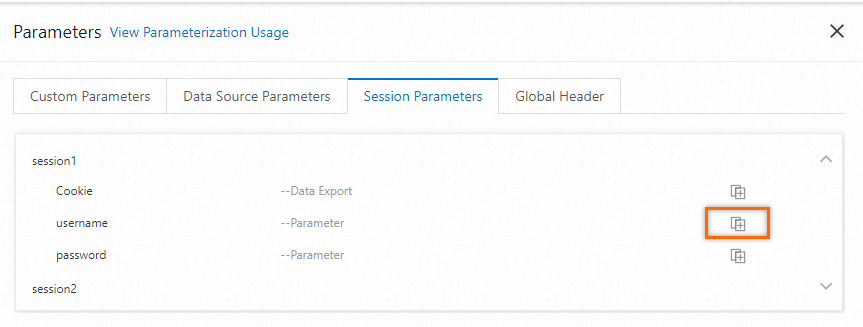
Paste the parameter into the request body. Open the Body Definition tab of the API. Enter a key name in the Key column and paste the copied parameter into the Value column.
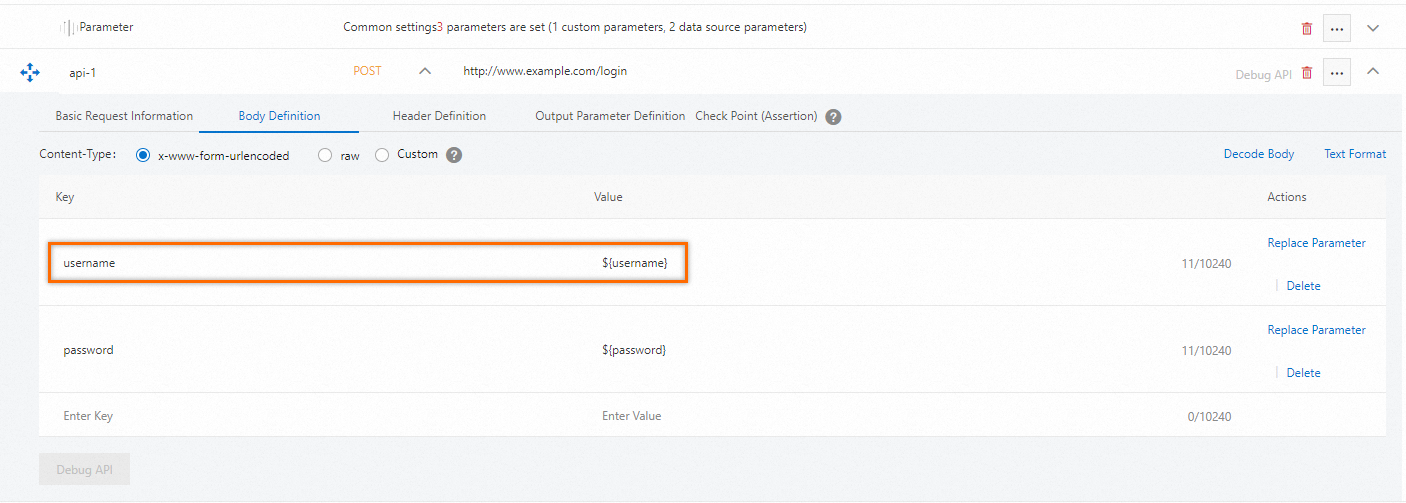
Repeat steps 4 and 5 for each additional parameter.