Add assets from the Data Marketplace
The Data Marketplace is the enterprise-level data asset discovery platform in Quick BI AIPro. Analysts can view various data resources within the organization, including datasets, dashboards, data table portfolios, files, and API data, and add them to My Data for analysis. This topic describes how.
Prerequisites
Subscription: Your organization has purchased Quick BI AIPro.
Permissions: You have at least the basic features permission for Quick BI AIPro.
Asset publication: For data table portfolios, files, and API data, an administrator must publish these assets from the Console for analysts to view them in the Data Marketplace. For more information, see Data Management.
Collaborative authorization: For workspace data assets, such as datasets and dashboards, you must have usage permission to add them to My Data. When you add a dashboard, the system verifies permission only for the dashboard and does not require permission for its underlying dataset. The visibility of workspace data assets in the Data Marketplace also depends on the space mode of the current workspace:
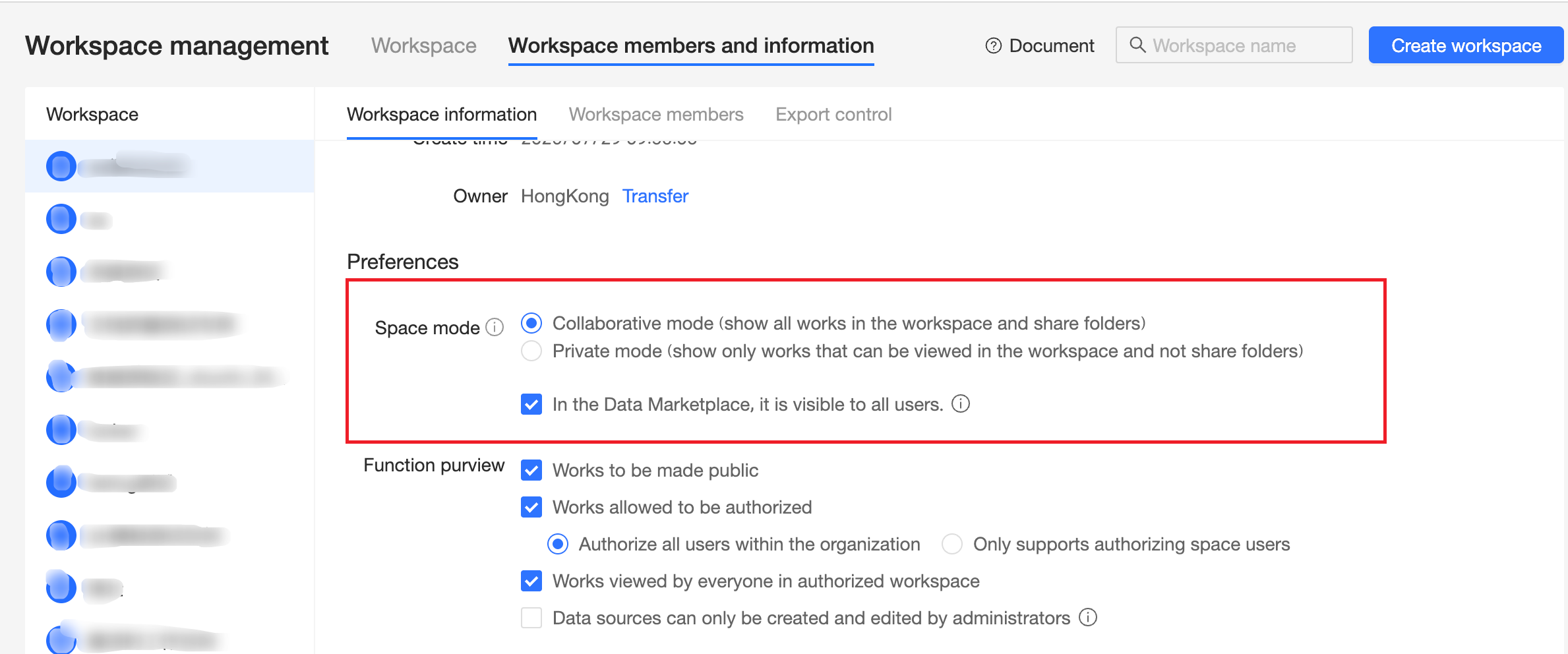
If a workspace is in collaborative mode and the "Visible to all users in Data Marketplace" option is selected, all organization members can view the data in that workspace, even for assets for which they lack permission.
If a workspace is in collaborative mode and the "Visible to all users in Data Marketplace" option is not selected, only workspace members can view its data, including assets for which they lack permission. However, users outside the workspace can view specific assets if they are granted permission.
If a workspace is in private mode, all organization members can view only the resources for which they have usage permission.
Access the feature
On the Enterprise tab of Quick BI AIPro, click Data Marketplace in the left-side navigation pane.
Procedure
The Data Marketplace page displays all available data assets within your organization, with details such as their names, owners, and addition status. On this page, you can browse, search for, and manage these assets.
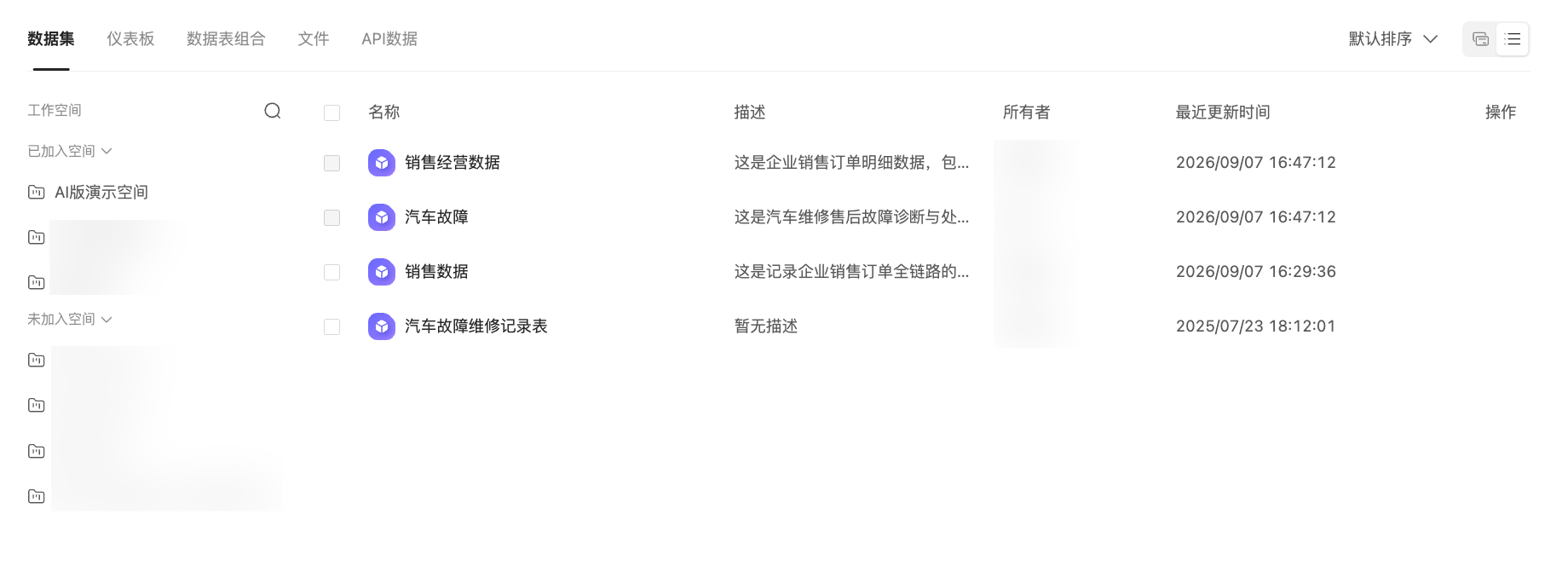
View data assets: Switch between the category tabs to view information about each type of data asset.
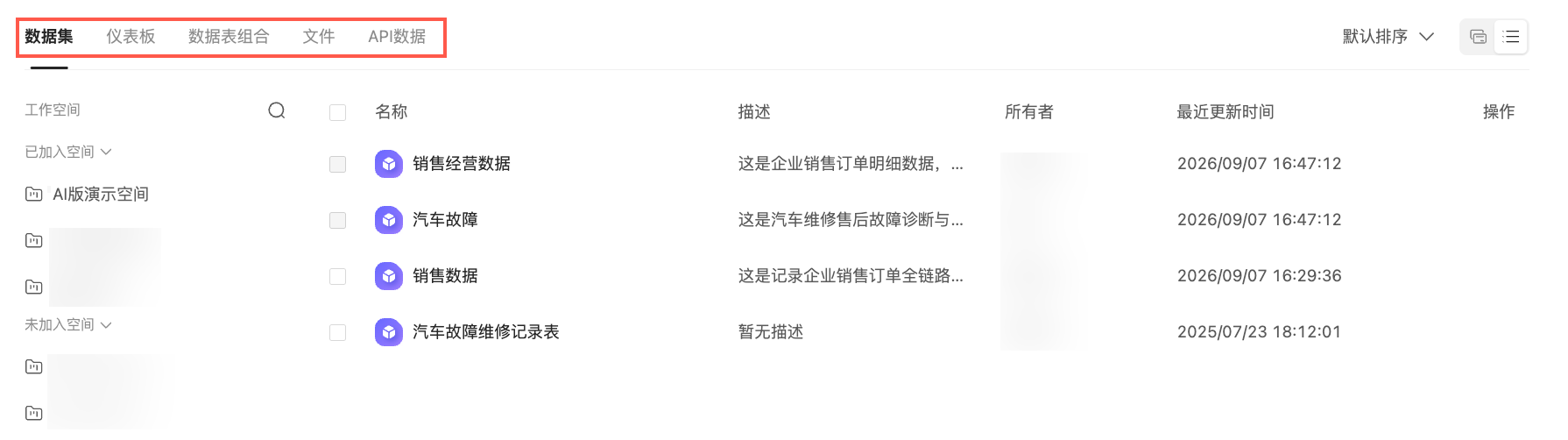
Data category
Description
Dataset
A data asset created by applying data modeling to the data tables required for analysis.
The datasets displayed here are from the workspace that you select in the Data Space list on the left. You can switch to other workspaces to view dataset resources from different spaces.
Dashboard
A data asset that presents data analysis results as a visual report.
The dashboards displayed here are from the workspace that you select in the Data Space list on the left. You can switch to other workspaces to view dashboard resources from different spaces.
Data table portfolio
A data asset created by combining multiple data tables from a data source without first creating a dataset.
Only data table portfolios that an administrator creates in Data Management appear here.
File
A data asset uploaded to Quick BI AIPro as a local file.
Only local file resources that an administrator uploads in Data Management appear here.
API data
An external data asset connected through an API.
Only API data resources that an administrator connects in Data Management appear here.
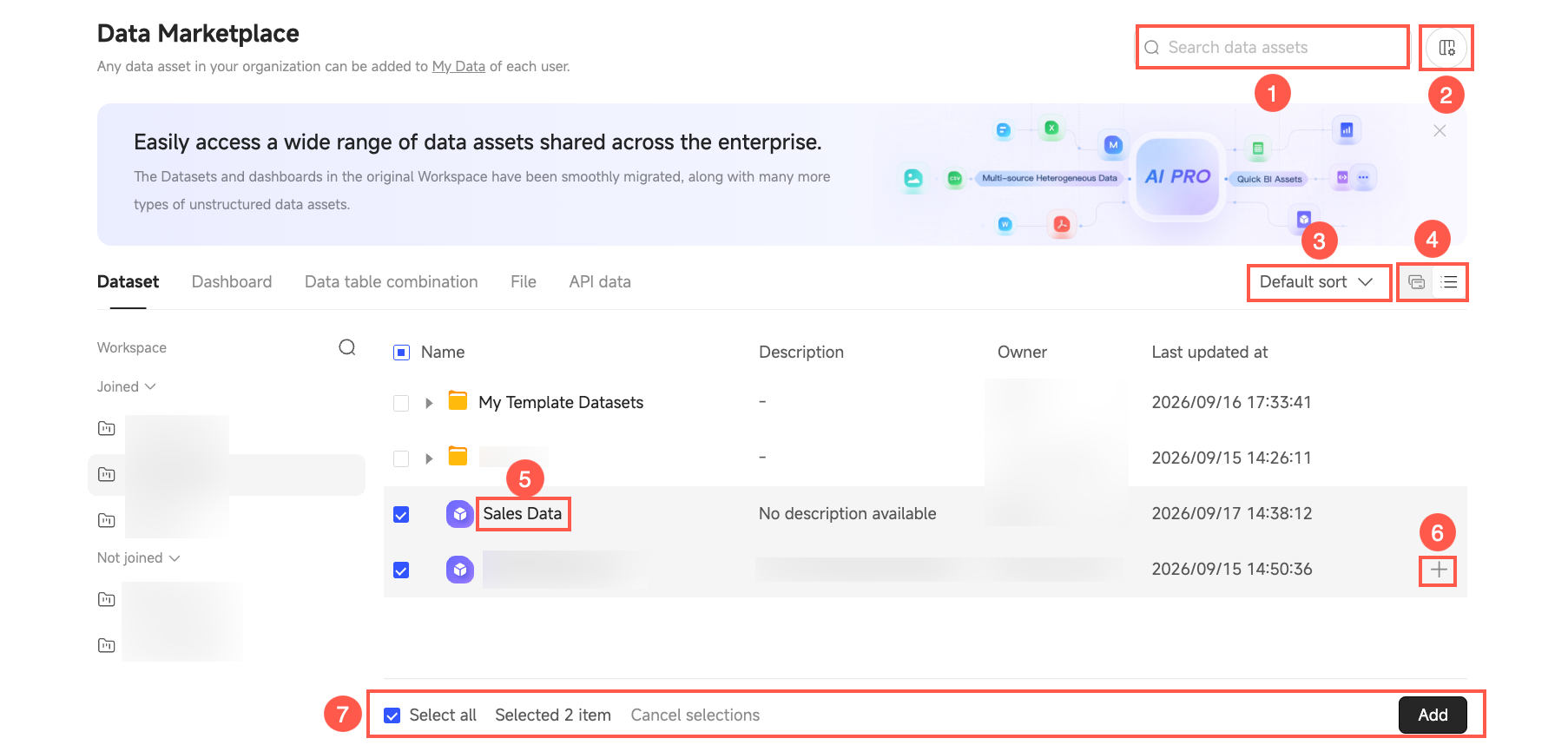
Manage data assets: You can perform the following operations on data assets.
Actions
Description
① Keyword search
If your organization has many data assets, enter keywords from an asset's name in the search box to quickly find it. You can search across all data assets. The results are grouped by asset type and show the number of results for each type.
③ Sort
Sort data assets by the default order, by name in ascending order (A–Z), or by name in descending order (Z–A).
④ View switching
Switch between card view and list view as needed.
Card view (default): Hides the folder structure and displays all data assets as individual cards.
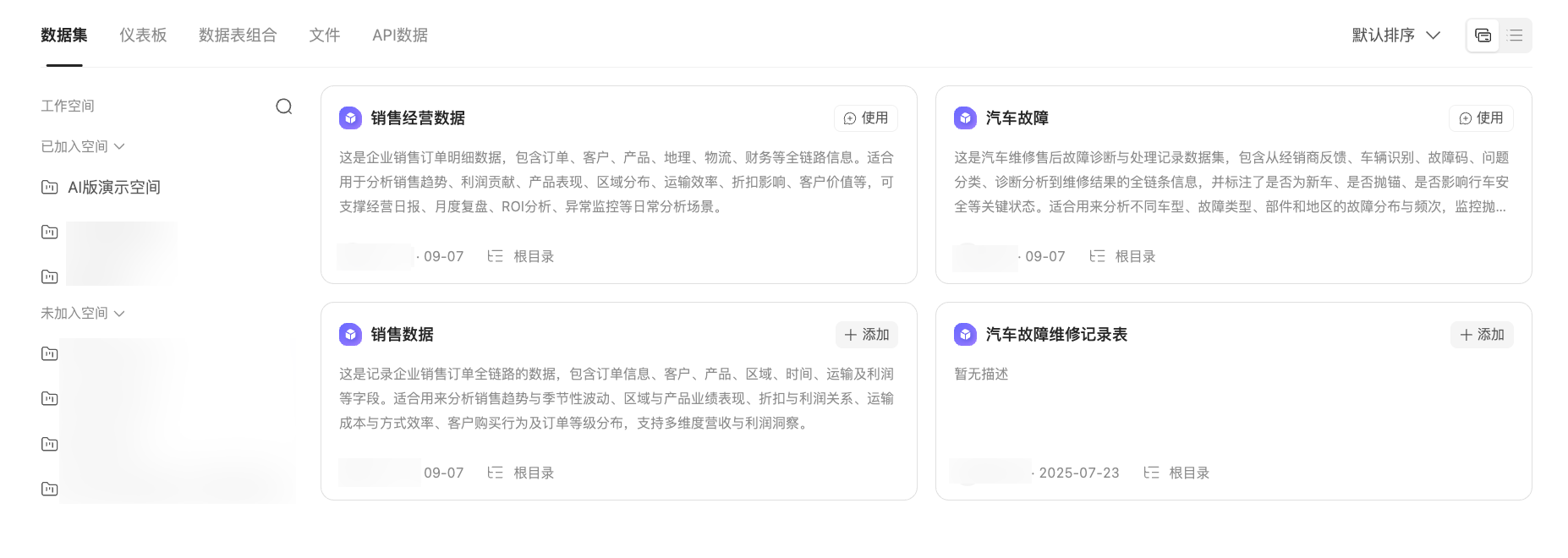
List view: Displays the folder structure and asset details in a list.

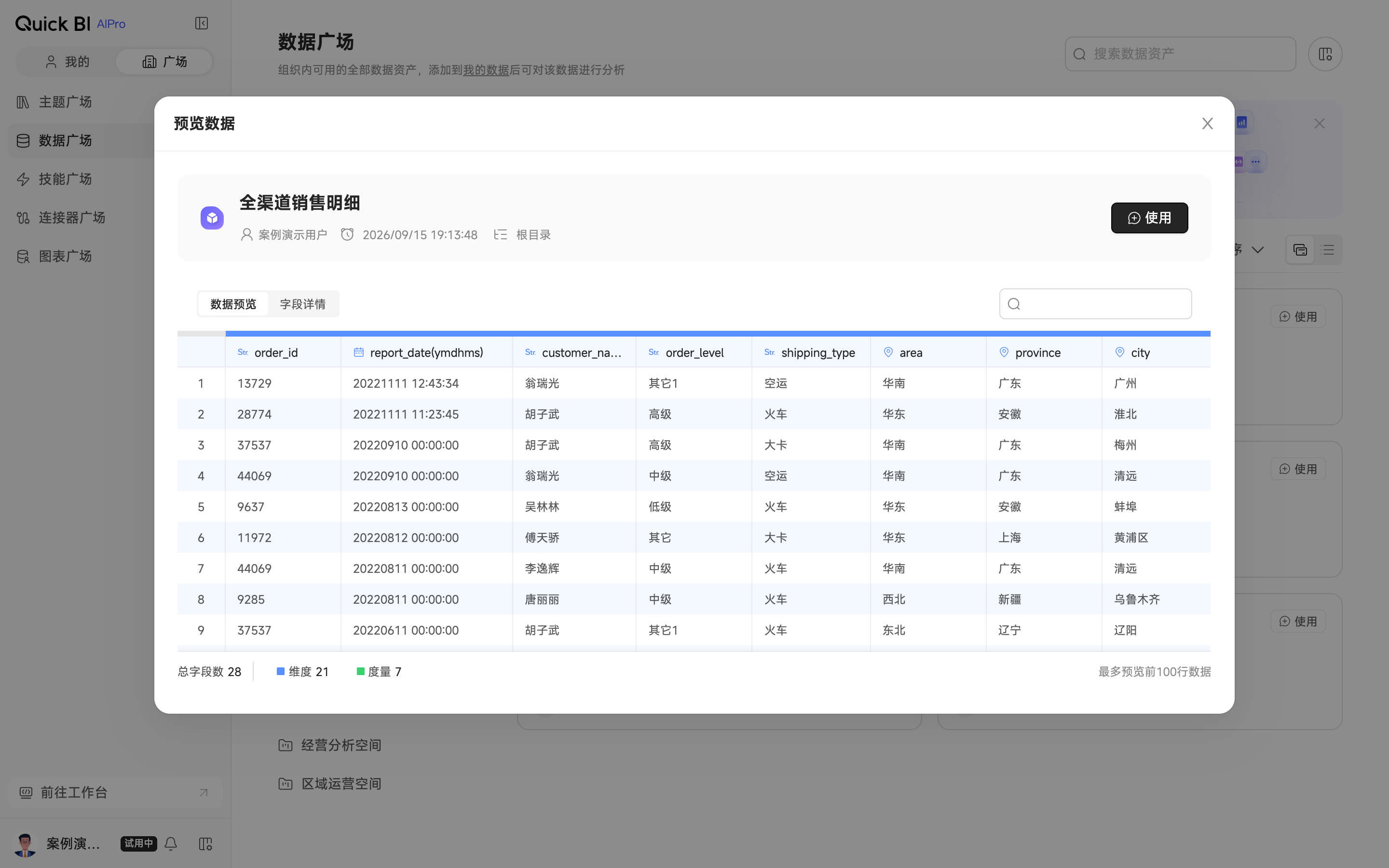
⑤ Preview
Click a data asset's name to open a preview and review its content.
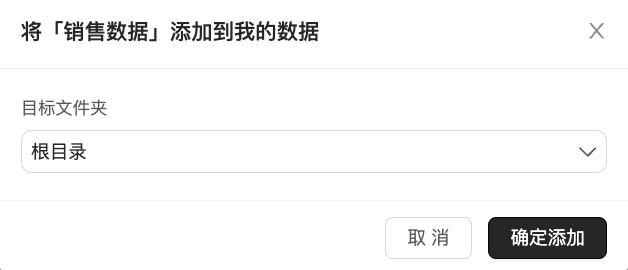
⑥ Add
To add an asset to My Data for later analysis, click Add in the Actions column. In the confirmation dialog box, set a save path and click Confirm Add.
After the asset is added successfully, click Go to My Data to continue managing it. If you do not have usage permission for an asset, click Request Permission. After submitting the request, click Go to Message Center to check the status on the My Applications tab.
NoteFor datasets, you can add only assets for which you have usage permission. For dashboards, you can add any dashboard for which you have permission, without needing permission for the underlying dataset.
When you use a dashboard as a data asset, you can analyze only the data already presented on the dashboard. If you need to drill down with dimensions not included on the dashboard, consider adding the underlying dataset as well.
After you add data assets from the Data Marketplace to My Data, wait for the system to finish parsing before starting an analysis.
⑦ Batch operation
You can perform batch operations, such as Add or Deselect, on multiple selected data assets.