Audit logs
Use audit logs to track who logged in, accessed resources, performed operations, or changed permissions across your organization.
Prerequisites
Before you begin, confirm the following:
Audit logs are only available in the Advanced Edition and Professional Edition.
You must be an organization administrator, or have a custom role that includes Intelligent O&M permissions.
Each log category displays a maximum of 10,000 entries.
-
Retention periods vary by log category:
Login: 30 days
Access: 30 days
Operation: 90 days
Permission: 1 year
Access the audit log page
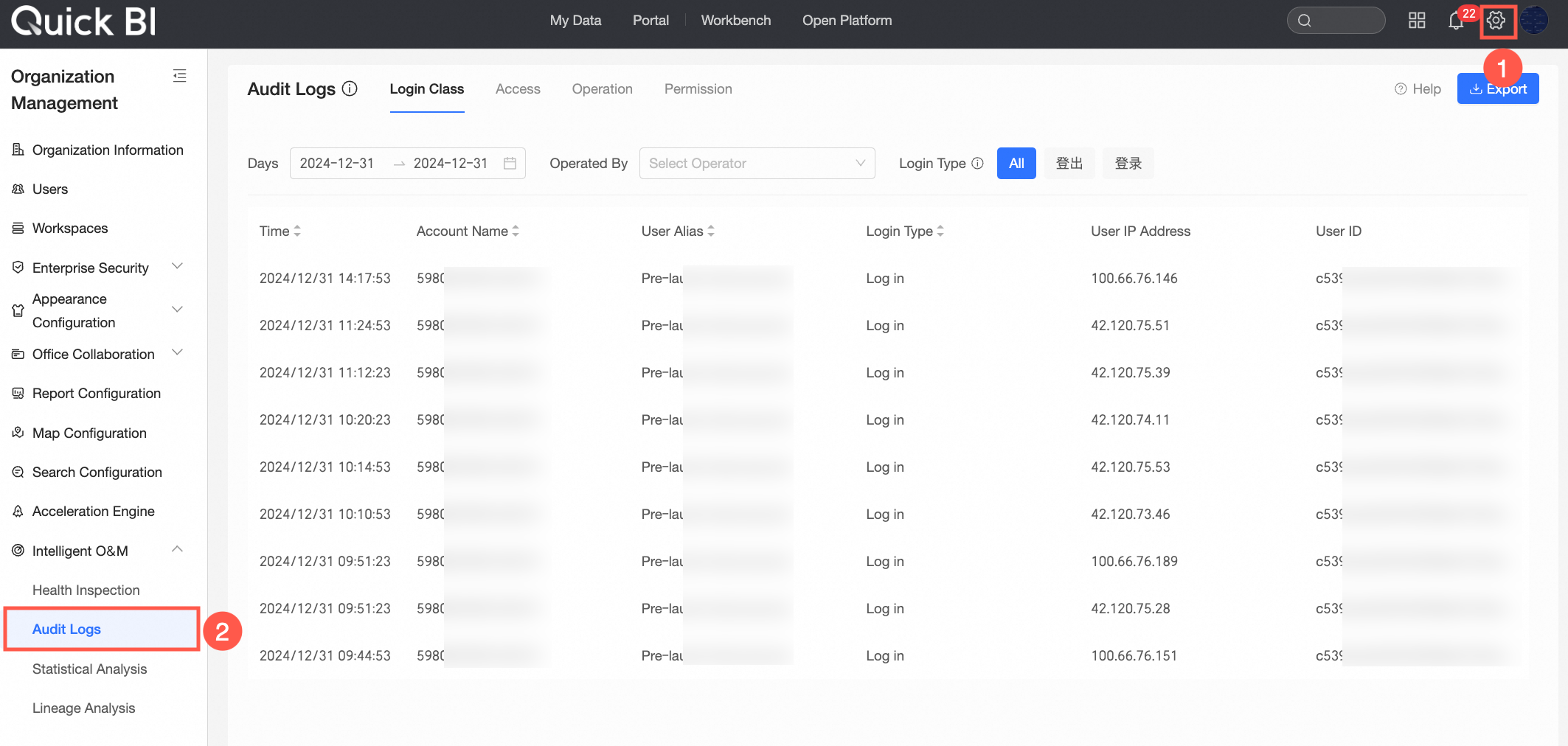
Log categories and filters
The audit log page has four tabs: Login, Access, Operation, and Permission. Each tab lists log entries matching your filter criteria. Every entry identifies the operator—the user who triggered the event.
To answer questions like "Who exported this dataset?" or "Who changed permissions on this dashboard?", apply filters in the relevant tab and export results as an Excel file. For the full list of supported operation types, refer to the Operation Type Mapping Table.xlsx.
Login
The Login tab records login-related activity across your organization. Each entry includes the operation time, account name, nickname, login type, user IP, and user ID.
Login-related logs are retained for 30 days, and a maximum of 10,000 entries are displayed.

Use the following filters to find specific entries:
Date range: The time period for the logs. Quick-select Yesterday, Last 7 Days, or This Month.
Operator: The nickname of the user who initiated the action. Select from the drop-down list or enter a custom value.
-
Login type: The type of login action. Select All, log out, or log in.
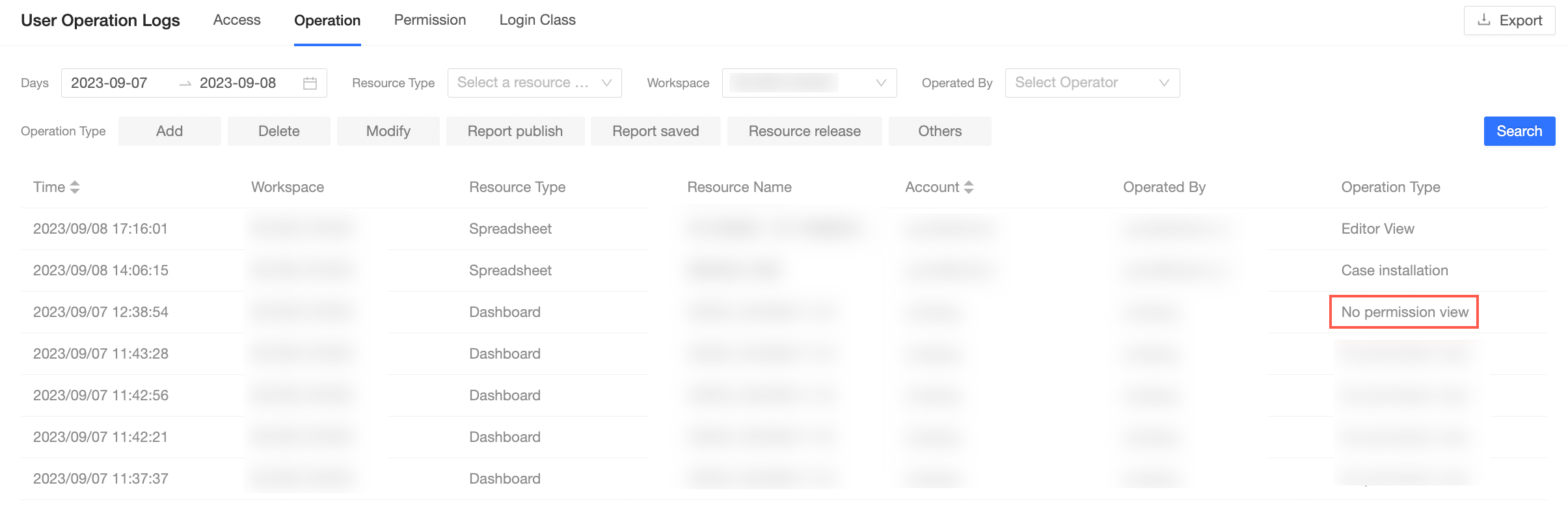
NoteIf a user attempts to access a page without the required permissions, an unauthorized access record appears in the Operation tab instead.
Access
The Access tab records access-related activity across your organization. Each entry includes the operation time, resource name, resource type, workspace, operator's account name, access device, access source, access account, and access type.
Access-related logs are retained for 30 days, and a maximum of 10,000 entries are displayed.

Use the following filters to find specific entries:
Date range: The time period for the logs. Quick-select Yesterday, Last 7 Days, or This Month.
Operator: The nickname of the user who initiated the action. Select from the drop-down list or enter a custom value.
Access type: The type of access. Select All, data export, Download, or View.
Workspace: The workspace where the action occurred. Select any workspace in your organization.
Resource type: The affected resource type. Select data portal, dashboard, large screen dashboard, spreadsheet, ad-hoc analysis, self-service query, data preparation, data entry, dataset, or data source.
Access device: The client used for the action. Select mobile client or PC client.
Access source: The method used to access the resource. Select Normal Access, embedded report, public report, or Embedded Card.
Operation
The Operation tab records operation-related activity across your organization. Each entry includes the operation time, workspace, resource type, resource name, account, operator, and operation type.
Operation-related logs are retained for 90 days, and a maximum of 10,000 entries are displayed.

Use the following filters to find specific entries:
Date range: The time period for the logs. Quick-select Yesterday, Last 7 Days, or This Month.
Operator: The nickname of the user who initiated the action. Select from the drop-down list or enter a custom value.
Operation type: The type of operation performed. Select Add, Delete, Modify, Publish Report, Save Report, Unpublish Resource, or Other.
Workspace: The workspace where the action occurred. Select any workspace in your organization.
Resource type: The affected resource type. Select data portal, dashboard, large screen dashboard, spreadsheet, ad-hoc analysis, self-service query, data preparation, data entry, dataset, or data source.
Permission
The Permission tab records permission-related activity across your organization. Each entry includes the operation time, workspace, resource type, resource name, account, operator, operation type, impact type, and affected object.
Permission-related logs are retained for 1 year, and a maximum of 10,000 entries are displayed.

Use the following filters to find specific entries:
Date range: The time period for the logs. Quick-select Yesterday, Last 7 Days, or This Month.
Operator: The nickname of the user who initiated the action. Select from the drop-down list or enter a custom value.
Permission type: The type of permission operation. Select grant permission, Modify Authorization, revoke permission, Make Public, Unpublish, or Other.
Workspace: The workspace where the action occurred. Select any workspace in your organization.
Resource type: The affected resource type. Select data portal, dashboard, large screen dashboard, spreadsheet, ad-hoc analysis, self-service query, data preparation, data entry, dataset, or data source.