A permission administrator can grant users permissions to edit a BI portal, and to export or view its menu content.
Background
When a permission administrator grants permissions to users, the permission attributes differ between collaborative and private modes, as the following figure shows.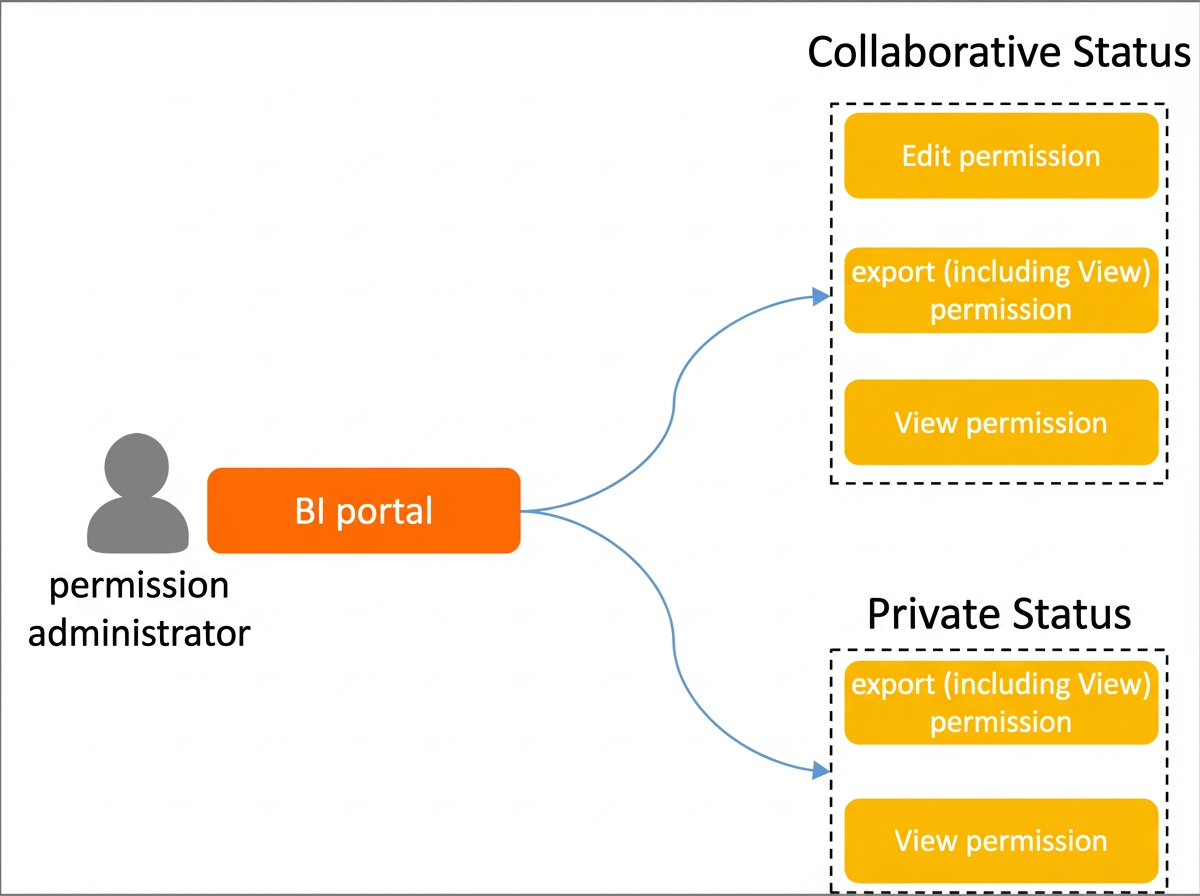
The collaborative permissions are:
Edit: Users with the Edit permission can edit the BI portal, and export and view its menu content.
Export: Users with the Export (Including View) permission can export and view the BI portal's menu content.
View: Users with the View permission can only view the BI portal's menu content.
Use cases
Reuse permission configurations by synchronizing them across similar resources to improve efficiency.
Scenario | Expected outcome |
Analyst A, who is in the same workspace, can edit the BI portal.
| |
Scenario 2: Grant view or export permissions on BI portal menu content |
|
Scenario 1: Grant edit permissions
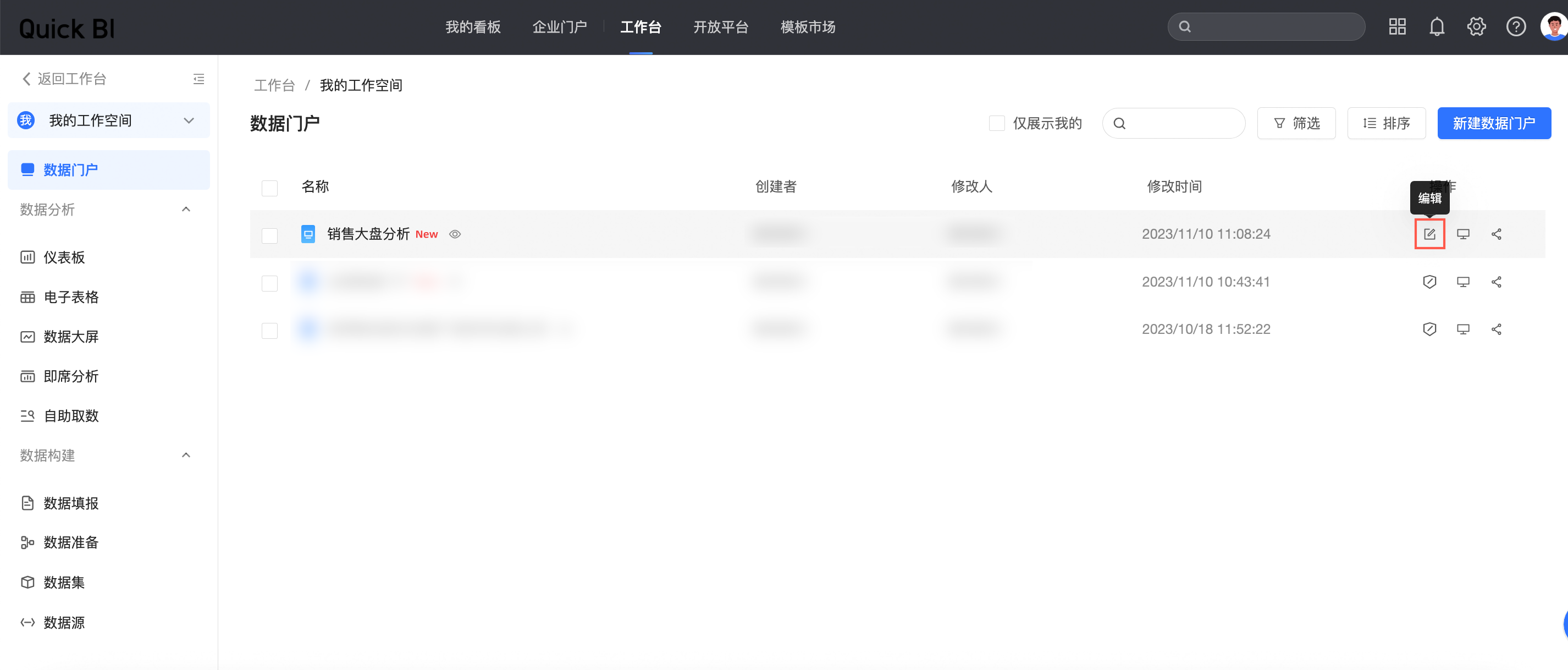
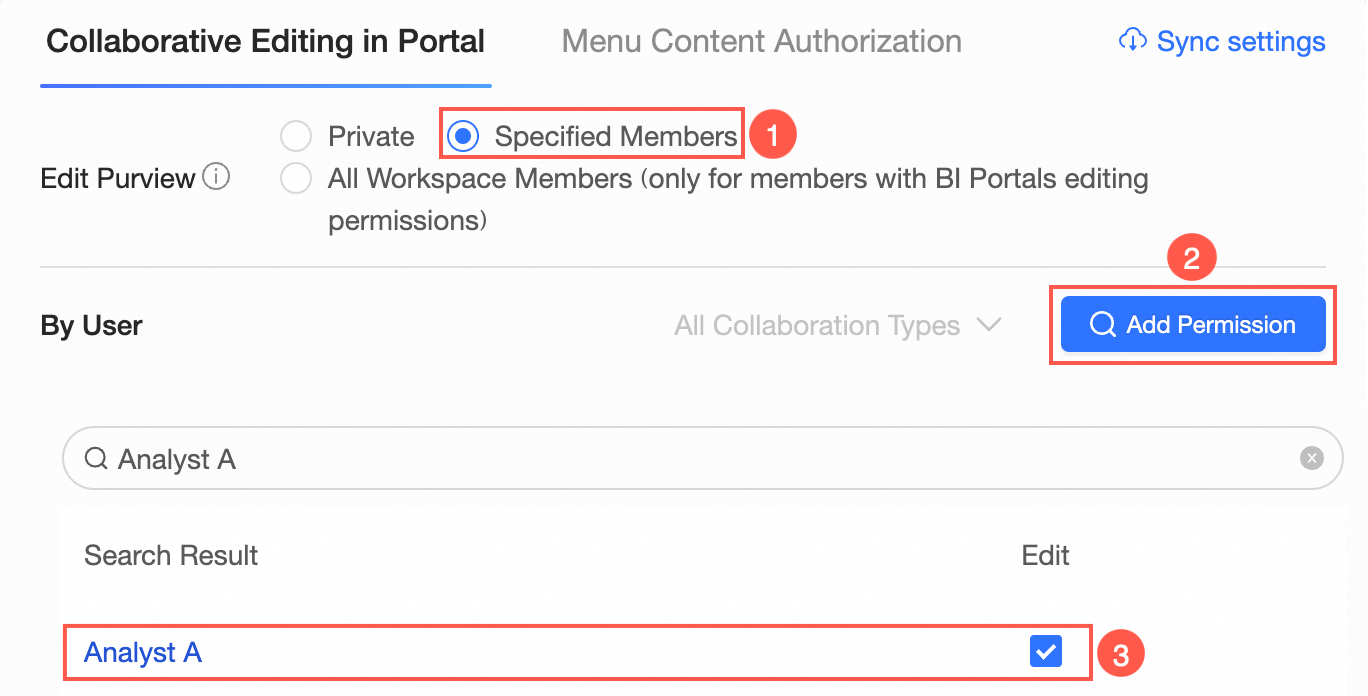
On the Collaborative Editing in Portal pane, a permission administrator can grant analysts in the workspace permission to edit the BI portal only when Editing Permission is set to Specified Members or All Workspace Members.
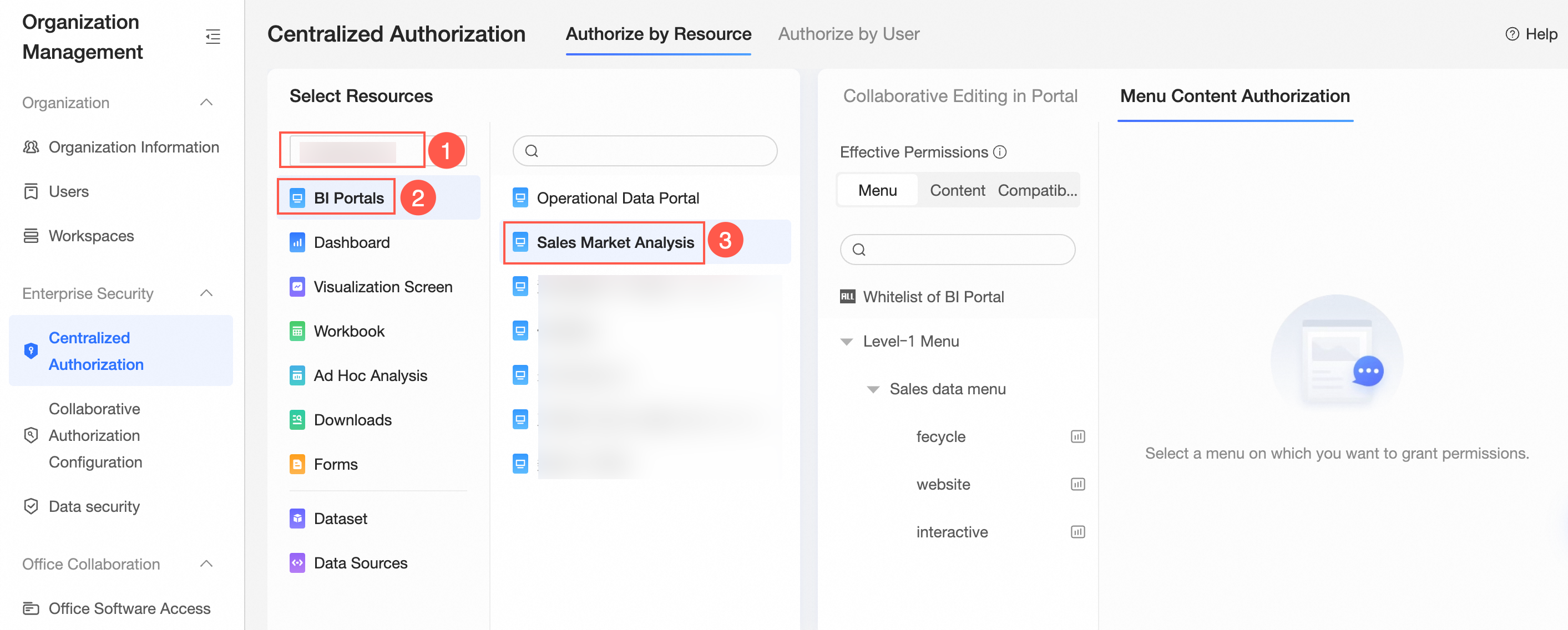
On the Batch Authorization page, select the target workspace and BI portal resource.
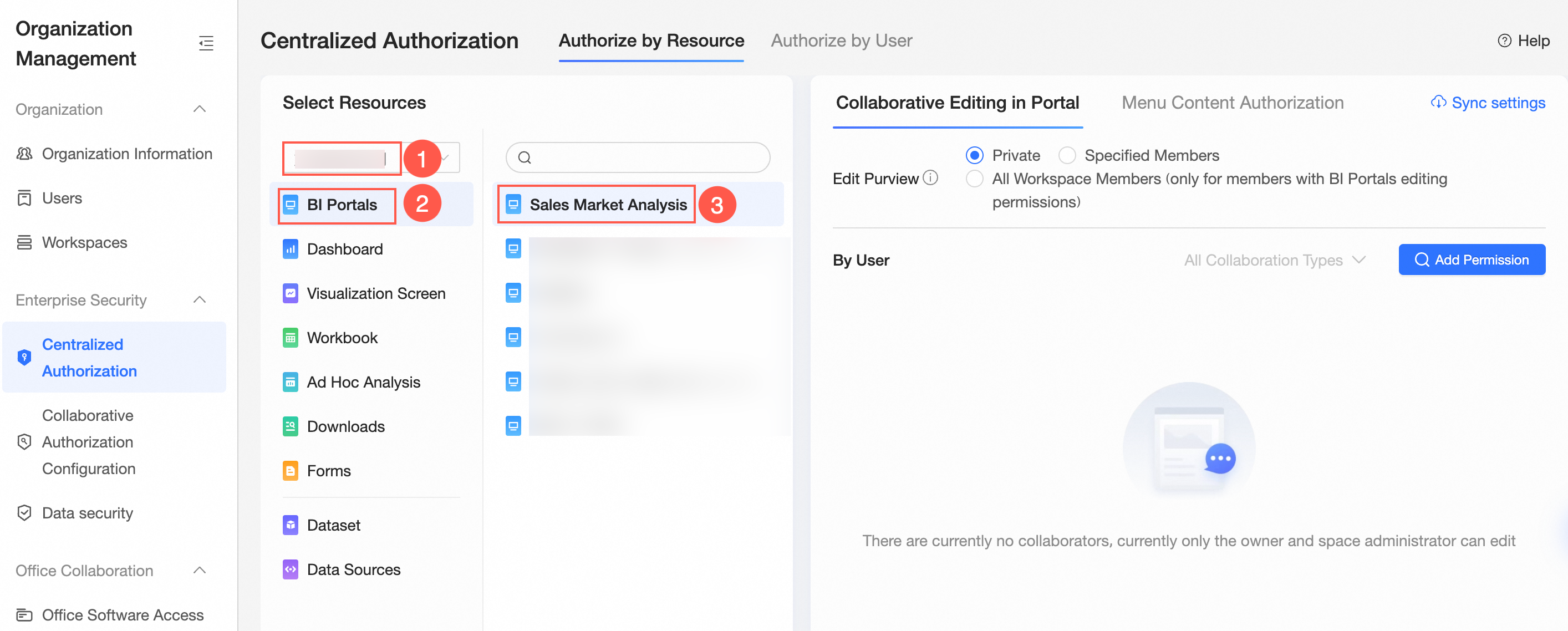
In the Collaborative Editing in Portal pane on the right, select an option for Editing Permission and assign the permission.
The following figure shows an example of granting Analyst A permission to edit the BI portal by selecting Specified Members for Editing Permission.

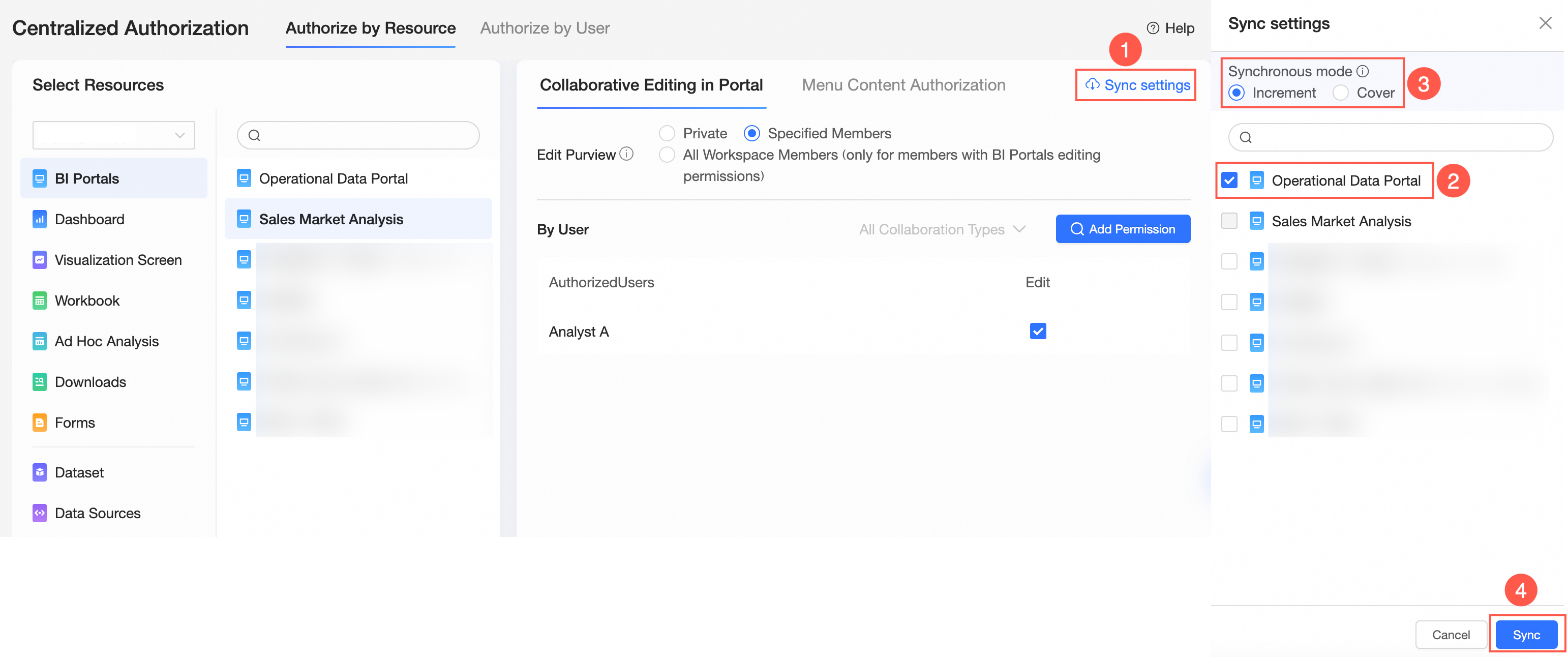
Optional:Configure permission synchronization.
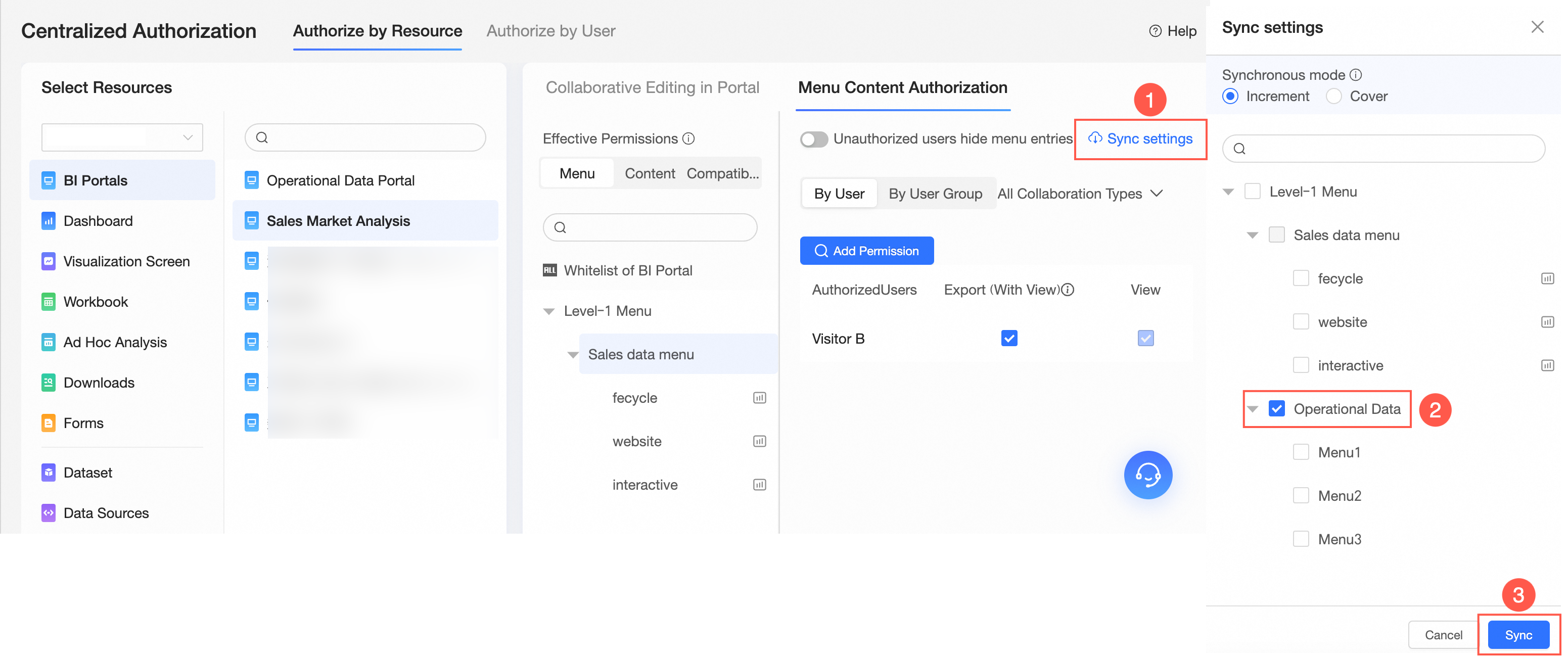
If Analyst A also needs to collaboratively edit other BI portals in the same workspace, click Synchronization Settings, select the target portals, and click Sync.
For example, Analyst A is granted the Edit permission for the Sales Dashboard Analysis portal. After synchronization, they can also edit the Operations Data Portal.
NoteTwo synchronization modes are supported: incremental synchronization and overwrite synchronization.
Incremental synchronization: Adds new permissions to the target resources without affecting their existing permissions.
Overwrite synchronization: Removes all existing permissions from the target resources and replaces them with the permissions from the current resource.
The "Hide Menu Entry for Users Without Permissions" rule cannot be synchronized.
Scenario 2: Grant view or export permissions
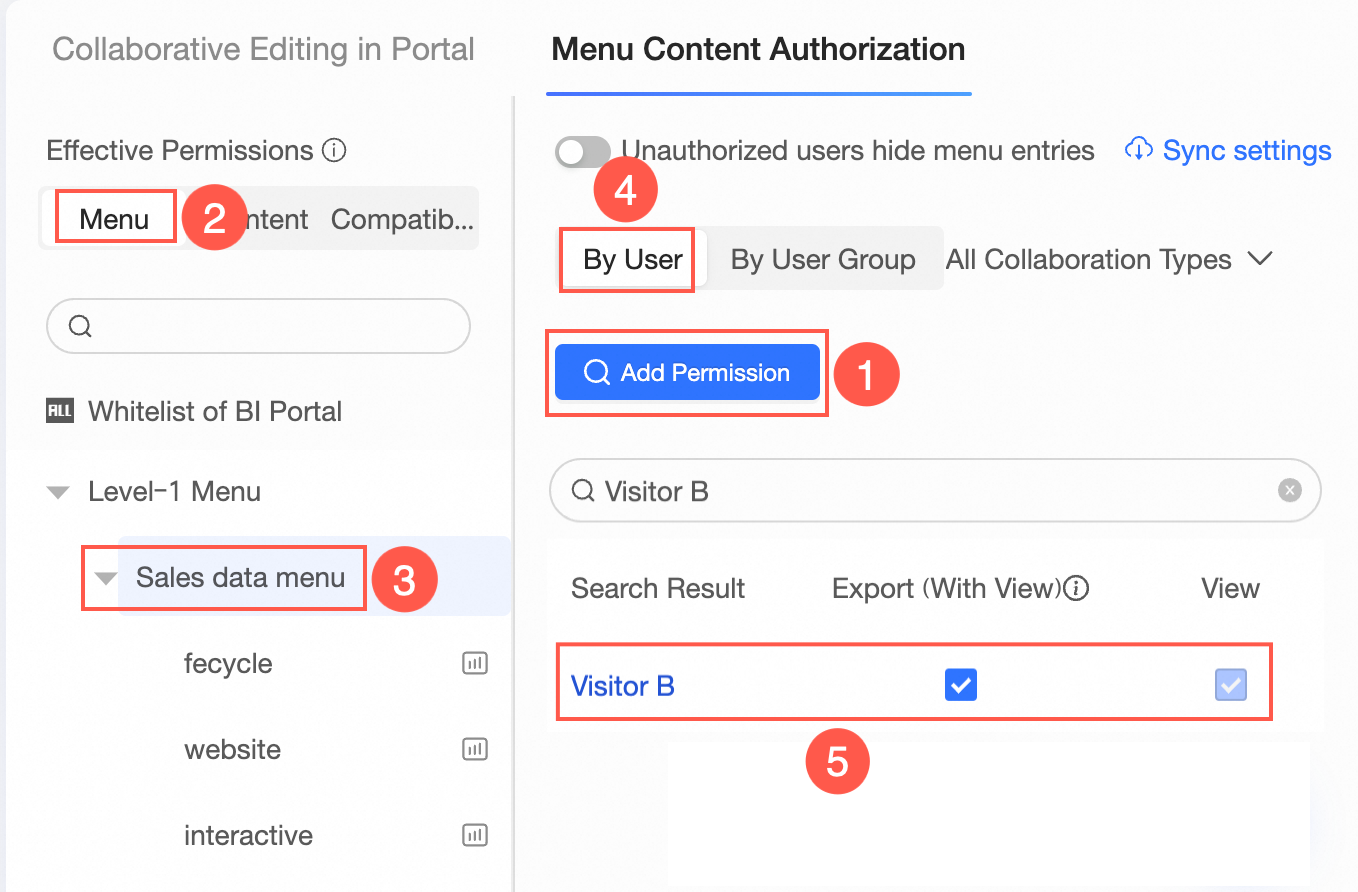
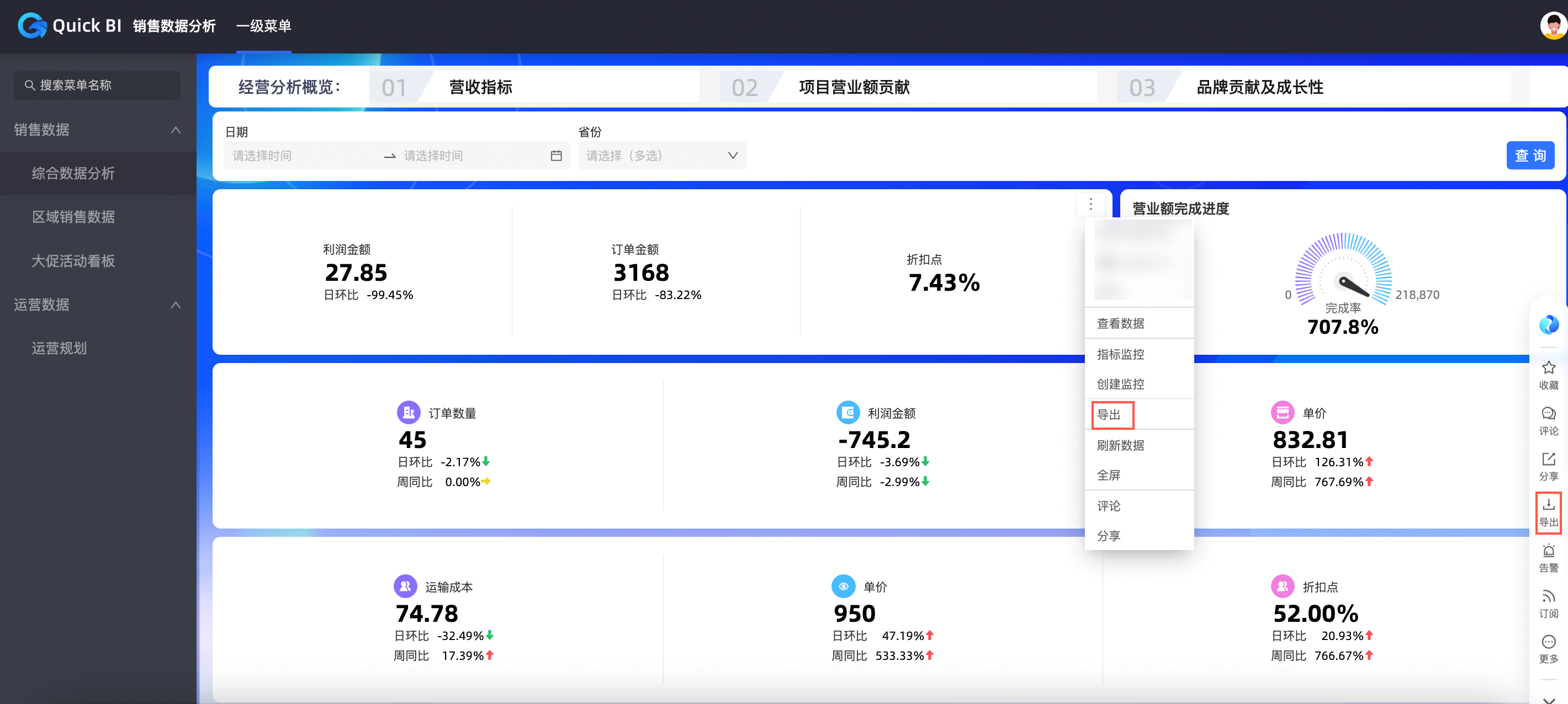
In this example, Visitor B is granted permissions to export and view the menu content in the Sales Dashboard Analysis portal.
On the Batch Authorization page, select the target workspace and BI portal resource.
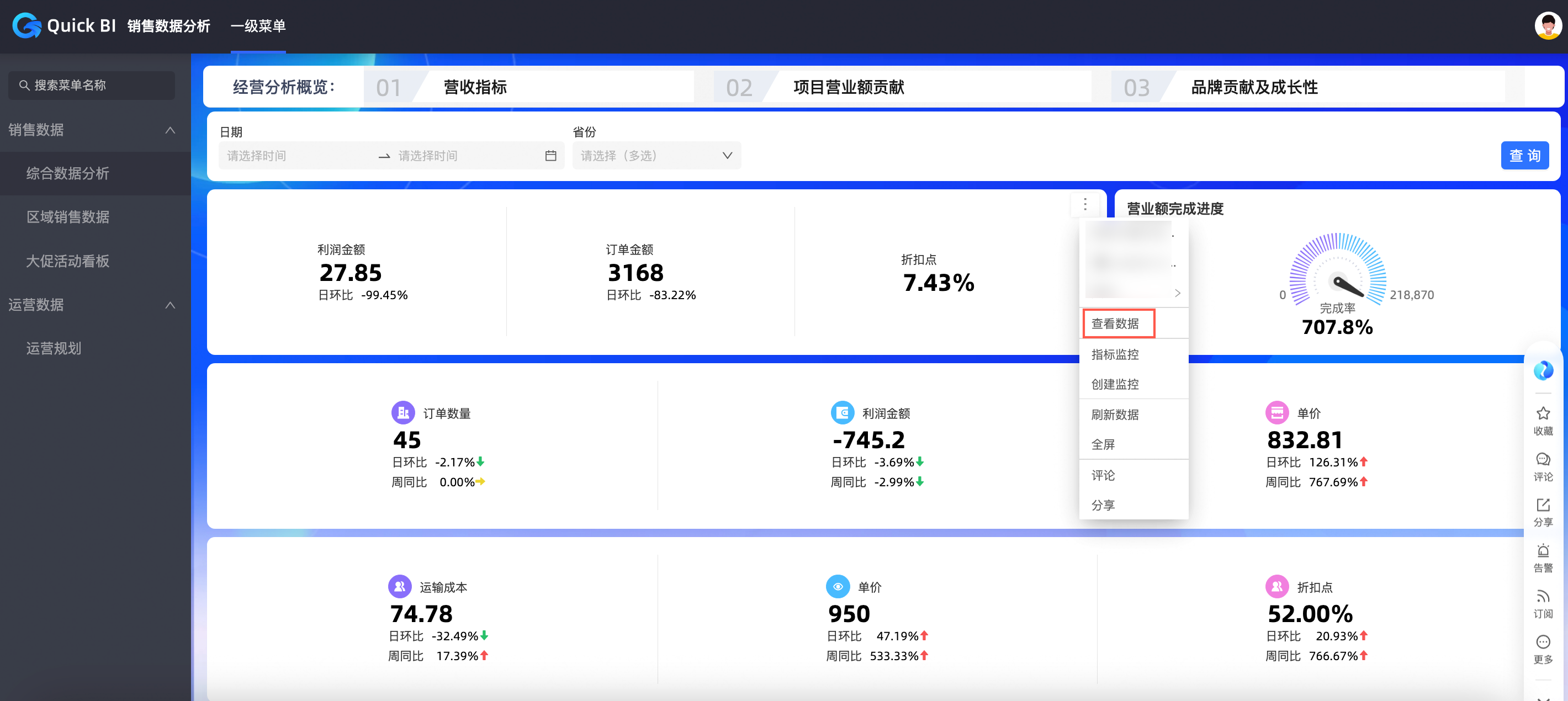
In the Menu Content Authorization pane on the right, select the target menu and configure the authorized users.
The following figure shows an example of granting Visitor B permission to export BI portal menu content by selecting Menu for Effective Permissions.
NoteYou can also select the View permission. In this case, Visitor B can only view the BI portal.
You can also configure the following parameters as needed.
Parameter
Description
Effect
Synchronization Settings
If the authorized user also needs to view or export reports from other menus in the portal, click Synchronization Settings.
Visitor B is granted the export permission for the Sales Data menu. After synchronization, they can also export report content from the Operations Data menu.
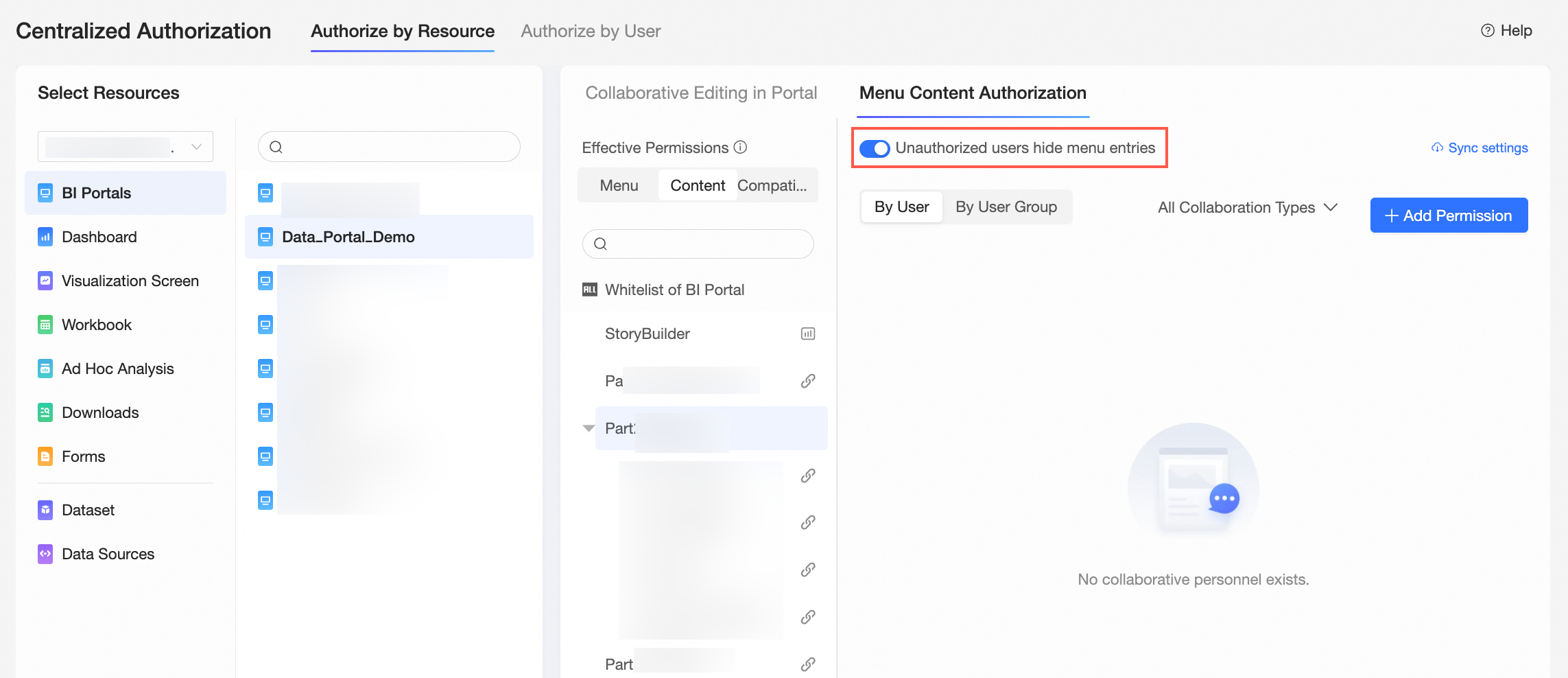
Hide Menu Entry for Users Without Permissions
To prevent users without permissions from seeing a menu, select the Hide Menu Entry for Users Without Permissions checkbox.
After you enable Hide Menu Entry for Users Without Permissions, users without permissions for the BI portal cannot see the menu or request menu permissions.