Permission administrators can grant users permissions to edit dashboards, and view or export dashboard components.
Background information
Permission attributes differ between the Collaborative state and the Private state, as shown in the following diagram.

The following collaborative permission levels are available:
-
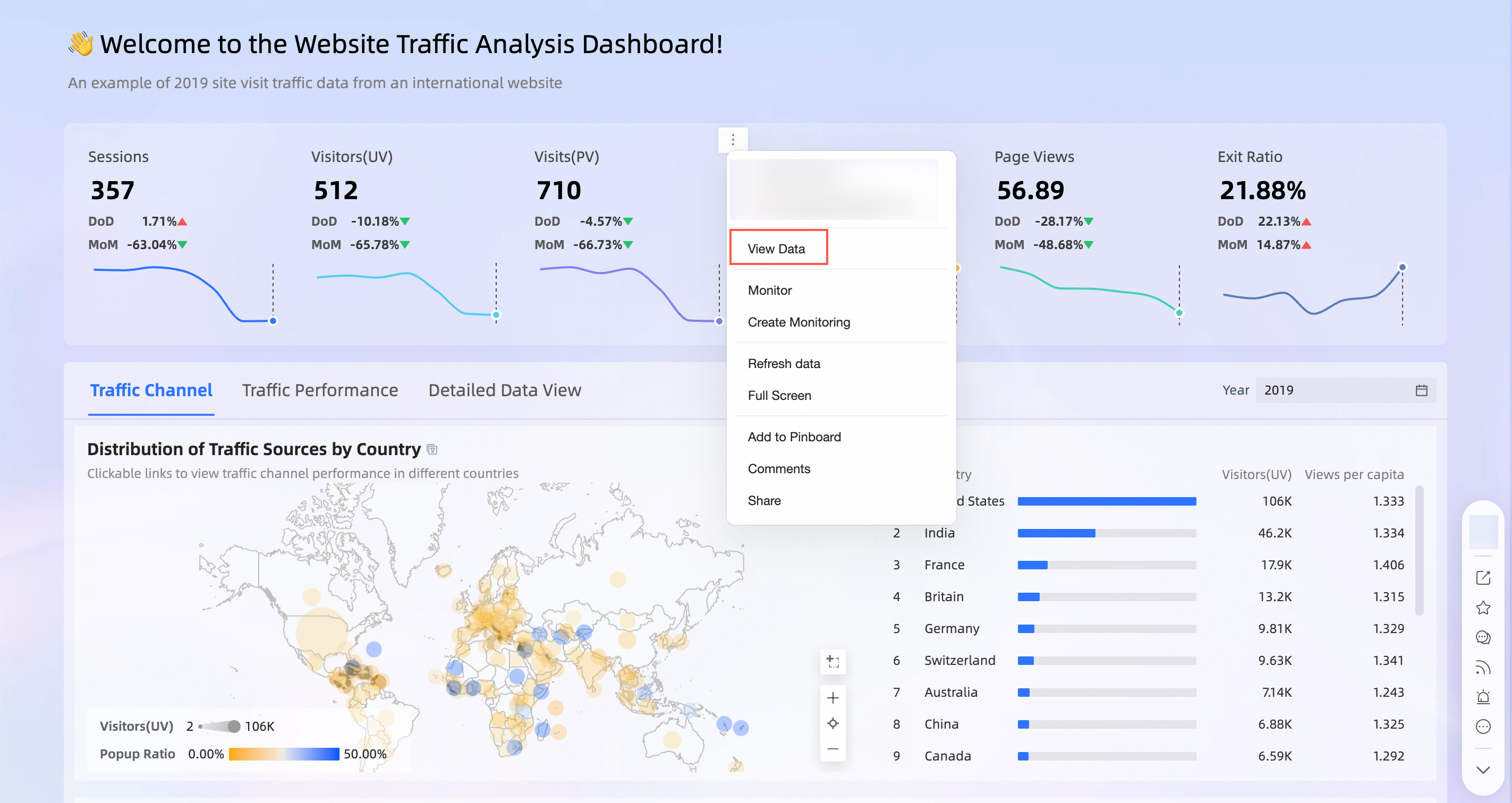
Edit: A user with the Edit permission can edit the dashboard, and view and export its components.
-
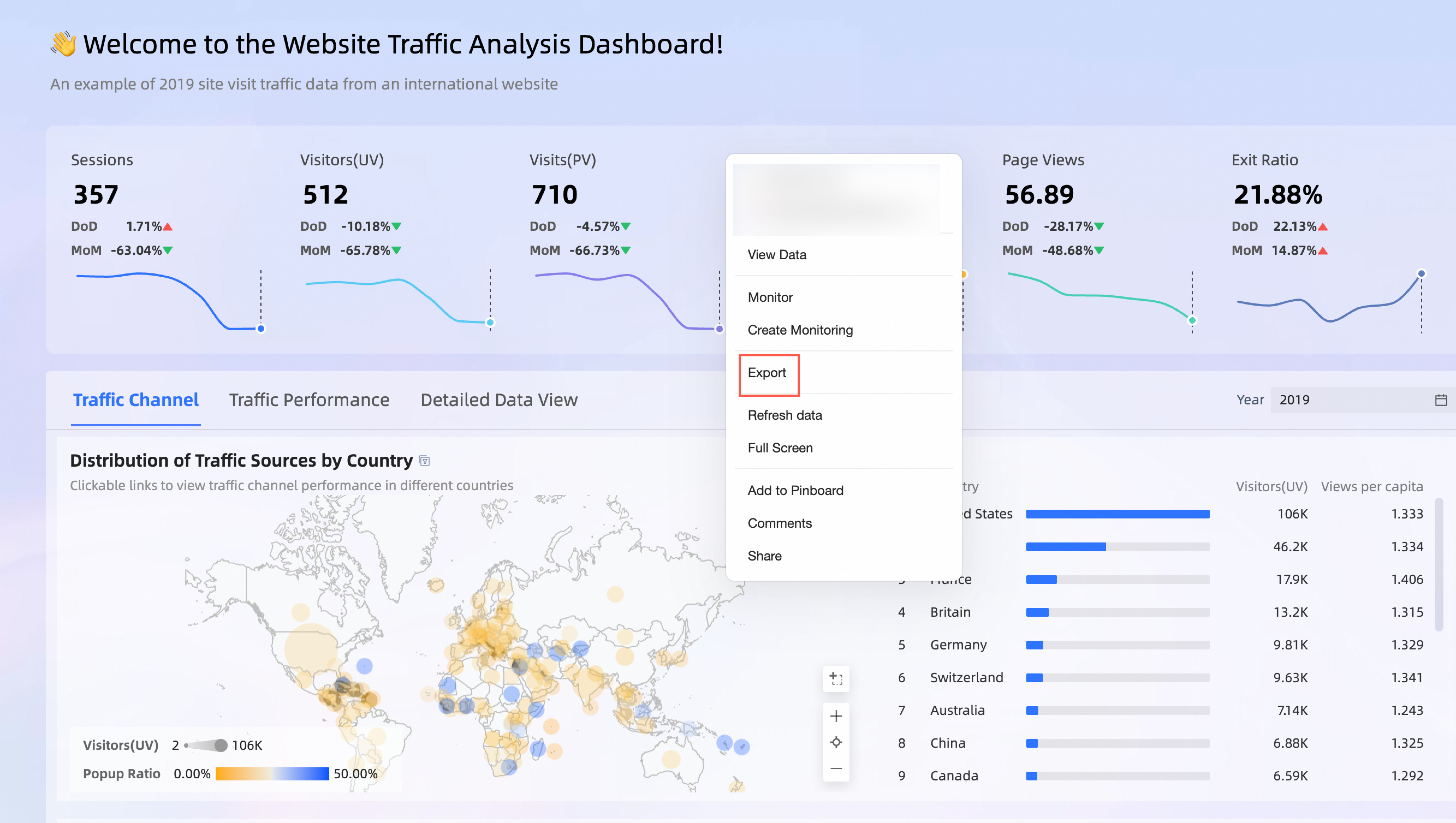
Export (Including View): A user with the Export (Including View) permission can view and export dashboard components.
-
View: A user with the View permission can only view dashboard components.
Use scenarios
|
Scenario |
Expected effect |
|
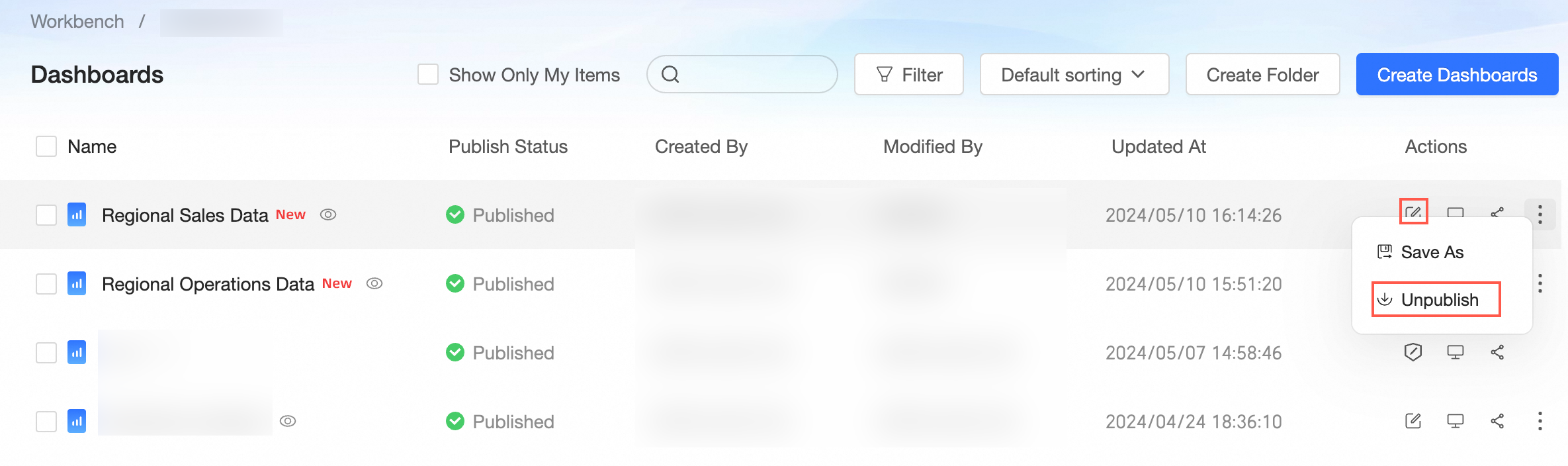
Analyst A, who is in the same space as the resource, can edit and unlink dashboards in the workspace. |
|
|
Scenario 2: Grant the export and view permissions on components in a dashboard |
|
Scenario 1: Grant a user the permissions to edit a specified dashboard
A permission administrator can grant an analyst edit permissions on a dashboard only when Specified Members or All Workspace Members(except members with the view permission) is selected for Editing Permission in the Collaborative Authorization pane.
-
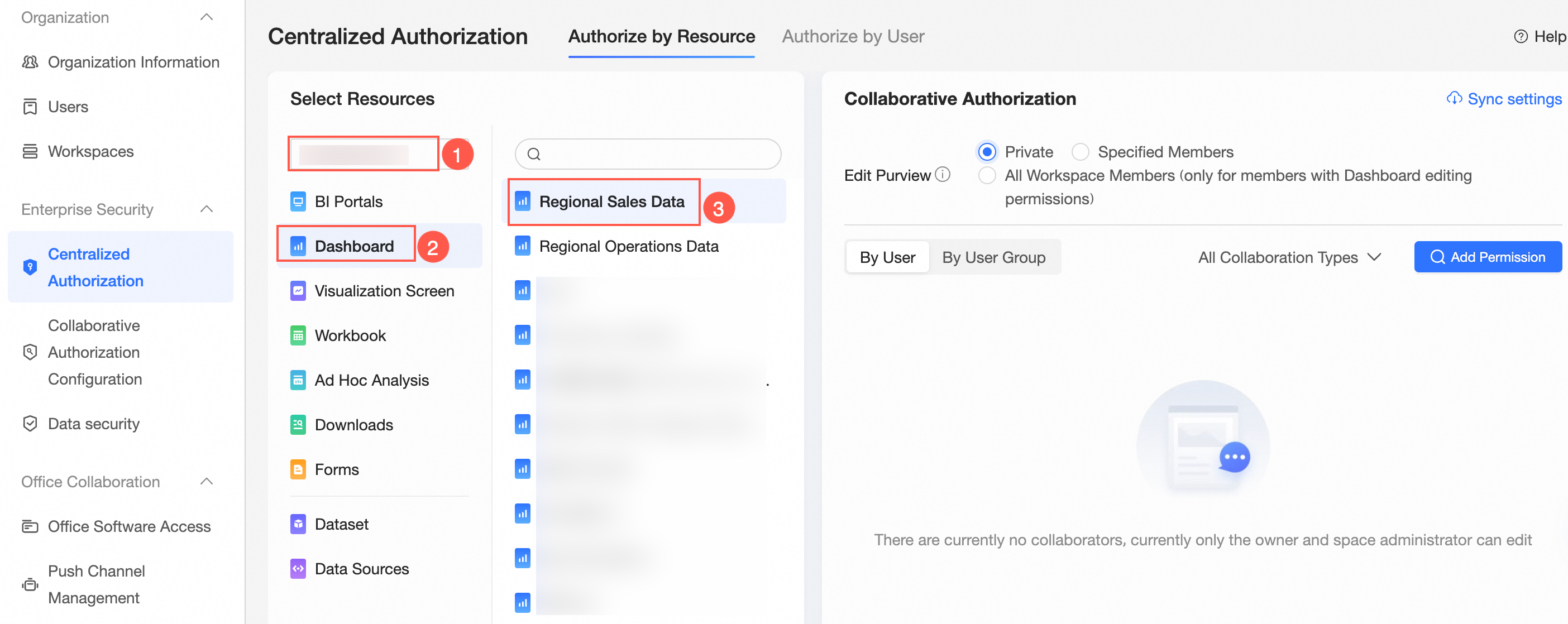
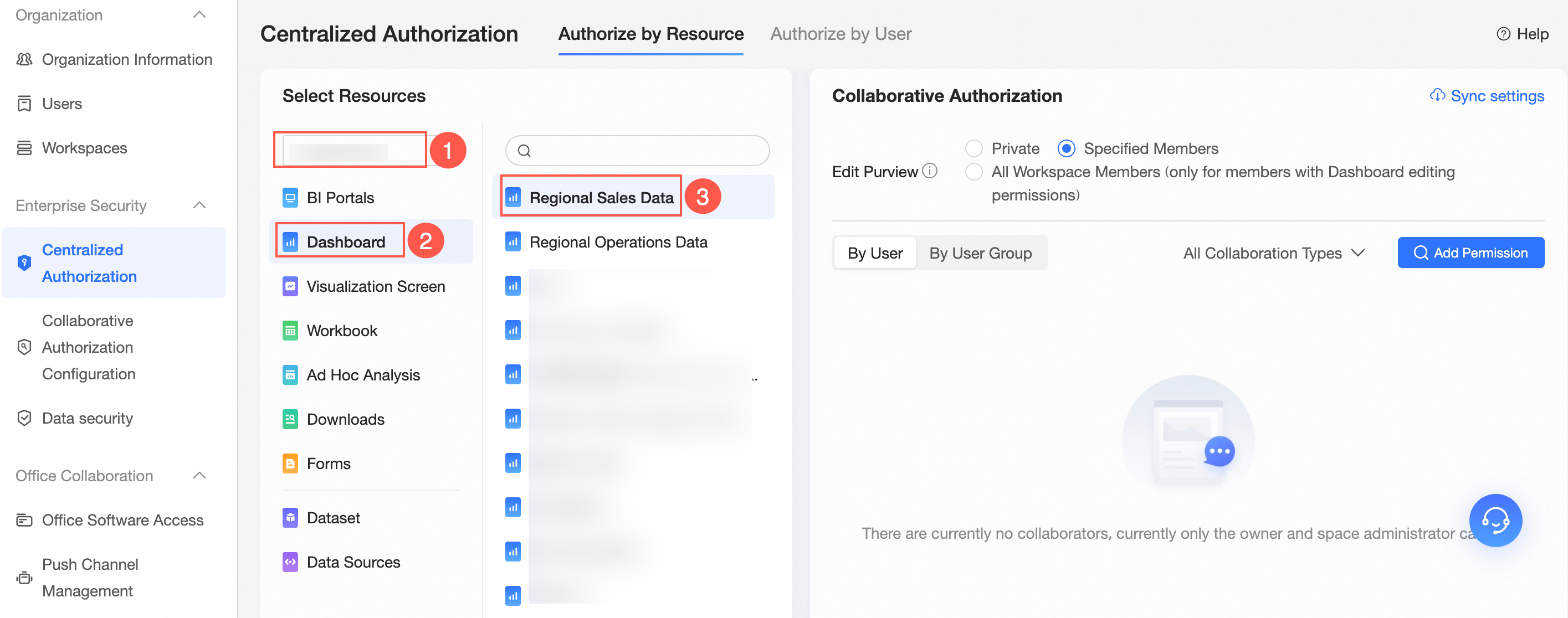
On the Centralized Authorization page, select the target workspace and dashboard resources.
-
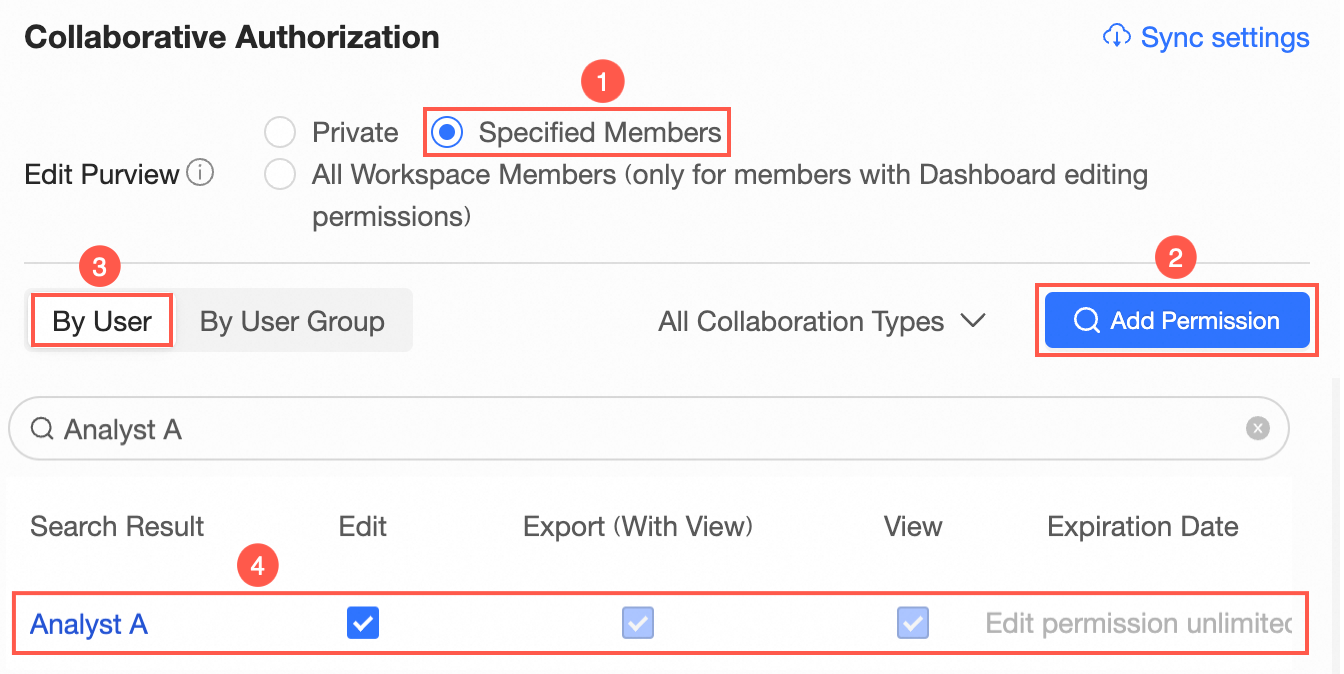
On the Collaboration Authorization page, select Edit Permission and grant permissions.
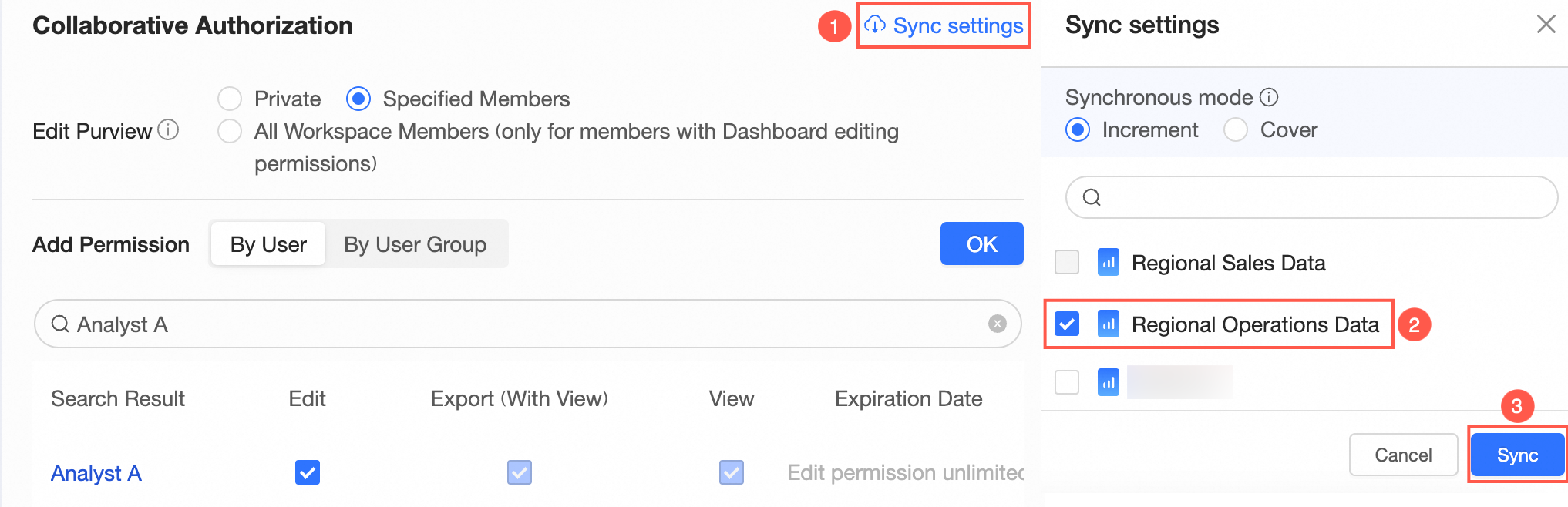
In the following figure, Specified Members is selected for Editing Permission, and Analyst A is granted the Edit permission.
 Note
NoteAfter you select Edit for Analyst A, Analyst A can also view and export dashboard components. You can select Export (Including View) or View later to change the permissions granted to Analyst A.
-
Optional: Synchronize permissions.
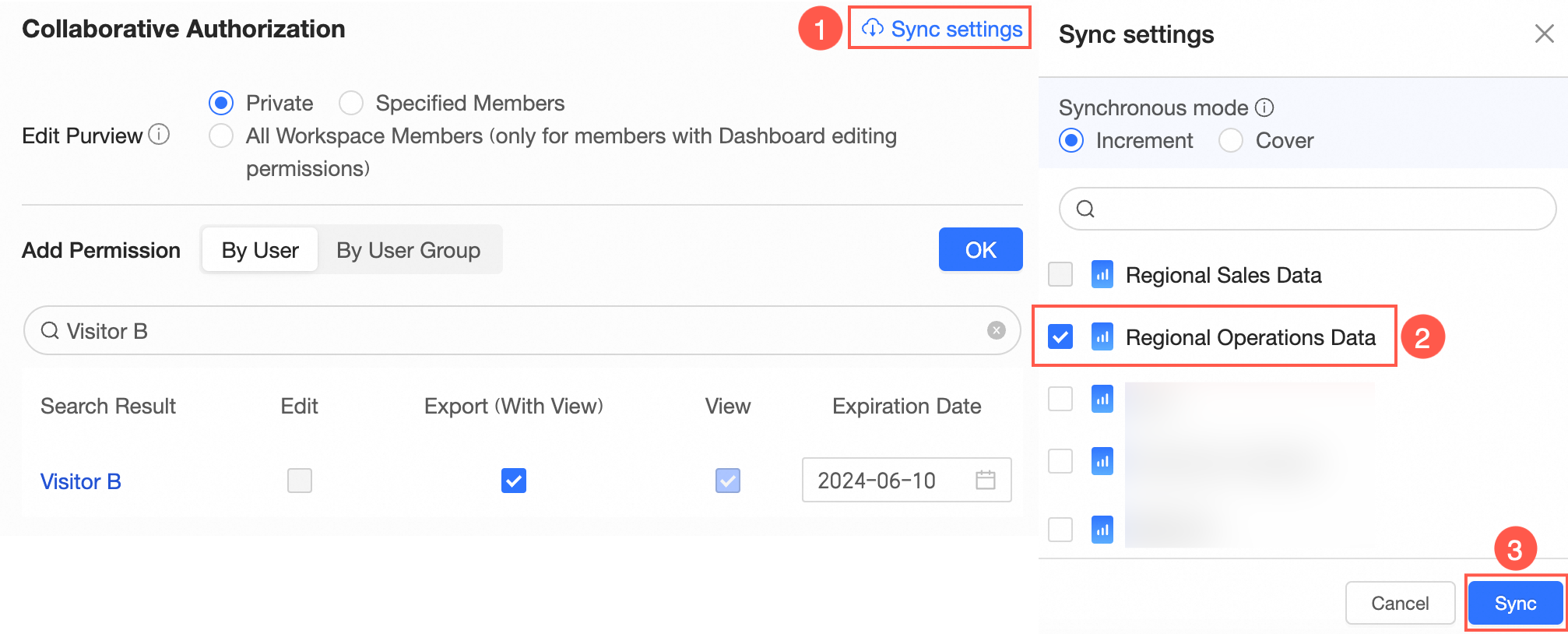
If Analyst A needs to edit another dashboard in the workspace, you can click Synchronization Settings in the Collaborative Authorization pane. Then, select the dashboard that Analyst A needs to edit and click Sync in the Synchronization Settings panel.
For example, Analyst A is granted the Edit permission on Turnover Analysis. After the permission is synchronized, Analyst A can also edit the Regional Operations Data dashboard.
NoteSynchronization Mode supports Increment Synchronization and Cover Synchronization.
-
Increment Synchronization: Retains the original permissions of the target resources.
-
Cover Synchronization: Replaces the original permissions of the target resources with the permissions of the current resource.
-
Scenario 2: Grant a user the permissions to view and export the components of a specified dashboard
Permission administrators can grant visitors permissions to view or export dashboard components.
In this example, Visitor B is granted the Export (Including View) permission on the Turnover Analysis dashboard.
-
On the Centralized Authorization page, select the target workspace and dashboard resources.
-
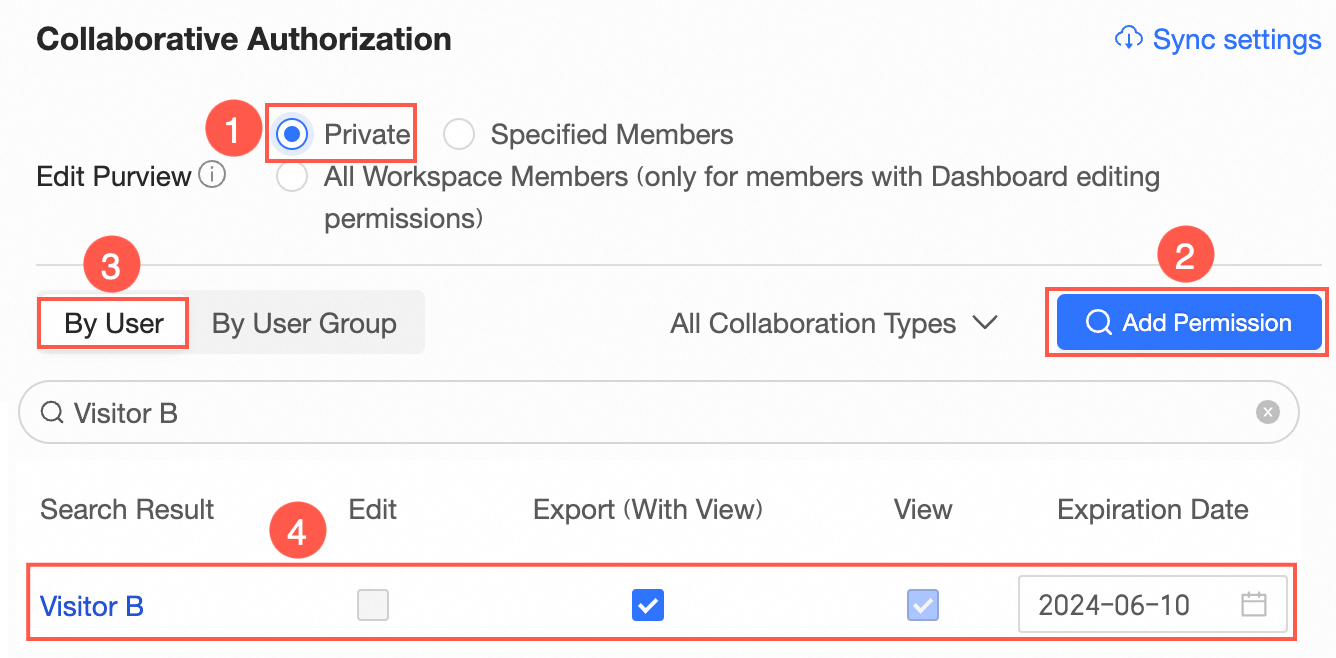
On the Collaboration Authorization page, select Edit Permission and grant permissions.
In the following figure, Private is selected for Editing Permission, and Visitor B is granted the export permission.
NoteYou can also select View for Visitor B. If you select View, Visitor B can only view the dashboard.
-
Optional: Synchronize permissions.
If Visitor B needs to export the components of another dashboard in the workspace, you can click Synchronization Settings in the Collaborative Authorization pane. Then, select the dashboard whose components Visitor B needs to export and click Sync in the Synchronization Settings panel.