Watermark settings
For enterprises with high security requirements, default system watermarks may not be sufficient. Quick BI provides a custom watermark feature that lets an organization administrator create custom text watermarks or use a custom formula to include dynamic information such as an IP address, account, or alias. This helps you prevent data leaks. This topic describes how to configure custom watermark content and see the results.
Use cases
As digital transformation accelerates, data security becomes critical. Quick BI provides a custom watermark feature to make your data tamper-proof and traceable. This feature helps prevent unauthorized data modification and enhances employee security awareness to minimize the risk of a data leak and simplify traceability.
A custom watermark can contain dynamic information using built-in functions, such as an IP address, alias, account, or the current time, to help prevent data leaks. You can enforce watermarks on sensitive materials to remind employees that the content is confidential and should not be distributed externally.
If a data leak occurs, a watermark containing the user's IP address and account helps your enterprise quickly identify the leak's source and the responsible individual.
Configure a custom watermark
Log on to the Quick BI console.
Configure the custom watermark settings:
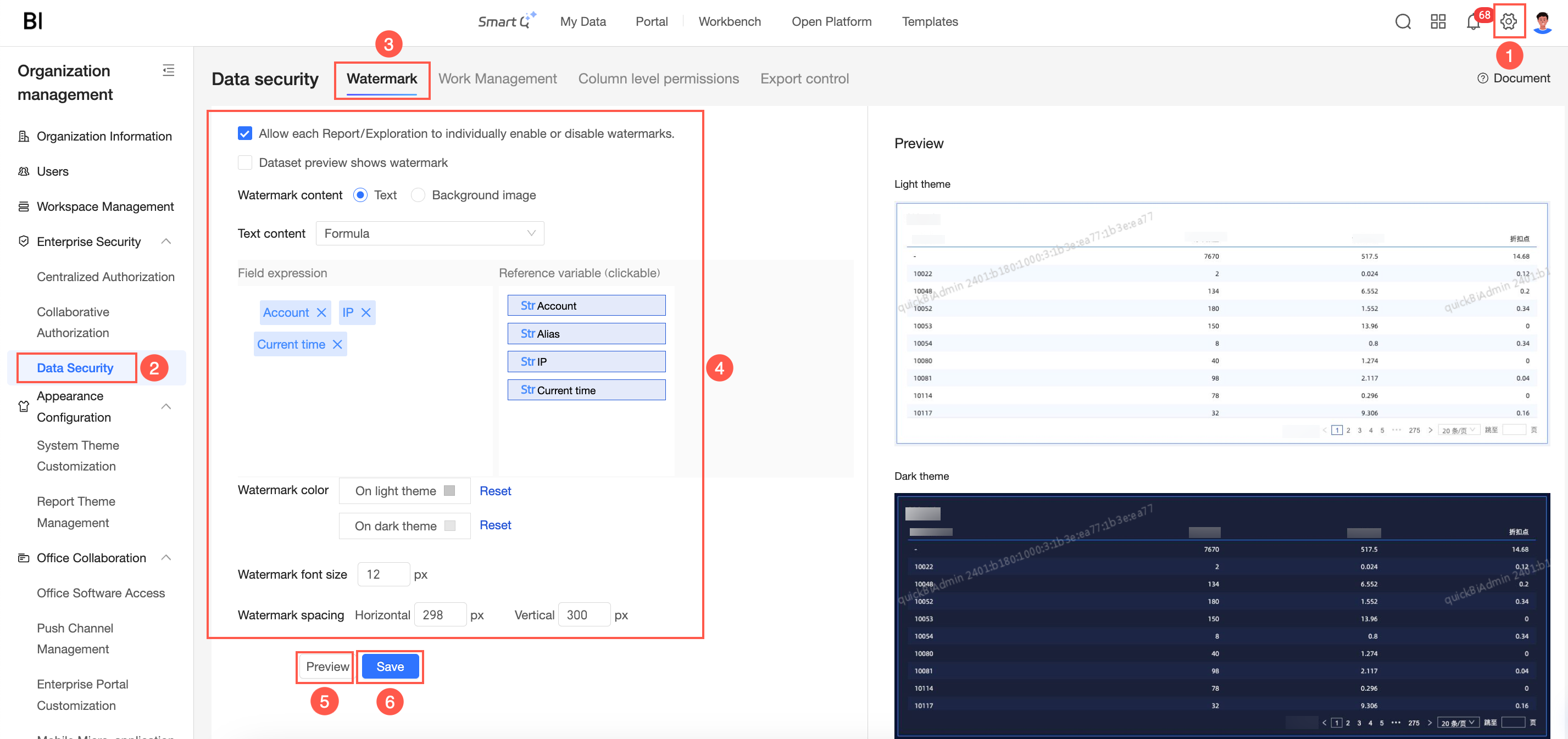
Parameter
Description
Allow enabling/disabling watermarks for individual reports and ad-hoc analyses
You can enable or disable individual watermarks for each report or ad-hoc analysis as needed:
If you enable this option, a display watermark switch appears in the page settings of each report. Users can then turn the watermark on or off for each report.
If you disable this option, Quick BI enforces the custom watermark on all reports and ad-hoc analyses during editing and previewing. Users cannot disable the watermark for any individual asset.
Display watermark in dataset preview
Specifies whether to display the watermark on the dataset preview page.
Watermark content
Quick BI supports the following types of watermark content:
Text: Select Text to display fixed text, such as 'Confidential', or dynamic information like an IP address or account.
NoteWhen you set Watermark content to Text, you must also configure Text content, Watermark color, and Watermark font size.
Background image: Select Background image when you want to use a custom image, such as a company logo, as the watermark.
When you upload an image, observe the following limits:
Format: PNG, JPG, or JPEG.
For best results, use a PNG image.
Size: Must not exceed 100 KB.
Resolution: Must be larger than 60 × 60 pixels and smaller than 180 × 60 pixels.
Text content
Custom formula
In the expression editor, enter the text for the watermark. You can also click to reference variables to insert built-in system variables.
Account
Displays the account ID of the logged-in user.
Alias
Displays the Quick BI alias of the logged-in user.
IP address
Displays the IP address of the logged-in user's device.
Current time
Displays the current time.
Watermark color
Specifies the color of the text watermark.
For dark-themed reports, the default color is white. You can select another color.
For light-themed reports, the default color is gray. You can select another color.
Watermark font size
Specifies the font size of the watermark text. You can enter a custom font size.
Watermark spacing
Specifies the spacing between repeated watermarks in the report. The value must be greater than 0.
View watermarks in reports
Go to the report viewing or editing page.
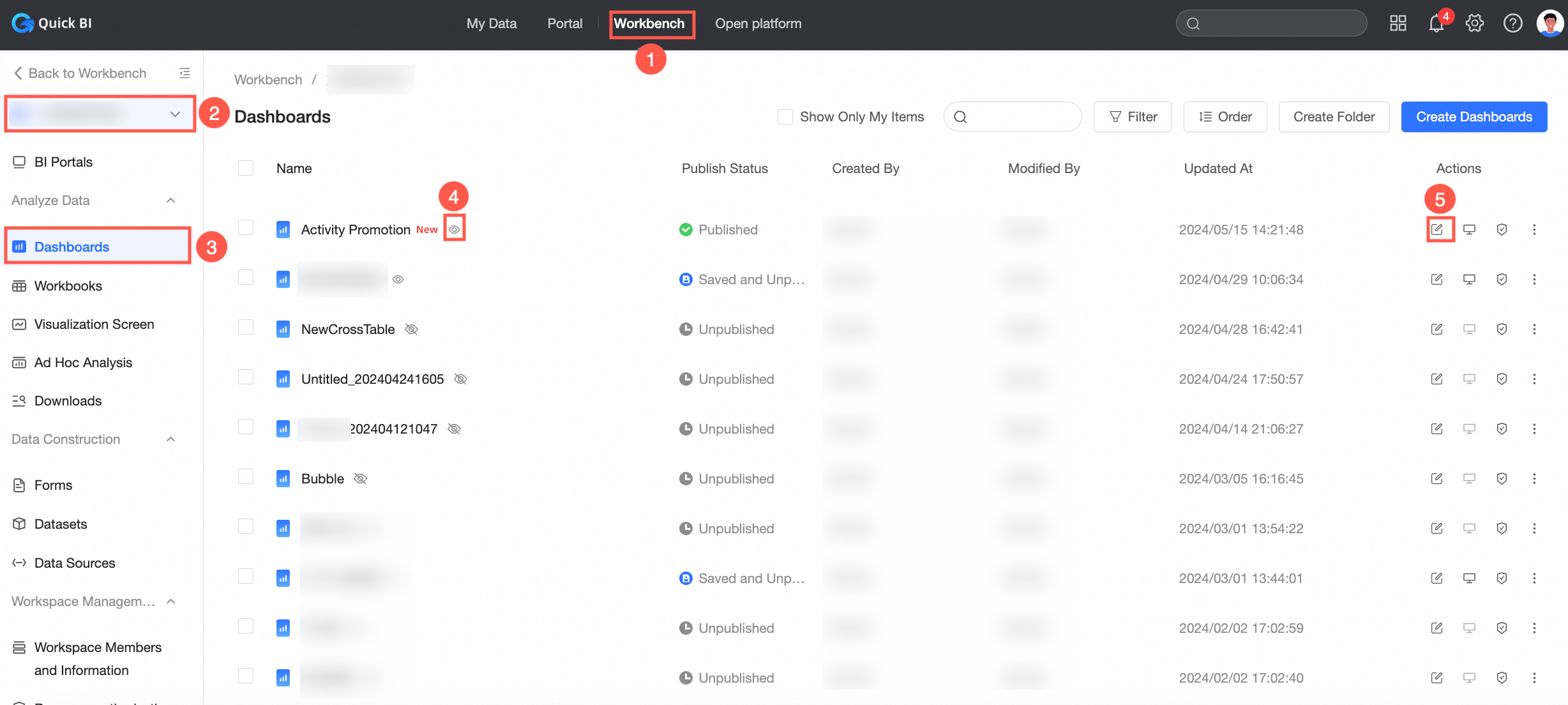
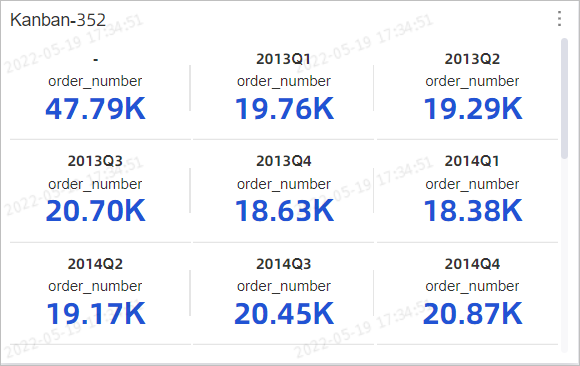
The watermark is visible on all reports in both view and edit mode.
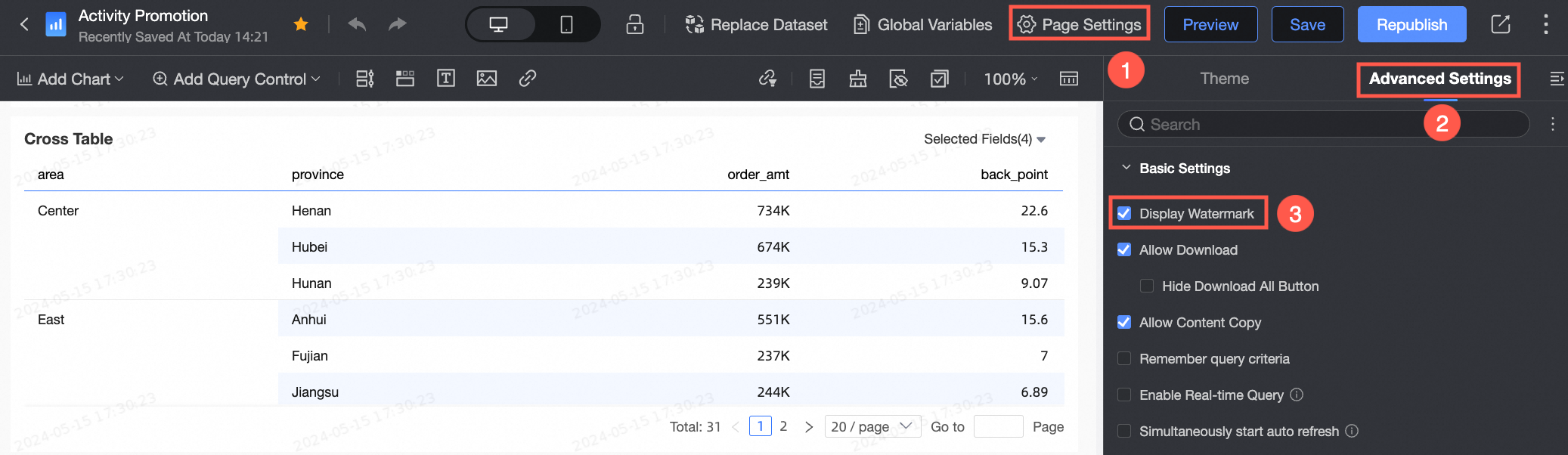
Optional: Configure the watermark display for a single report.
If you enabled the Allow enabling/disabling watermarks for individual reports and ad-hoc analyses option, you can show or hide the watermark for a specific report in its page settings.
Limitations
Only an organization administrator can configure custom watermarks.
Custom watermarks are available only in workspaces within Quick BI Pro.
Image upload requirements (format, size, and resolution) are detailed in the configuration table above.