Image widget
An image widget embeds static images on a dashboard to enhance its visual appeal and information delivery.
Use cases
-
Display brand logos: Place your company logo in the corner or header of a dashboard.
-
Provide visual guidance or decoration: Use images to enhance the layout of your dashboard, or as backgrounds or icons for specific sections.
-
Create navigation links: Add a hyperlink to an image so that clicking it takes users to an internal dashboard page or an external website.
Limitations
-
Prerequisites: You have created a dashboard. For more information, see Create a dashboard and Chart overview.
-
Keep the following limits in mind:
-
Image format: Only JPG, JPEG, PNG, GIF, and SVG formats are supported. The file size cannot exceed 20 MB.
-
Image URL: If you use a URL to specify an image, the URL must use HTTPS.
-
Non-data-driven: The image widget is not bound to a dataset. Its content is static and does not change with data updates.
-
Procedure
Follow these steps in dashboard edit mode.
-
Add an image widget: In the top menu bar of the dashboard editor, click the
 icon to add an image widget.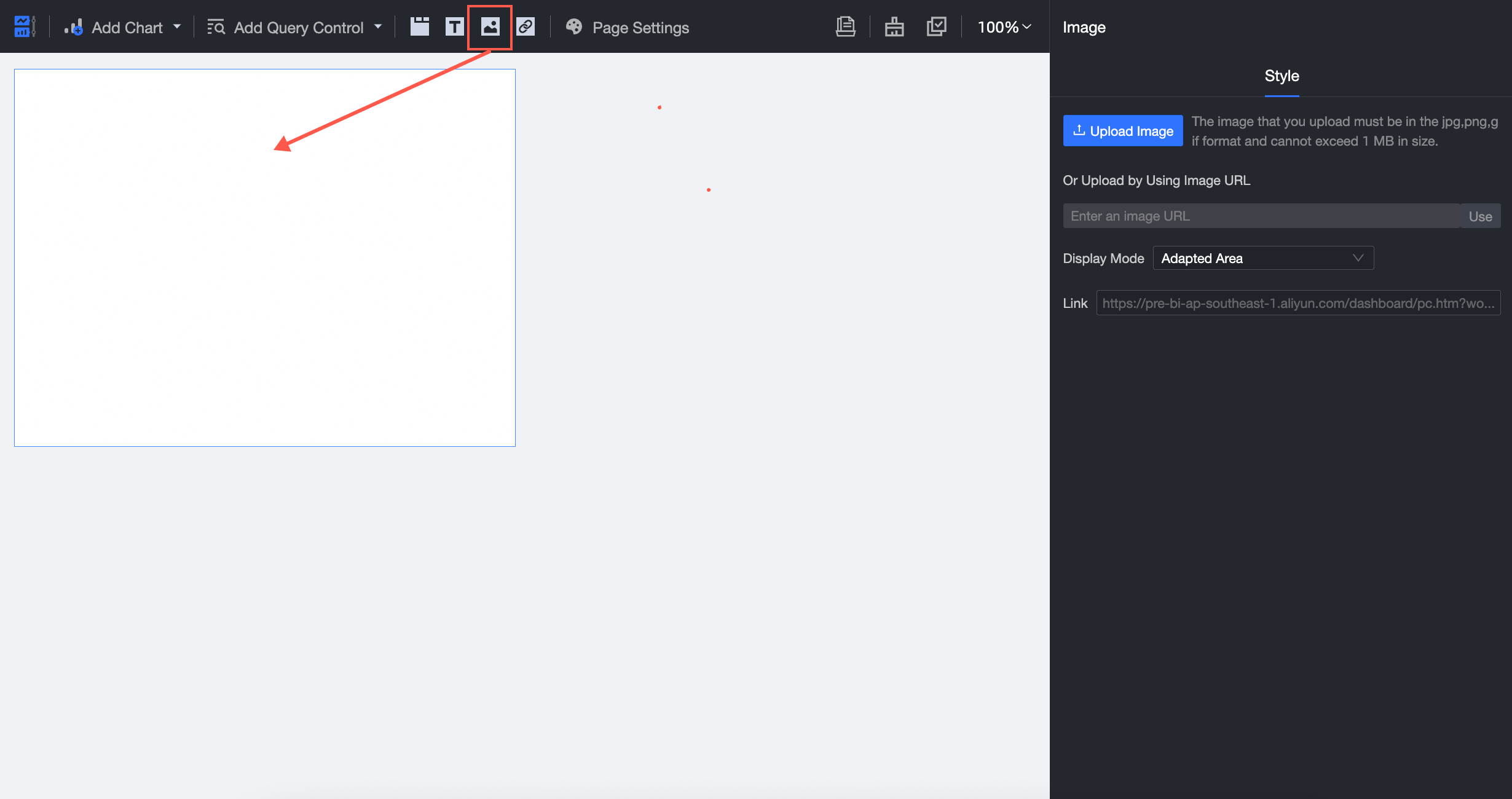
-
Configure the image widget style: Select the newly added image widget. On the Style tab on the right, configure the image style.
Parameter
Description
Upload Local Image
Click Upload Local Image and select an image file that meets the format and size requirements.

Upload from Image URL
In the Upload from Image URL input box, paste a valid HTTPS URL for the image. To learn how to obtain an image URL, see Generate a URL.
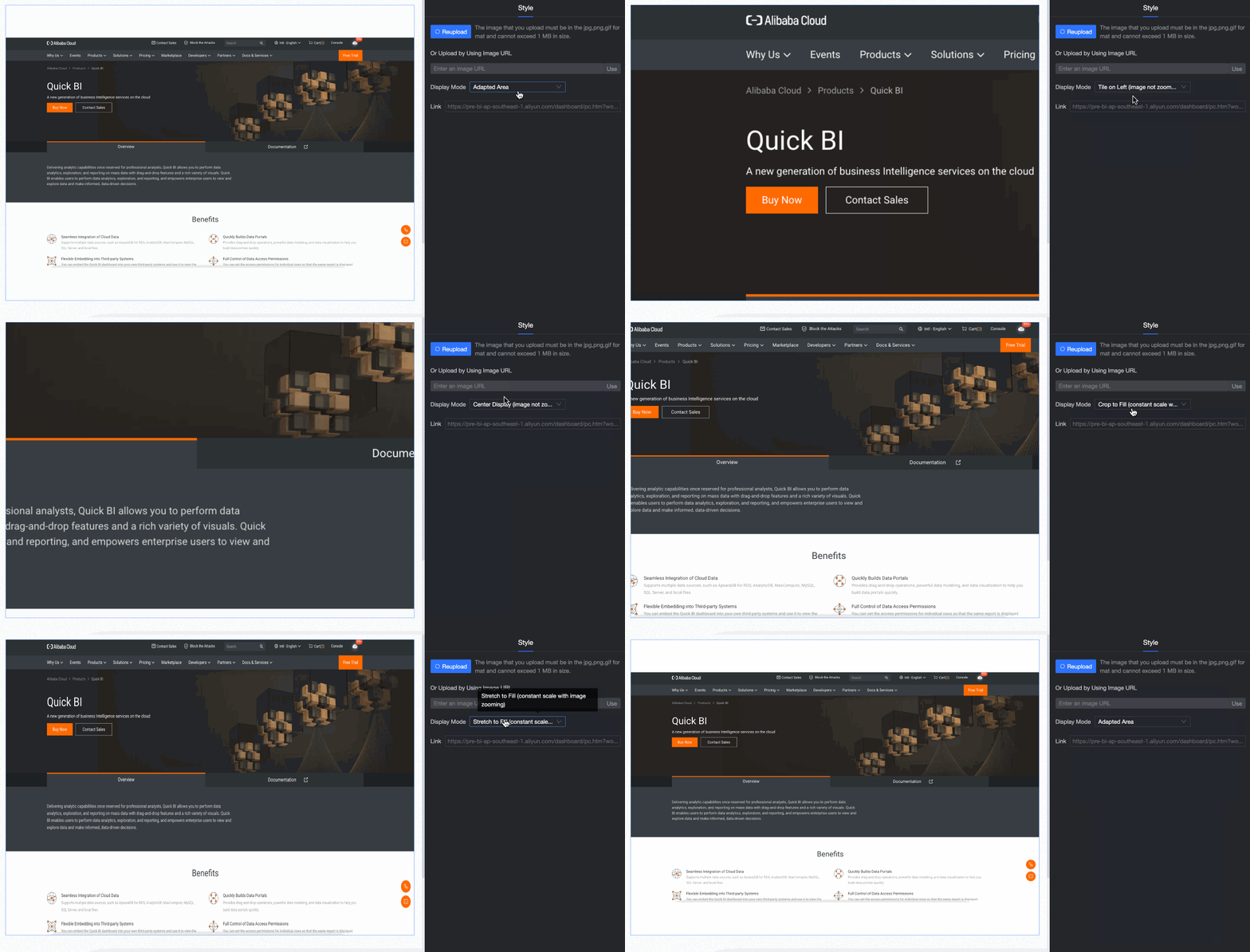
Display mode
Set the image's scaling (for example, fill, fit, or tile) and alignment within the widget area.
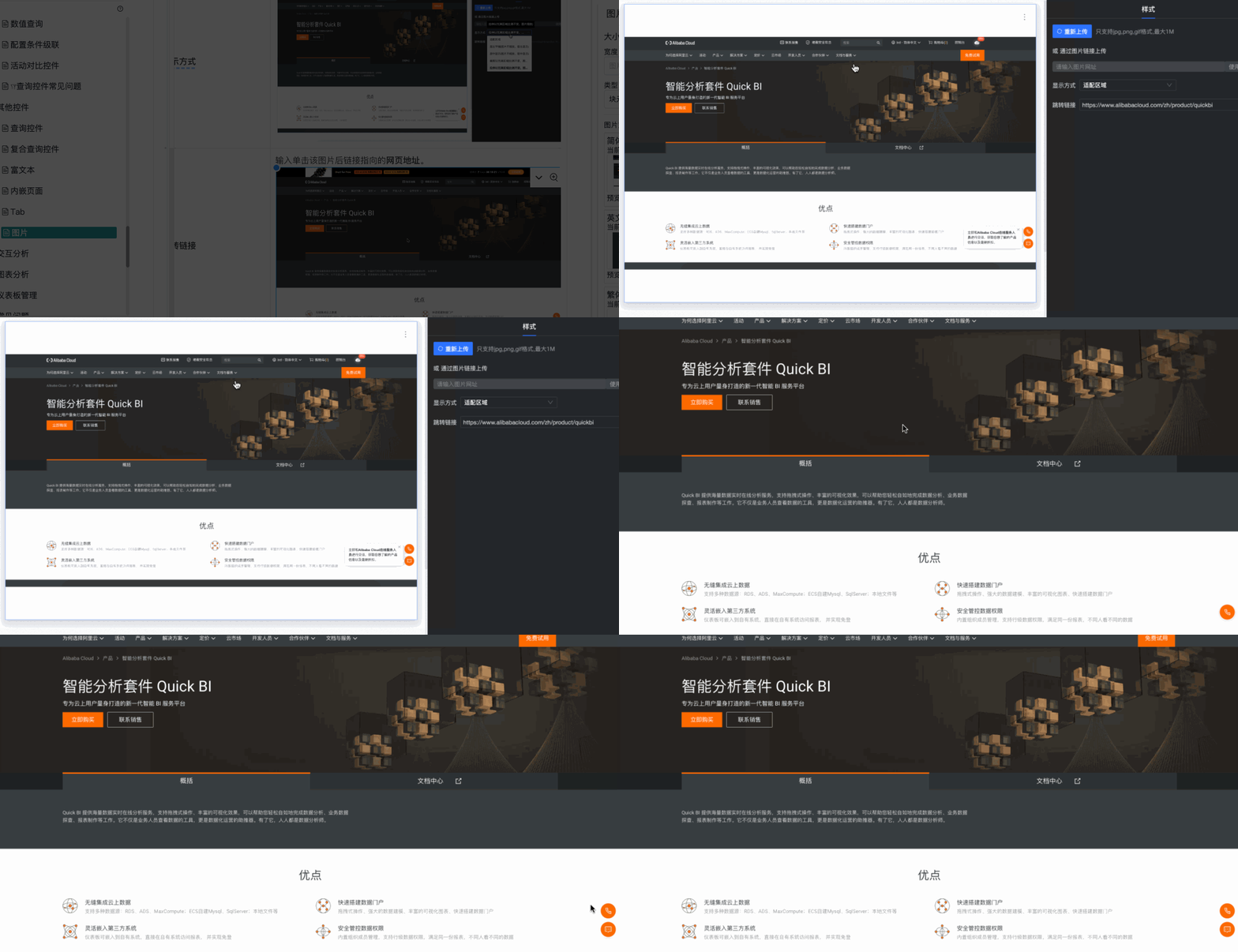
Target URL
In the Target URL input box, enter the URL that opens when a user clicks the image.
-
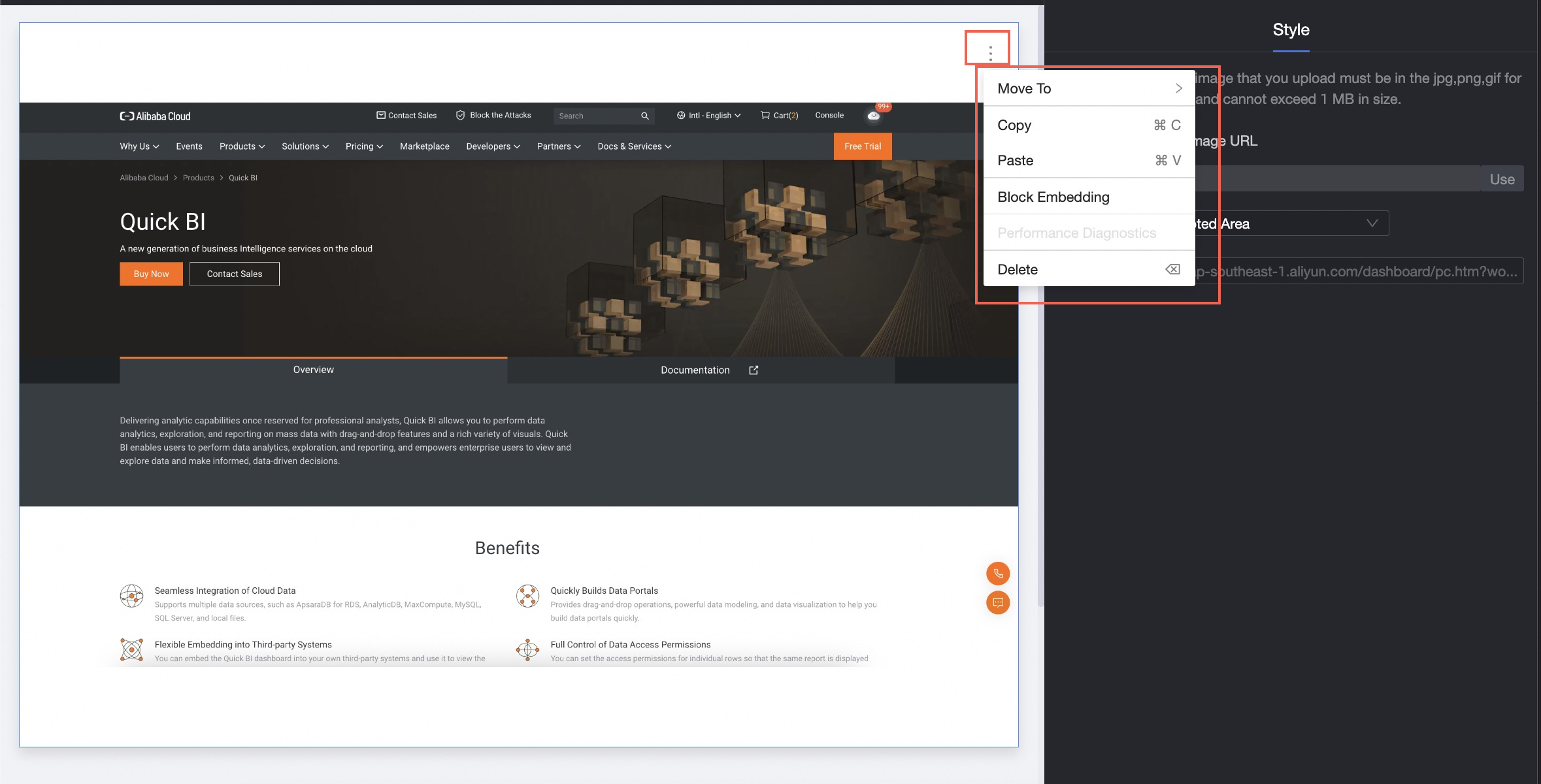
Manage the image widget: Click the
 icon in the upper-right corner of the image widget to manage the widget.
The following operations are available:
Actions
Description
Move to
Move the image widget to a target tab.
Copy
Copy the image widget.
Paste
Paste the copied widget onto the dashboard.
Embed Block
Embed the widget as a block to view it in isolation.
Performance diagnostics
Run a performance diagnostic on the embedded page and get a report with optimization suggestions.
Delete
Delete the image widget.
You can also use keyboard shortcuts to manage the image widget.
Function
Shortcut (Windows)
Shortcut (macOS)
Copy
Ctrl+C
Command (⌘)+C
Paste
Ctrl+V
Command (⌘)+V
Delete
Backspace (←), Delete
Delete (⌫)
 icon in the upper-right corner of the image widget to manage the widget.