Data source FAQ
Answers to common questions about creating and connecting data sources in Quick BI.
Data source connection errors
If connecting to a data source fails, work through these three checks in order — they cover the vast majority of connection failures.
1. IP addresses not added to the database whitelist
Databases with a whitelist enabled reject all connection requests from IPs not on the list. If the Quick BI IP addresses are missing from your whitelist, the connection fails.
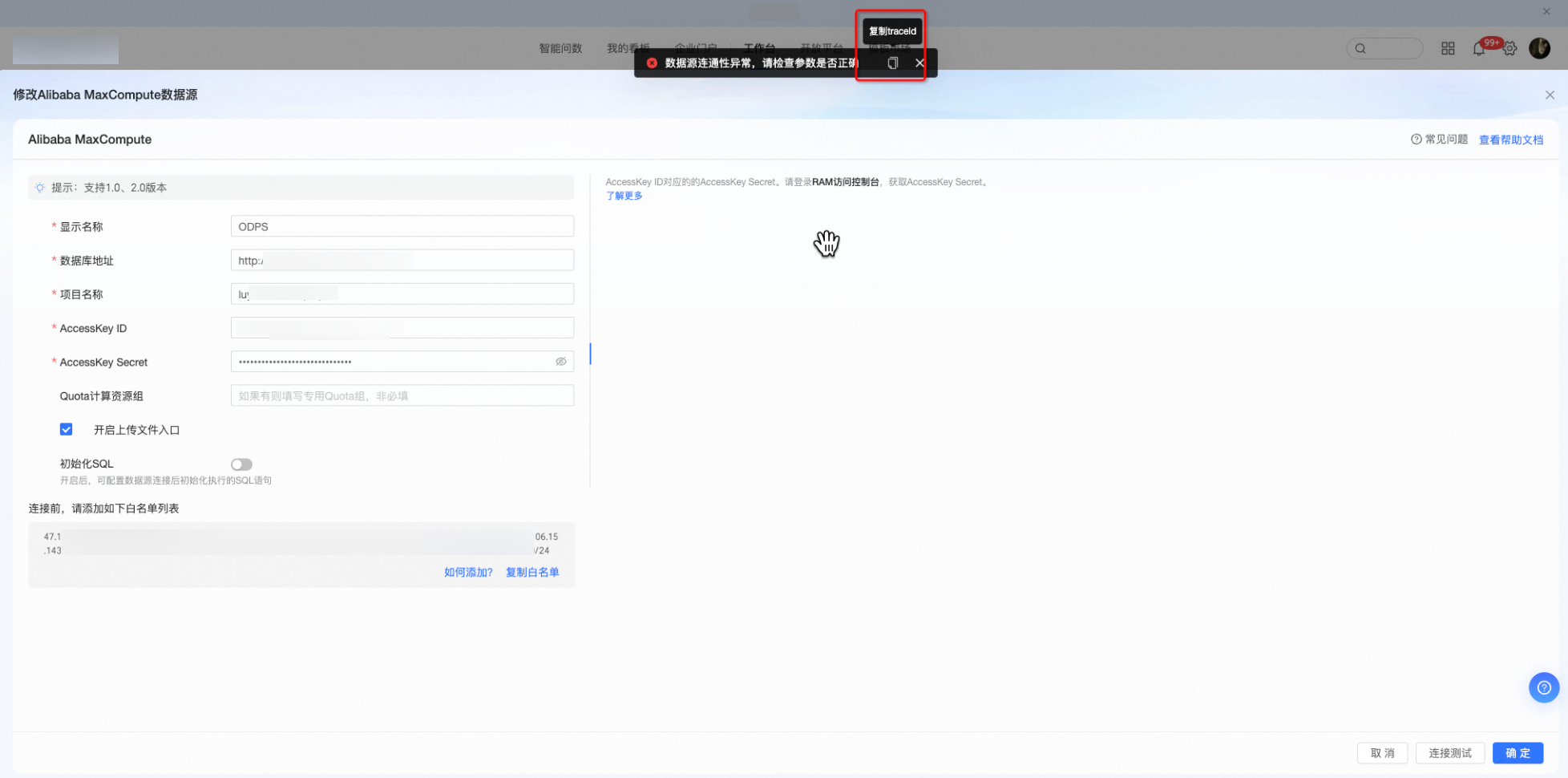
Find the complete list of Quick BI IP address ranges at the bottom of any data source connection page. Click Copy Whitelist to copy the full list, then add those addresses to your database.
Cloud database: Click Set Whitelist under How to Add for step-by-step instructions.
Self-managed database: Consult your database documentation to add IPs to the whitelist.

2. VPC data source not enabled for internal IPs
The setting you need depends on whether you use a public or internal IP address.
Public IP: Enter the IP in Database Endpoint and configure the whitelist. No further action needed — VPC data source is not required.
Internal IP: Quick BI must establish a private connection through the Alibaba Cloud VPC network. Enable VPC data source and fill in the required fields. Click Learn More next to any field to view its help documentation.

3. Insufficient account or AccessKey permissions
Missing permissions cause connection failures or silently block specific features. Common examples:
The AccessKey ID lacks Read permission on the target instance — the connection fails entirely.
The database username lacks Create permission — file uploads are blocked.
The database username lacks List permission — the table list does not appear.
Required permissions differ by data source type. Open the data source connection page and check the connection prompts panel on the right for the exact permission requirements.


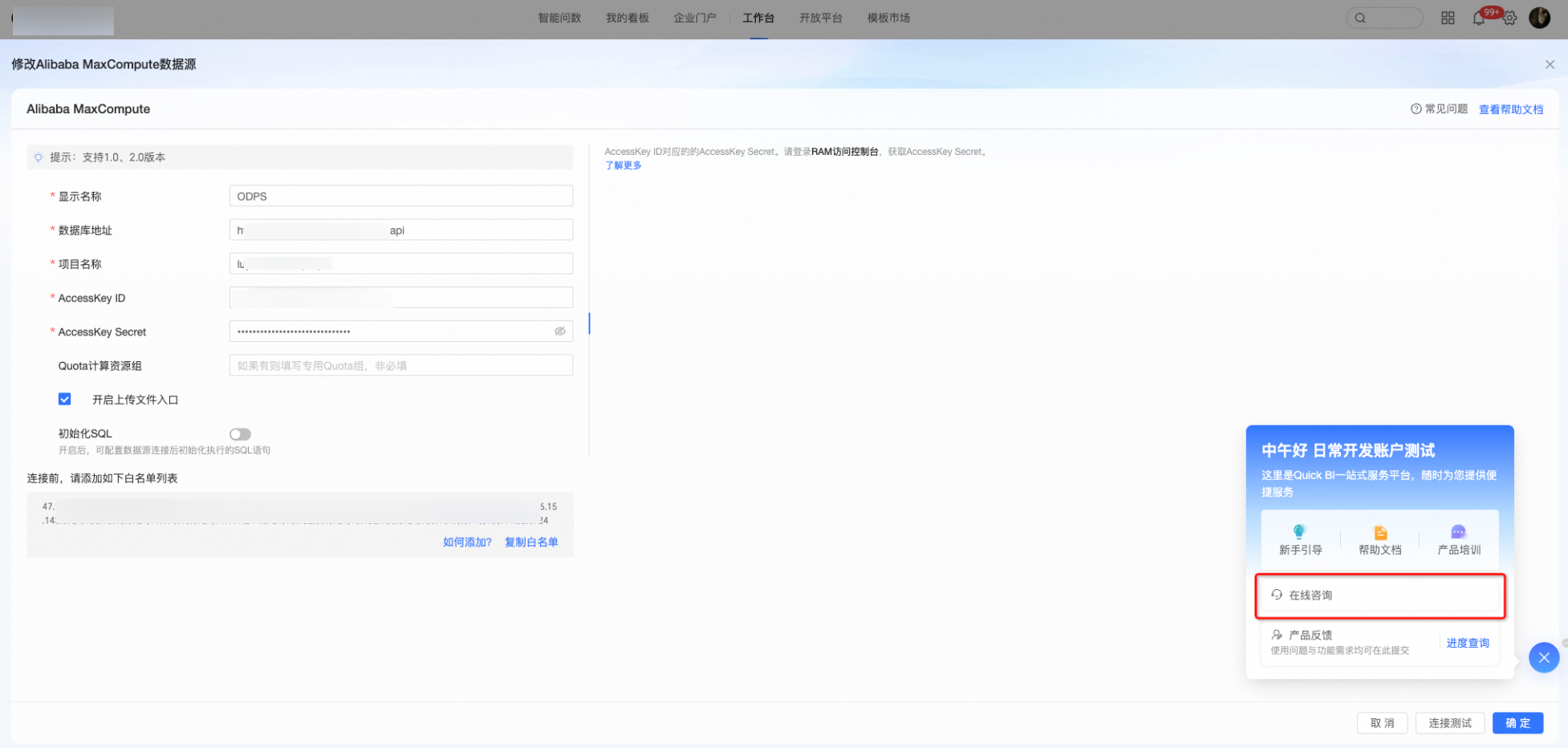
If the connection still fails after ruling out all three issues above, click Copy next to the error message to copy the error details, then contact support through the online consultation portal in the lower-right corner.
Joining tables from different data sources
Cross-source table joins are available only in Quick BI Pro.
To join tables across data sources, enable data extraction acceleration with the quick engine. For supported data sources, see Data Source Feature List.
Direct connection query behavior and caching
With a direct database connection, dashboard chart queries are cached for one minute by default. To bypass this cache and get live data, select the Enable Real-time Query option.

You can also configure query result caching at the dataset level. For details, see Query Cache.
Deleting uploaded files and database tables
When you delete a file uploaded to a data source, the database table automatically generated from that file is also deleted.
What is an exploration space?
The exploration space is a data source type unique to Quick BI. Upload local CSV or Excel files (.xls or .xlsx) to use them as data sources directly in Quick BI.
Joining exploration space tables
Joining tables within the exploration space is not currently supported.
Importing files after connecting to MySQL
Yes. You can also upload files to the exploration space.
Effect of changing MySQL endpoint to read-only
If the table structure remains unchanged, your existing datasets and dashboards are not affected.
Unable to create data sources
-
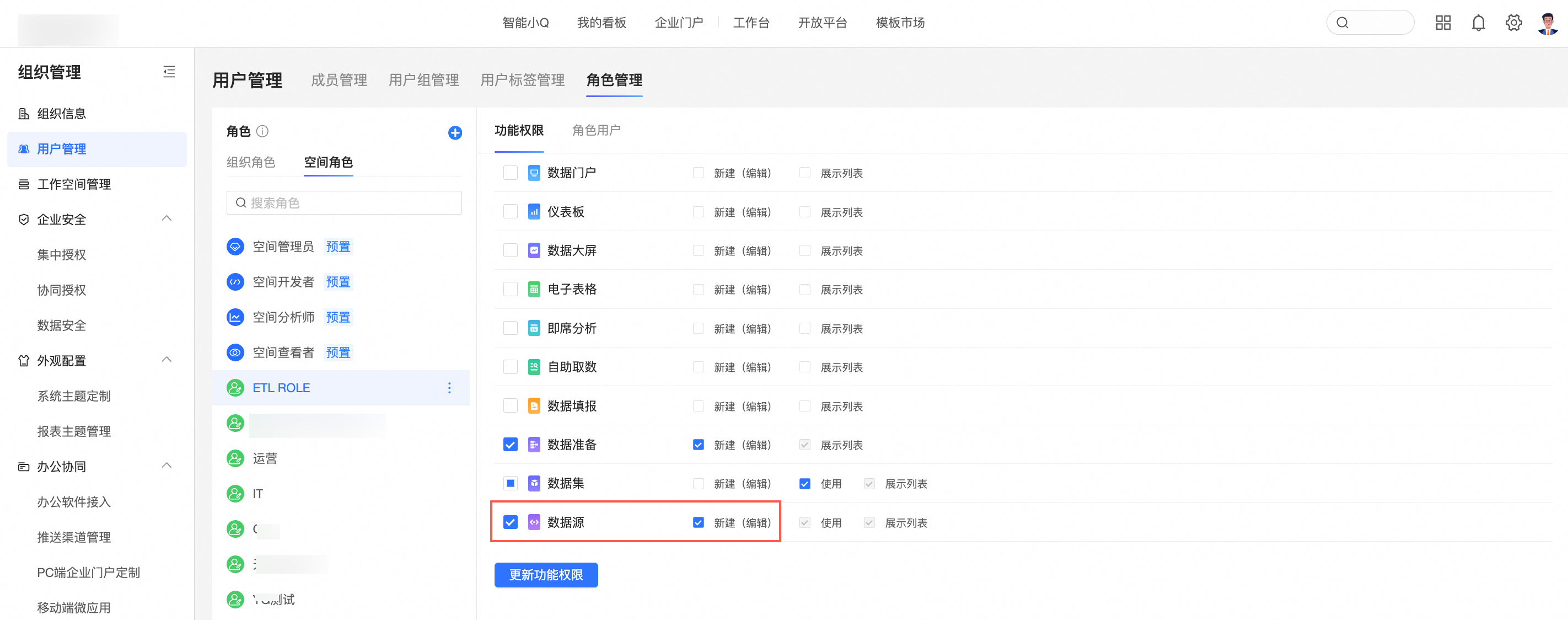
Verify that you have permission to create or edit data sources. For details, see Manage Roles.

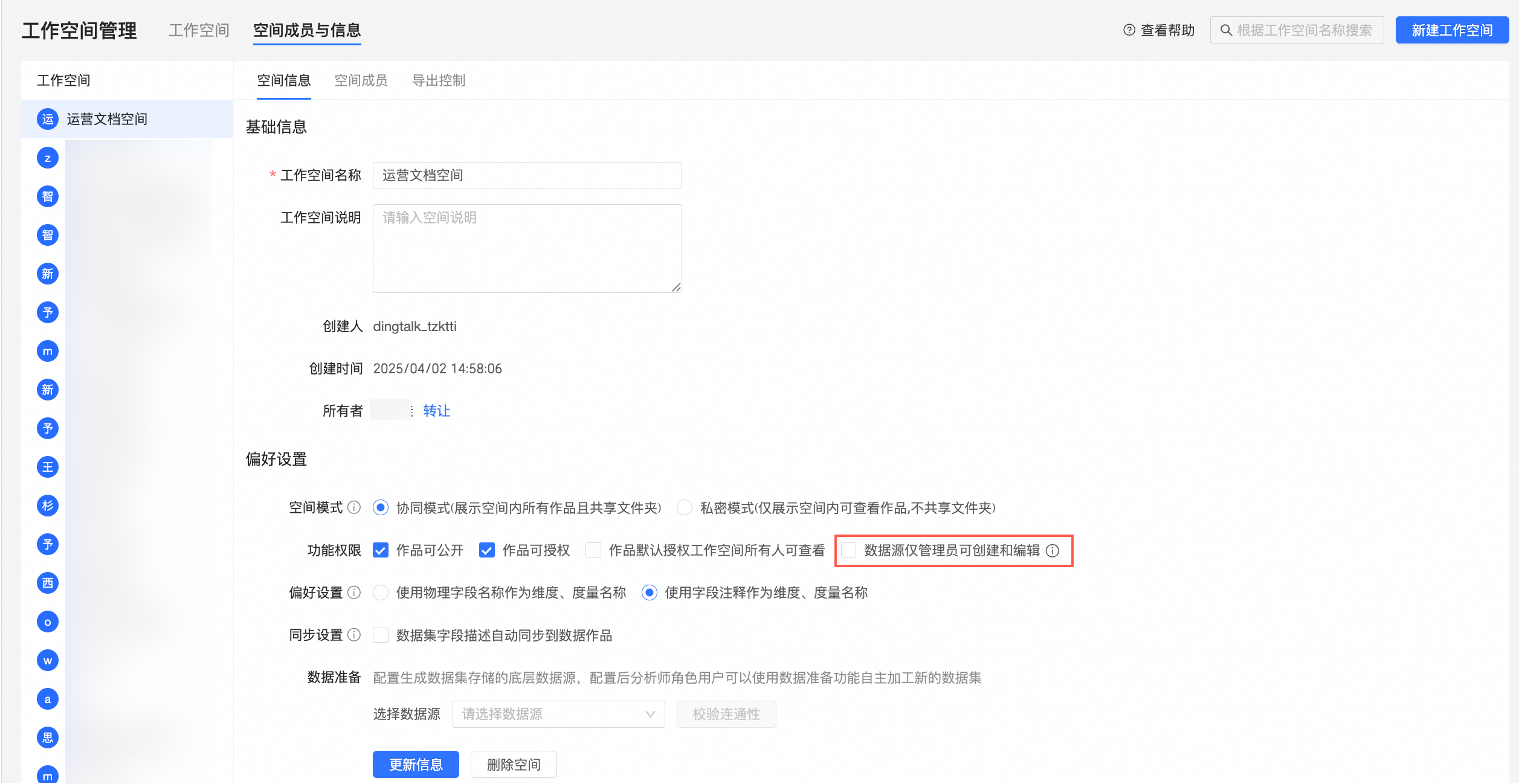
If your permissions are correct but you still cannot create a data source, check whether Only administrators can create and edit data sources is enabled in your workspace settings.
Permission error after successful connection test
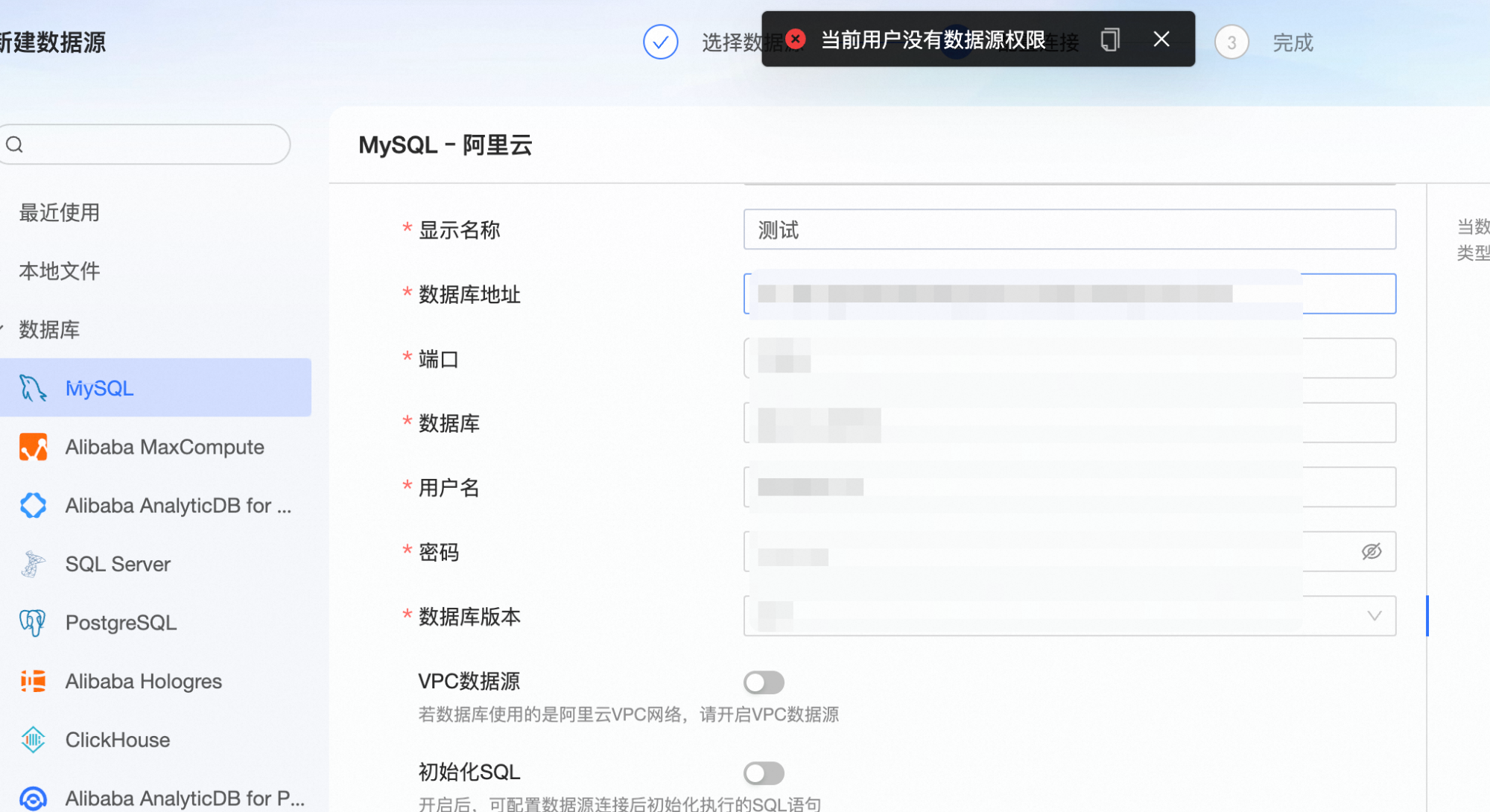
This error appears when a user with the developer user type tries to save a data source in a workspace where they lack developer permissions. The user type grants permission to create data sources, but saving requires the corresponding permissions in the target workspace.