Manage push channels
Push channels are the outbound notification methods for your organization, such as DingTalk, WeCom, Lark, and custom webhooks. On the Push Channel Management page, you can view task details for each channel and edit or delete custom push channels.
Access the Push Channel Management page
Log on to the Quick BI console.
-
On the Quick BI homepage, navigate to the Push Channel Management page.
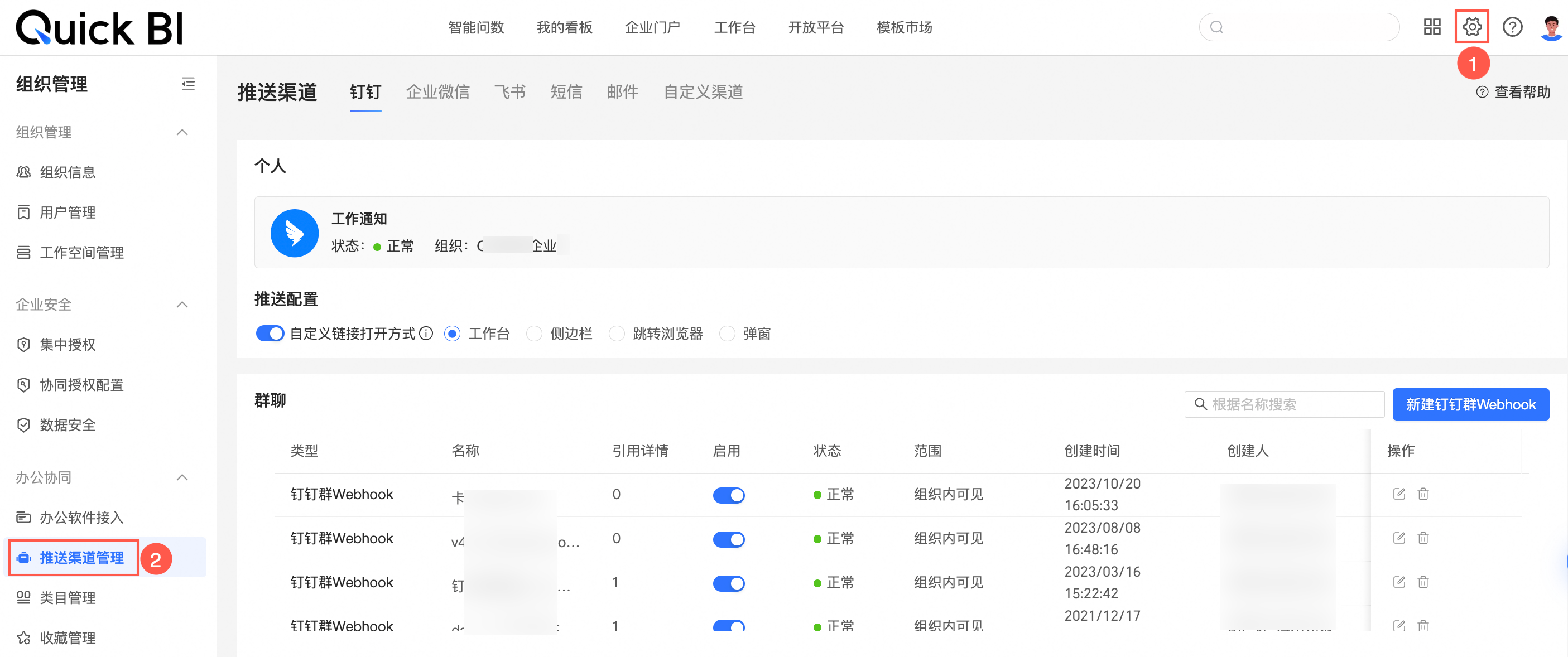
The Push Channel Management page lists all configured channels. The following table describes the parameters on this page.
Parameter
Description
Type and Name
The type and name of the push channel.
Quick BI supports the following push channel types: SMS, email, DingTalk work notifications, DingTalk group bots, WeCom notifications, WeCom groups, Lark group notifications, and custom webhooks.
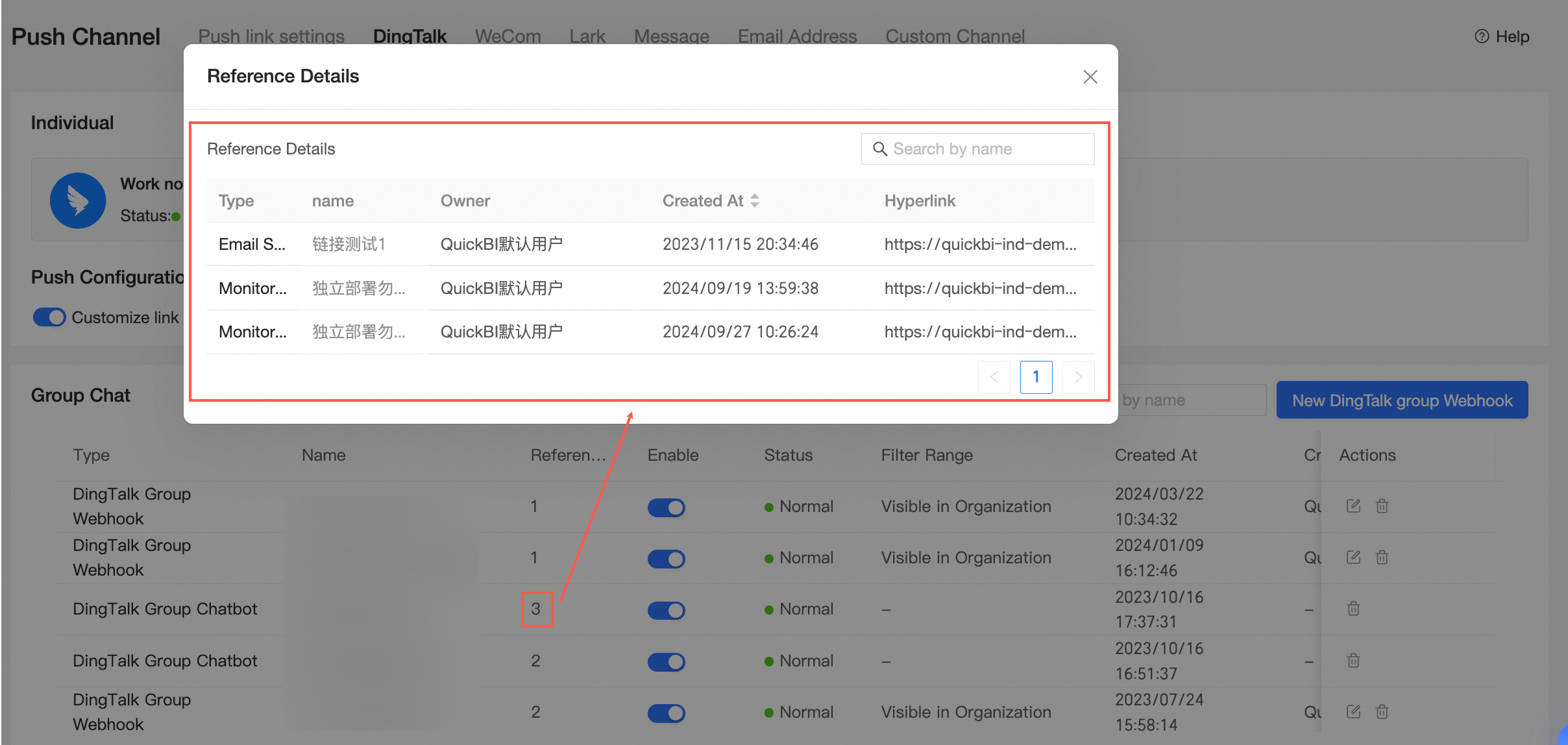
Reference details
The number of times a bot is referenced.
Each time a newly created bot is selected for an approval or monitoring task, its reference count increases by one.
Hover over the reference count to view the reference details.
Enable
When enabled, the bot can be referenced in tasks. You can also disable the bot.
Status
The operational status of the bot. Possible statuses are Enabled, Disabled, and Invalid.
If a push channel fails to send a message 10 consecutive times, the system sets the bot's status to Invalid, and the bot will no longer receive messages from that channel.
Push configuration
For DingTalk and WeCom, you can set the custom link opening mode to Workbench, Sidebar, Redirect to browser, or Pop-up window.

-
This setting applies only to the PC client. The push configurations for DingTalk and Lark channels are automatically synchronized.
-
This configuration affects the following actions:
-
Subscription (personal and group)
-
Monitoring and alerting (personal and group)
-
Comments
-
Share
-
Edit a push channel
You can edit any created push channel. The following example shows how to edit a custom webhook push channel.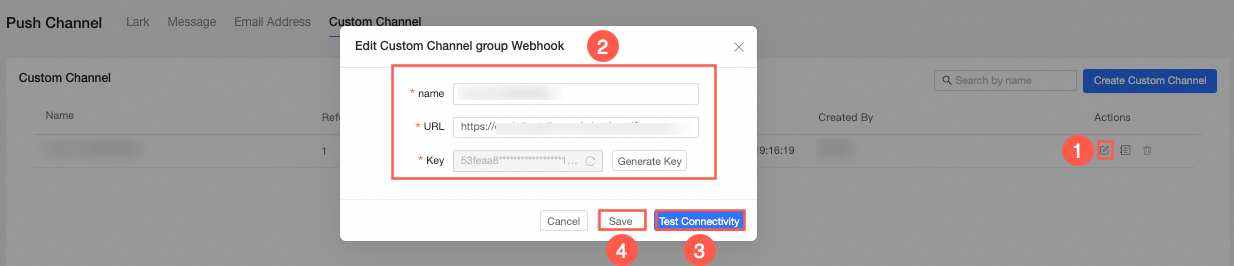 You can modify the name, webhook URL, and secret key for the custom webhook. For more information about these parameters, see Parameter descriptions.
View channel details
The Channel Task Details list shows the format and delivery status of sent messages.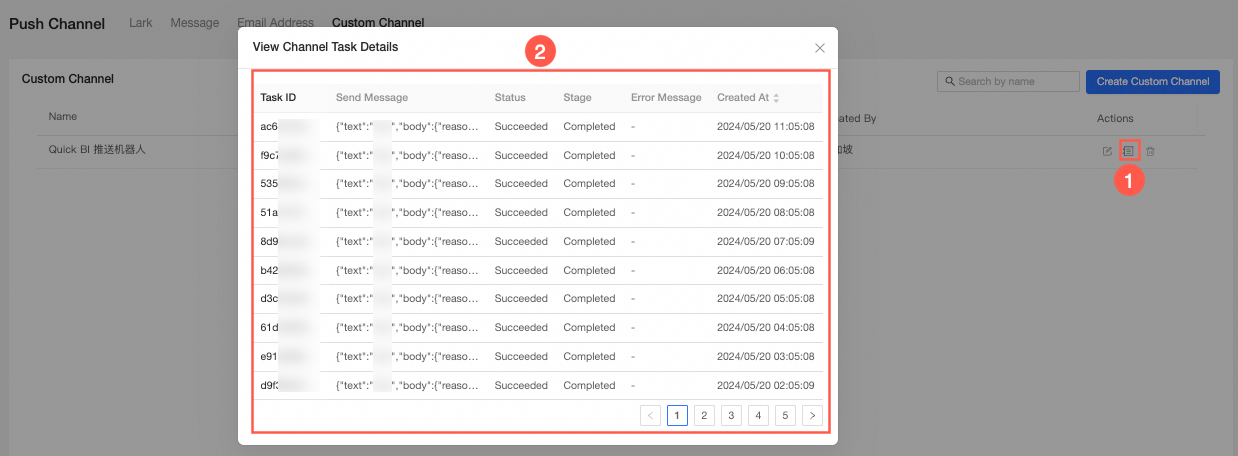
Channel details are available only for custom channels.
Delete a push channel
You can delete a push channel only when its reference count is 0.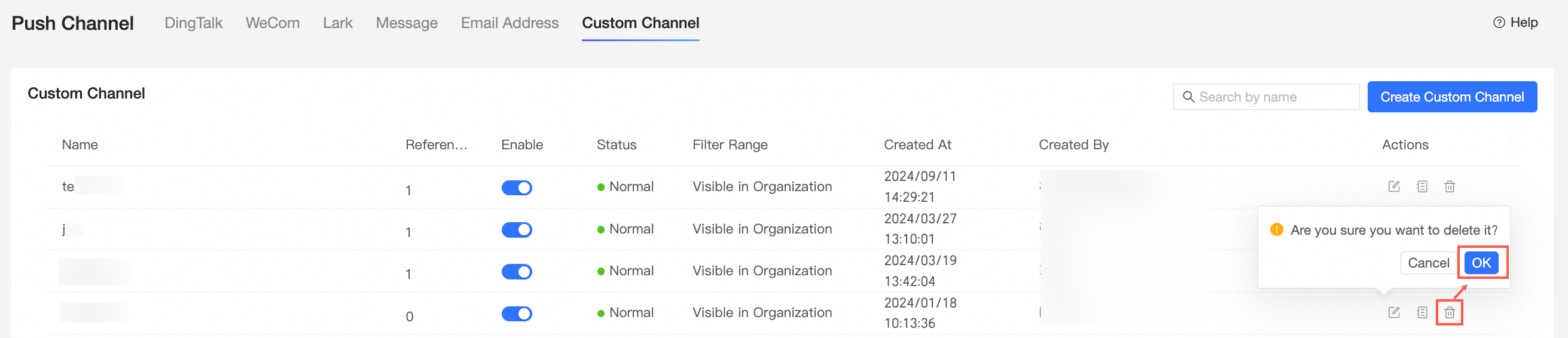
To delete a push channel, you must first remove the references shown in its reference details.