Manage subscription tasks
This topic describes how to manage the subscription tasks that you created on the Subscriptions page.
Go to the Subscriptions page
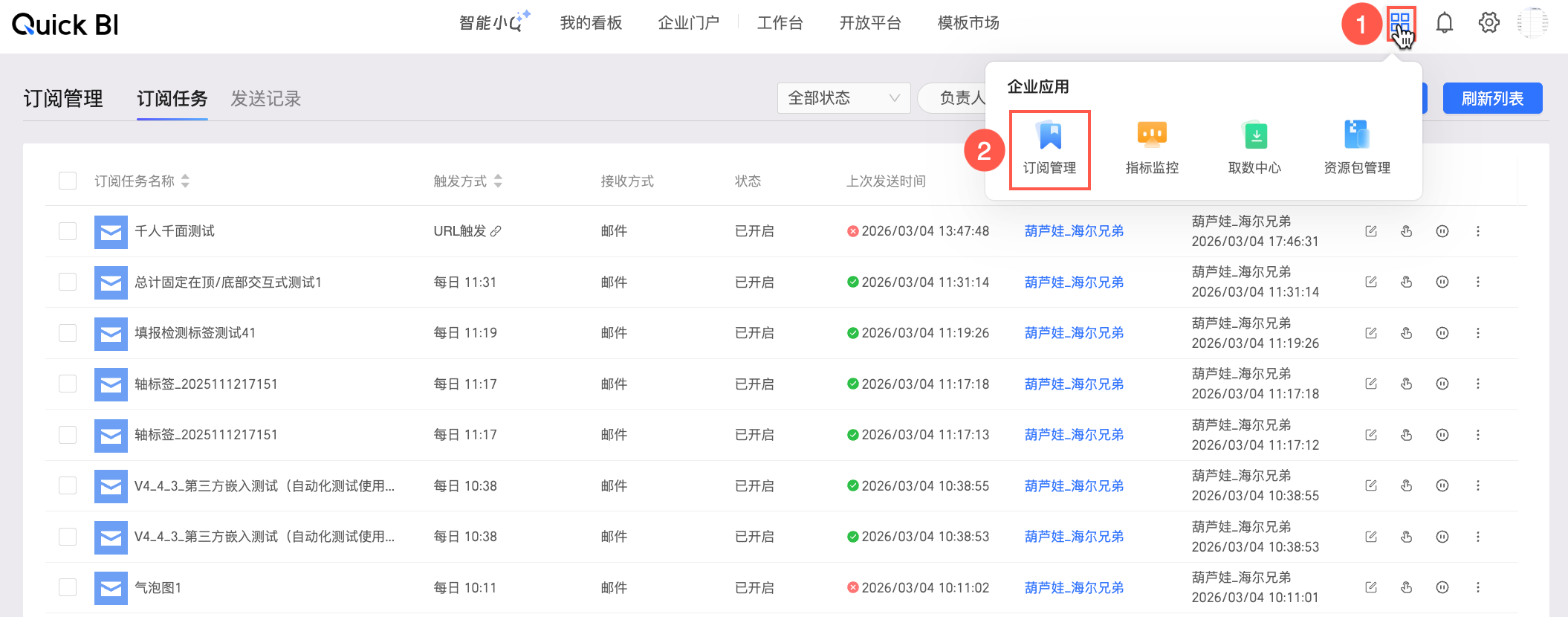
Log on to the Quick BI console.
In the top navigation bar, go to the Subscriptions page.
Query a subscription task
Organization members can query the subscription tasks that are created by themselves. Organization administrators can query and manage the subscription tasks that are created by all members in their organizations.
Go to the Subscriptions page. For more information, see Go to the Subscriptions page.
On the Subscriptions page, click the Subscription Task tab. In the search box, enter a keyword to find a subscription task.
Alternatively, you can filter by status or search by task name or owner to find a subscription task.
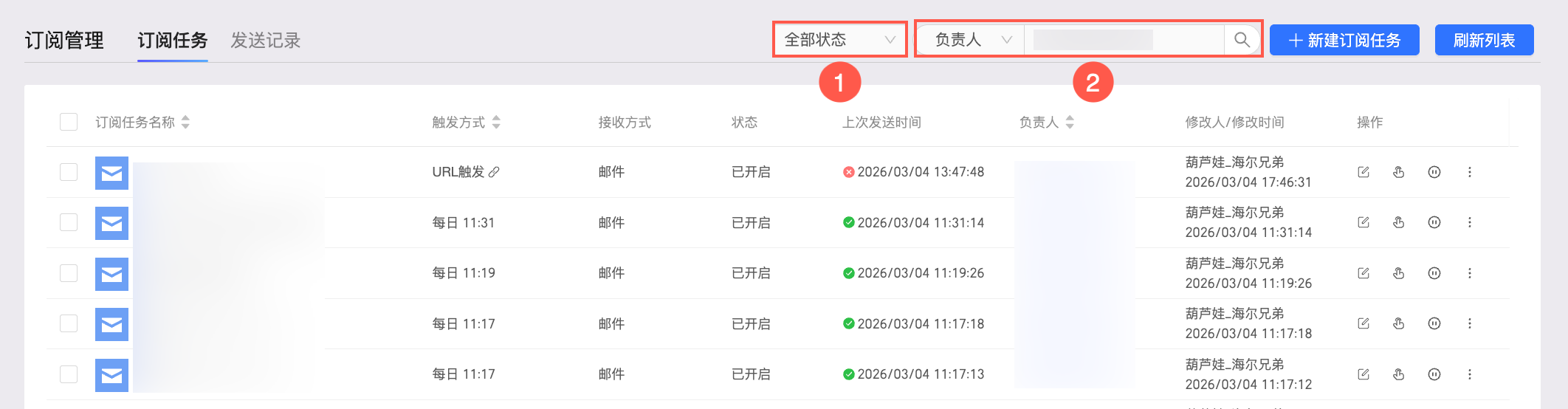
1: Select the state of the subscription task that you want to query.
Each subscription task has two states: Enabled and Suspended.
2: Select the name or the owner of the subscription task that you want to query.
Get the trigger URL
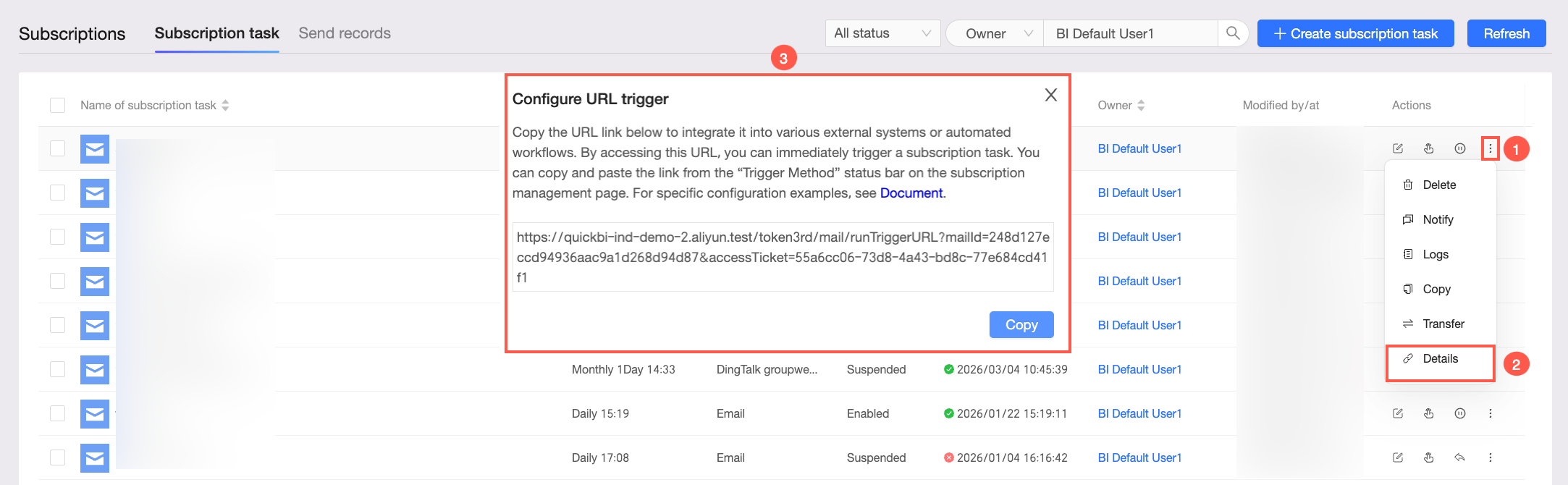
If a subscription task's trigger mode is URL trigger, you can get the trigger URL in one of the following ways:
In the Trigger Mode column for the task, click the
 icon to copy the trigger URL.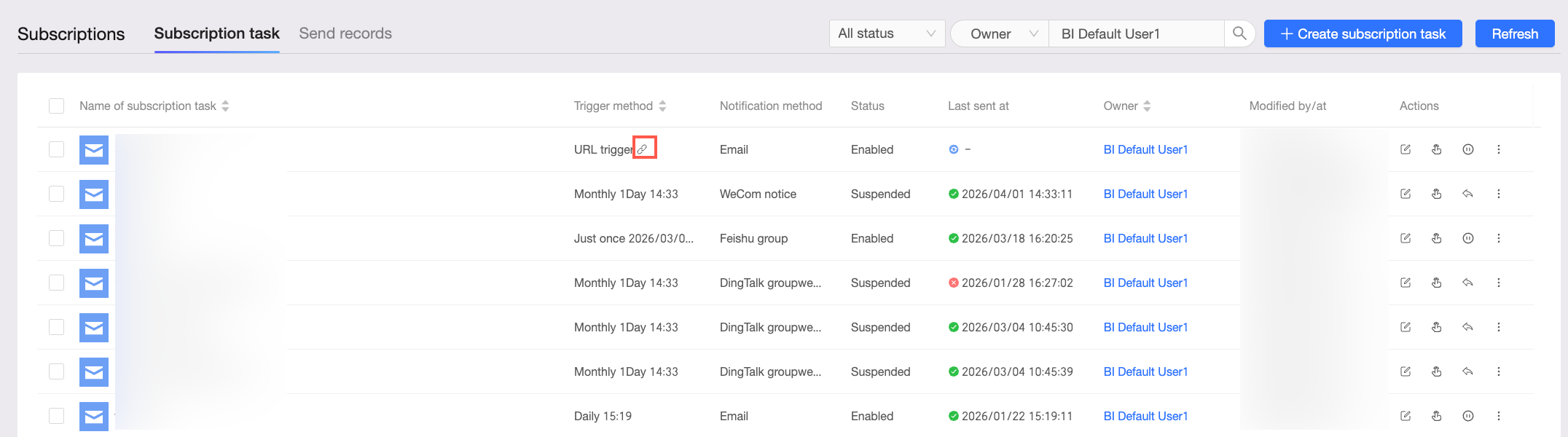
In the Actions column for the task, click the
 icon, select Details from the drop-down list, then copy the trigger URL from the Configure URL Trigger dialog box.
Modify a subscription task
Go to the Subscriptions page. For more information, see Go to the Subscriptions page.
On the Subscriptions page, on the Subscription Task tab, click the
icon in the Actions column of the target subscription task.On the Edit page, modify the subscription task.
For more information about how to configure the parameters, see Create a subscription task.
 icon in the Actions column of the target subscription task.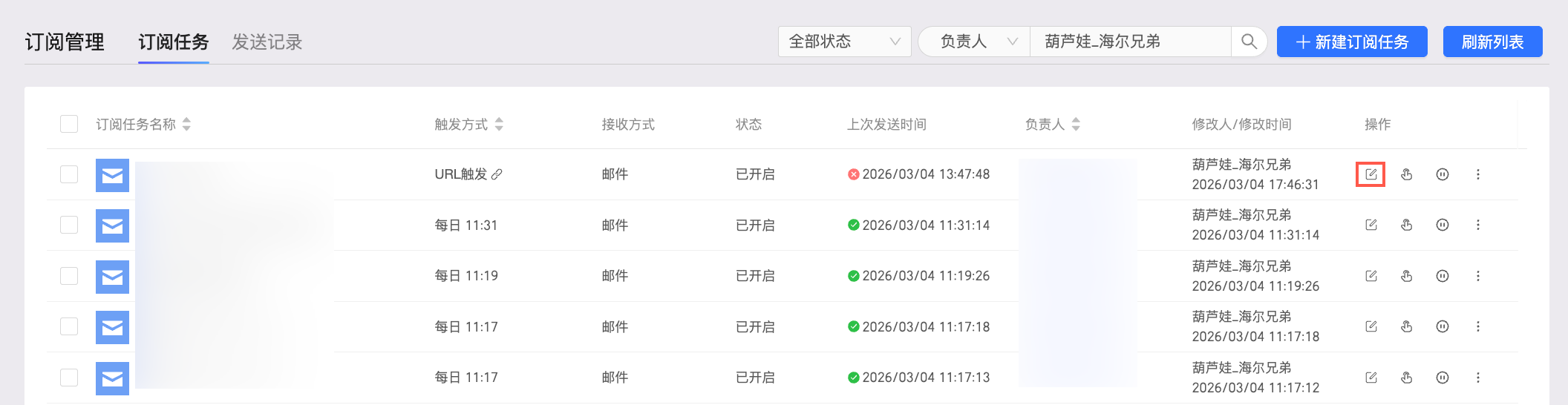
Configure manual sending
Go to the Subscriptions page. For more information, see Go to the Subscriptions page.
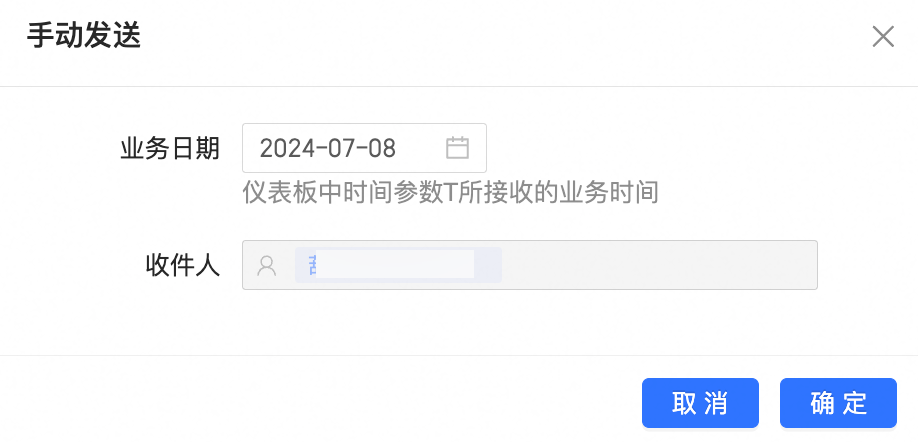
On the Subscription Task tab of the Subscriptions page, click the
icon in the Actions column of the target subscription task.In the Manual Sending dialog box, set the Business Date, and click OK.
 icon in the Actions column of the target subscription task.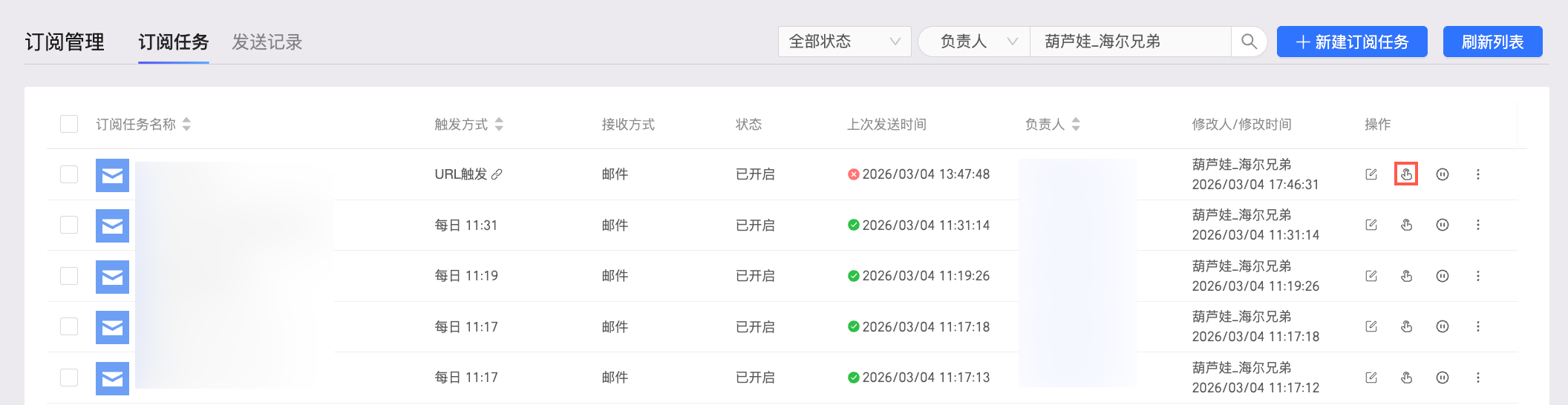
Suspend a subscription task
You cannot suspend scheduling for a task if its status is already Suspended.
You cannot suspend scheduling for a task if its send time is configured for one-time execution.
Go to the Subscriptions page. For more information, see Go to the Subscriptions page.
On the Subscriptions page, click the Subscription Task tab. Find the target subscription task and click the
icon in the Actions column.In the confirmation dialog box, click OK to suspend the task.
 icon in the Actions column.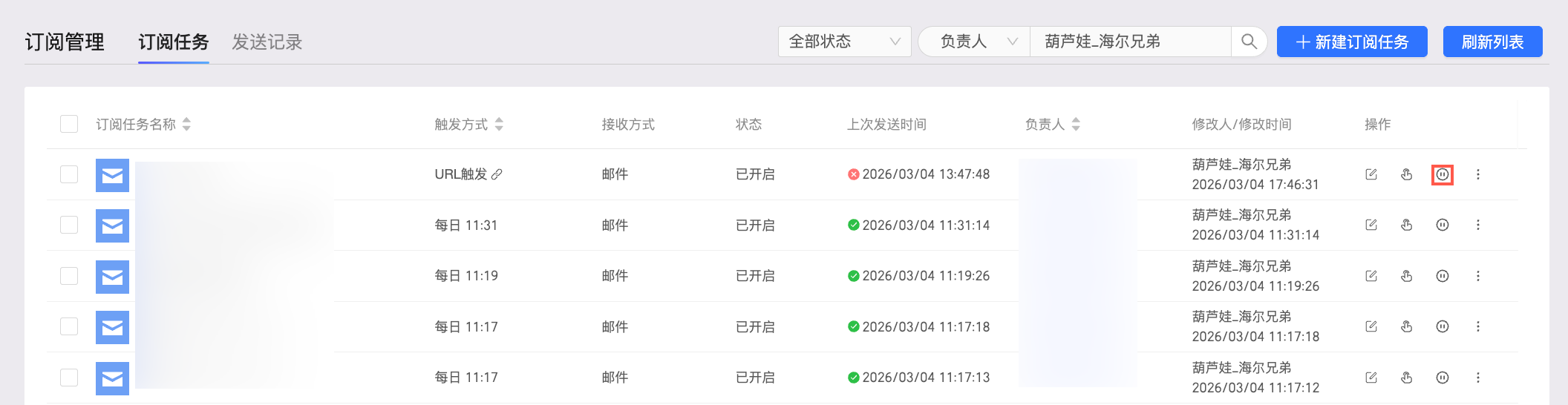
Resume a subscription task
You cannot resume scheduling for a task if its status is already Enabled.
You cannot resume scheduling for a task if its send time is configured for one-time execution.
Go to the Subscriptions page. For more information, see Go to the Subscriptions page.
On the Subscription Tasks tab of the Subscriptions page, click the
icon in the Actions column for the target subscription task.In the confirmation dialog box, click OK.
The suspended subscription task is resumed.
 icon in the Actions column for the target subscription task.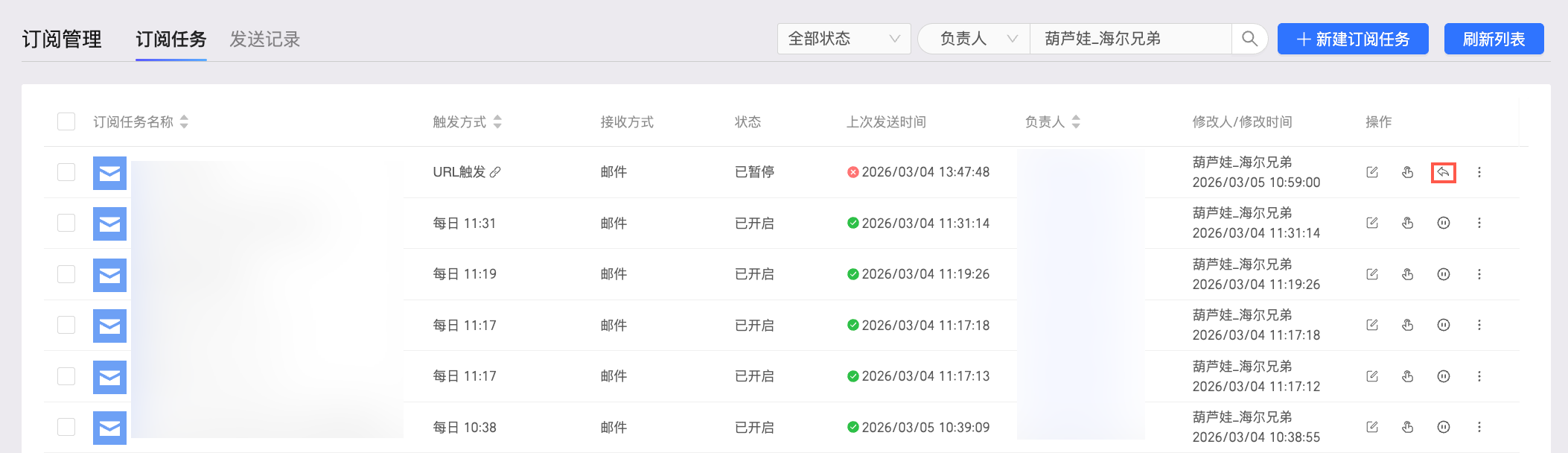
Perform other operations on a subscription task
Go to the Subscriptions page. For more information, see Go to the Subscriptions page.
On the Subscriptions page, click the Subscription Task tab, find a task, and click the
icon in its Actions column to perform one of the following actions:Delete: Deletes the subscription task.
Notify: Manually sends a notification to the user who configured the task.
If the subscription notification fails to be sent, Quick BI sends a notification to the user who configures the subscription task.
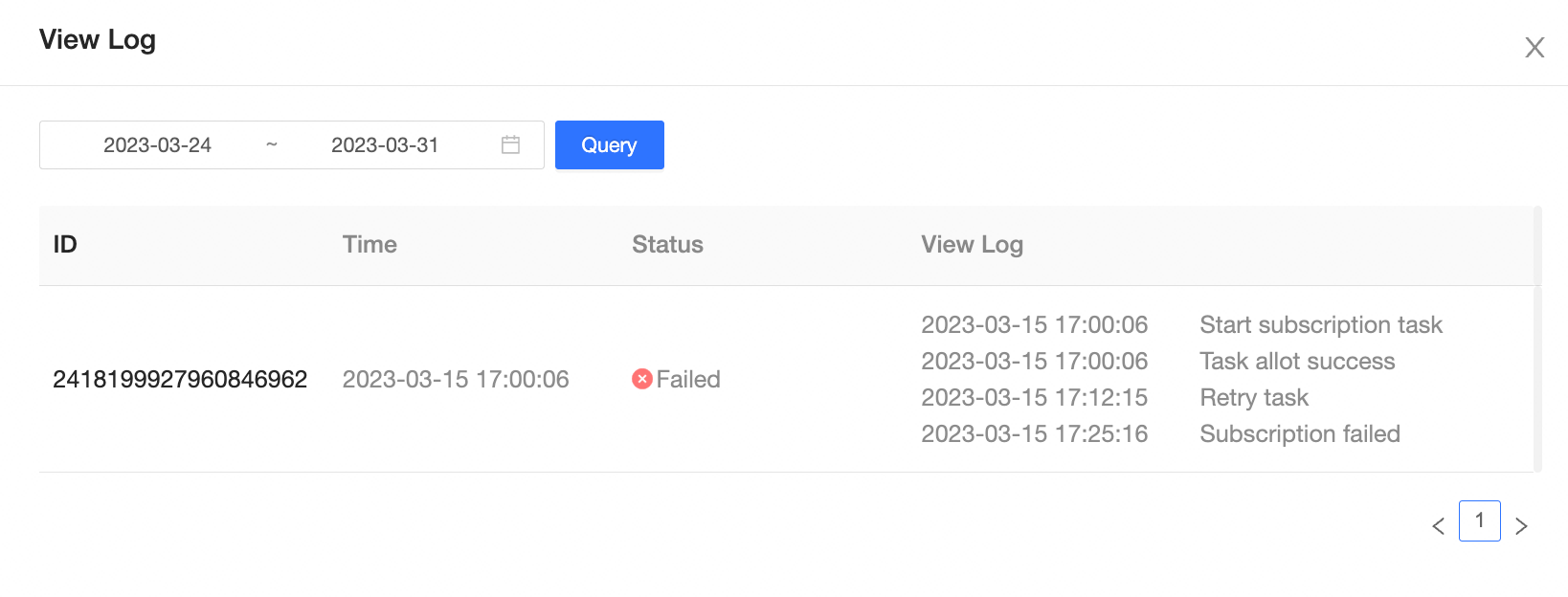
Log: Displays the subscription log for the task, which contains information about its execution, including any failures.
Copy: Copies the subscription task.
Transfer: Transfers ownership of the subscription task to another user.
After you click Transfer, the permissions on the subscription task are transferred to another user.
Abort: Aborts a running subscription task.
NoteOnly subscription tasks that are sending subscribed data can be paused.
 icon in its Actions column to perform one of the following actions: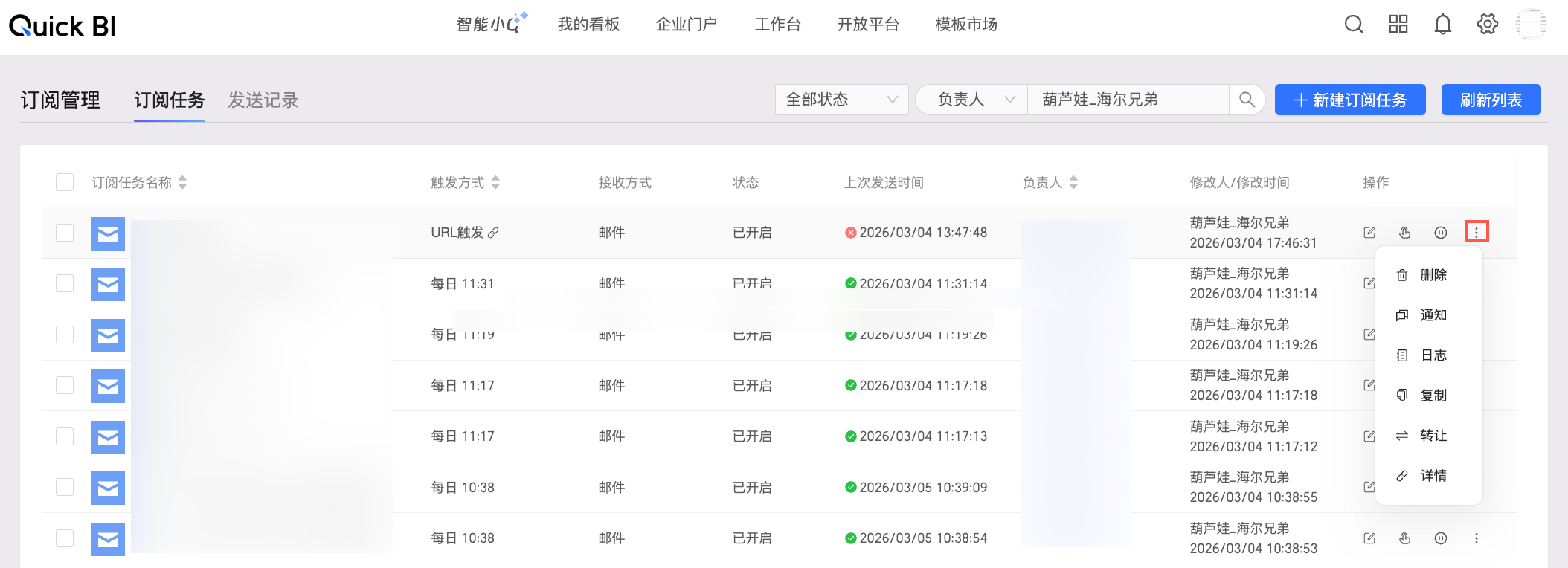
Batch operations
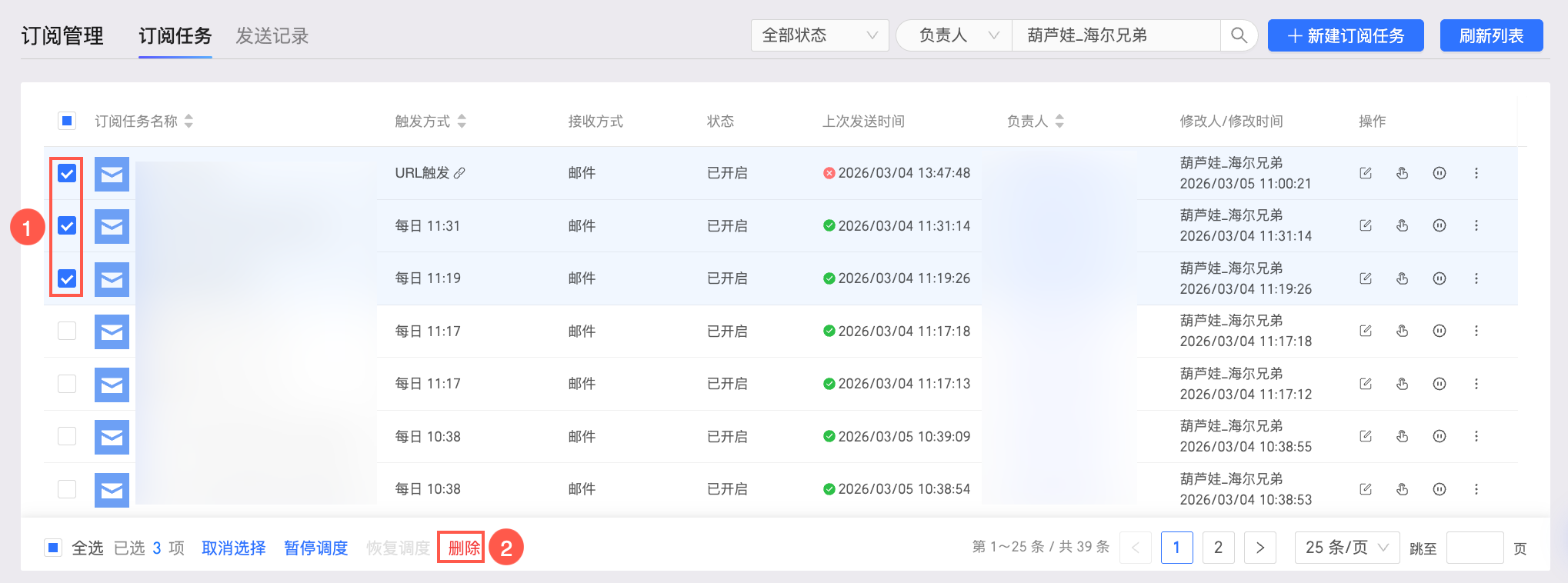
Batch delete
Select one or more subscription tasks to delete them in a batch. You can also select all tasks on the current page.
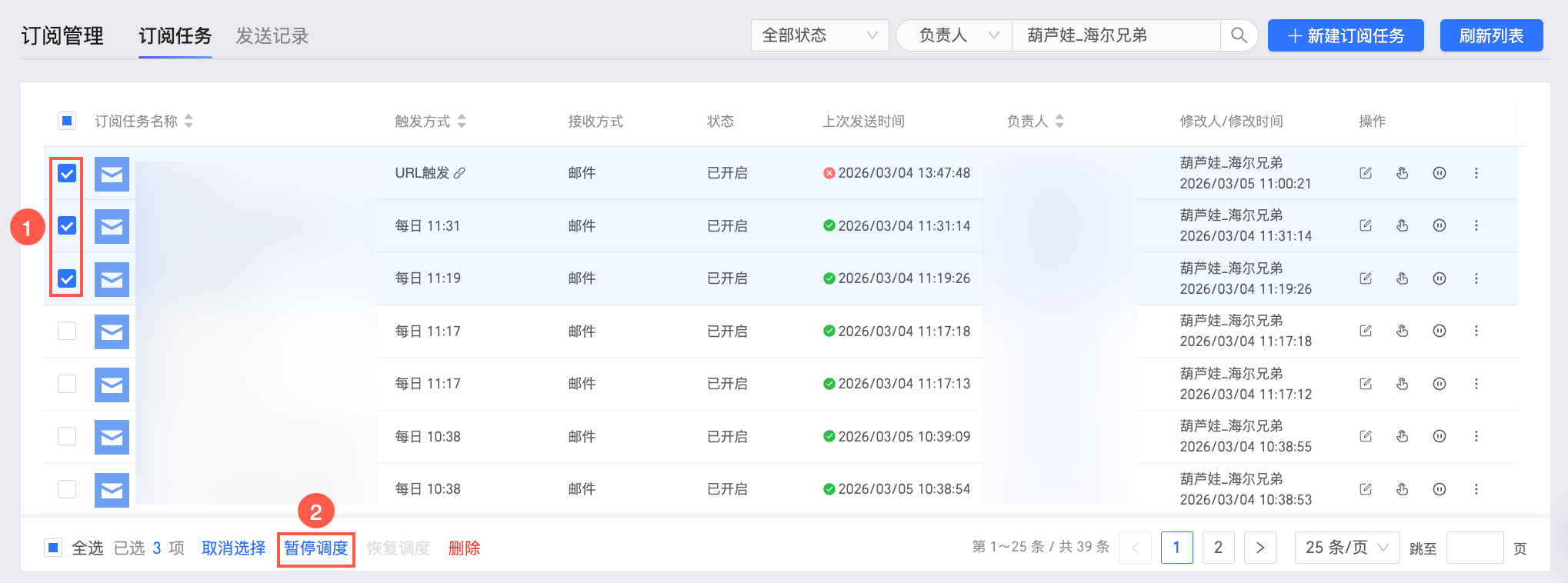
Batch suspend scheduling
Select one or more subscription tasks in the Enabled status to suspend their scheduling in a batch. You can also select all tasks on the current page with this status.
You cannot suspend scheduling for a task if its send time is configured for one-time execution.
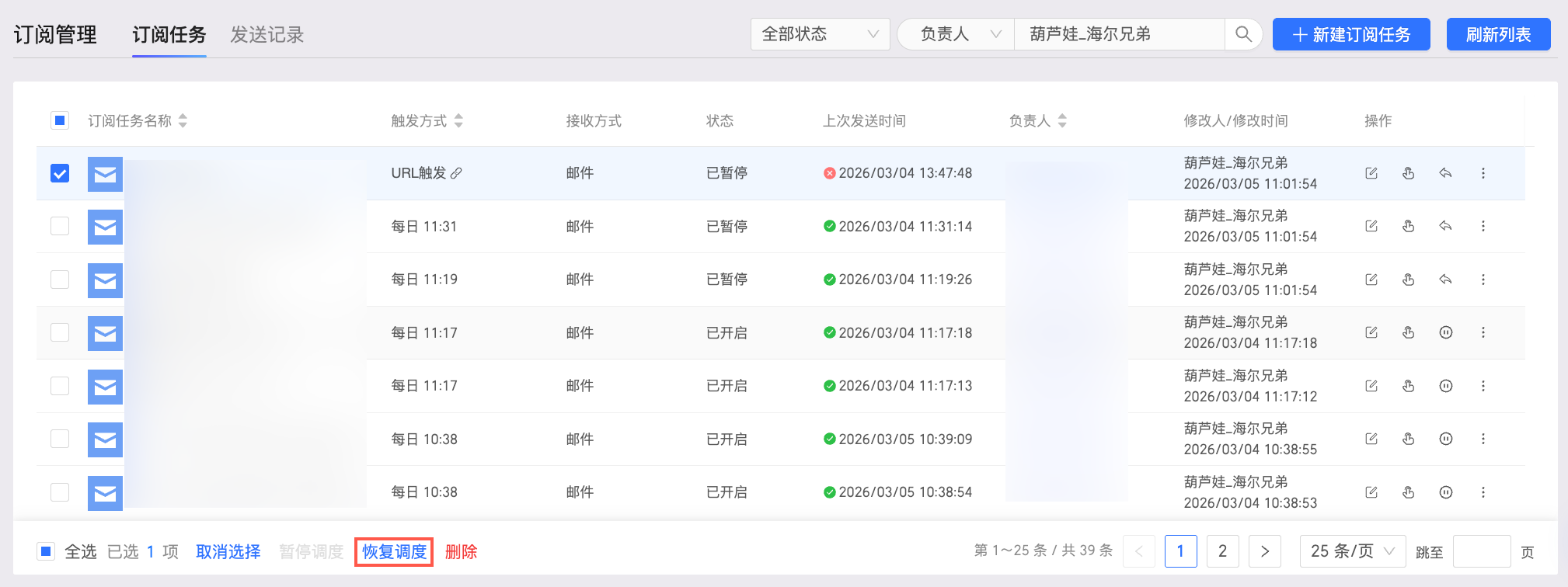
Batch resume scheduling
Select one or more subscription tasks in the Suspended status to resume their scheduling in a batch. You can also select all tasks on the current page with this status.
You cannot resume scheduling for a task if its send time is configured for one-time execution.