Permission administrators can grant users permissions to edit and view Metric Insights resources.
Background information
When a permission administrator grants permissions to a user, the permission properties differ between collaborative mode and private mode, as shown in the following figure.

The collaborative permissions have the following relationships:
Edit permission: When a user has edit permission, they can edit Metric Insights.
View permission: When a user has view permission, they can view generated Metric Insights reports.
Scenarios
Scenario description | Expected outcome |
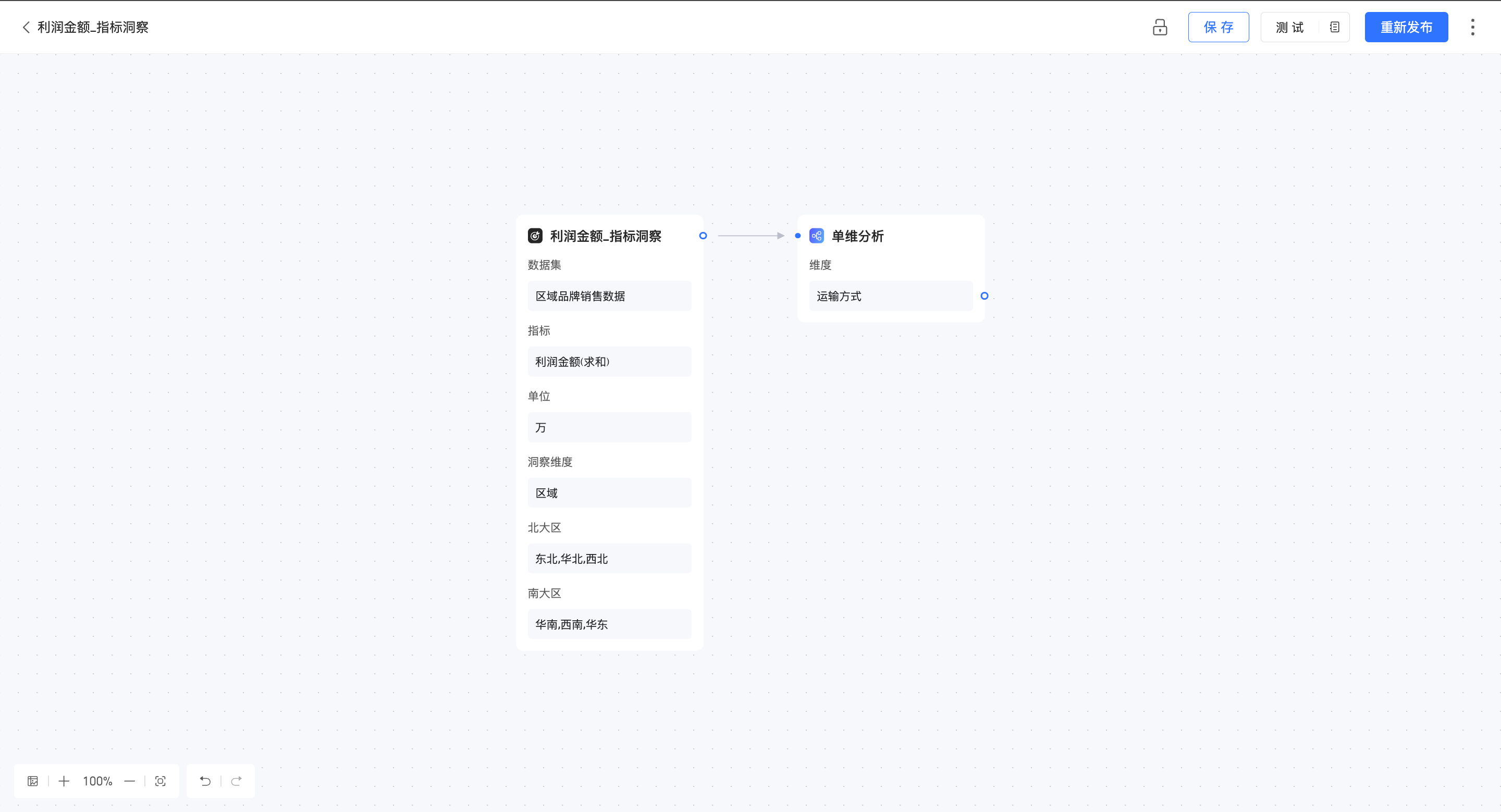
Allow Developer B to edit Metric Insights.
| |
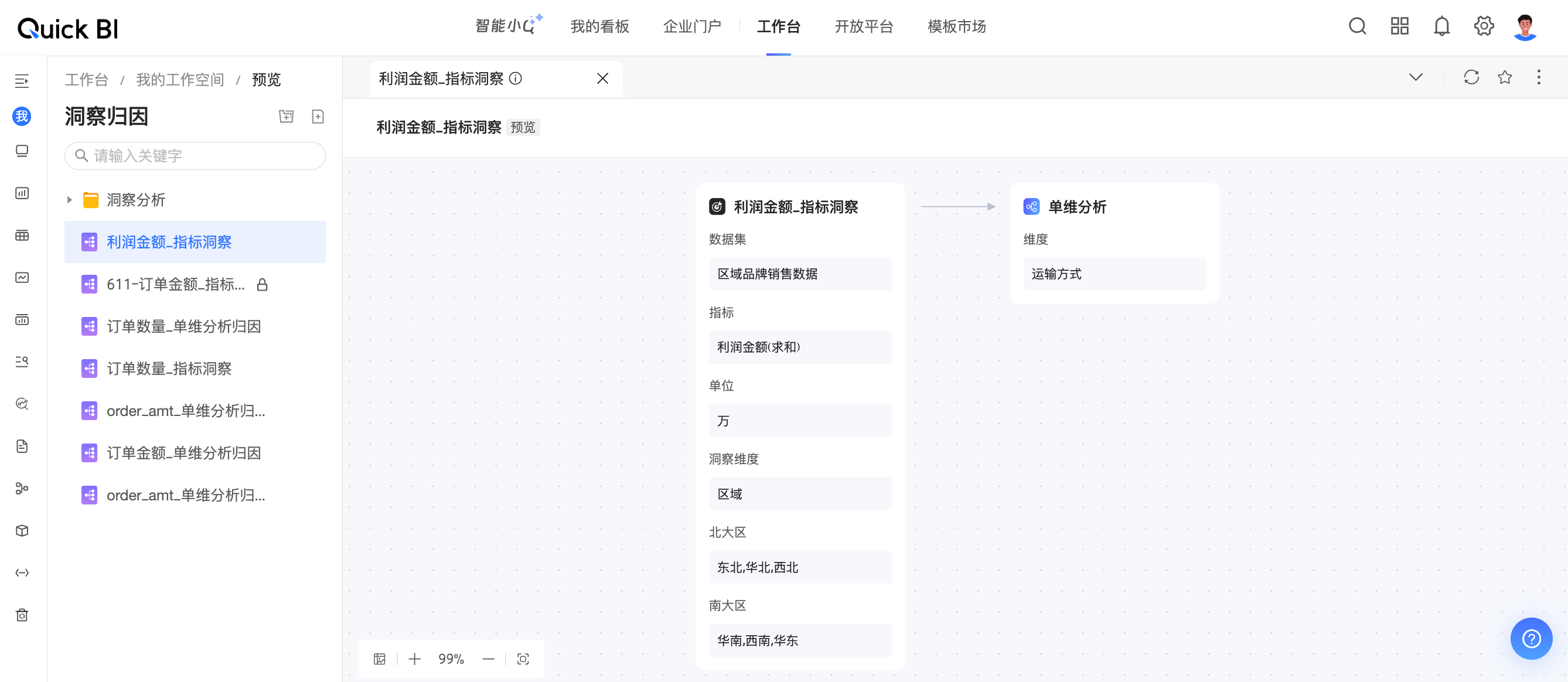
Allow Developer B to view generated Metric Insights reports.
|
Scenario 1: Grant permission to edit Metric Insights
In private mode, only the resource owner and workspace administrators have edit permission. To grant edit permission to specific members, first switch to specific members mode.
The authorized user's workspace role must include the Create (Edit) permission for Metric Insights.
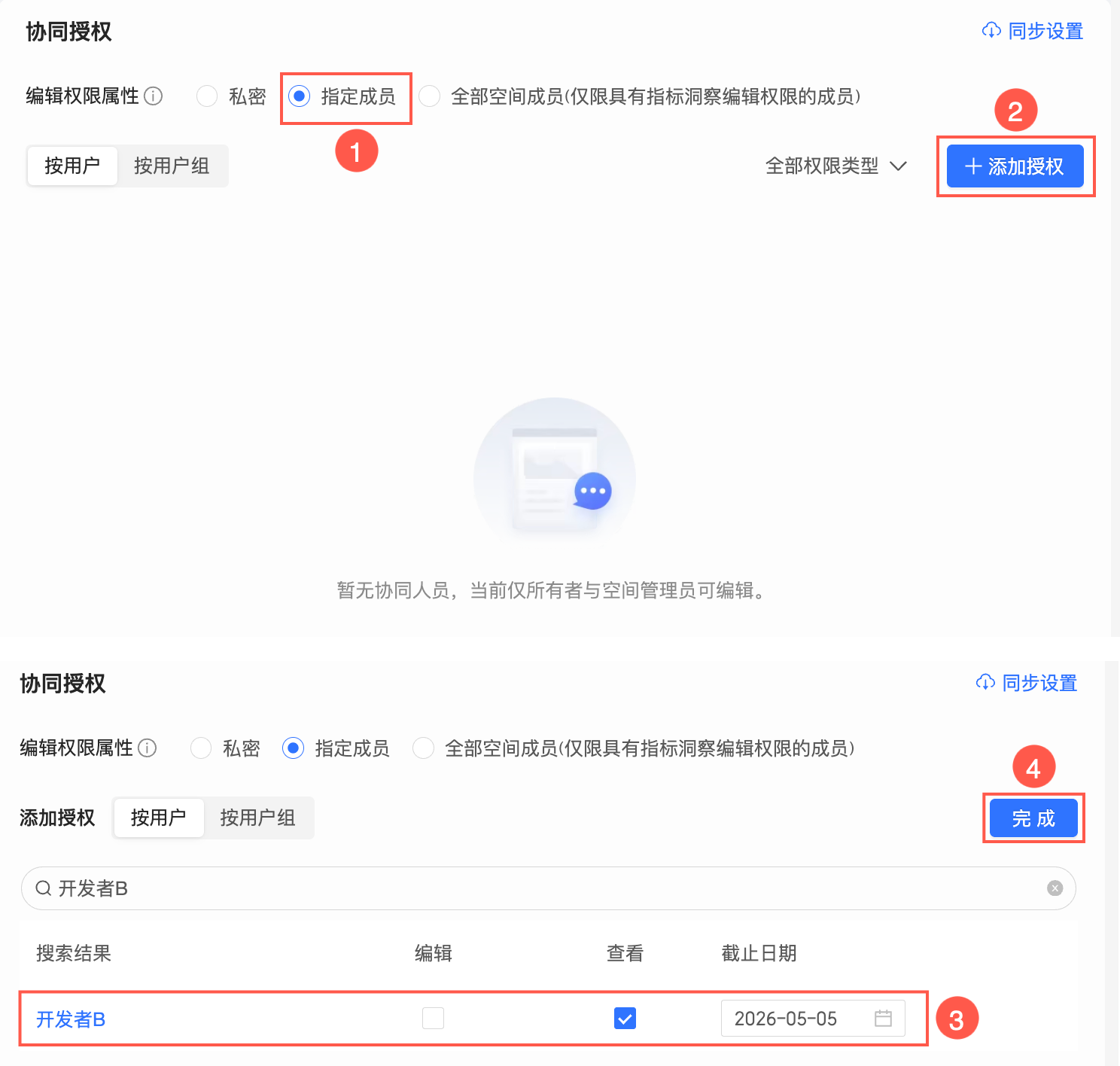
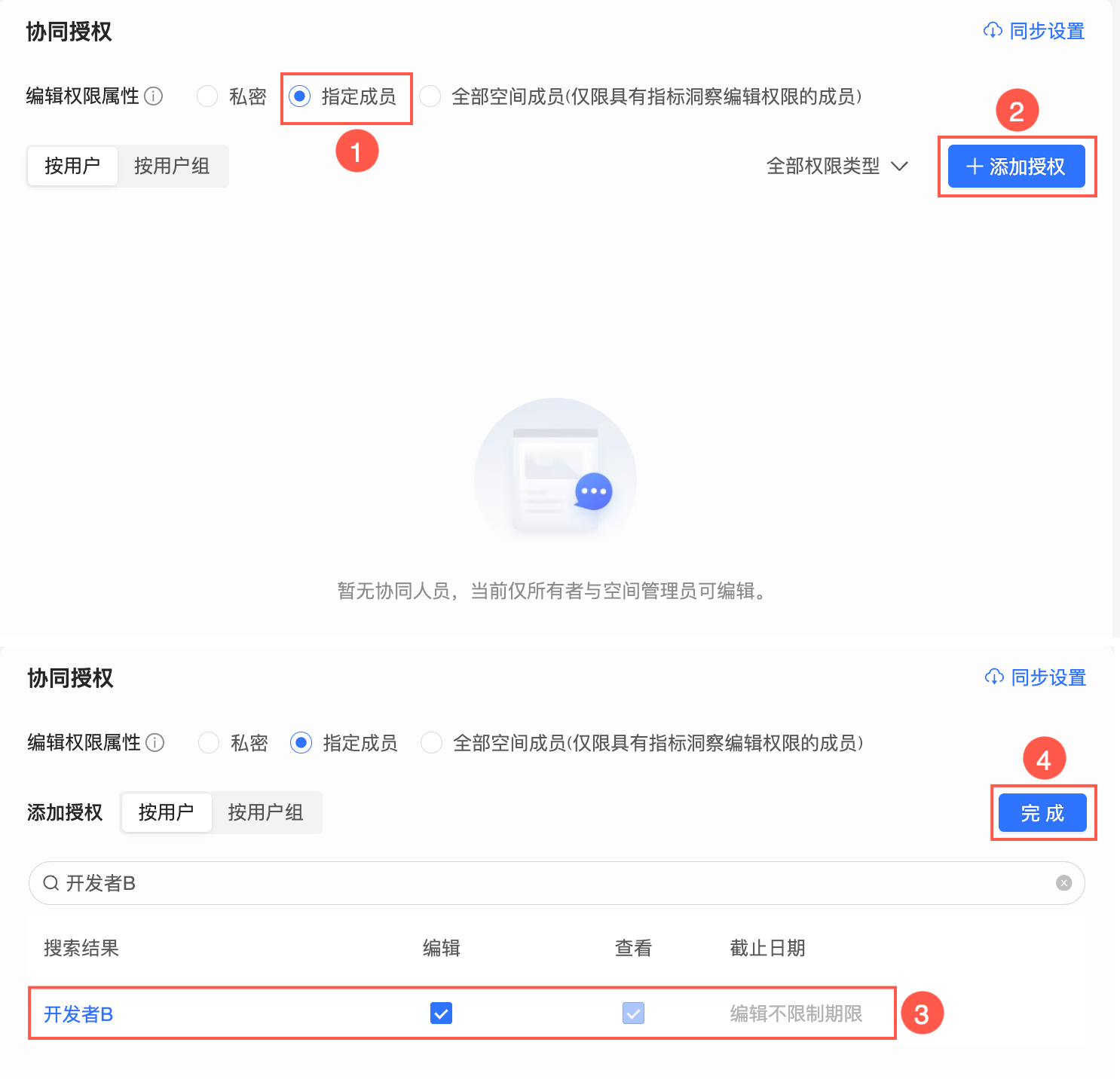
When you select Specific members, you can grant users permission to edit Metric Insights.
When you select All workspace members (only members with edit permission for Metric Insights), all workspace members can edit Metric Insights.
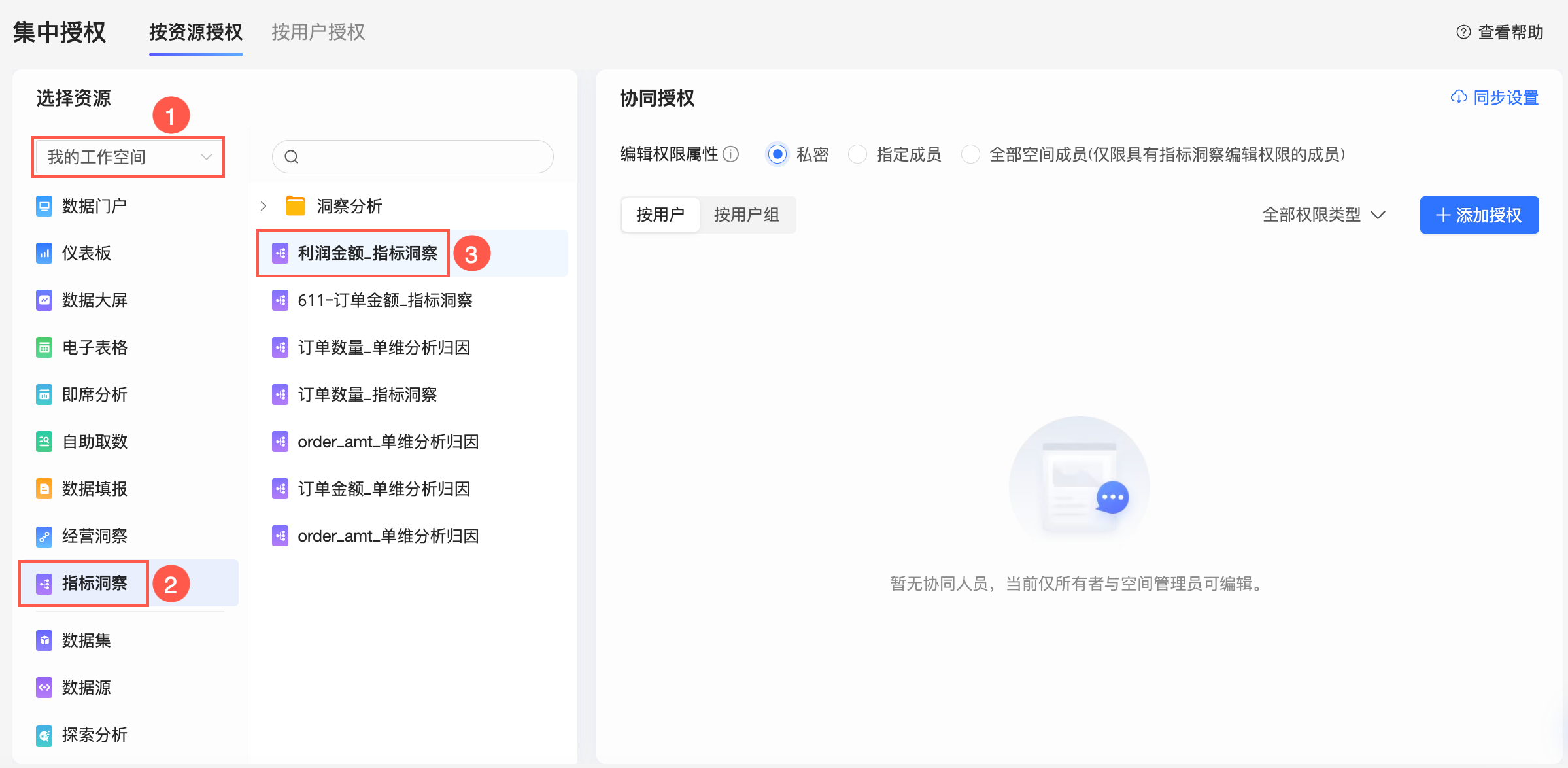
On the Centralized Authorization page, select the target workspace and the Metric Insights resource.
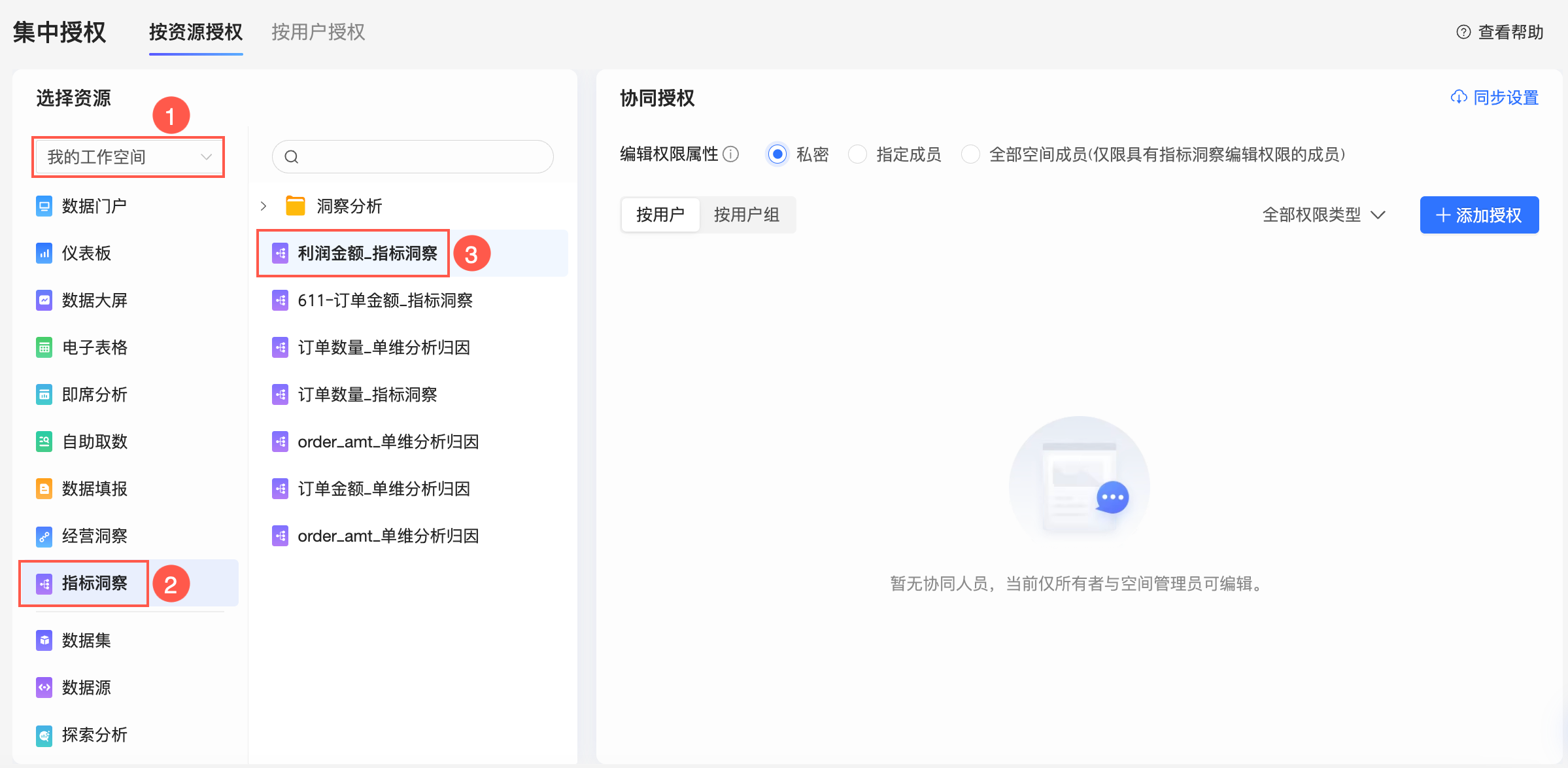
On the Collaborative Authorization page on the right, grant the permission.
The following figure shows how to grant edit permission to Developer B by selecting Specific members.
 Note
NoteAfter you select the Edit permission, Developer B can edit Metric Insights. Later, if you change permissions, you can select only the view permission to update Developer B’s permissions for Metric Insights.
Optional:Set up permission synchronization.
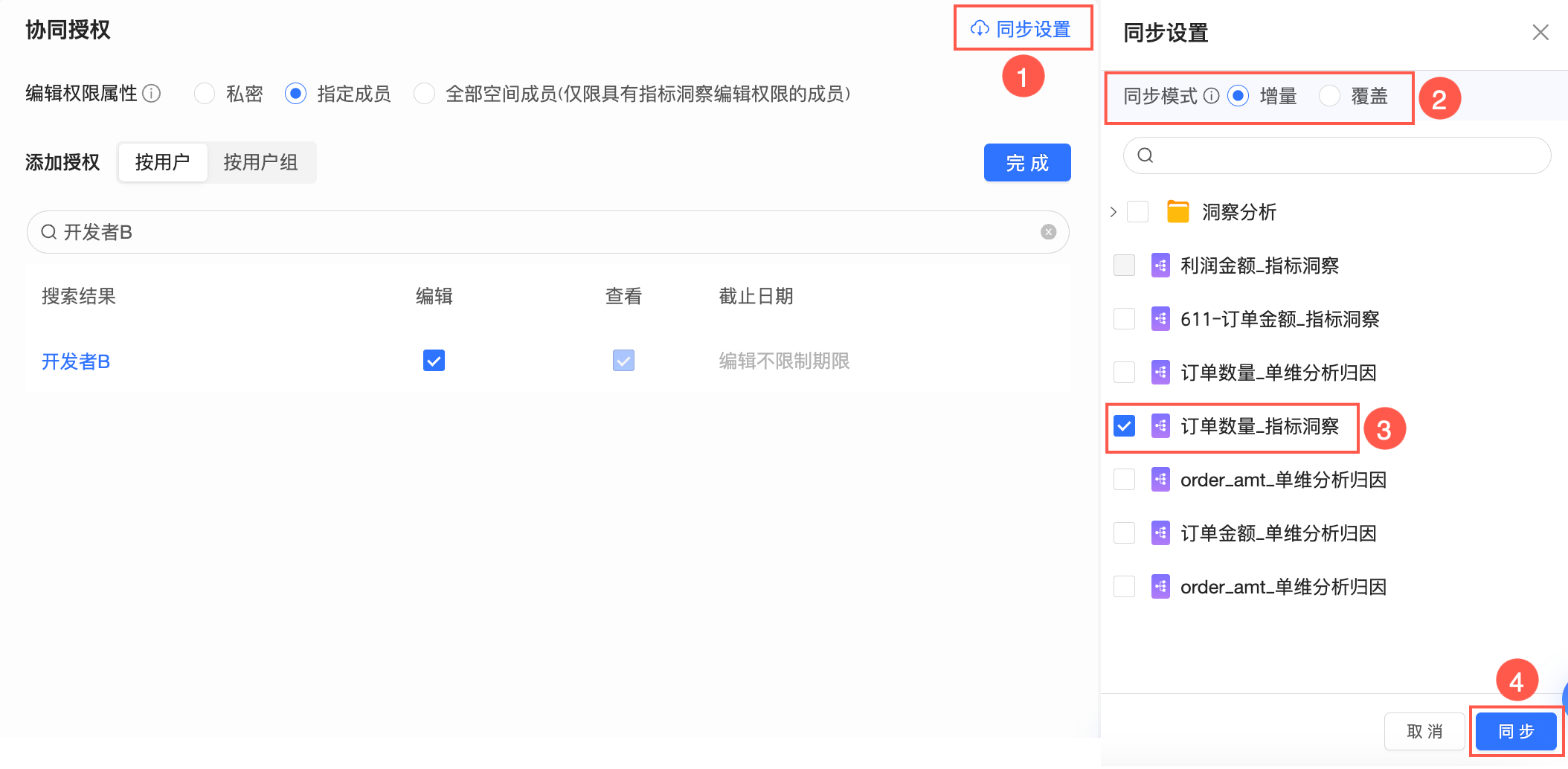
If Developer B also needs to collaboratively edit other Metric Insights in the workspace, click Sync Settings, select the target Metric Insights, and click Sync.
For example, if Developer B is granted edit permission for Profit Amount-Metric Insights, after synchronizing the permissions, Developer B can also edit Profit Amount-Metric Insights.
 Note
NoteSync mode supports Incremental synchronization and Overwrite synchronization.
Incremental synchronization: Does not affect the existing permissions of the target resource. It only adds missing permissions.
Overwrite synchronization: Removes the existing permissions of the target resource and replaces them with the permissions of the current resource.
Scenario 2: Grant permission to view Metric Insights
The authorized user's workspace role must include at least the Display List permission for Metric Insights.
On the Centralized Authorization page, select the target workspace and the Metric Insights resource.
On the Collaborative Authorization page on the right, grant Developer B permission to view Metric Insights.
Optional:Set up permission synchronization.
If Developer B also needs to view other Metric Insights in the workspace, click Sync Settings, select the target Metric Insights, and click Sync.