A permission administrator can grant multiple developers edit and use permissions for a dataset resource.
Background information
When a permission administrator grants permissions to a developer, the available permission settings vary depending on whether the dataset is in collaborative or private mode, as shown in the following figure.

The collaborative permissions are defined as follows:
Edit permission: Users with edit permission can create, edit, replace, and delete datasets.
Use permission: A permission administrator can grant use permission for a specific dataset to any user whose role includes the "Use Dataset" functional permission. This allows them to perform data analysis based on the dataset.
Use cases
Scenario | Expected outcome |
Allow Developer B to edit a dataset and perform data analysis based on it within the workspace.
| |
Allow Developer B to perform data analysis based on a dataset within the workspace.
|
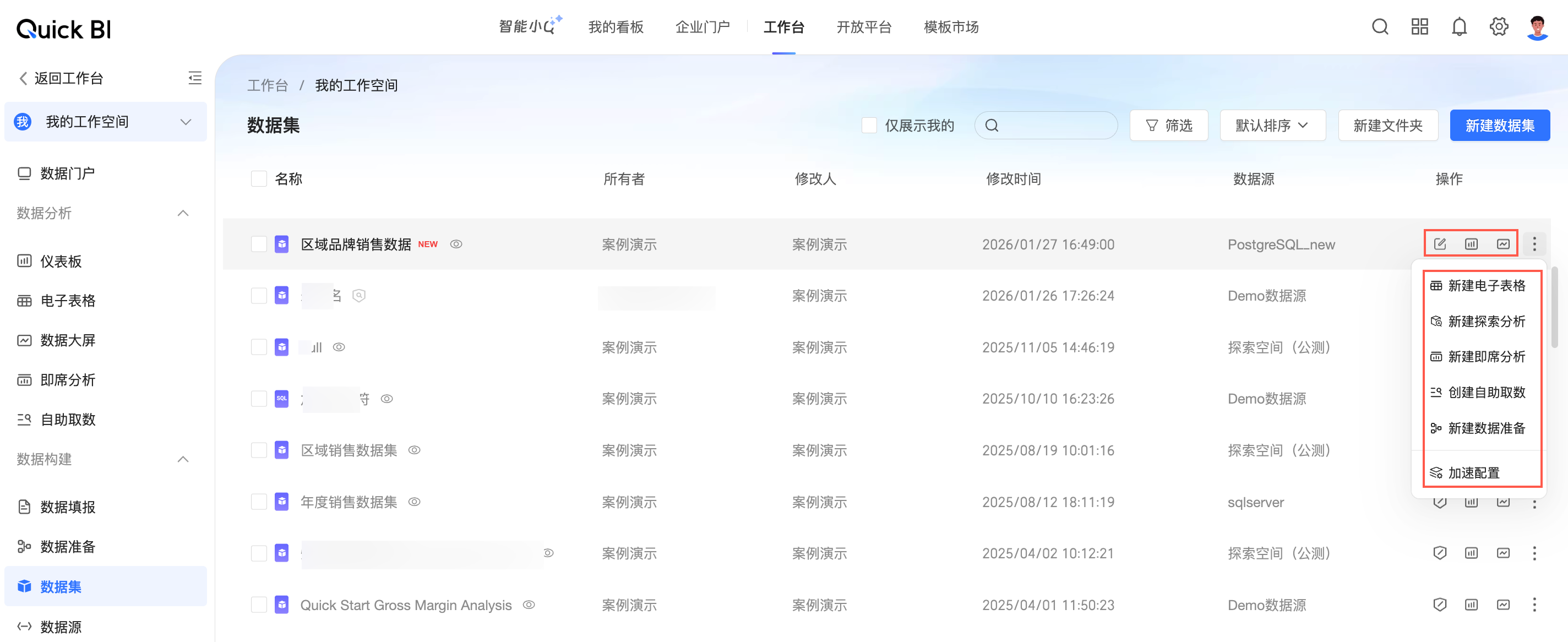
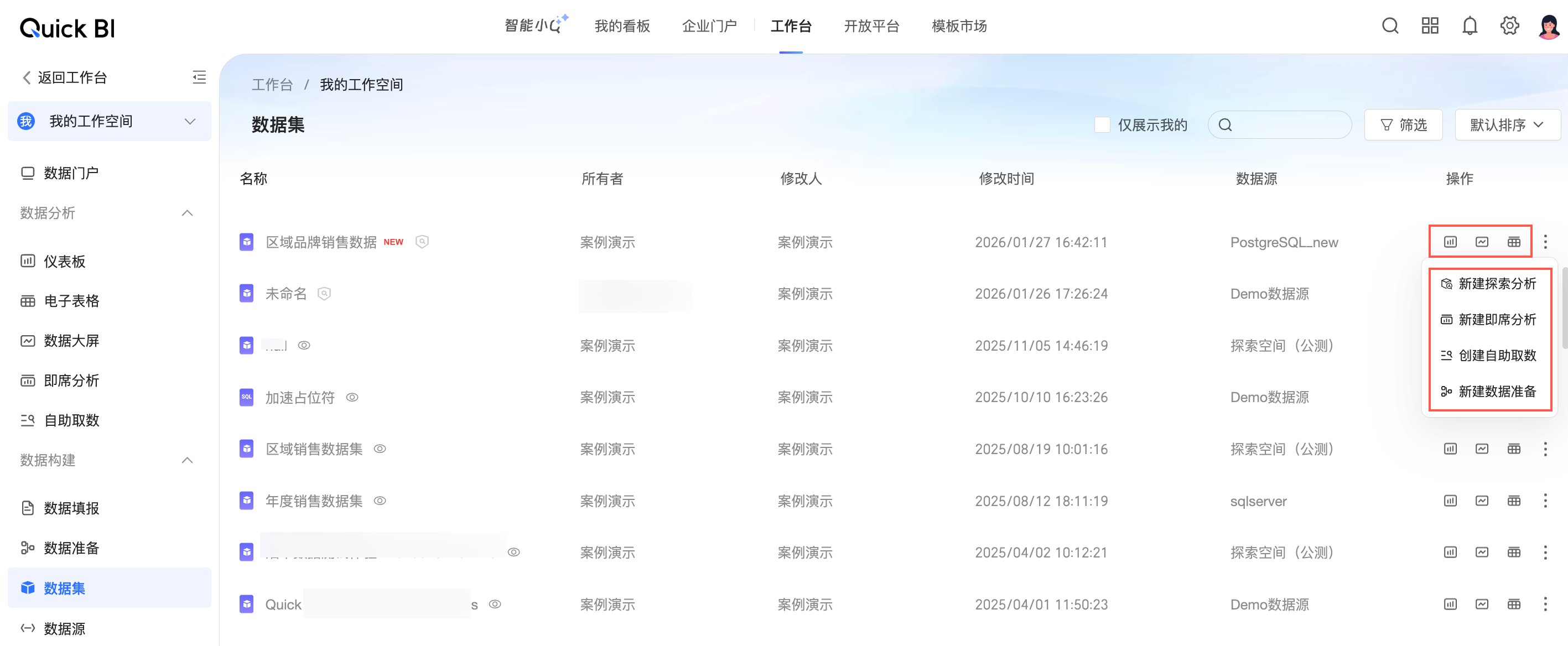
Scenario 1: Grant edit permission
In private mode, only the resource owner and workspace administrator have edit permission. To grant edit permission to specific members, you must first switch to the specified members mode.
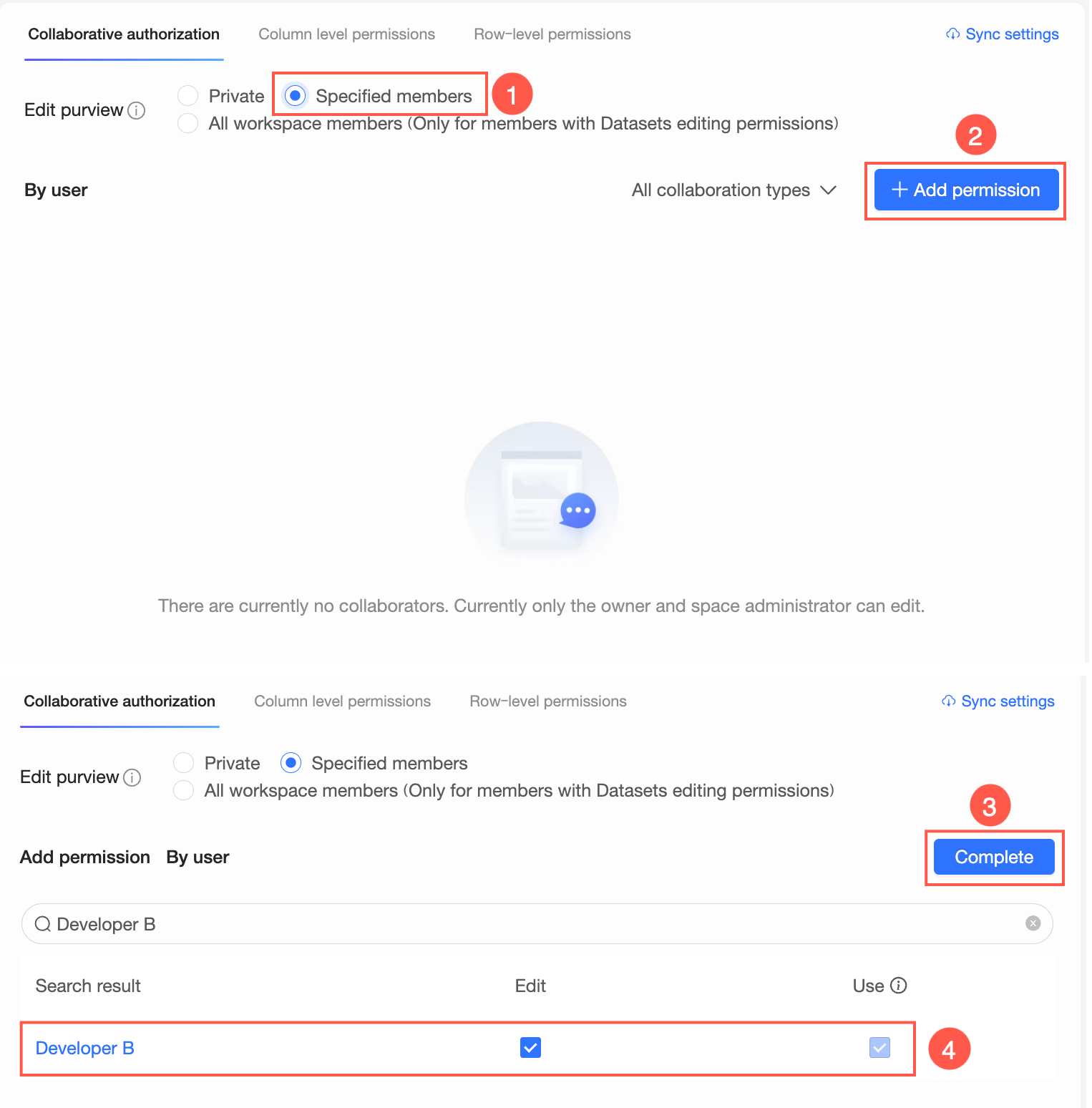
When you select Specified Members, you can grant developers in the workspace edit permission on the dataset.
When you select All Workspace Members (members with dataset edit permission only), all eligible members in the workspace can edit the dataset.
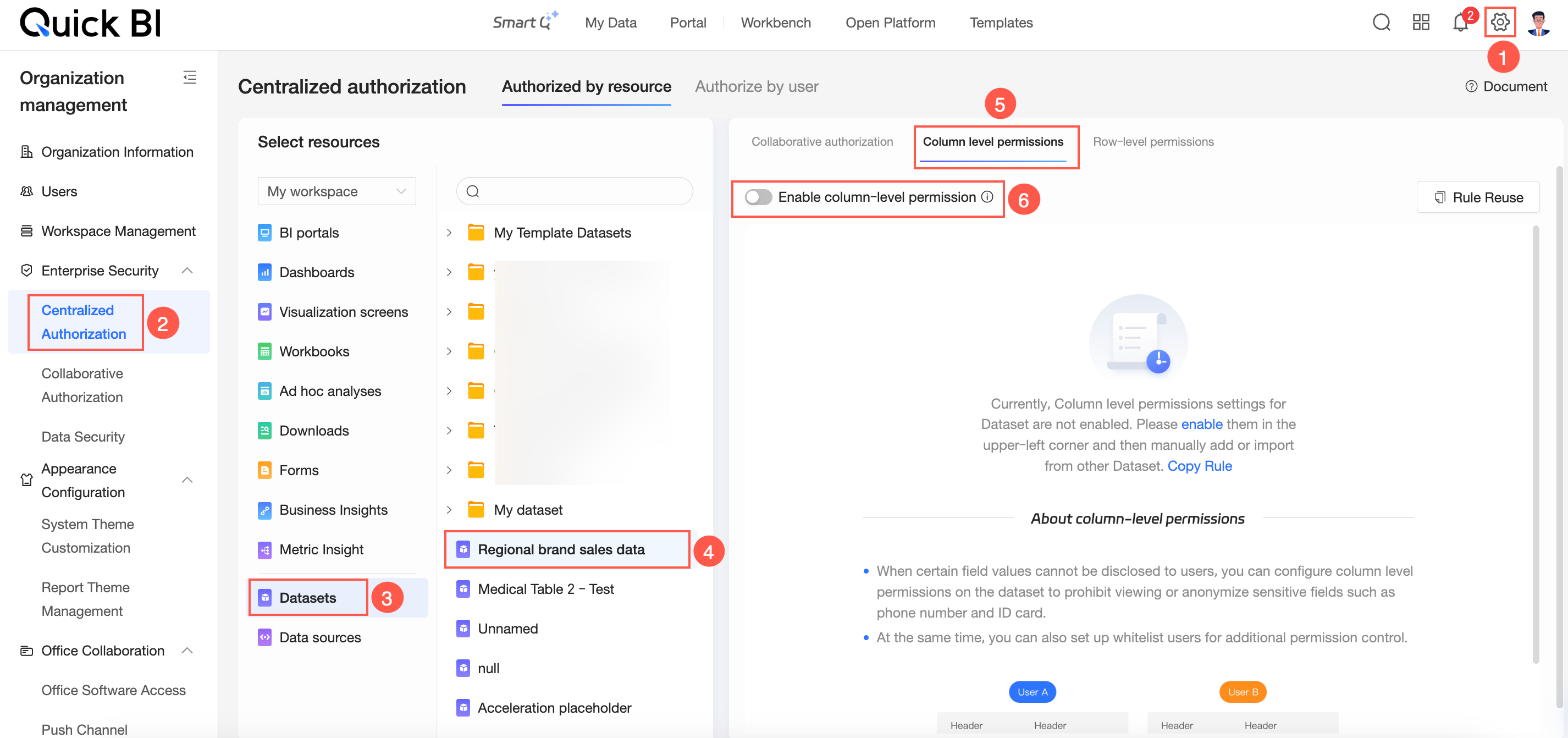
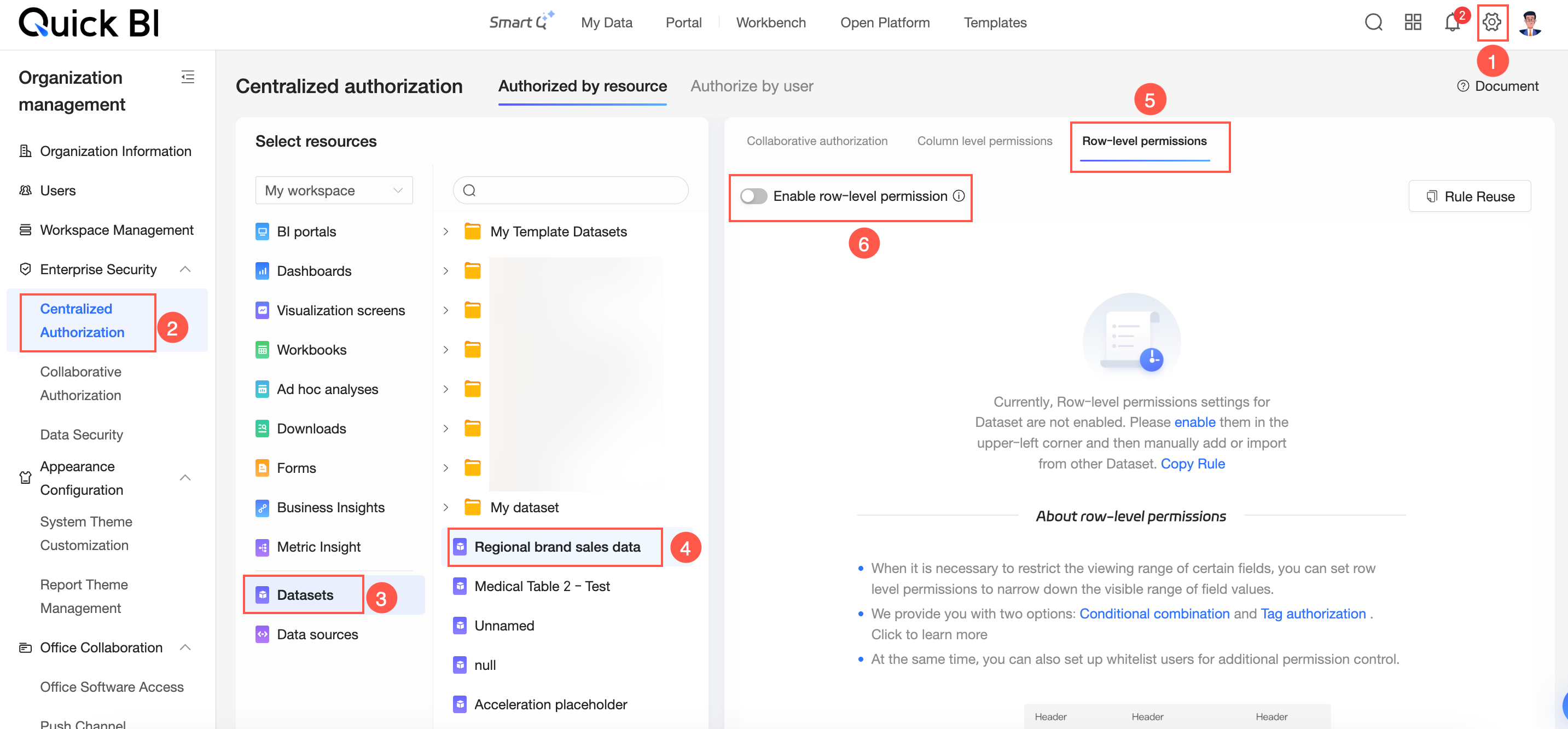
On the centralized authorization page, select the target workspace and then select the dataset.
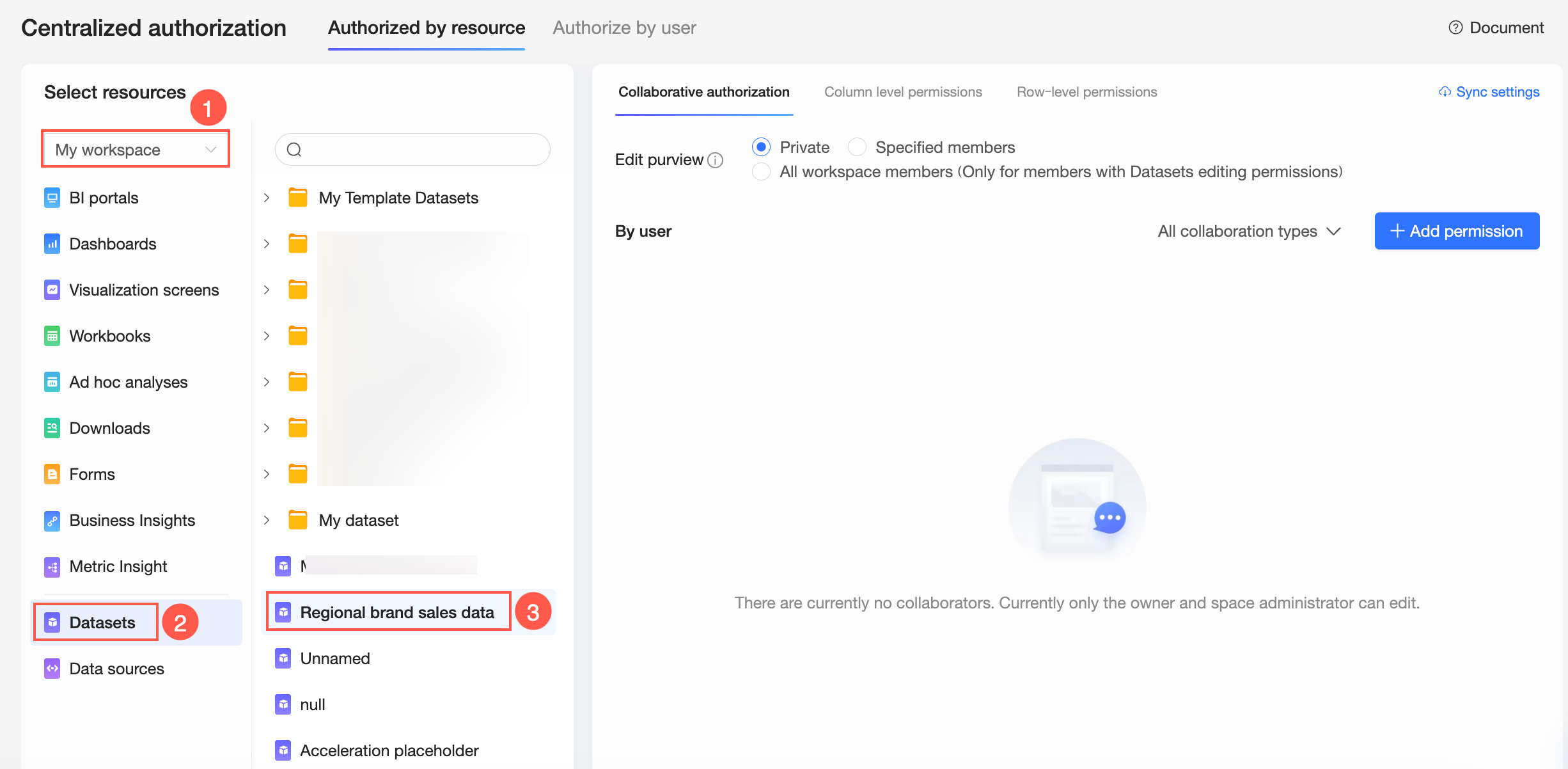
In the Collaborative Authorization pane, select the edit permission attribute and grant the permission.
The following figure shows how to grant Developer B edit permission by selecting Specified Members.
 Note
NoteAfter the Edit permission is granted, Developer B can both edit and use the dataset. You can later restrict this to use-only permission by selecting only the Use permission.
Optional: Configure permission synchronization.
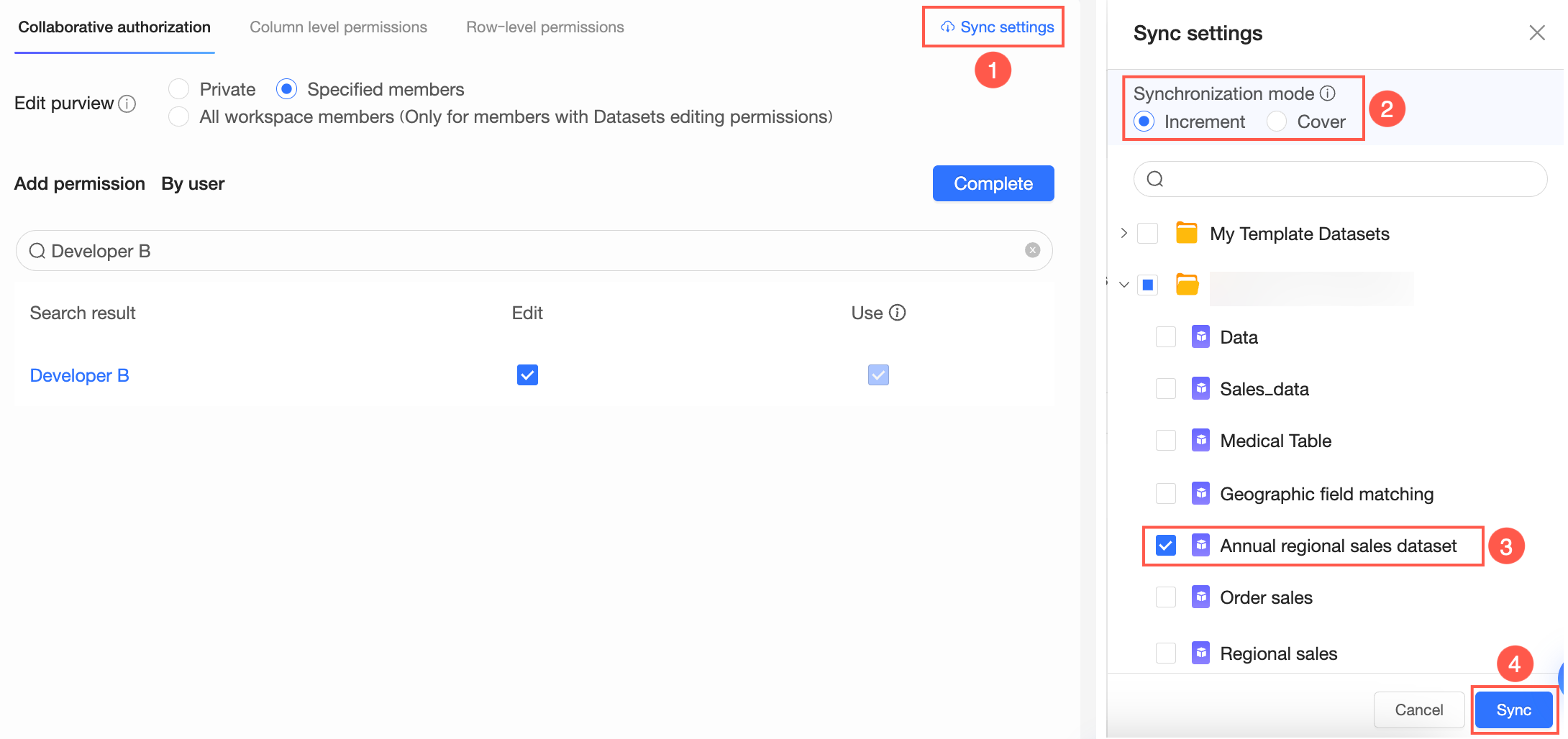
If Developer B also needs to collaboratively edit other datasets in the workspace, click Synchronization Settings, select the target datasets, and then click Sync.
For example, if Developer B is granted edit permission on the Regional Brand Sales Data dataset, they can also edit the Annual Sales Dataset after synchronization.
 Note
NoteSync Mode supports incremental sync and overwrite sync.
Incremental sync: Adds the new permissions to the target resources without affecting their existing permissions.
Overwrite sync: Replaces all existing permissions on the target resources with the permissions from the current resource.
Scenario 2: Grant use permission
You can grant use permission on a dataset to any user in the organization who has the "Use Dataset" functional permission. You can authorize two types of users:
Workspace members: Members with a workspace role that is eligible for use permission on datasets.
Organization members: Members with an organization role that is eligible for use permission on datasets.
Scope of use after authorization:
The actions a user can perform after being granted permission depend on their workspace:
Members of the same workspace: They can create items such as dashboards and spreadsheets based on the dataset.
Members of other workspaces: They can perform exploratory analysis based on the dataset.
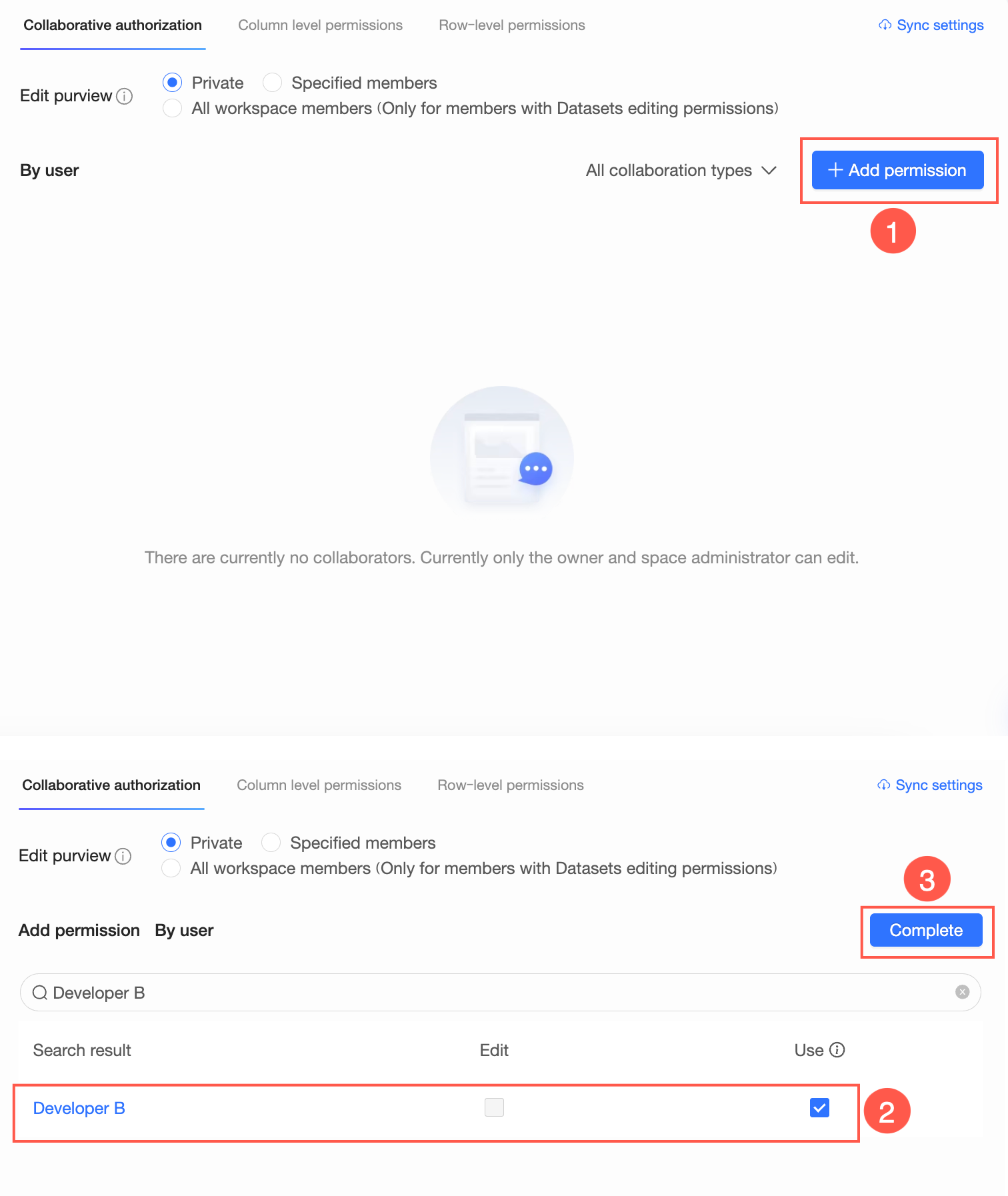
On the centralized authorization page, select the target workspace and then select the dataset.
In the Collaborative Authorization pane, grant Developer B use permission for the dataset.
Optional: Configure permission synchronization.
If Developer B also needs to use other datasets in the workspace, click Synchronization Settings, select the target datasets, and then click Sync.
Other dataset permissions
Permission administrators can also configure row-level and column-level permissions within a dataset.
Row-level permission: Row-level permission restricts the visibility of field values. When a user queries a field in a dashboard, they can only view the field values permitted by the rule. This ensures data security.
On the centralized authorization page, select a dataset and enable row-level permission. For authorization methods, see row-level permission.
Column-level permission: Column-level permission hides target fields or applies data masking to their values. When a user with this permission queries fields in a dashboard, the rule prevents them from seeing sensitive columns or data. This ensures data security.
On the centralized authorization page, select a dataset and enable column-level permission. For authorization methods, see column-level permission.