Recycle Bin
The recycle bin lets you view and recover resources deleted within the last 15 days, reducing the risk of accidental data loss.
Notes
-
The recycle bin displays all deleted resources in the workspace and retains them for 15 days. Regular users can view resources that they deleted or own. Workspace administrators can view all deleted resources in the workspace.
-
The recycle bin stores resources such as data portals, dashboards, spreadsheets, data dashboards, ad hoc analysis, downloads, data entry, datasets, data sources, and folders. It does not store permissions, configuration items, users, user groups, subscriptions, or alert monitoring.
-
Cards cannot be stored in the recycle bin. After a card is deleted from the card dashboard, it cannot be recovered.
Scenarios
Deleted resources are moved to the recycle bin, where you can view and recover them. The recycle bin addresses the following scenarios:
-
Prevention of accidental deletion: If you accidentally delete important resources, the recycle bin provides a temporary storage location from which you can recover them.
-
Data security: Deleted resources are not immediately removed, so data recovery remains possible within the retention period.
-
Backup for batch deletion: Quick BI supports batch deletion. If important resources are accidentally included, you can recover them from the recycle bin.
Feature access
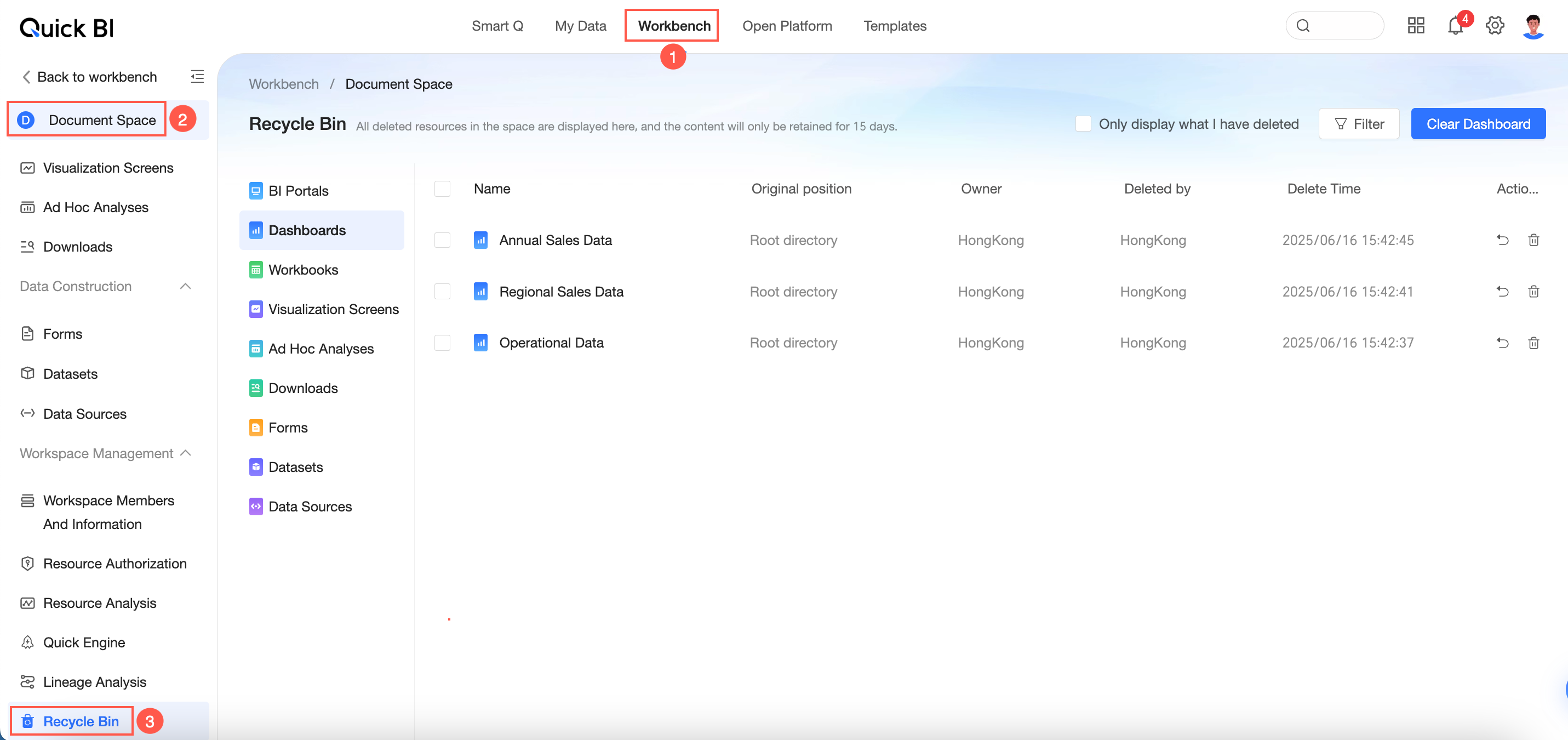
In the Workbench, select the target workspace and click Recycle bin.
Function introduction
The recycle bin page lets you view deleted resources and filter, recover, or permanently delete them.
Filter
-
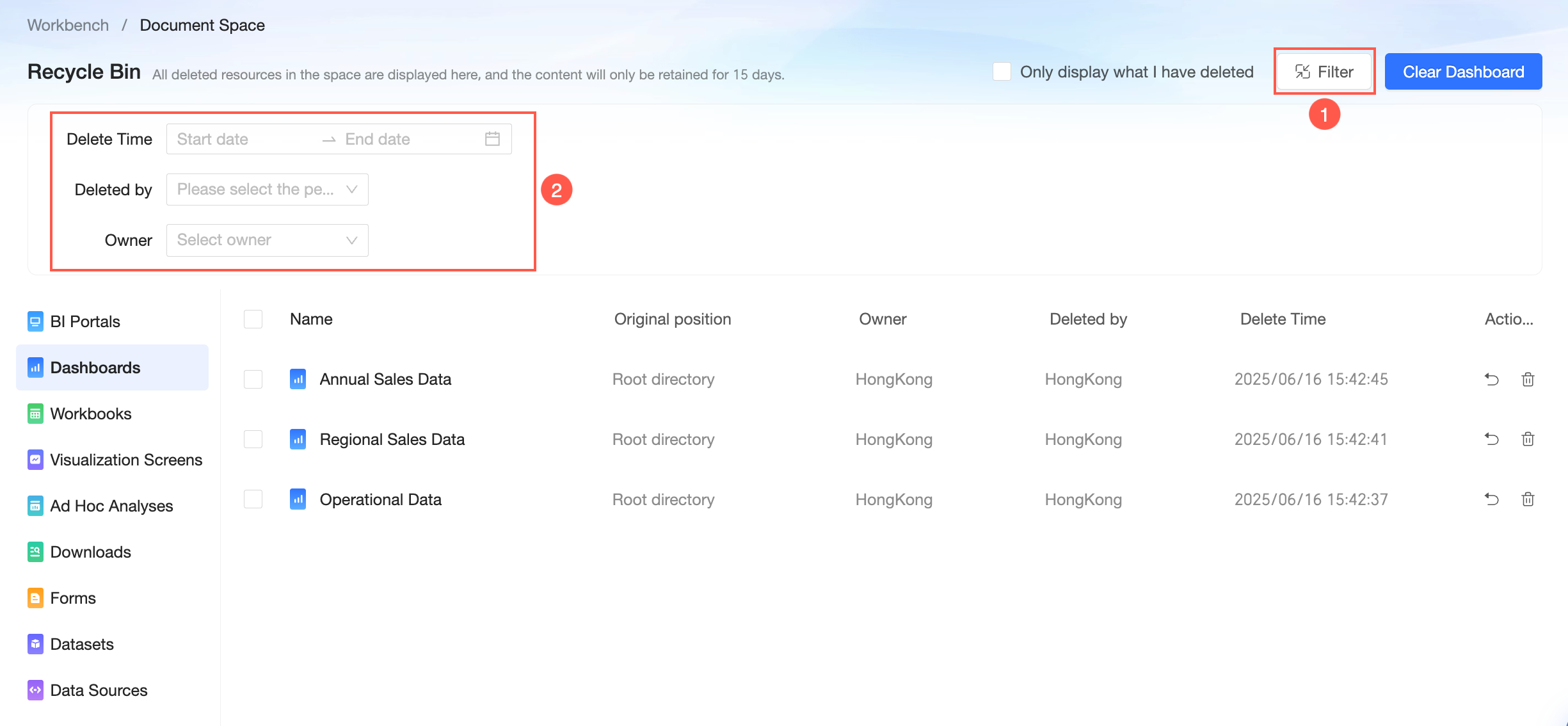
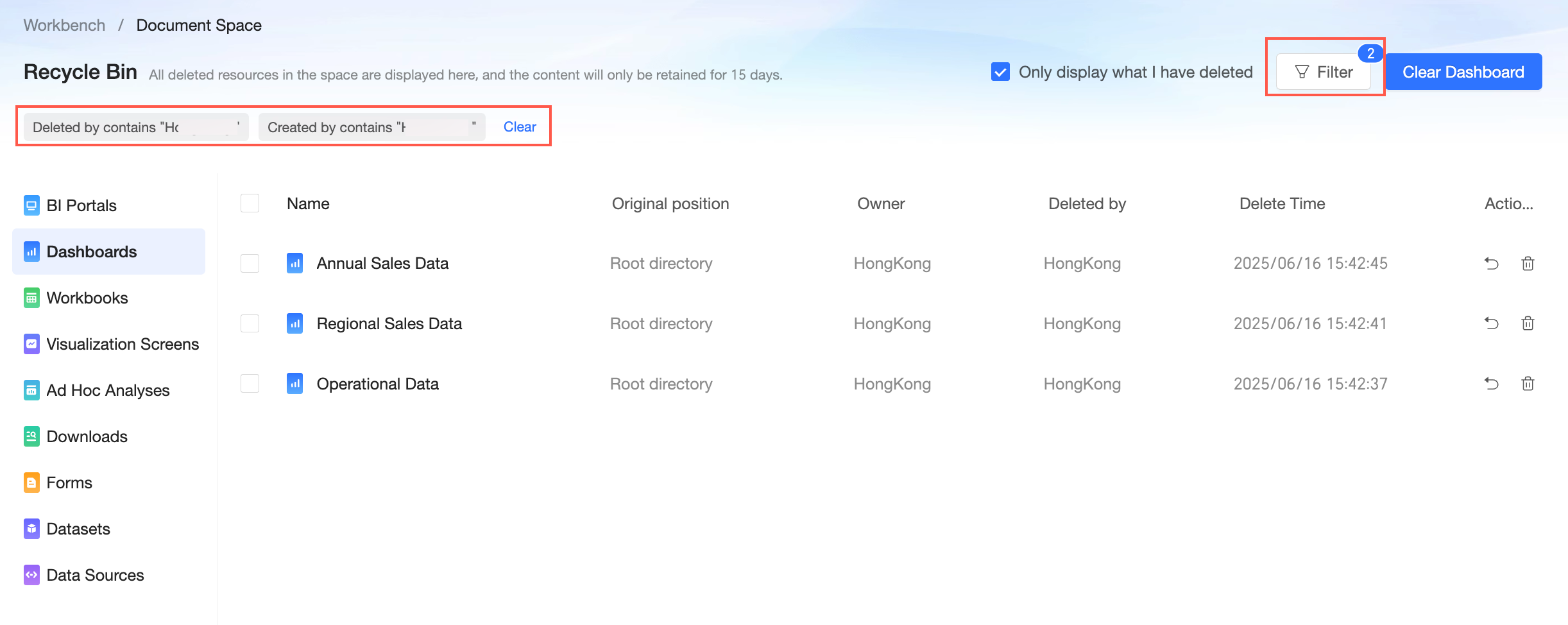
In the upper-right corner of the recycle bin page, click the Filter icon to display the filter area. You can filter by deletion time. Workspace administrators can also filter by deleter and owner.
 You can also select Show only mine to quickly find resources that you deleted.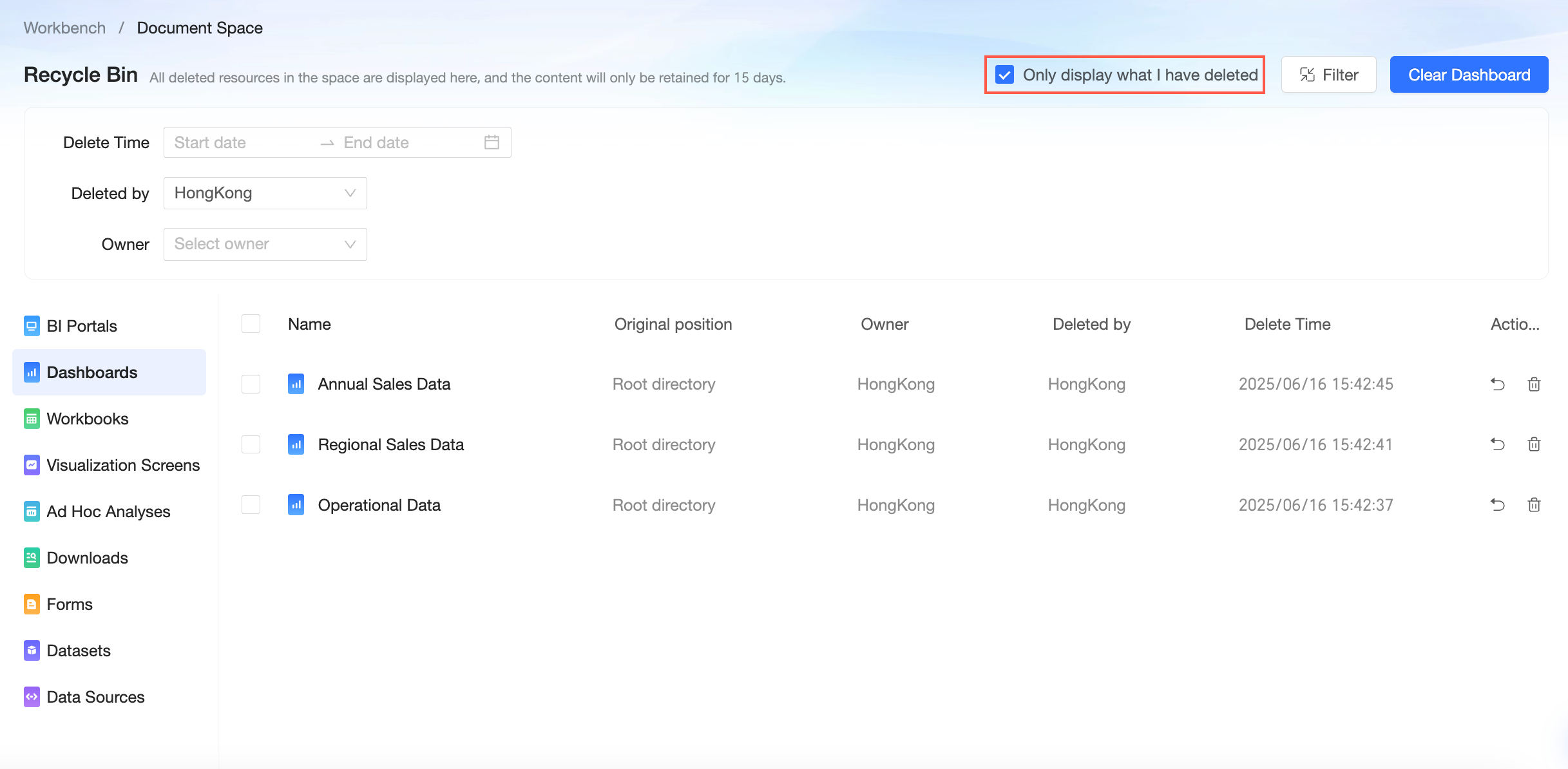
-
Click the Filter icon again to hide the filter area. You can then see the filter conditions and delete or clear them.
Recover
You can recover deleted resources when needed.
-
After a resource is recovered, its original permissions and configurations are not retained. Reconfigure them as needed.
-
Recovery may fail in some scenarios:
-
Insufficient permissions: For example, if you try to recover a dashboard but no longer have permission to create dashboards, you can contact the workspace administrator for assistance.
-
Specification limits: If a resource has reached its usage limit, it cannot be recovered. Manage resource usage according to the specification details and delete unnecessary resources.
-
Recover a single resource
-
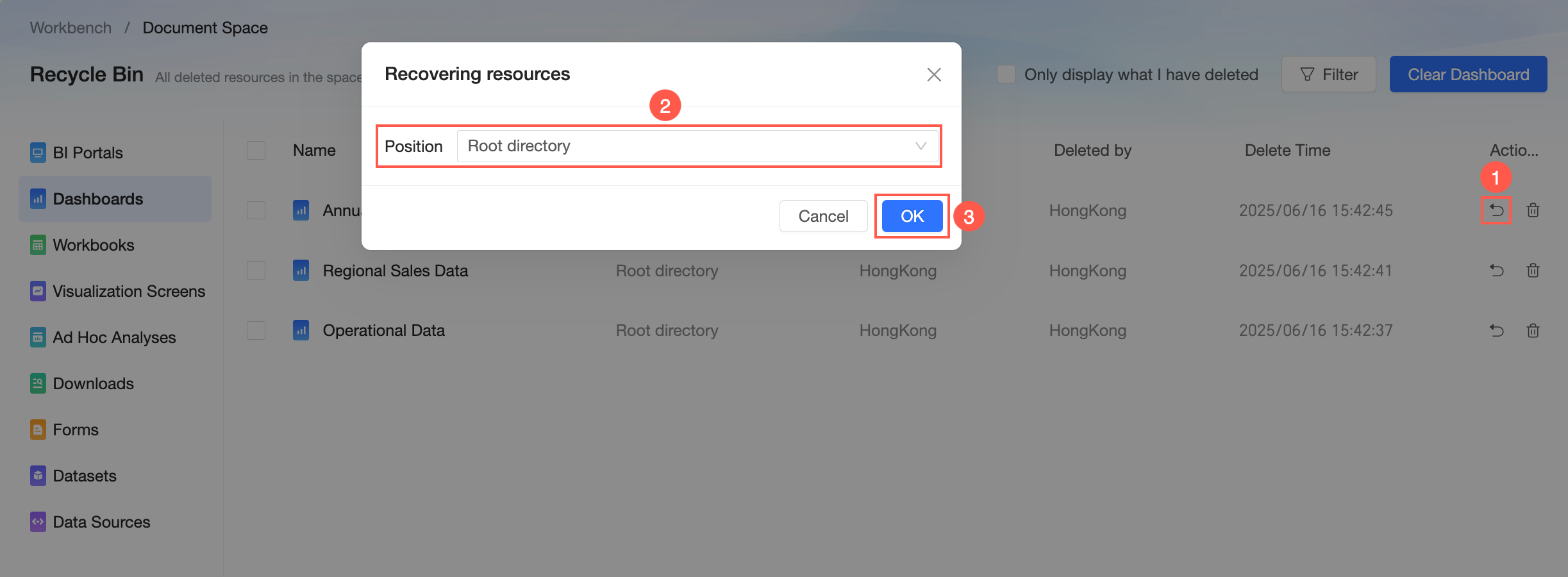
Click the
 icon in the Operation column.
 -
Select the location to recover the resource. The default location is the original location. You can also select another location.
-
Click OK to recover the resource.
 icon in the Operation column.
Batch recover resources
-
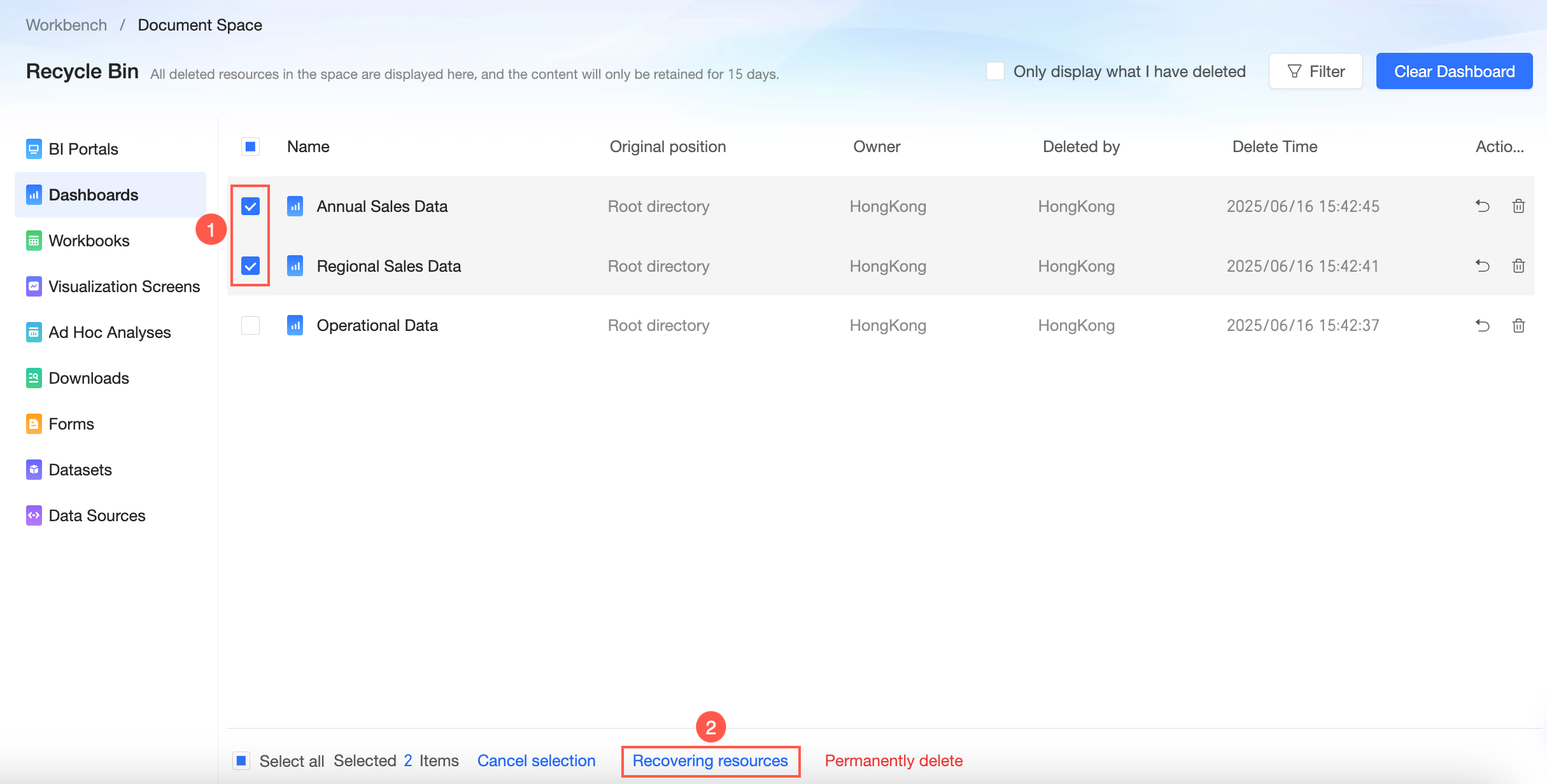
Select multiple resources and click Recover Resources.
-
Select the location to recover the resources.
-
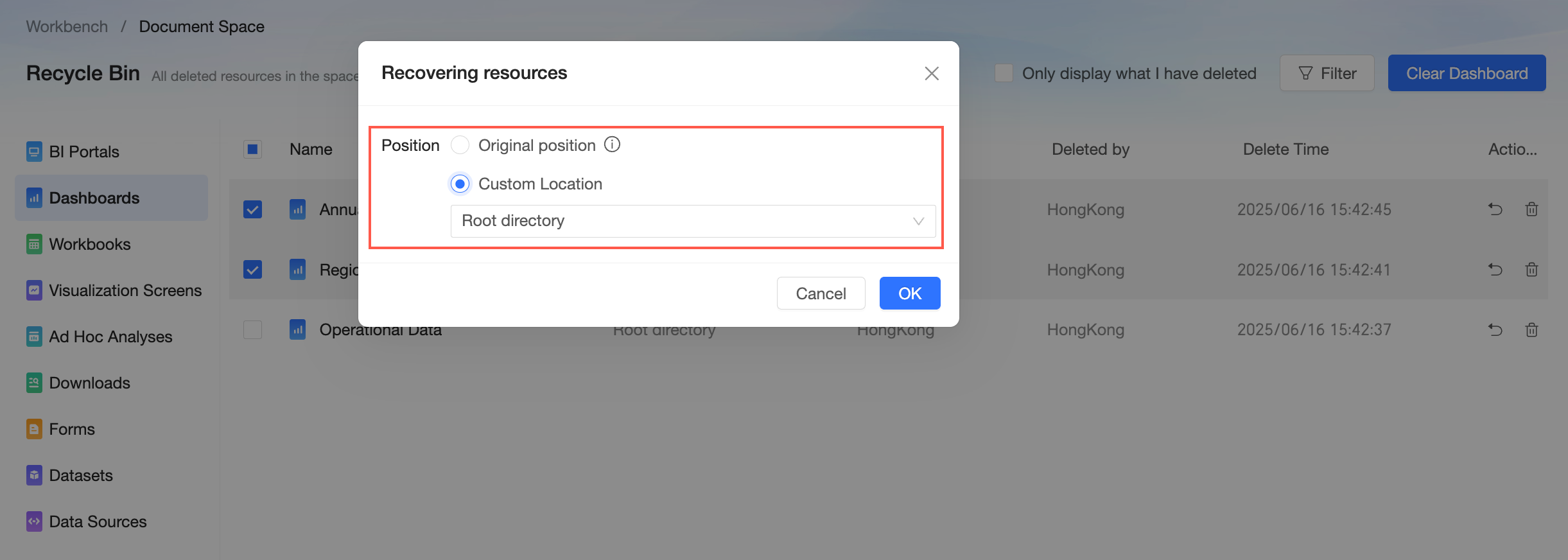
The default is Original Location. In this case, resources are recovered to their original locations if possible. If the original location does not exist, resources are recovered to the root directory.
-
You can also select Custom Location to recover the selected resources to a specified location.
-
-
Click OK to complete the resource recovery.
Delete
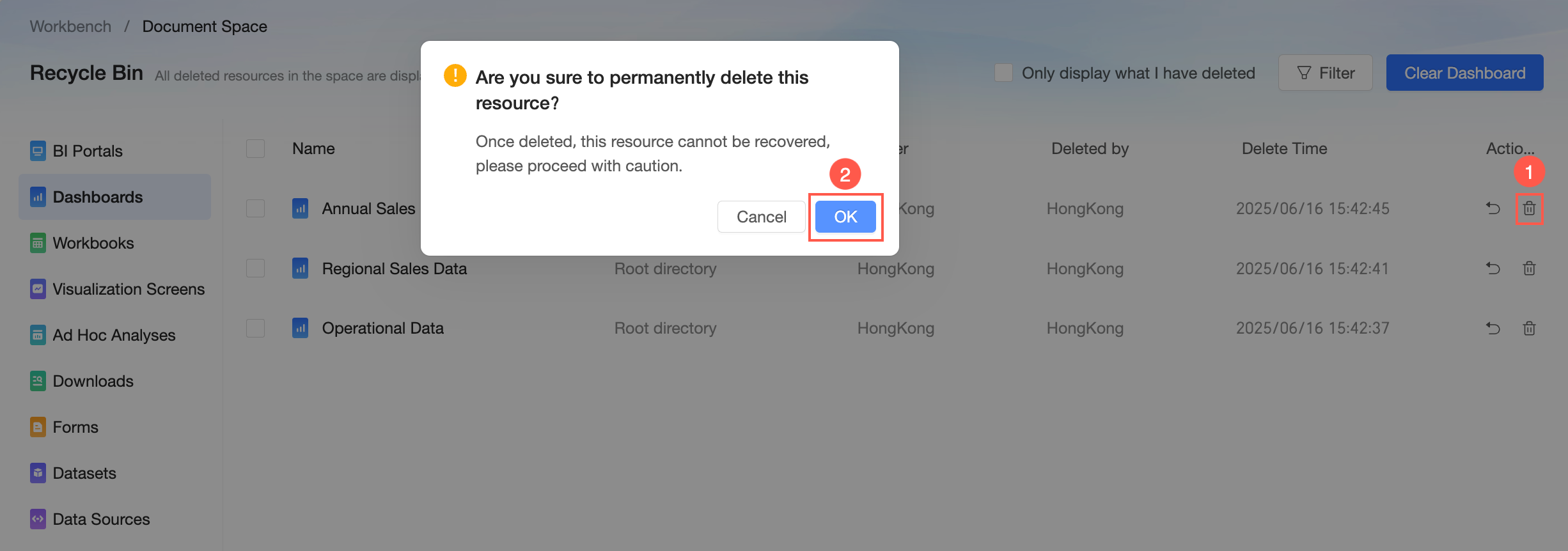
Once deleted, resources cannot be recovered. Please proceed with caution.
Permanently delete a single resource
Click the  icon in the Operation column to permanently delete a resource.
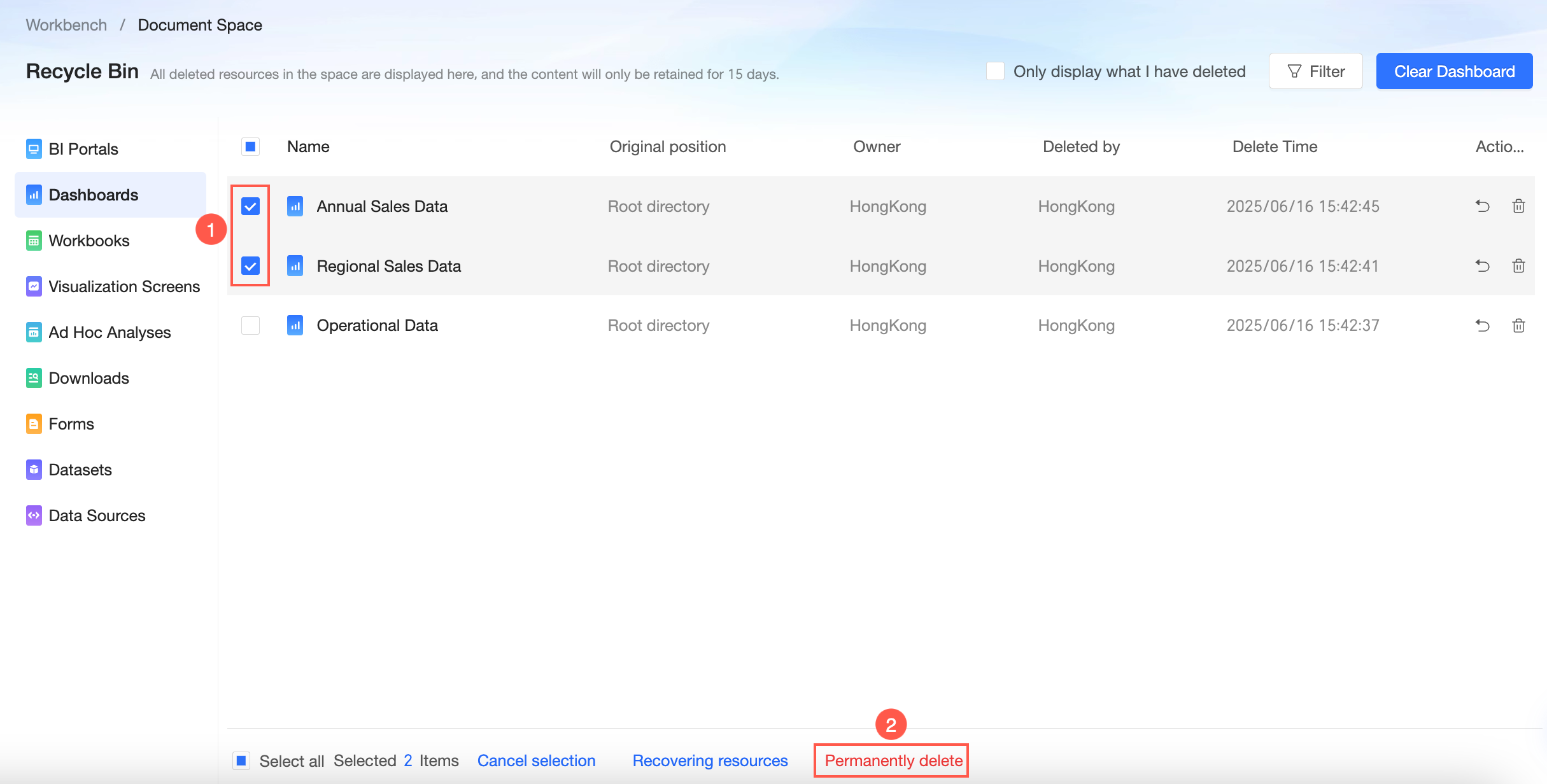
Batch permanently delete resources
Select multiple resources and click permanent deletion to delete them in batch.
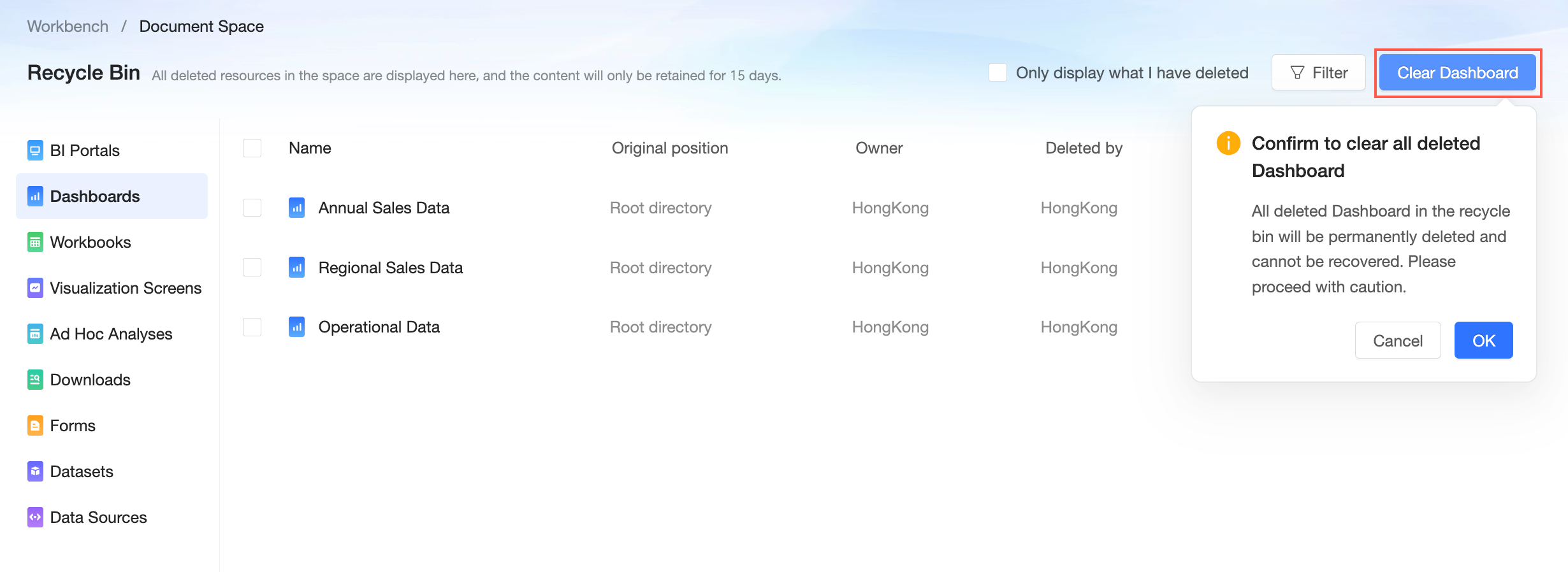
Empty the recycle bin
Emptying the recycle bin permanently deletes all resources in it. This action cannot be undone.
Click the Empty Recycle Bin icon in the upper-right corner of the recycle bin. In the confirmation dialog box, click OK to permanently delete all resources.