View and apply templates
You can select and install templates from the Quick BI Template Marketplace that fit your business needs, reducing the time and effort required to build reports.
Limitations
Quick BI Personal Edition allows you to preview templates but does not support installing them.
In a group workspace, Quick BI Advanced Edition and Professional Edition support previewing and installing templates. Specific capabilities vary by template type.
Template type
Personal Edition
Advanced Edition
Professional Edition
dashboard
View only
View and install
View and install
data dashboard
View only
View and install after purchase
View and install
spreadsheet
View only
View and install after purchase
View and install
data entry
View only
View and install
View and install
Access the Template Marketplace
On the Template Marketplace page, you can perform the following tasks.
Log in to the Quick BI console.
On the Quick BI homepage, click Template Marketplace in the top navigation bar.
The Template Marketplace page appears.
On the Template Marketplace page, you can perform the following actions:
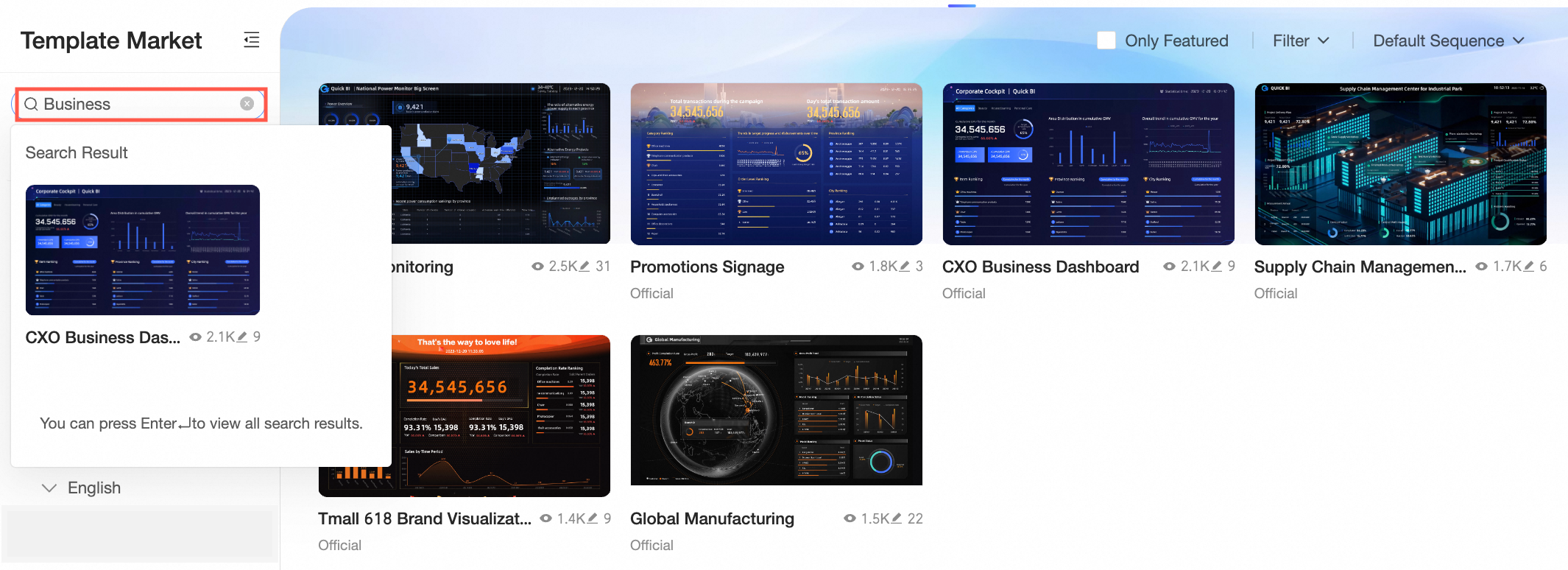
Search for a template: In the search box above the category list on the left, enter a keyword for the template name and click Search.
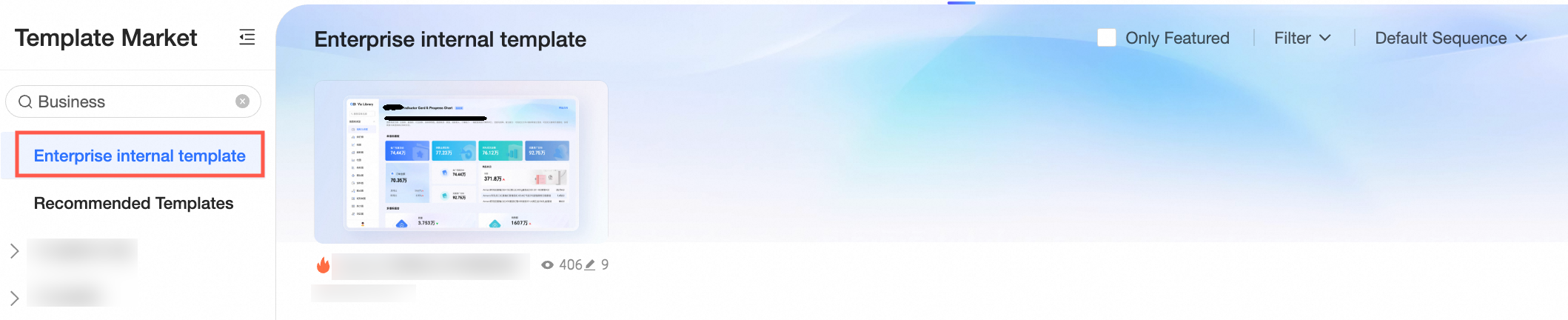
View internal enterprise templates: If your organization has published internal templates, find the Internal Enterprise Templates category to view them.
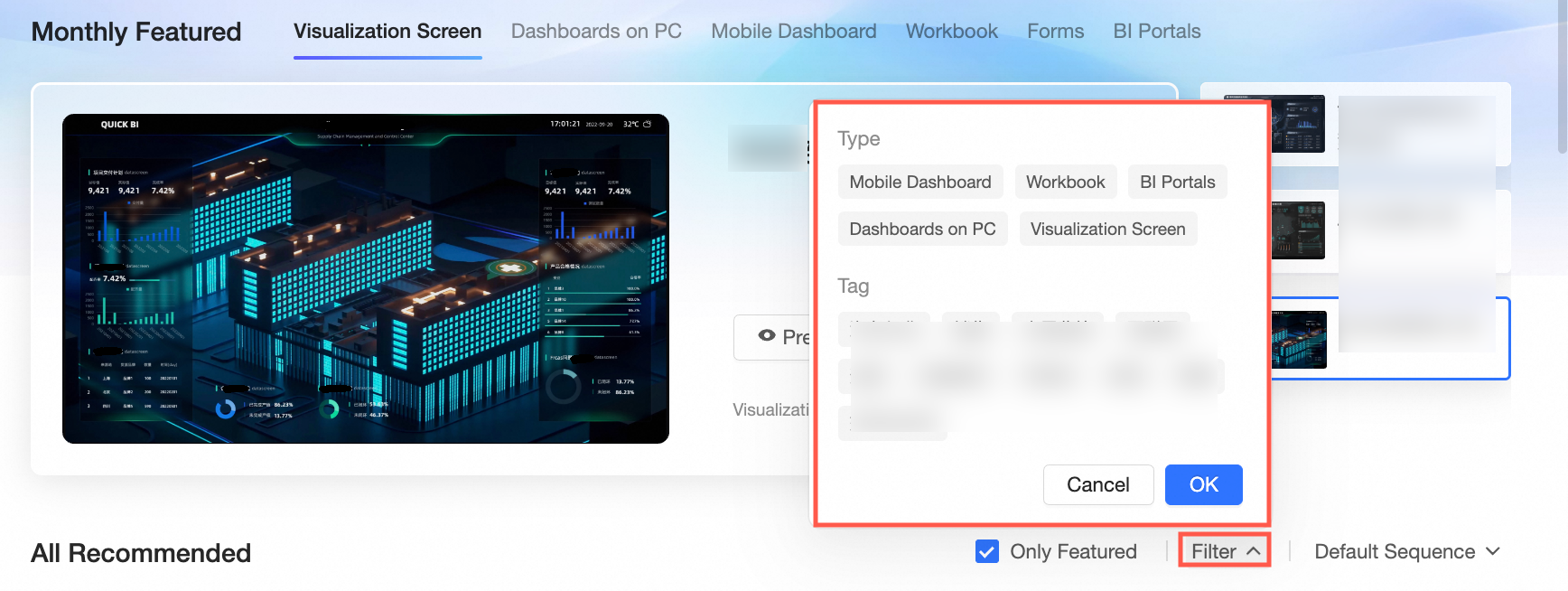
On the Featured page, under All Featured, you can filter and sort templates.
Filter by template type: You can filter by six template types: data entry, mobile dashboard, spreadsheet, tablet dashboard, PC dashboard, and data dashboard.
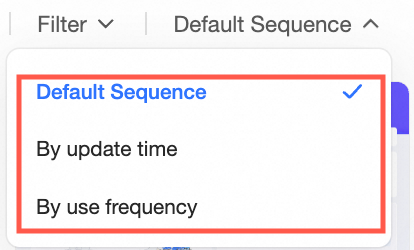
Sort templates: You can sort templates by Last updated or Most used.
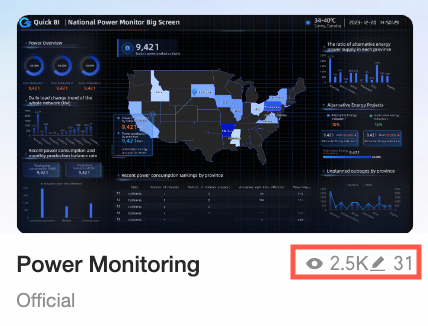
View total views and applications: The lower-right corner of each template card displays the total number of views and applications.
Preview a template: See Preview a template.
Apply a template: See Install a template.
You can also select and apply a template when you create a new dashboard.
Preview a template
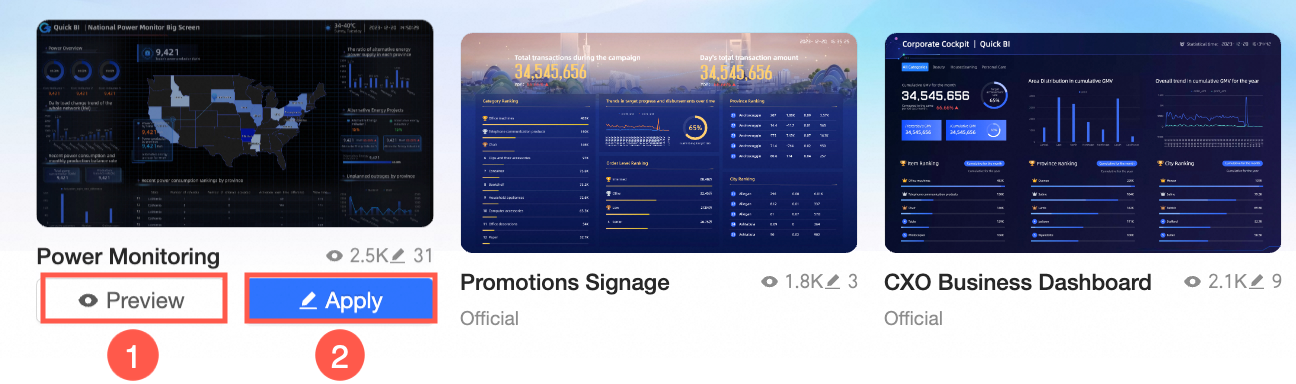
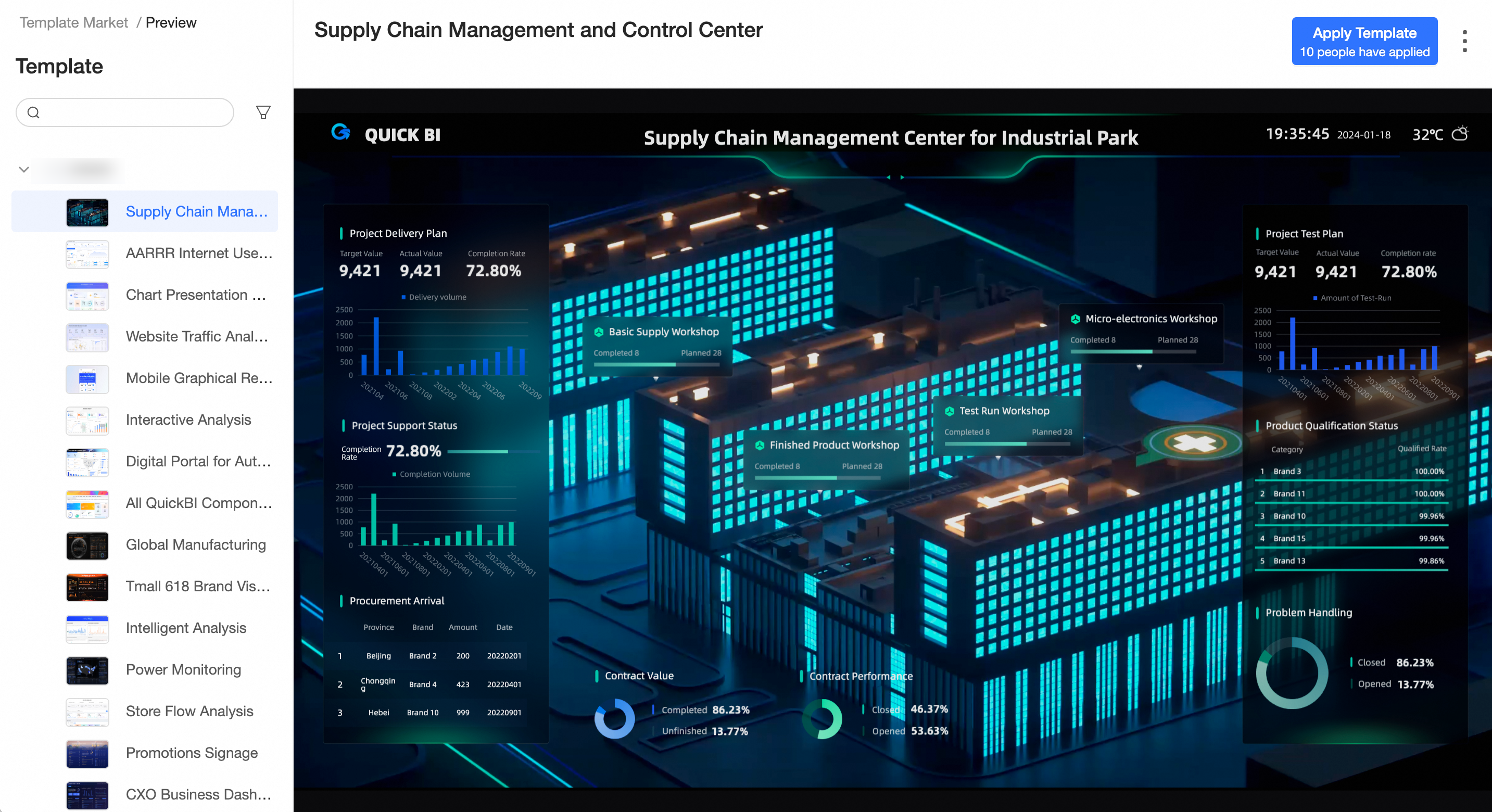
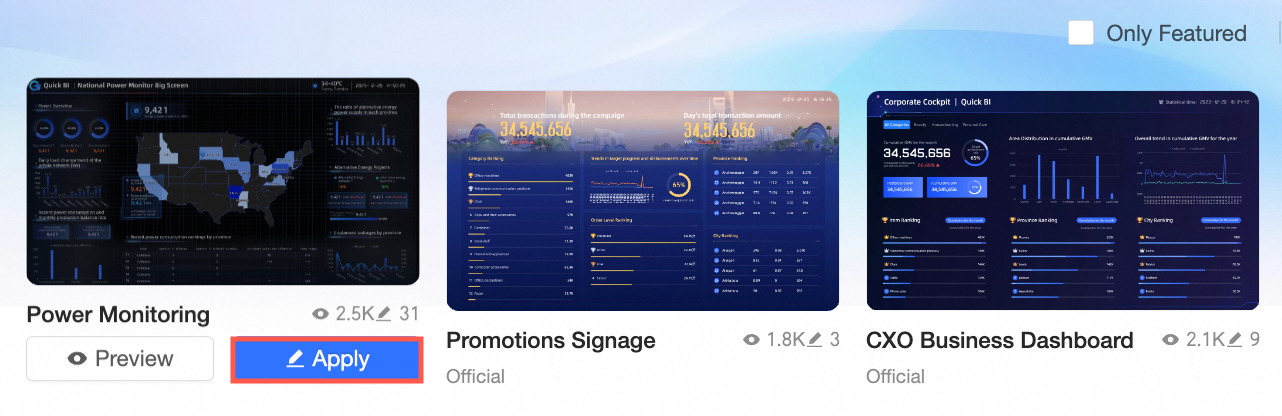
On the Template Marketplace page, hover over the target template and click Preview.

①: PC Preview
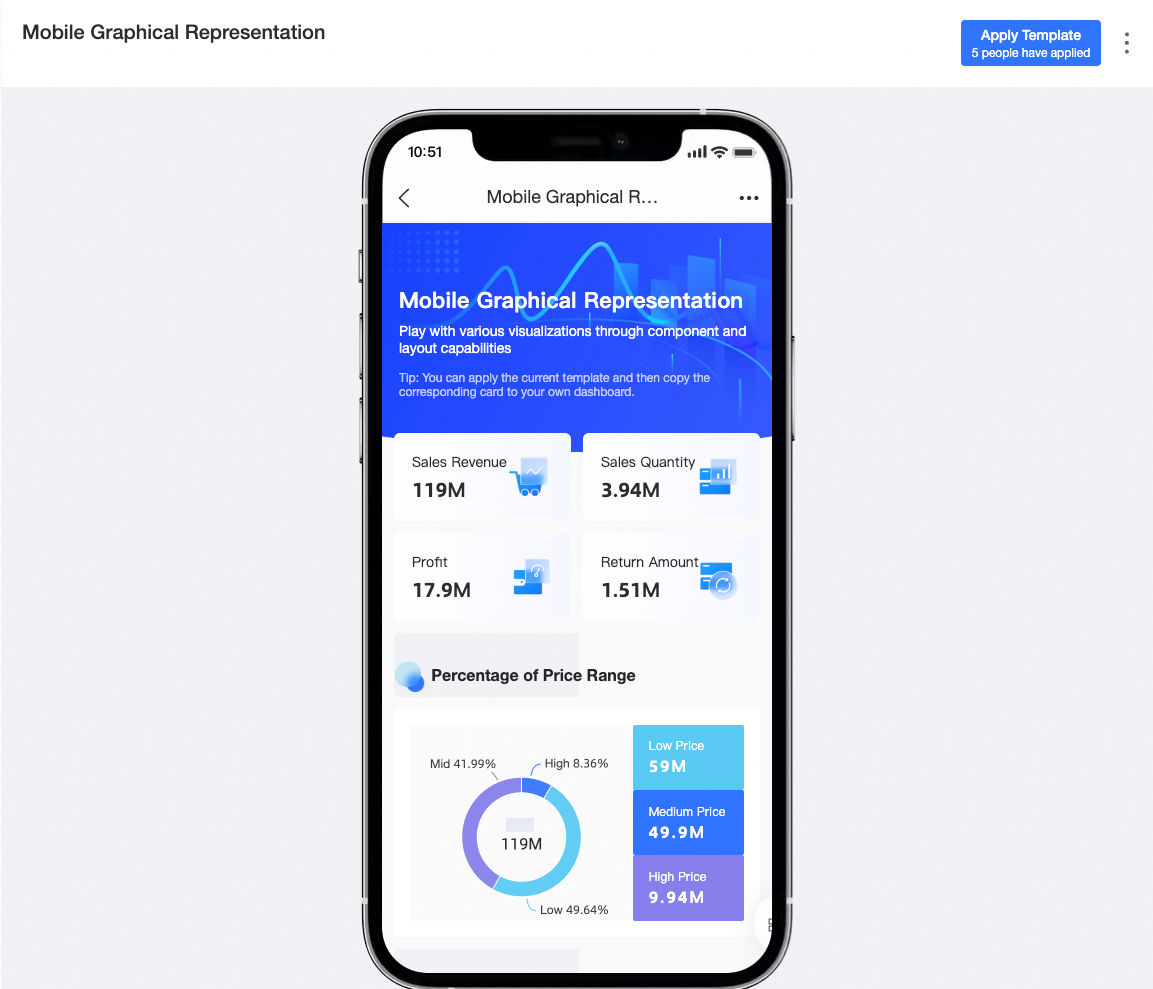
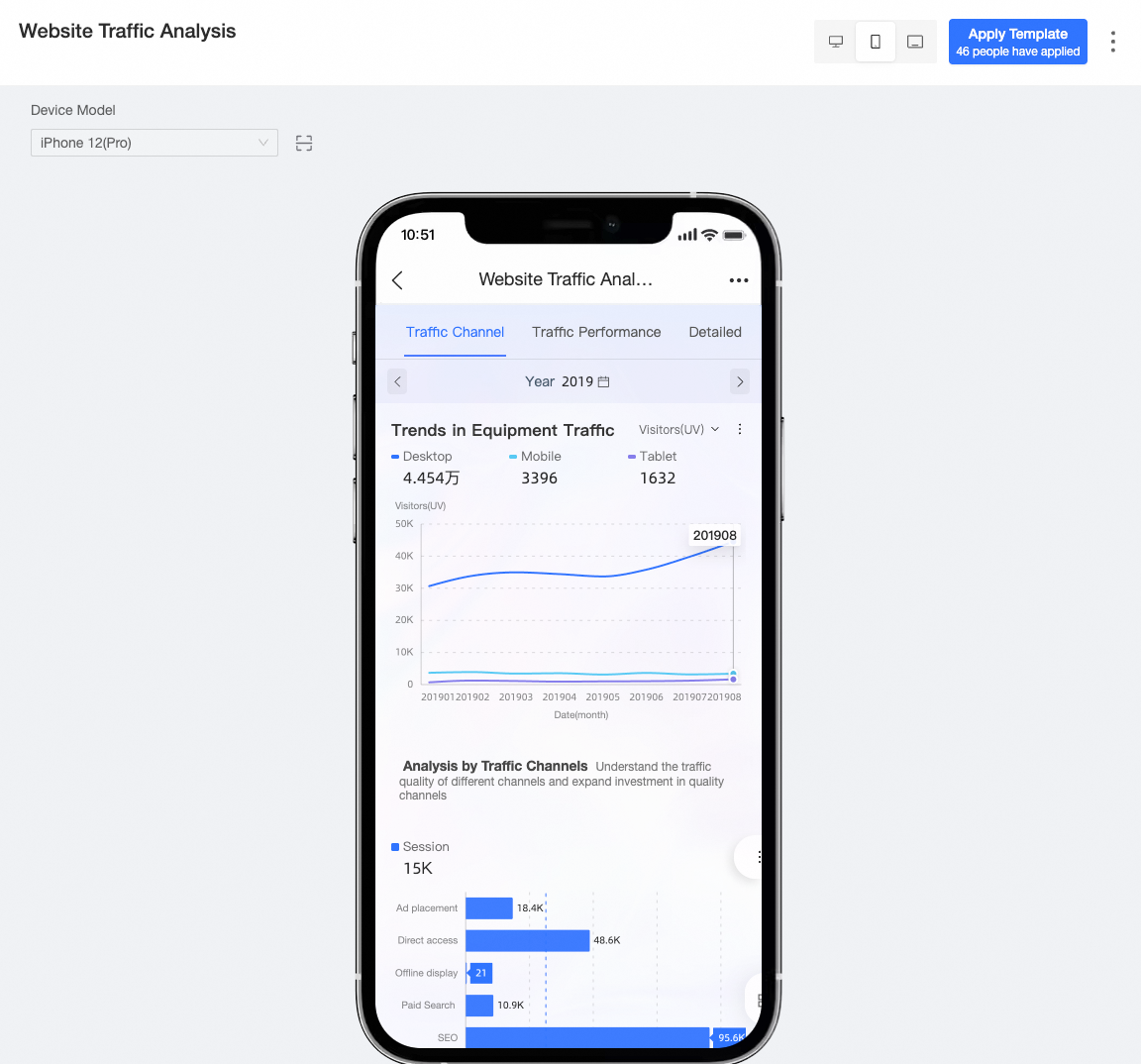
②: Mobile Preview
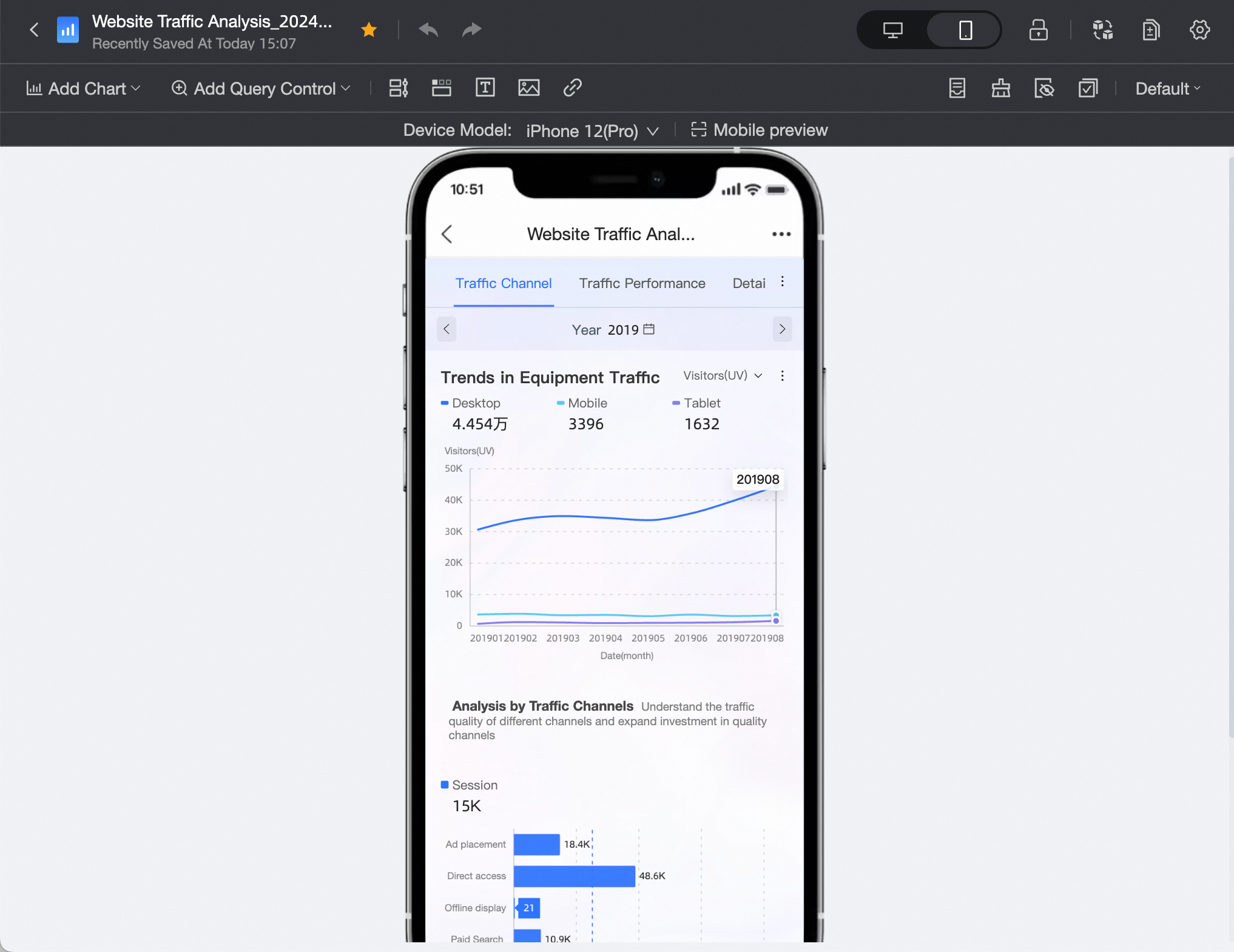
You can select a phone model from the Device Model list to see how the template appears on that device.
Install a template
Group workspaces in both the Advanced and Professional Editions support installing templates.
When you install a template, the template and its associated datasets are also installed in the target workspace.
Access the Template Marketplace.
You can install templates for PC, mobile, or tablet devices as needed.
Install a template
Install a template directly from the Template Marketplace
On the preview page, click Apply Template in the upper-right corner to install the template.
In the Please select a workspace dialog box, choose the target workspace and click OK.
You are redirected to the dashboard editor, where you can edit or publish the template.
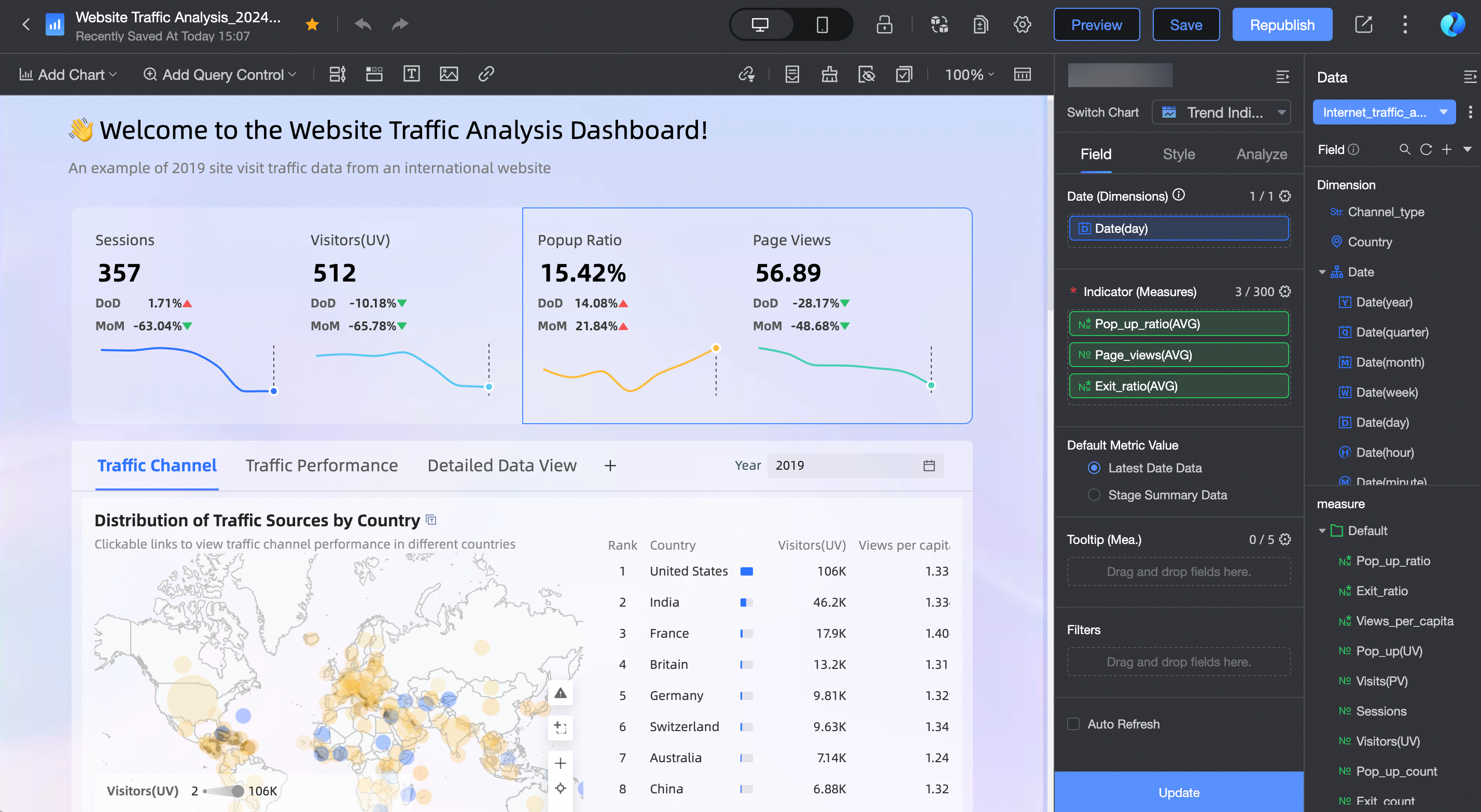
PC editor
Mobile editor
For more information about dashboard operations, see Dashboard operations.
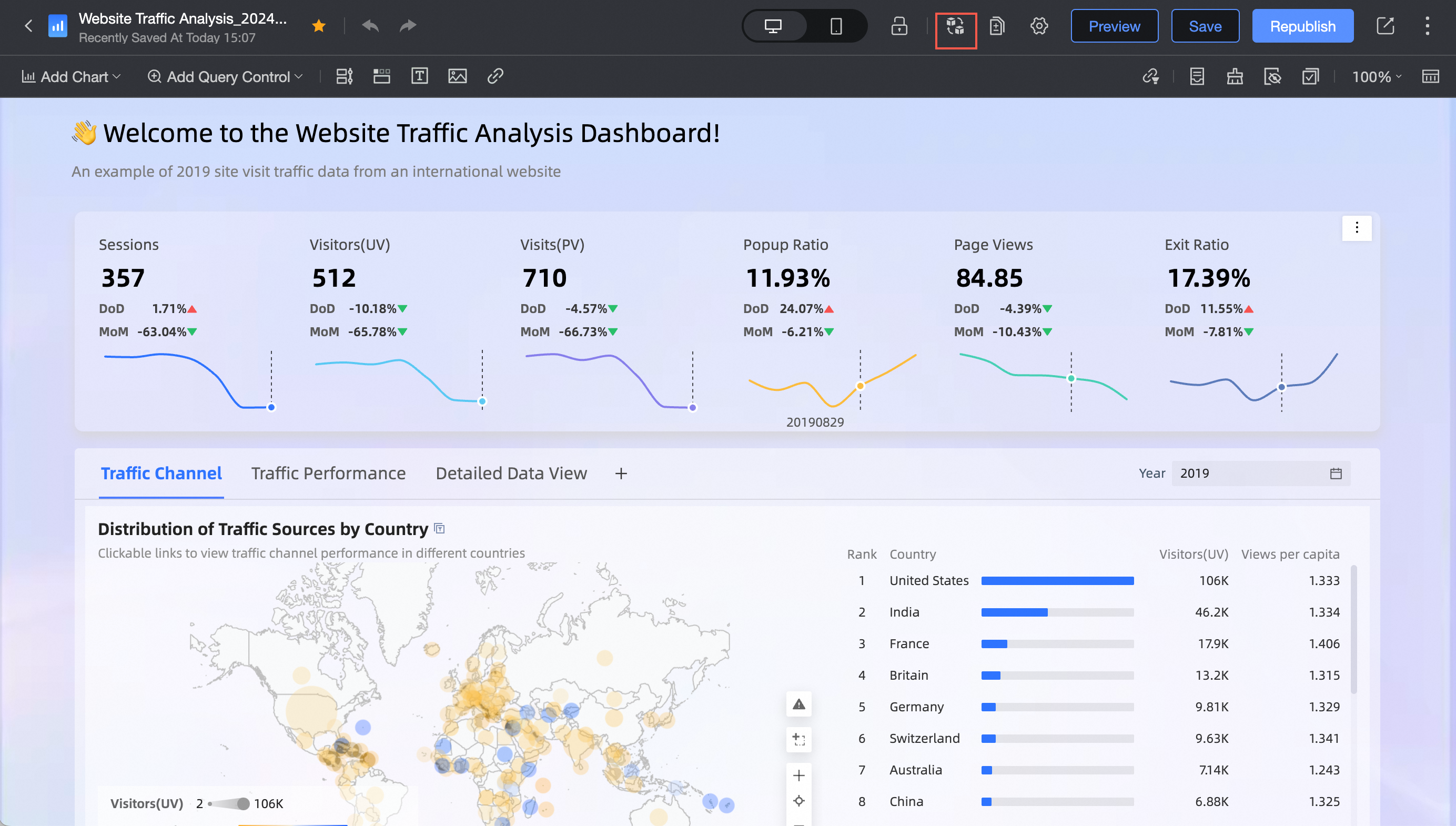
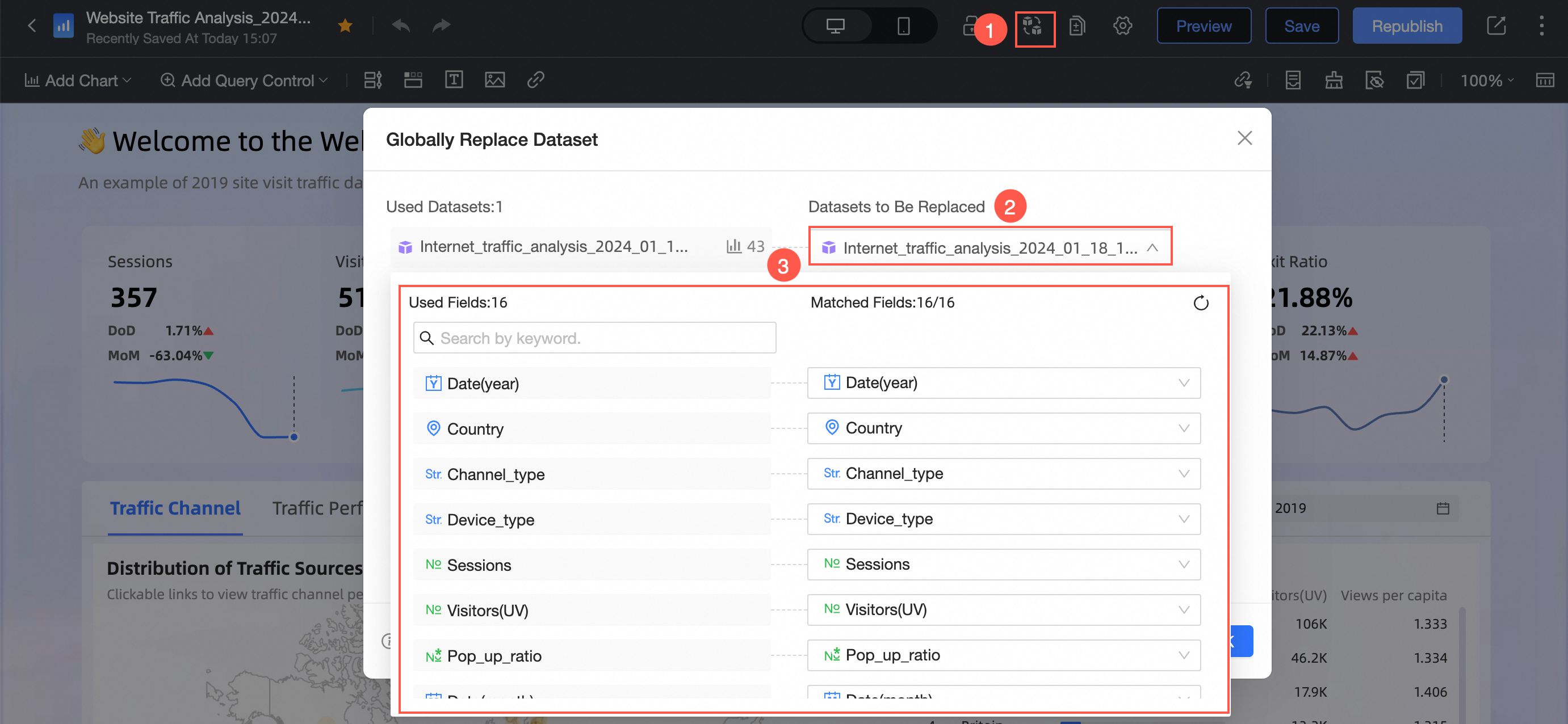
For dashboard and data dashboard templates, you can replace the dataset with a single click. The following example uses a dashboard.
Page-level data replacement
Replacement entry point
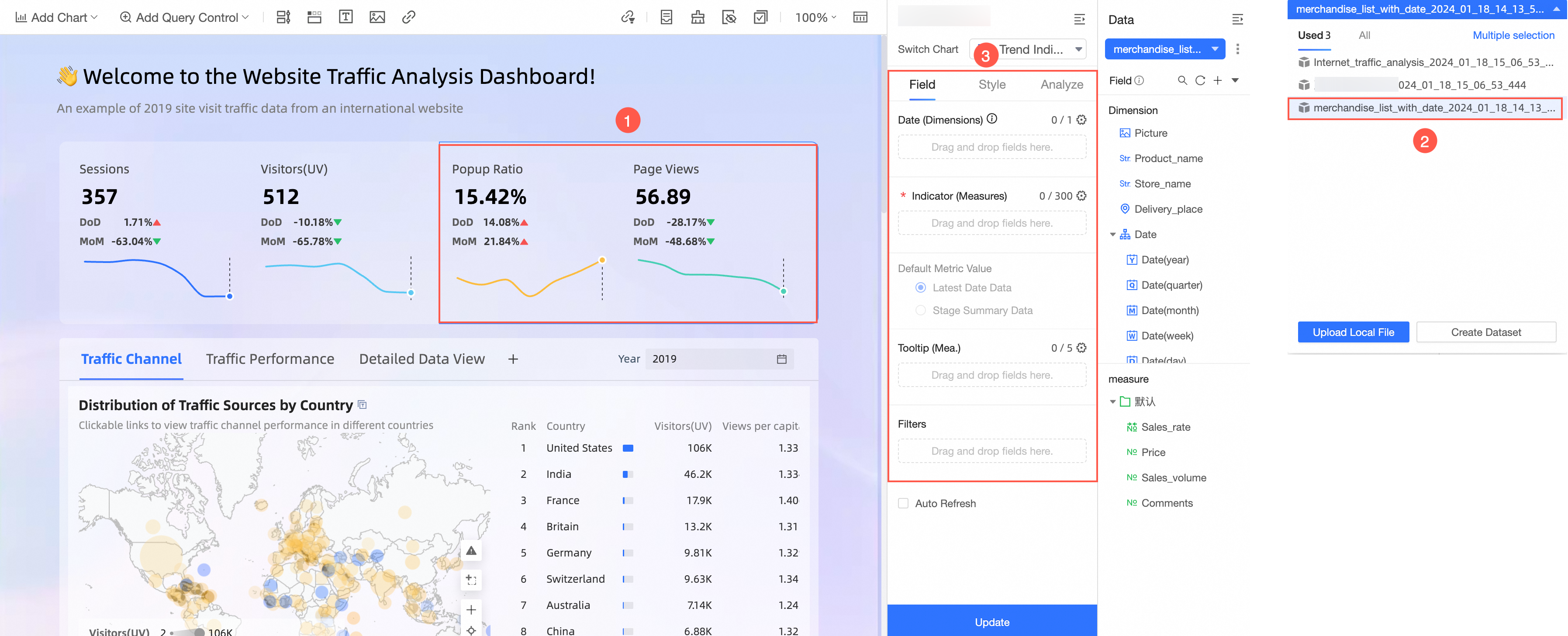
Click to open the list of all datasets used in the current dashboard. You can replace them with one click.
Component-level data replacement
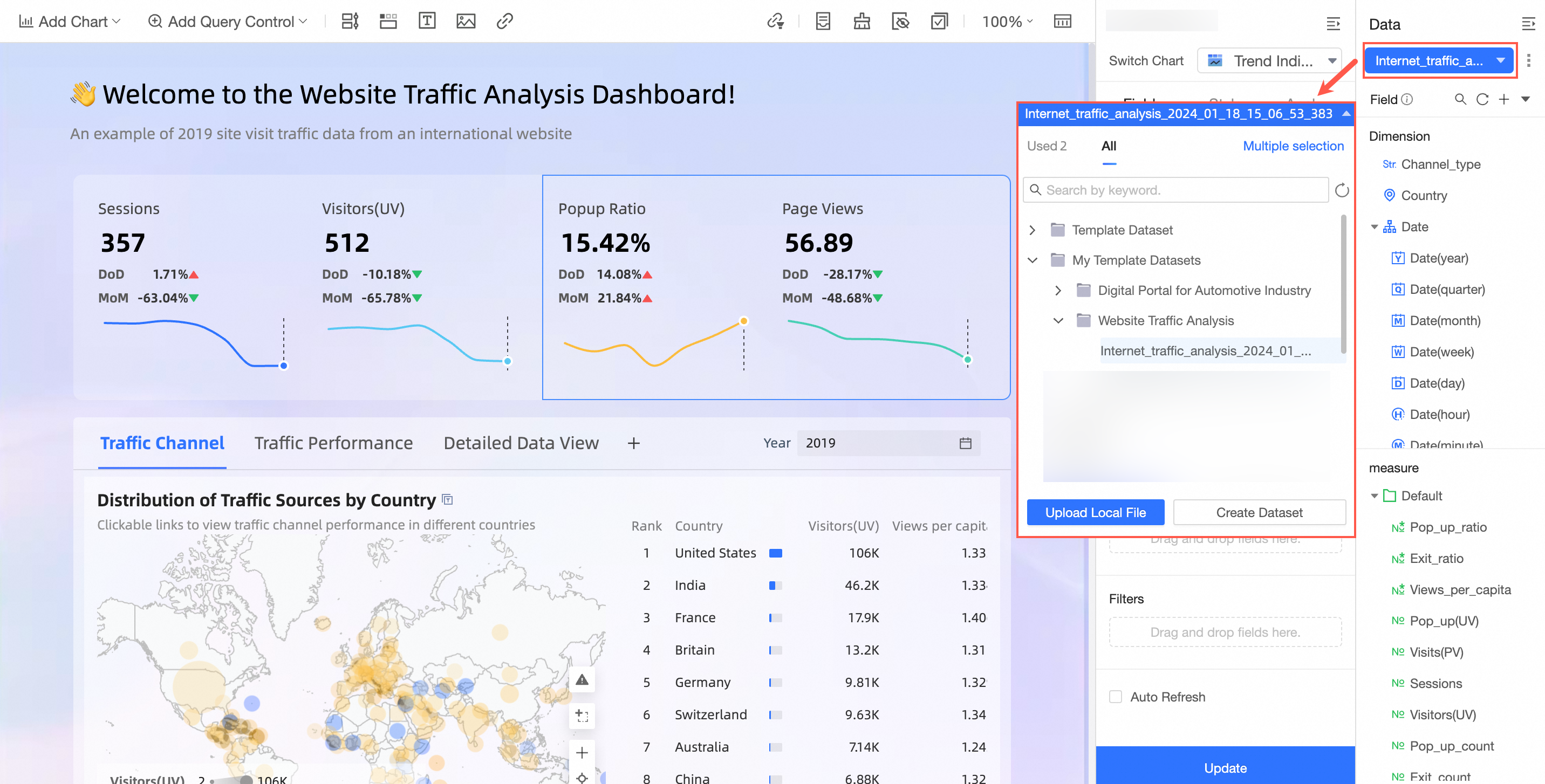
Replacement entry point
After you click the switch, you can toggle between used datasets and all datasets, and choose to clear field configuration.
If you want to replace the dataset and keep field configuration, click the
icon and select Replace current dataset.For more information about replacing data, see Replace a dataset.
 icon and select Replace current dataset.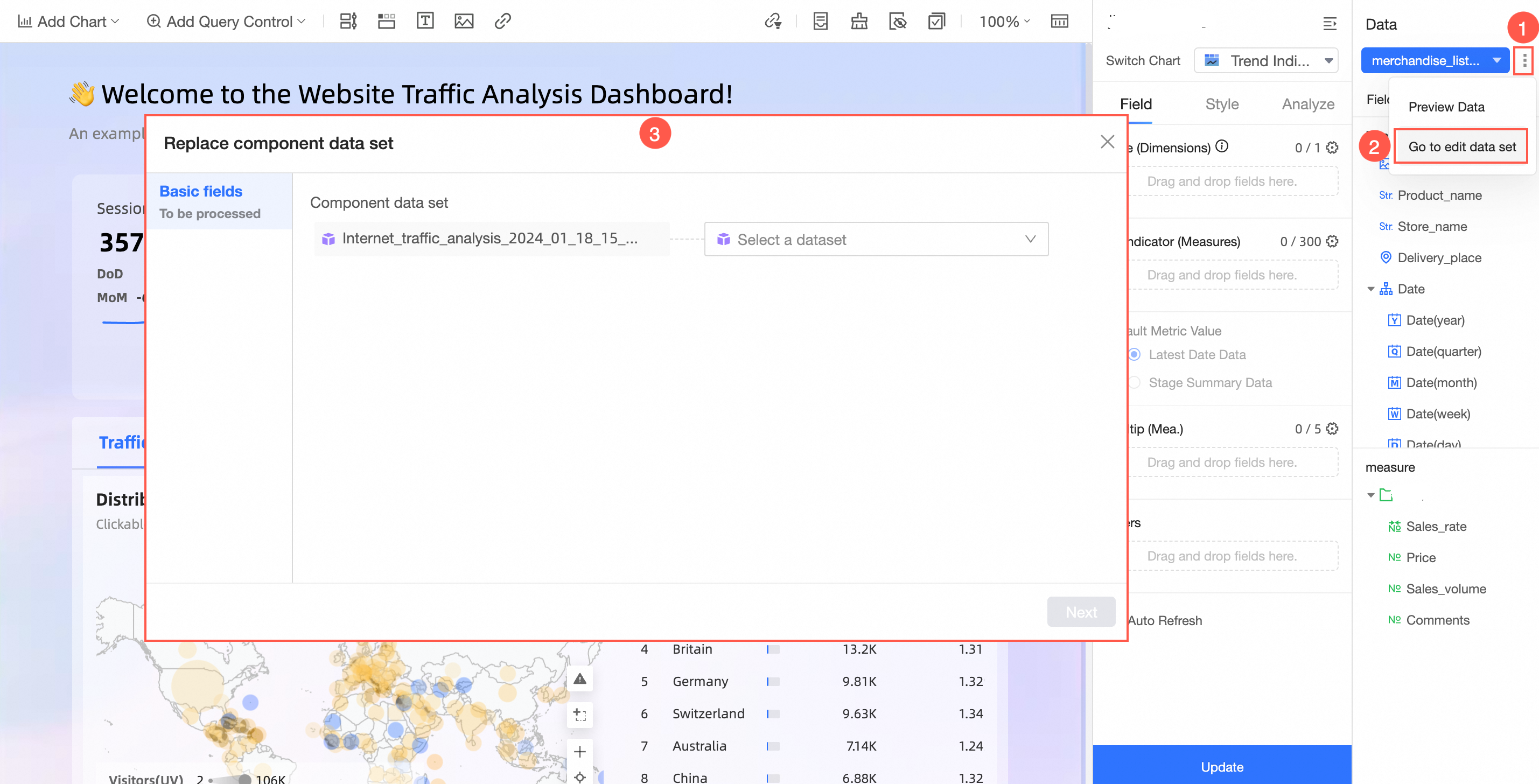
Template datasets and data sources
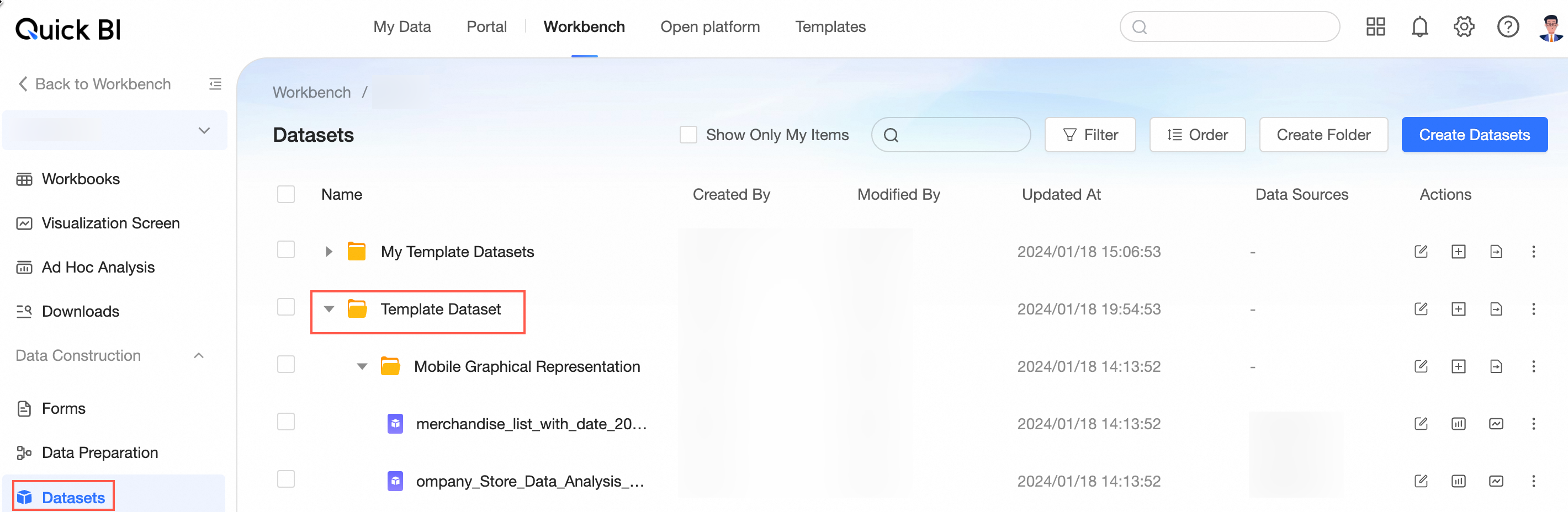
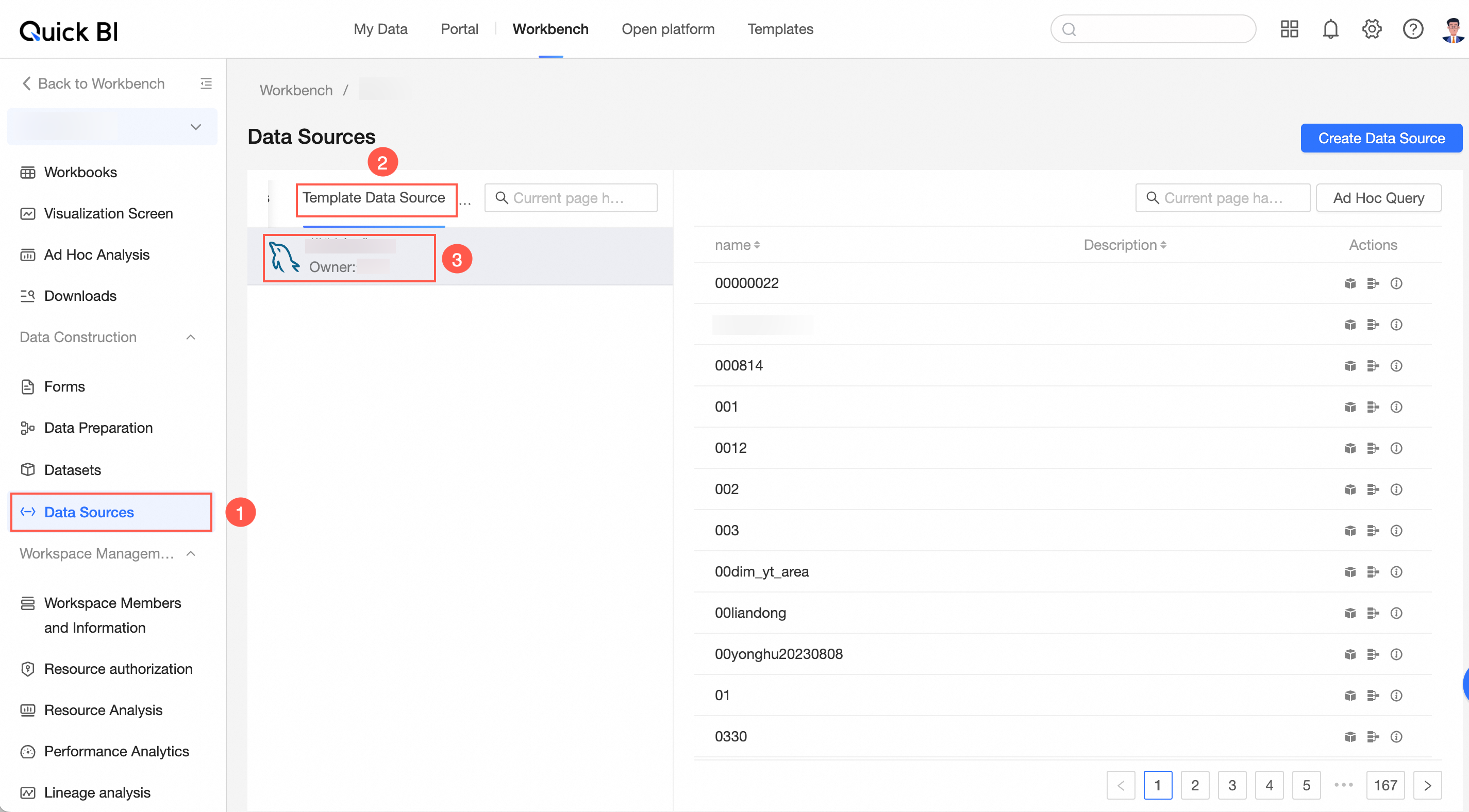
Datasets and data sources installed with a template are separate from those you create. You can find the template's datasets and data sources on their respective management pages.
Template dataset
Template data source
Examples
The following examples show how to create a dashboard from a template. You can either apply an entire template or reuse a specific chart component from a template.
Apply an entire template
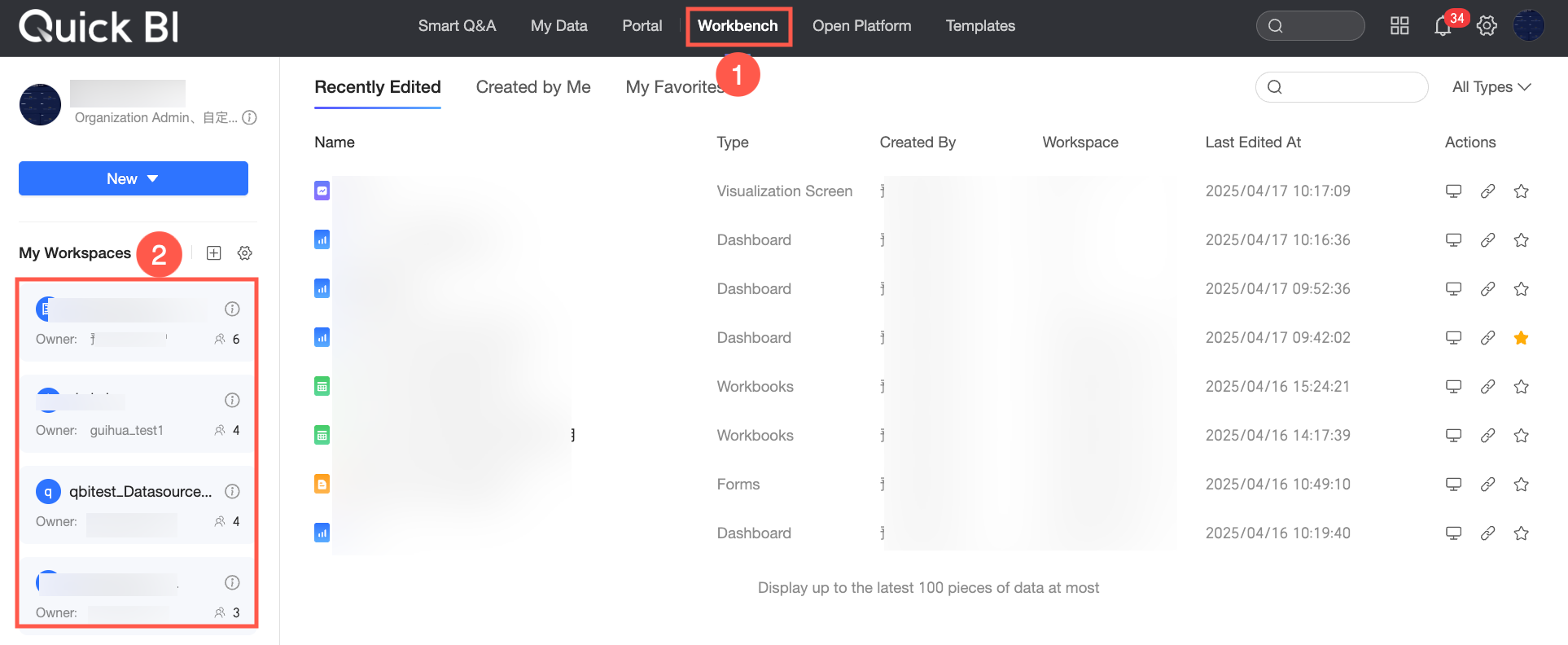
Follow these steps to apply an entire template from the Template Marketplace.
Log in to the Quick BI console.
On the Quick BI homepage, follow the instructions in the following figure to go to the workbench resource list page.
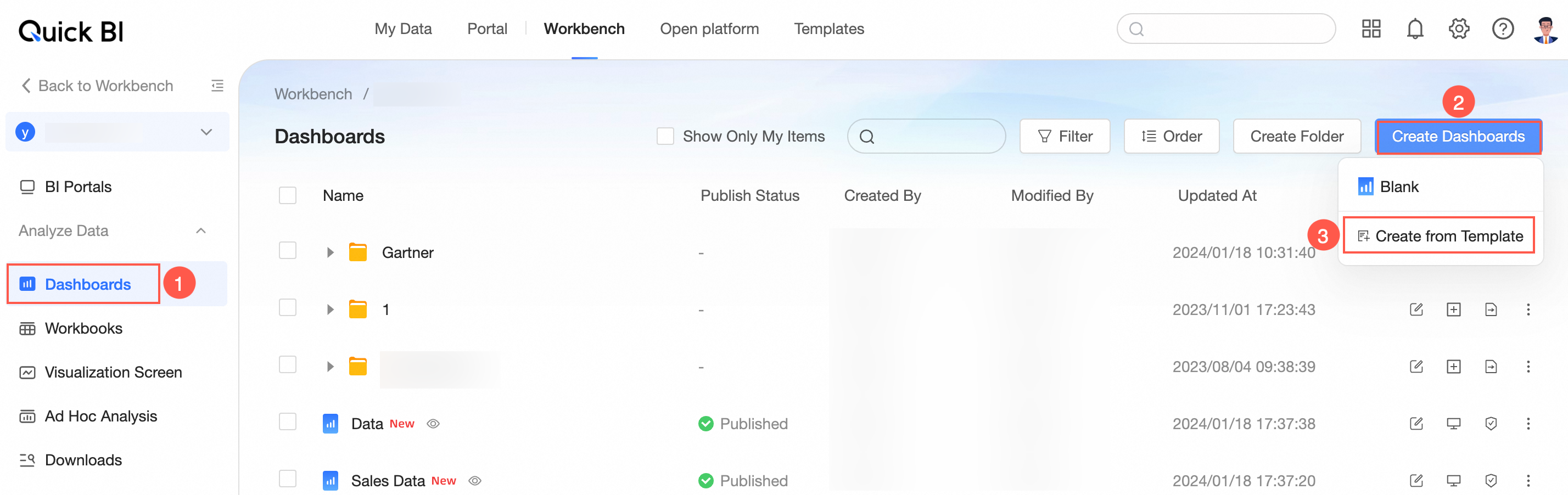
On the workbench resource list page, follow the instructions in the following figure to go to the dashboard creation page.
Only Professional Edition supports creating a dashboard from a template.
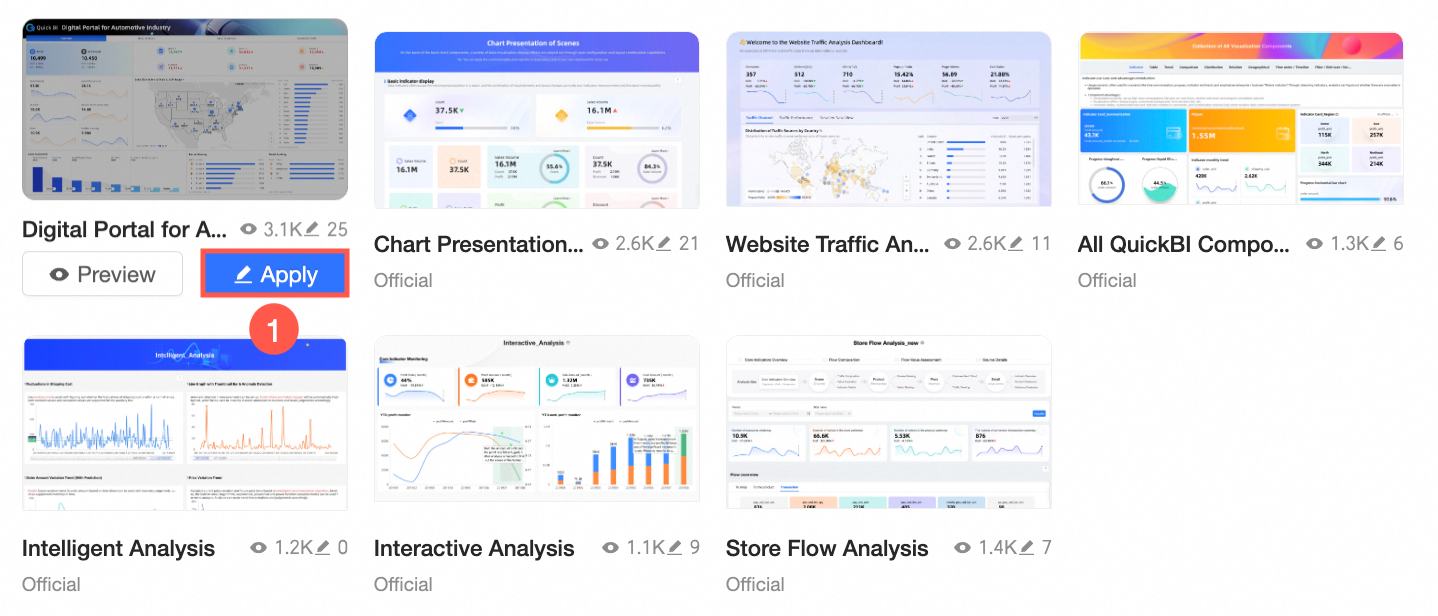
In the Create from Template dialog box, hover over the target template and click the Apply icon (① in the following figure).
Apply a single component
To apply a single component from the Template Marketplace to your dashboard, follow these steps:
In the dashboard list of the Quick BI workbench, find the target dashboard and click the
icon in the Actions column to open the editor.In the dashboard editor toolbar, click the
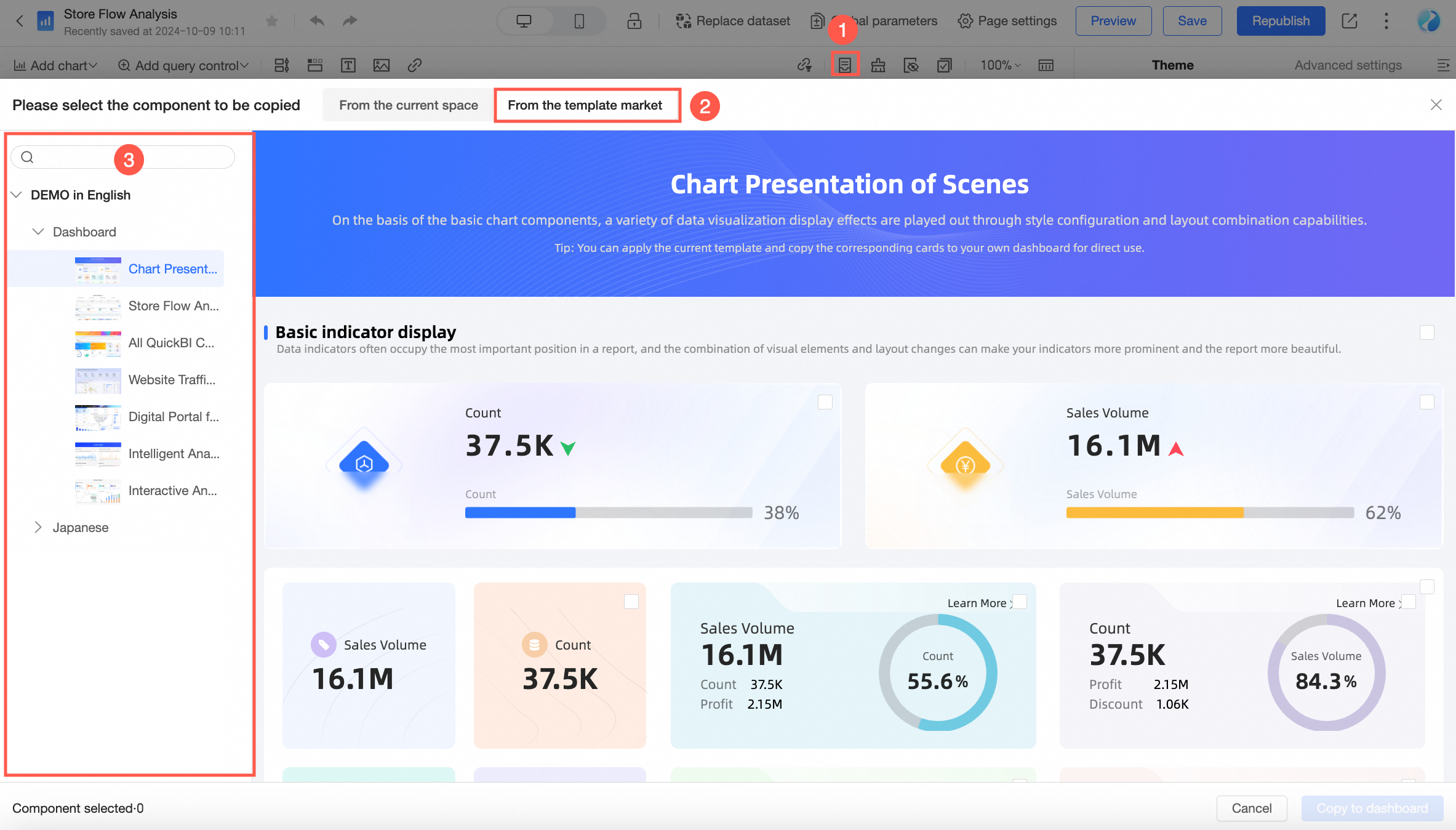
icon.In the Select a component to copy window, switch to the From Template Marketplace tab. You can enter keywords in the search box to quickly find the template you want to copy from.
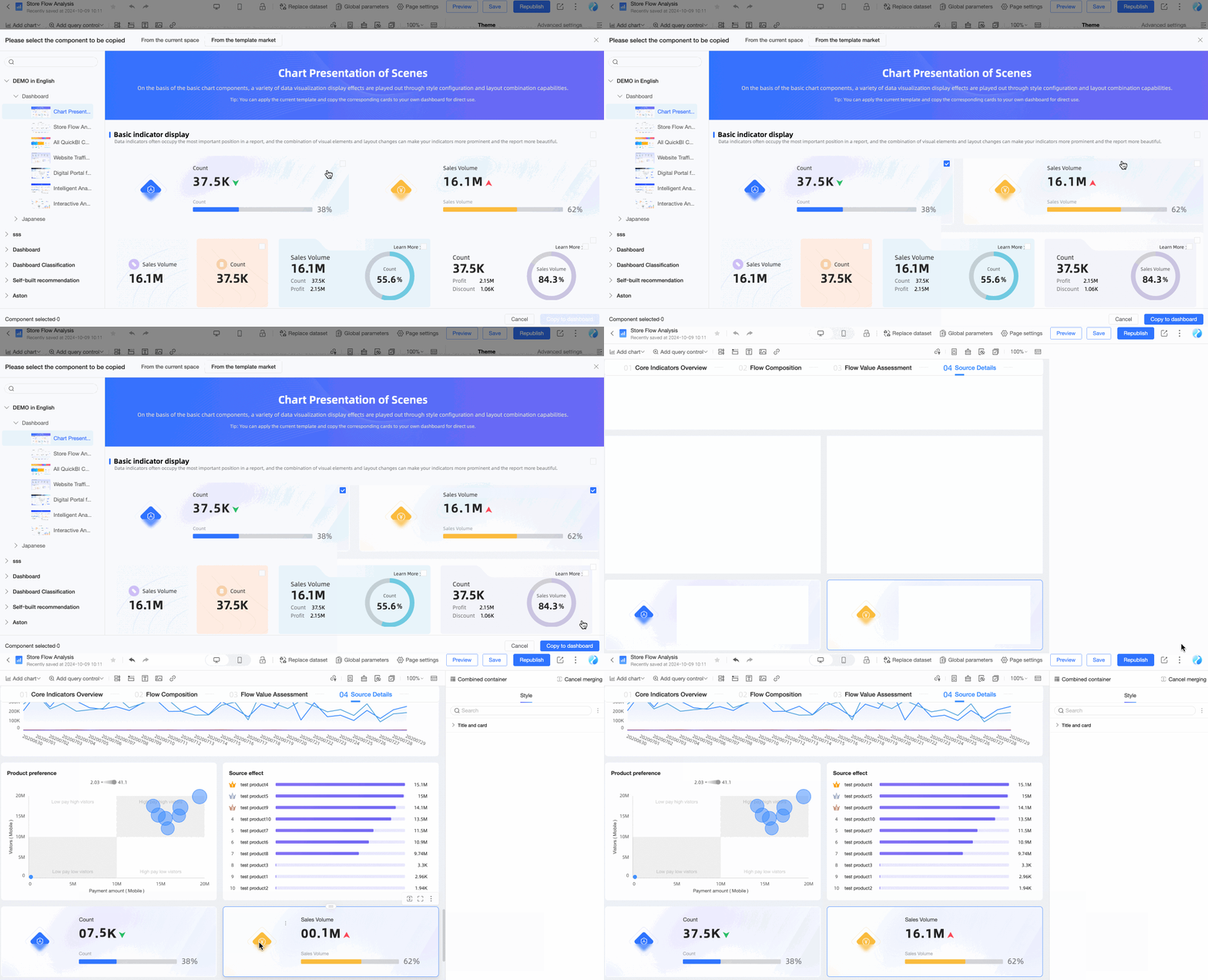
Select the component you want to copy and click Copy to Dashboard. The component is now added to your current dashboard.
NoteYou can only copy components from one dashboard at a time. You must complete the operation before copying from another.
Currently, the following types of components can be copied: tab control, rich text control, image control, chart components, and custom components.
 icon in the Actions column to open the editor.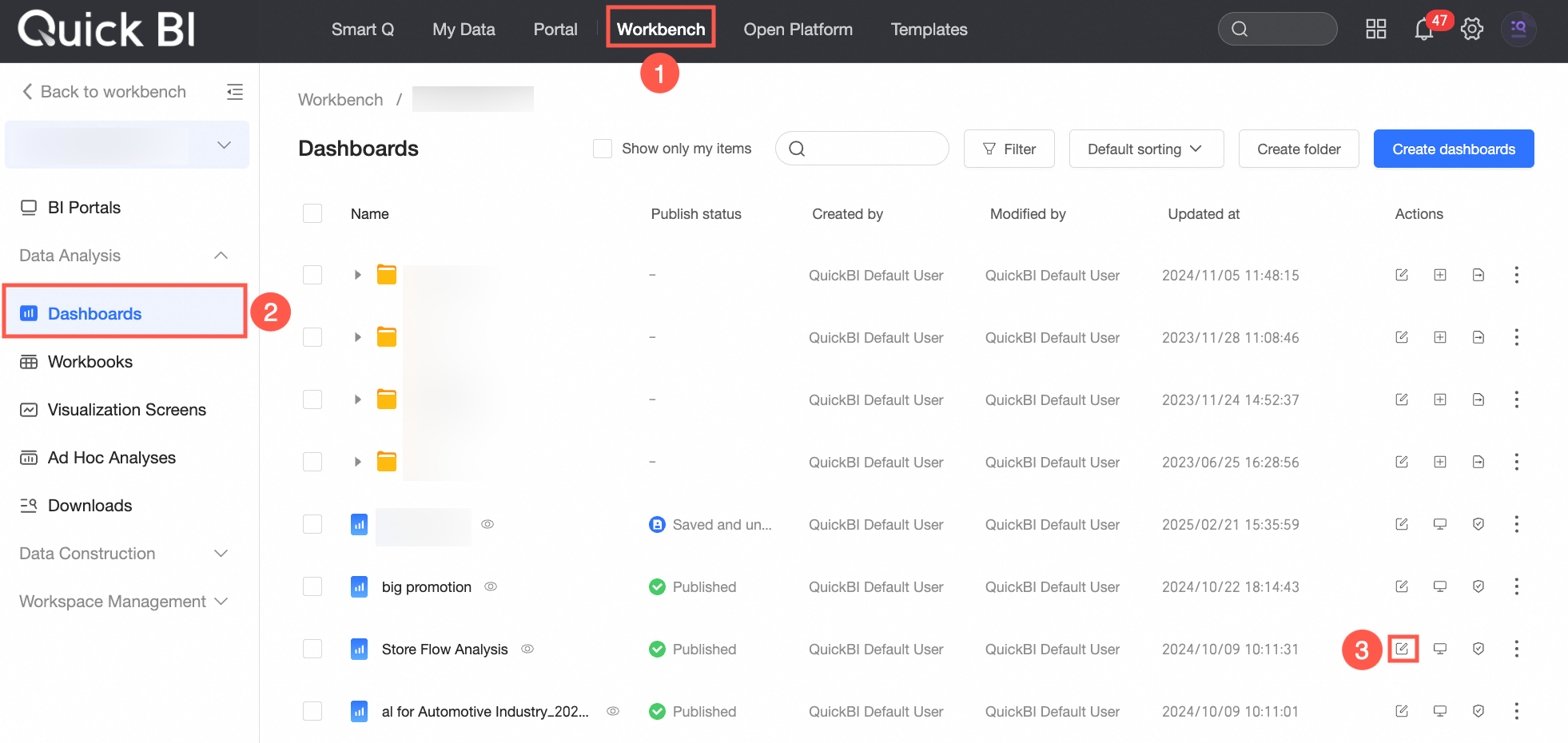
 icon.
icon.