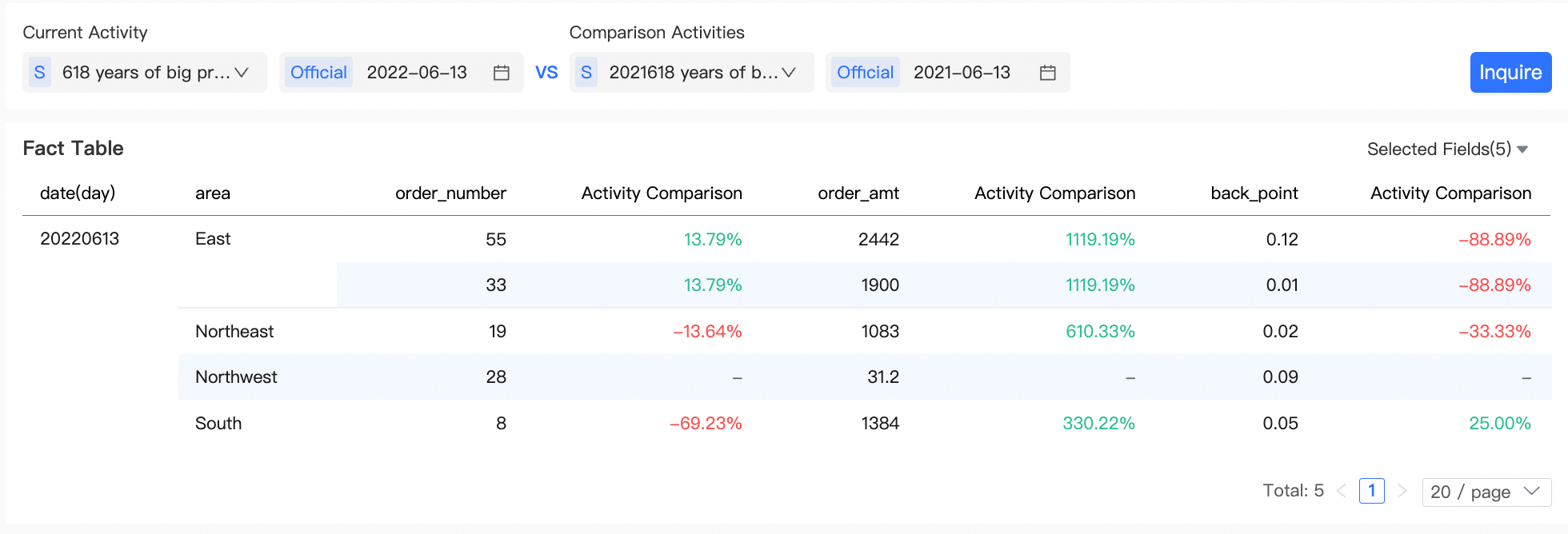
Activity Comparison Control
The Activity Comparison control lets you select activities and dates, then compare metrics across time periods through associated charts.
Scenario
Select an activity and date, then pick a comparison activity and date to view side-by-side metrics in associated charts. For example, compare this year's Double 11 promotion against last year's.
Limits
Associated charts support only five chart types: metric card, metric card trend chart, ranking, cross table, and detail table.
Prerequisites
Create an activity dataset with the required fields. Activity datasets are either basic or high-order. The following tables list the fields used in this example. You can customize field names.
Basic activity dataset
|
Field |
Field Description /Business Scenario |
Description |
|
camp_id |
The ID of the current activity. |
Required |
|
camp_name |
The name of the event, such as the 2022 Double 11 promotion. |
Required |
|
camp_start_time |
The start time of the activity, such as YYYYMMDD or YYYYMMDD HH:00:00 (if the activity started at an hour). |
Required |
|
camp_end_time |
The end time of the activity, such as YYYYMMDD or YYYYMMDD HH:00:00 (if the activity started at an hour). |
Required |
High-order activity dataset
|
Field |
Field Description /Business Scenario |
Description |
|
camp_id |
The ID of the current activity. |
Required |
|
camp_name |
The name of the event, such as the 2022 Double 11 promotion. |
Required |
|
camp_start_time |
The start time of the activity, such as YYYYMMDD or YYYYMMDD HH:00:00 (if the activity started at an hour). |
Required |
|
camp_end_time |
The end time of the activity, such as YYYYMMDD or YYYYMMDD HH:00:00 (if the activity started at an hour). |
Required |
|
warmup_start_time |
Start time of the warm-up phase. Supports multiple phases. Format: YYYYMMDD or YYYYMMDD HH:00:00. |
No |
|
warmup_end_time |
End time of the warm-up phase. Format: YYYYMMDD or YYYYMMDD HH:00:00. |
No |
|
camp_level |
Activity level. Can be used as an activity filter criterion. |
No |
|
priority |
Priority determines the default activity when multiple activities overlap. The activity with the highest priority value displays by default. |
No |
Set ID-type fields in the activity dataset to the dimension type. Otherwise, the system cannot identify them.
Access the control
Entry 1: Query control is empty
-
On the dashboard edit page, click Query Control.
-
Click Add Activity Comparison Control in the Query Control section.

Entry 2: Query control is not empty
-
In the query control drop-down list, hover over the icon in the upper-right corner
 .
. -
Click Add Activity Comparison Control.

Configuration overview
On the Settings tab, configure Basic Information, Options, and Associated Charts.
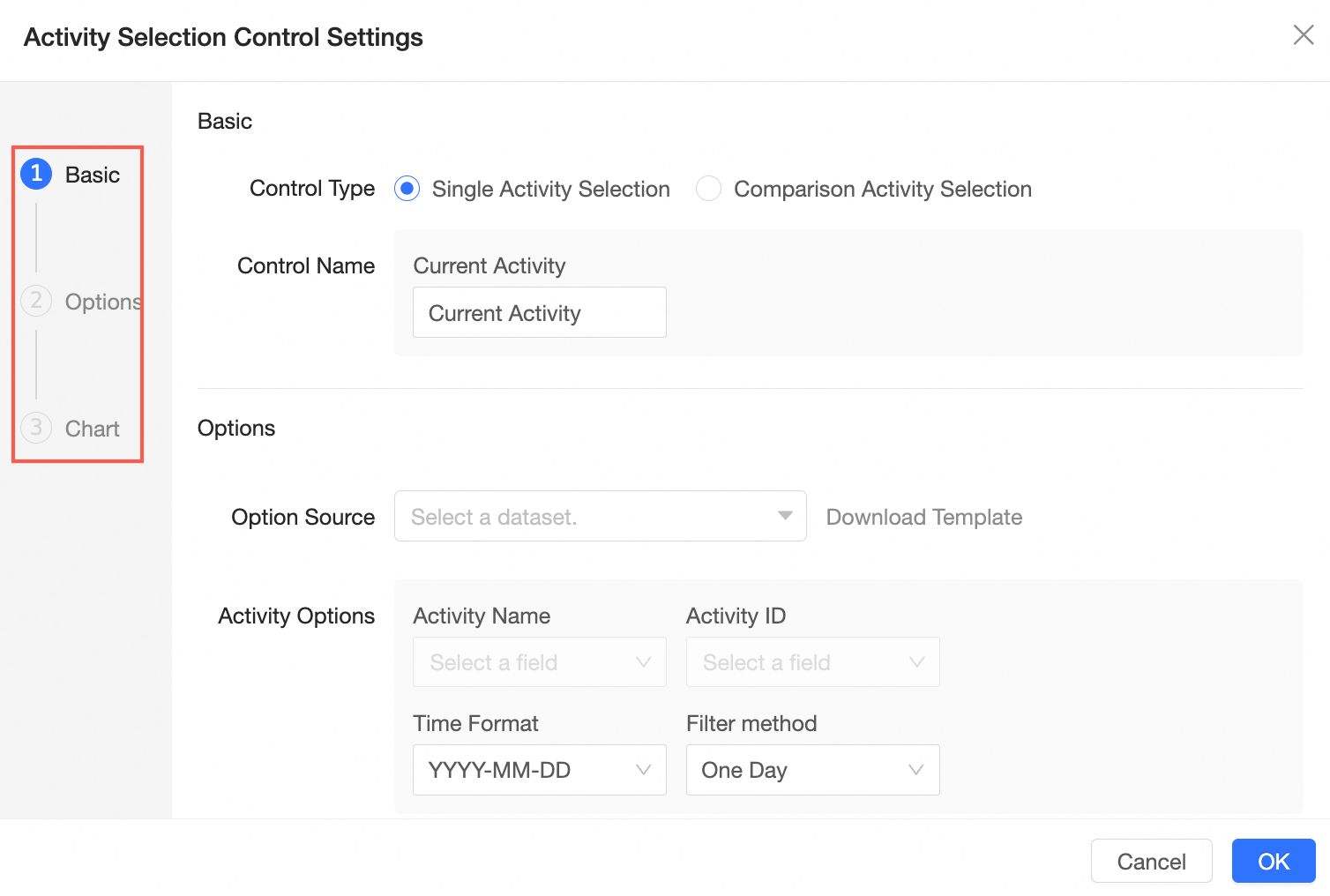
The following table describes each configuration item and its rendering. For more information, see Procedure.
|
Configuration |
Rendering |
|
I. Basic information |
|
|
|
|
2. Configure options |
|
|
|
|
|
|
|
|
|
|
|
|
|
|
3. Associated charts |
|
|
After you select activity content, the chart is automatically associated with the selection.
|





Procedure
I. Basic information
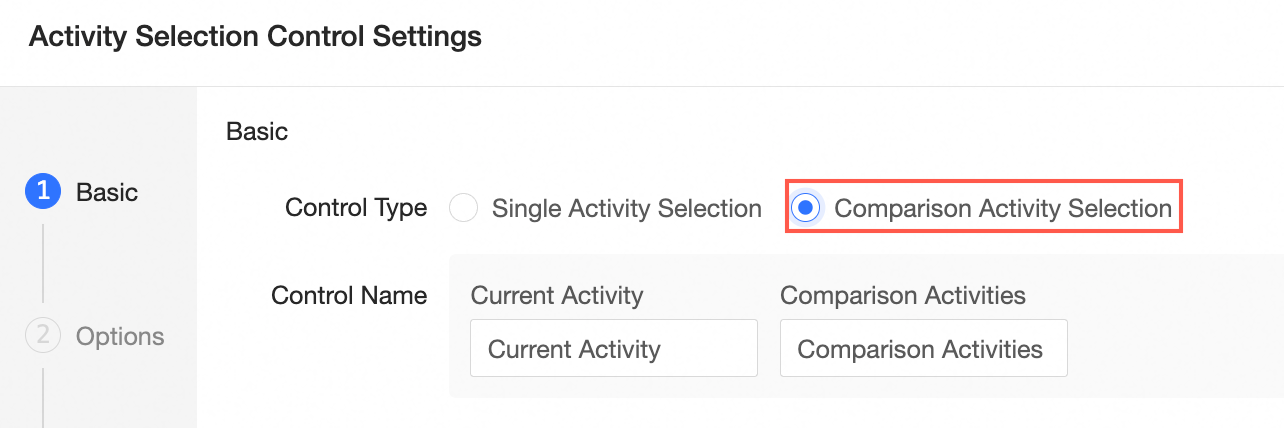
In the Basic Information section, set Control Type. If you select Select Single Activity, set the Display Name. This example uses Select Compare Activity.
2. Configure options
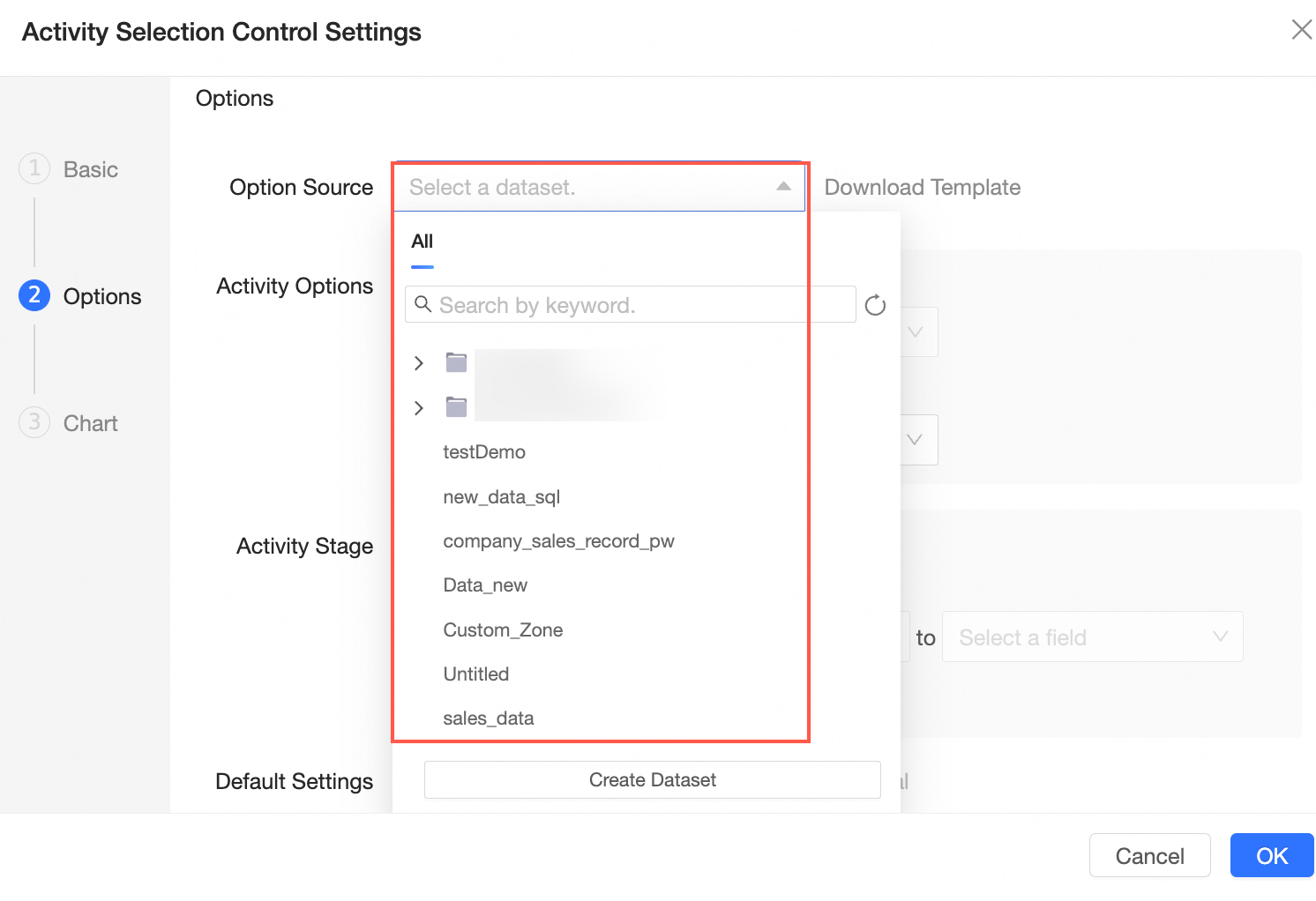
After you configure basic information, set Option Value Source, Activity Options, Activity Phase, Activity Default Value, Activity Filter, and Compare Activity Cascade in the Options section.
-
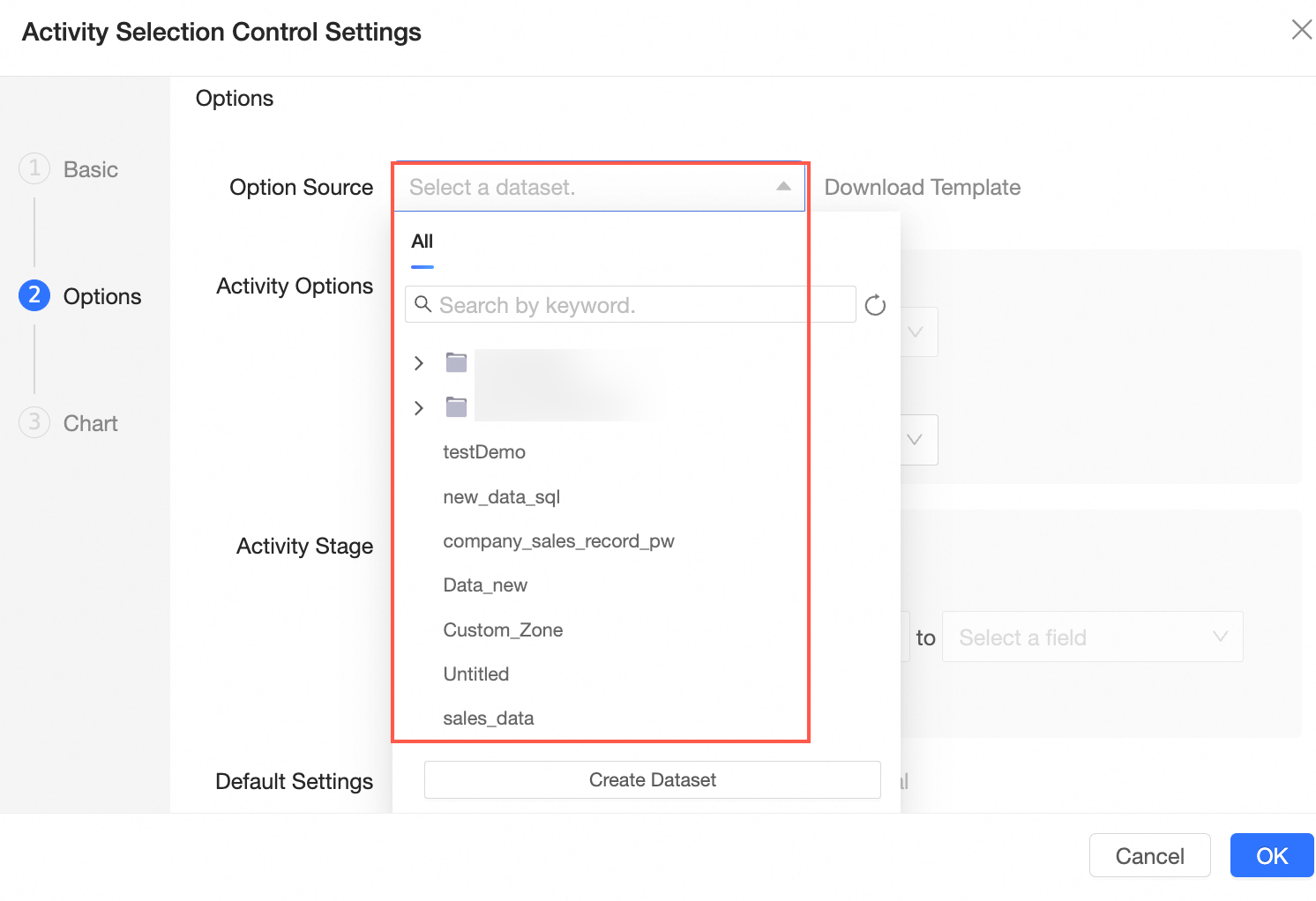
Click Download Template to Upload Local File, or select an existing dataset from the drop-down list.

-
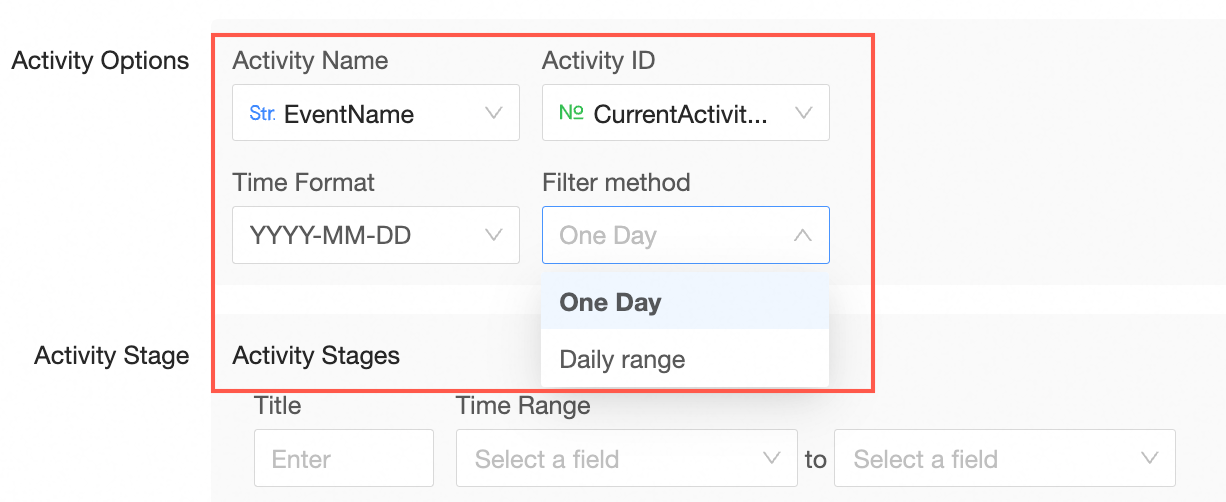
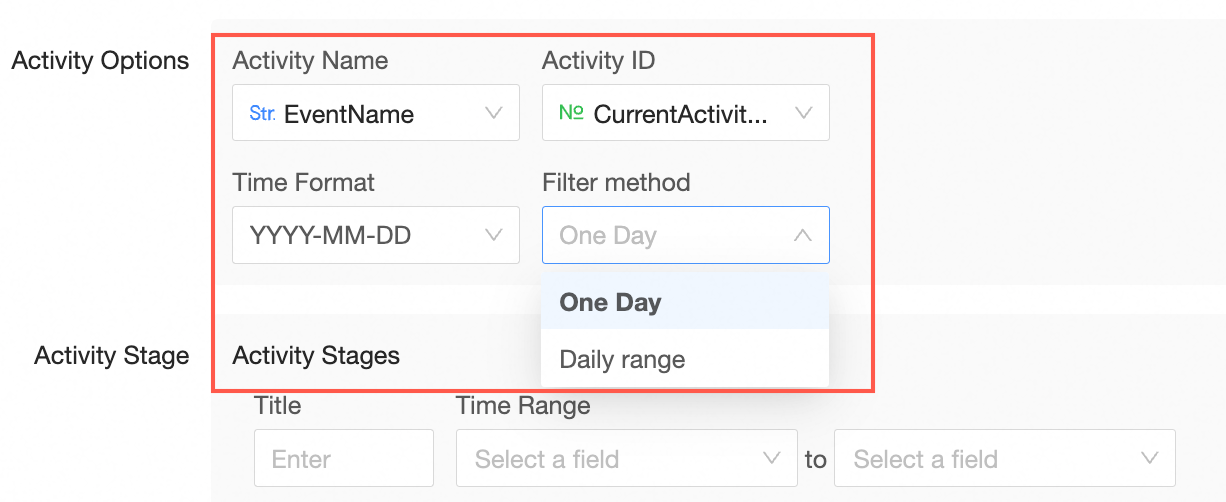
After selecting an option value source, configure Activity Options. Set Activity Name to the activity name field and Activity ID to the current activity ID field. Time Granularity defaults to year-month-day. Set Filter Method to Single Day or Day Range.
-
If Filter Method is Single Day, you can filter by a specific day.
-
If Filter Method is Day Range, you can filter by a date range.
-
-
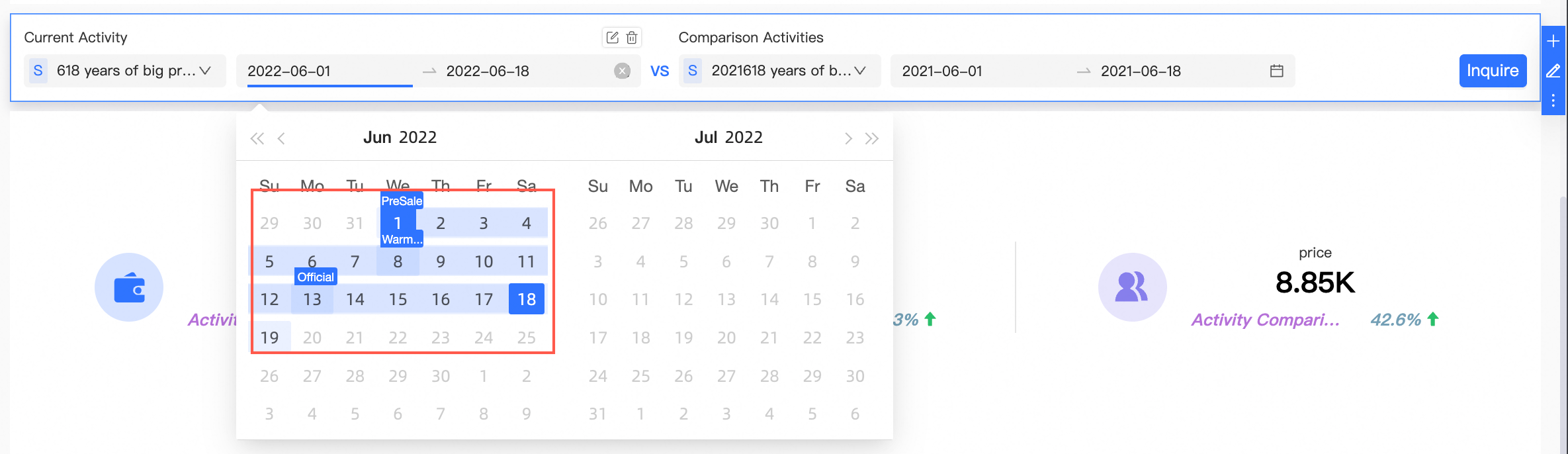
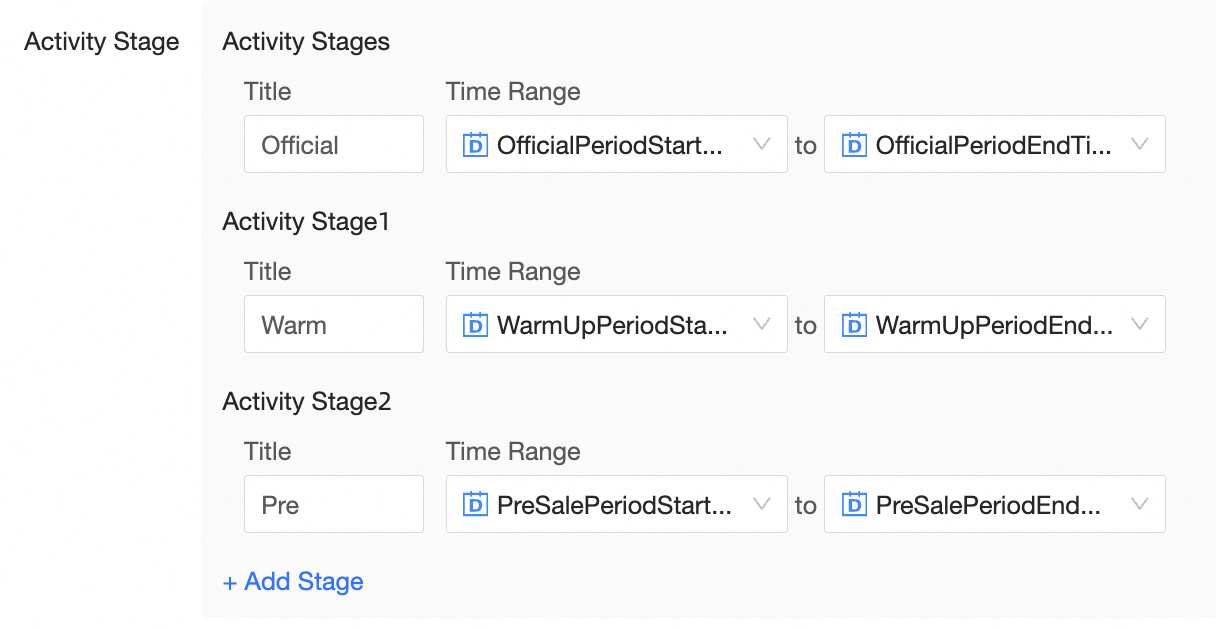
Configure activity stages. Enter the calendar display text (e.g. Formal), then select Formal Period Start Time and Formal Period End Time for the Time Range. You can add more stages such as warm-up period and pre-sale period.
-
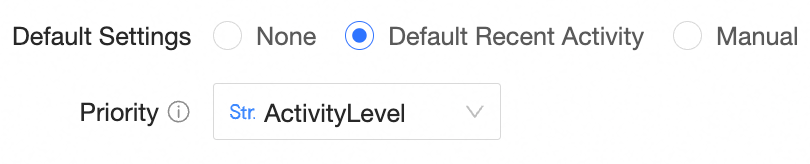
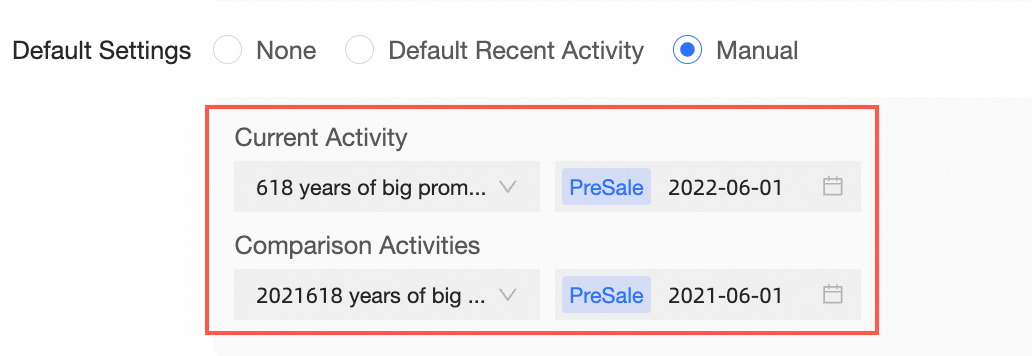
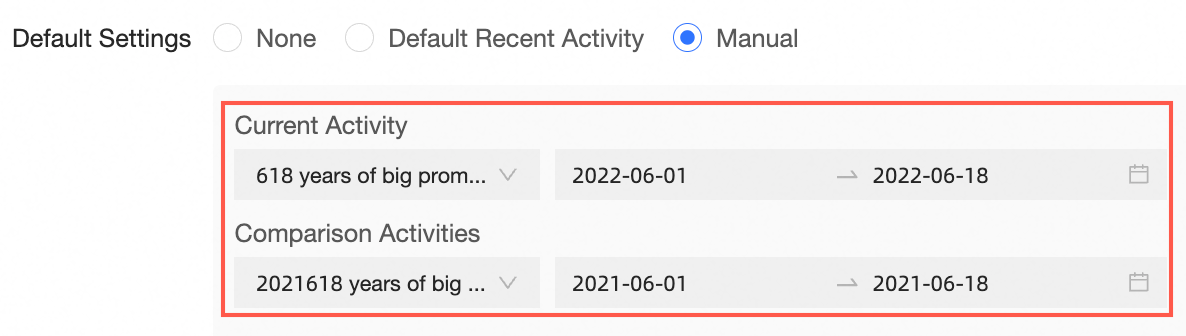
Set Default Values for activities: None, Default Recent Activities, or Manual Settings. If you select Default Recent Activity, set the Activity Priority parameter to Activity Level.
NoteIf multiple activities share the same priority, they are sorted by activity ID in ascending order. For example, if activities with IDs 1, 5, and 7 all have priority 9, the activity with ID 1 is selected by default.
-
Default Latest Activity
-
Manual Settings
If Filter Method is Single Day, you can set a default date for the current and comparison activities.
If Filter Method is Day Range, you can set a default date range for the current and comparison activities.
-
-
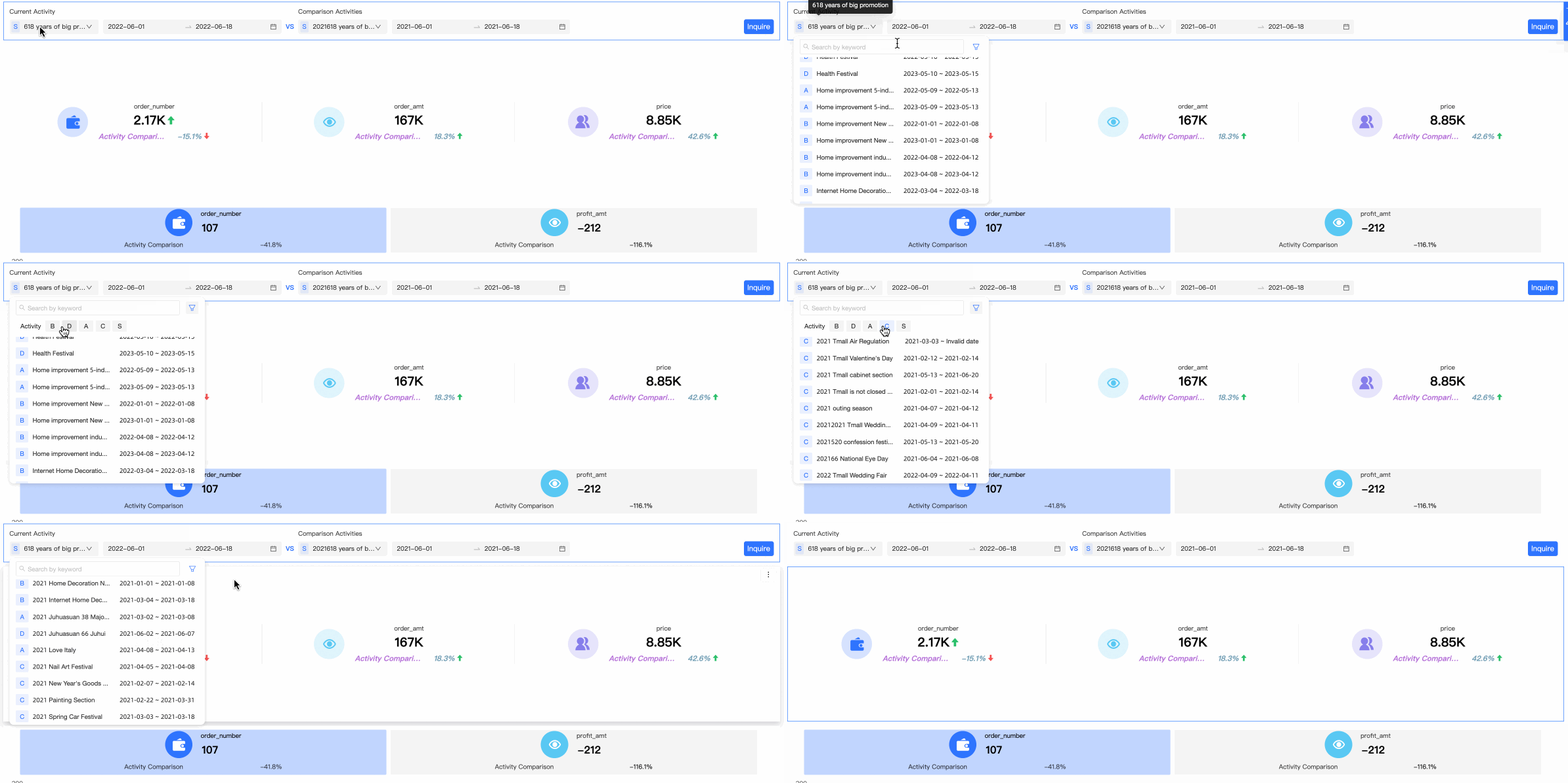
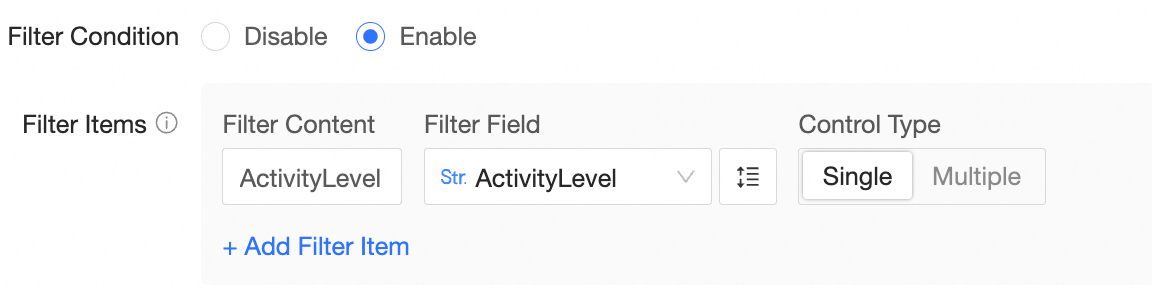
Activity filtering is disabled by default. To enable it, click Enable, enter Activity Level in the Filter Content field, select Activity Level as the field, and set Control Type to Single Choice. To create multiple filters, click add filters.
-
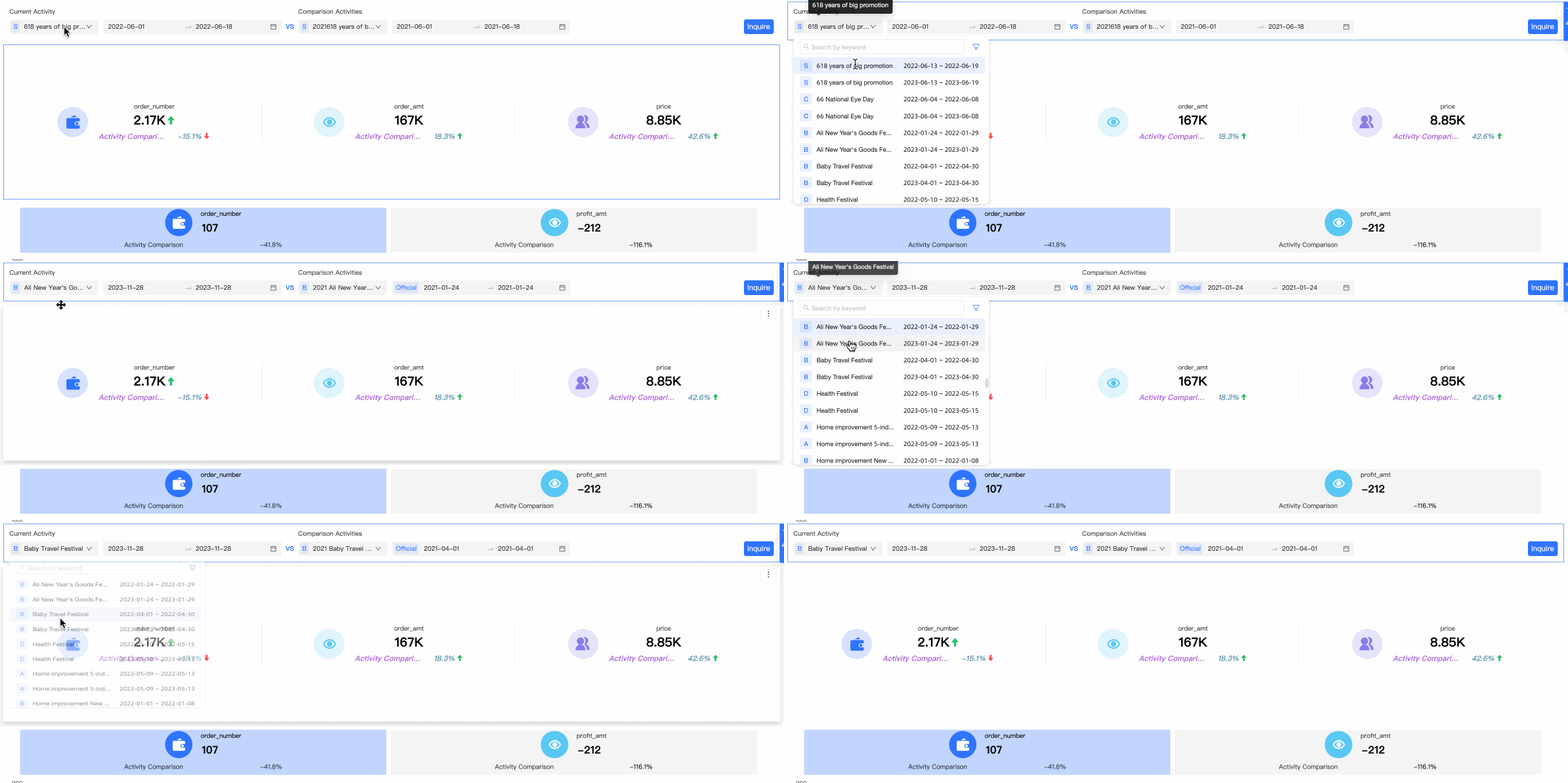
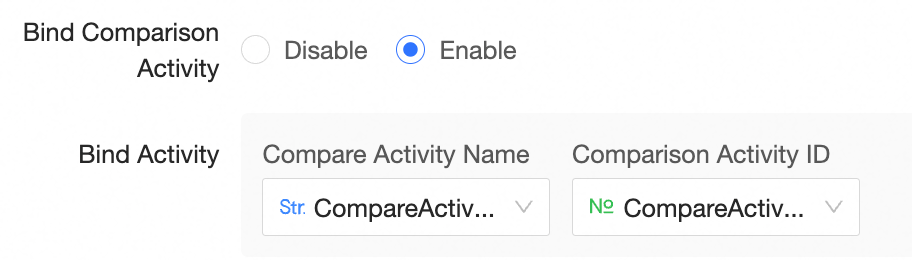
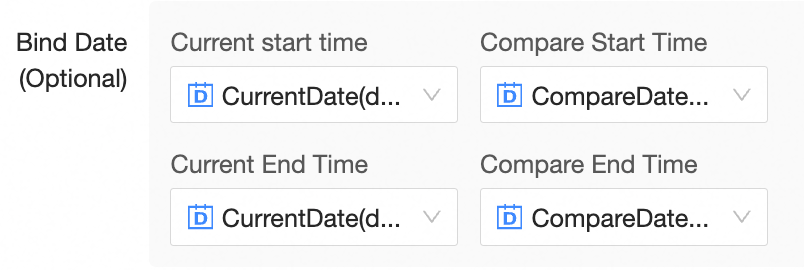
Compare Activity Cascade is available only when Control Type is Compare Activity Selection. Disabled by default. Enable this feature to bind two comparison activities and their comparison dates.
-
Activity Cascade
-
Date cascade (optional)
If Filter Method is Single Day, configure the Current Date and Compare Date cascades.
If Filter Method is Day Range, configure the Current Start Time/Comparison Start Time cascade and the Current End Time/Comparison End Time cascade.
-



3. Associated charts
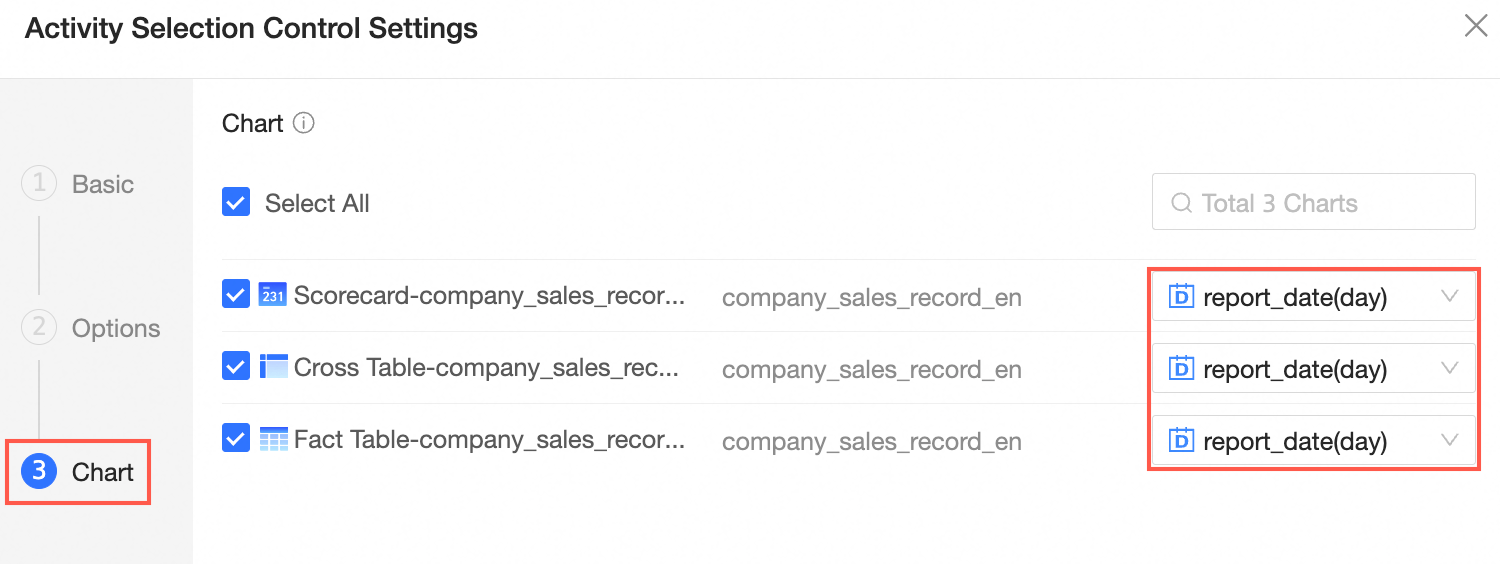
After configuring basic information and options, associate charts in the Associated Charts section. Select a target chart and set the Date (day) field for the activity phase.
Five chart types are supported: metric card, Indicator Card Trend, Ranking, Cross Table, and Details.
-
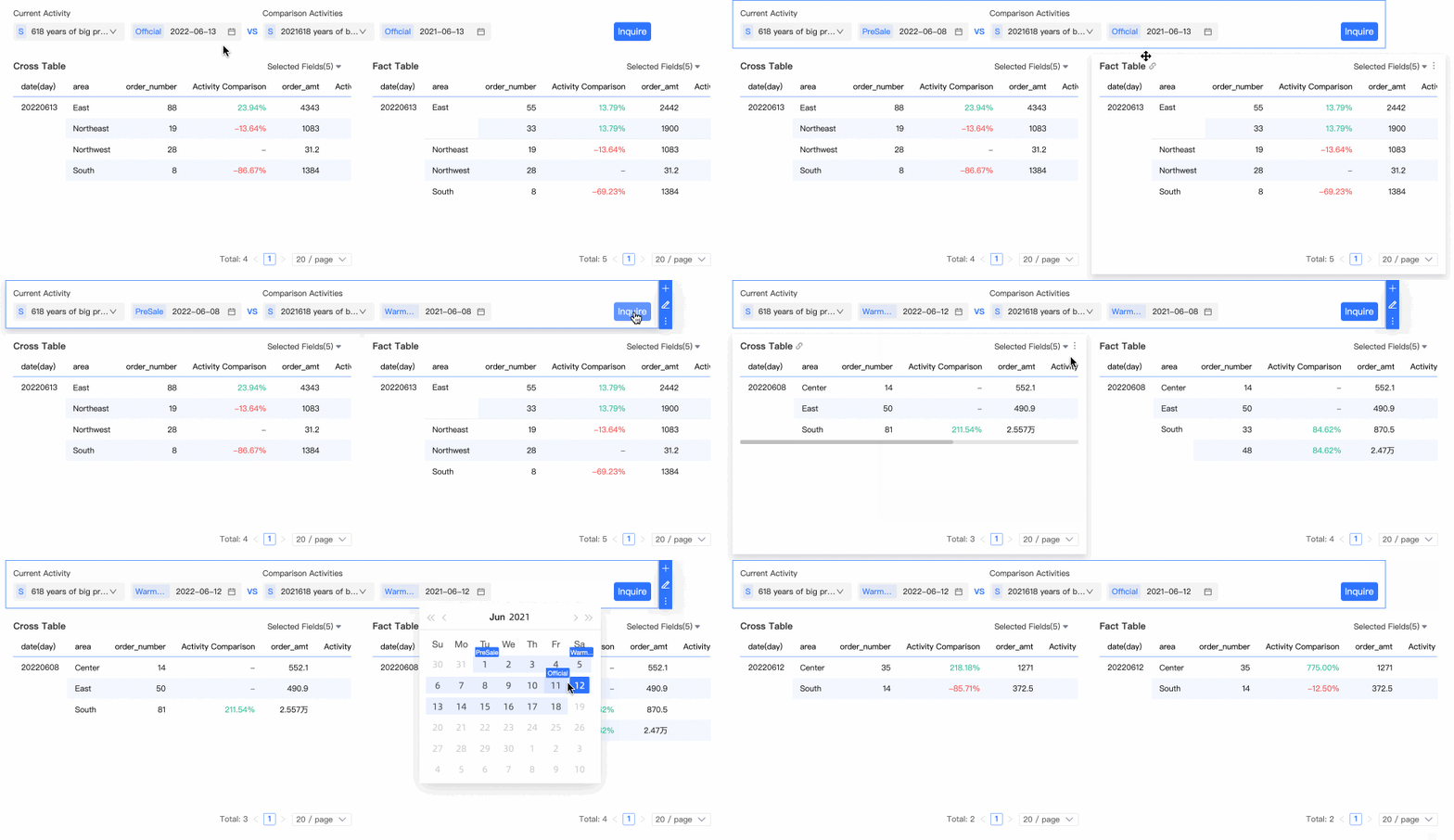
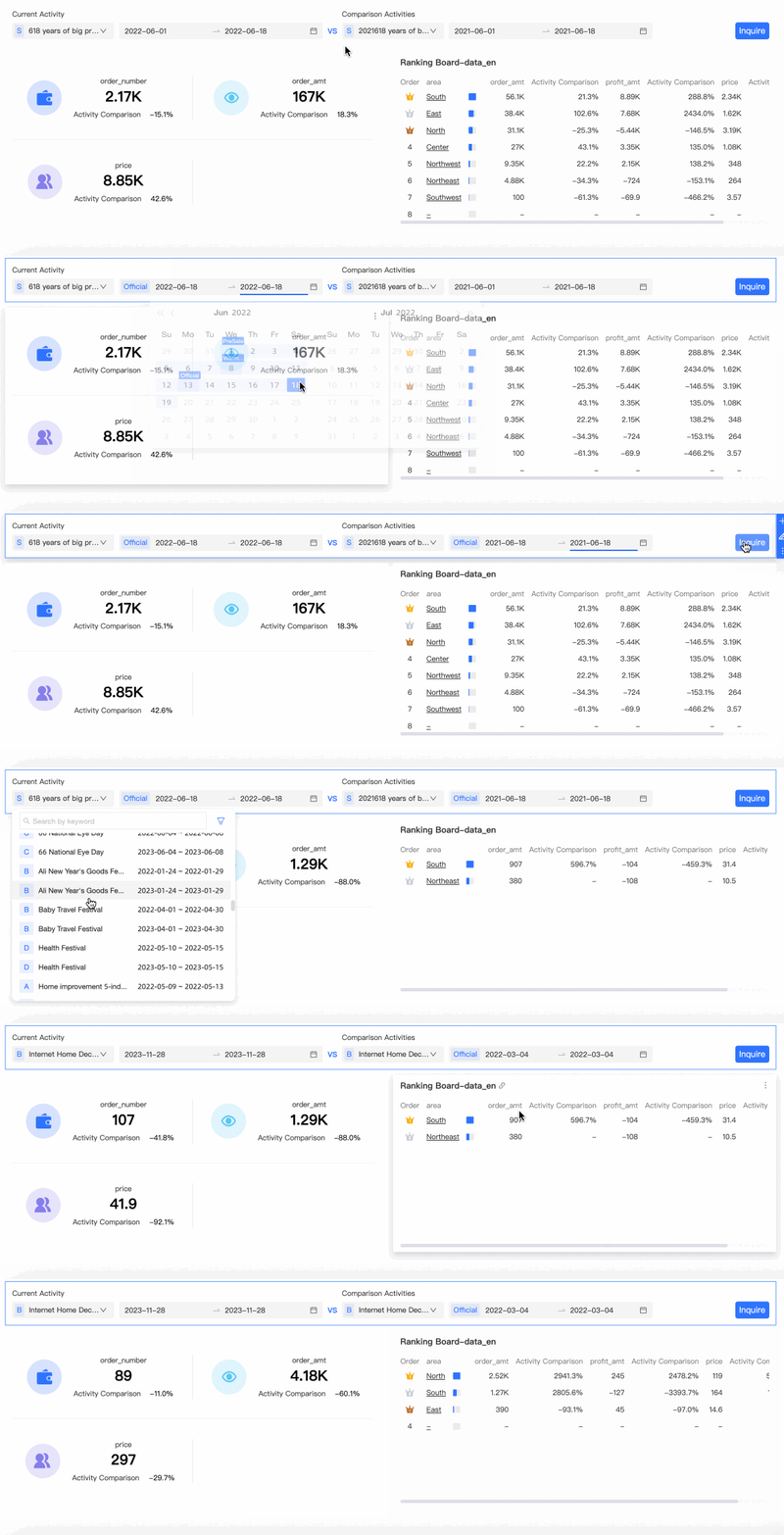
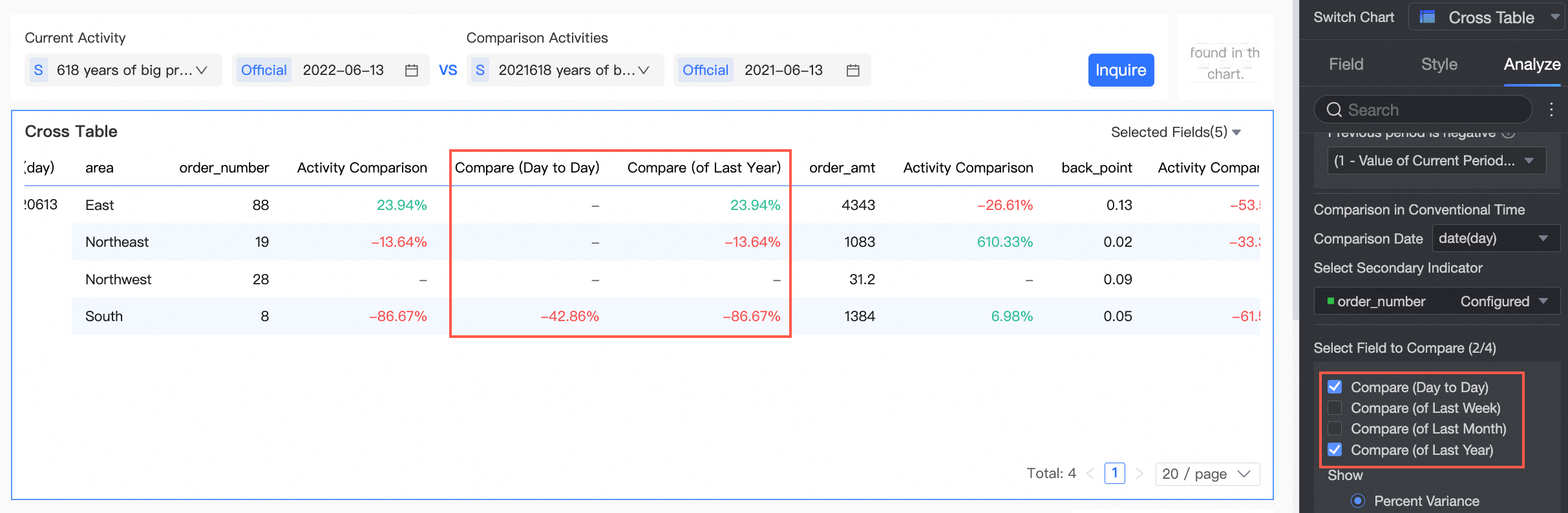
The following figure shows cross table and detail table association results with single-day filtering.
-
The following figure shows metric card and leaderboard association results with day range filtering.
On the chart's Analysis tab, click Advanced and configure the activity comparison settings.
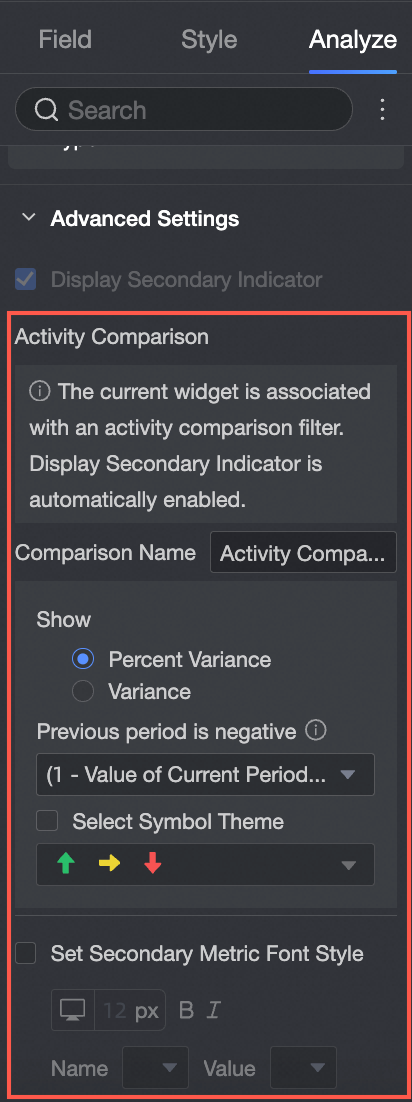
|
Parameter/Option |
|
|
Compare Name |
Custom comparison name. |
|
Display Content |
|
|
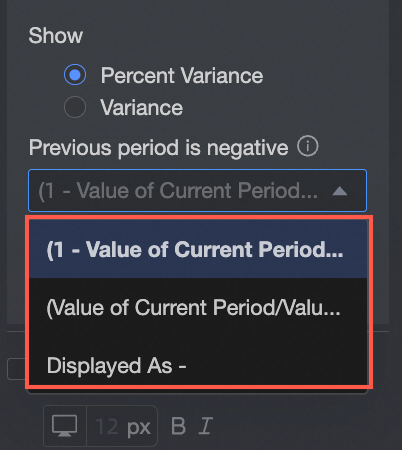
If the data of the previous period is negative |
When Percentage Difference is displayed and the previous period data is negative, select a formula to calculate the difference percentage. The selected formula applies only when the previous period value is less than 0. |
|
regular time comparison |
Select a Comparison Date and a comparison metric to set comparison content. You can synchronize comparison metrics.
Note
Supported for metric cards, metric card trend charts, cross tables, and detail tables. |
|
Display Position |
For cross tables and detail tables: Metric Right, Independent Right, and Metric Bottom. |
|
Display Style |
For cross tables and detail tables: red-positive/green-negative or green-positive/red-negative.
|
|
Select a mark |
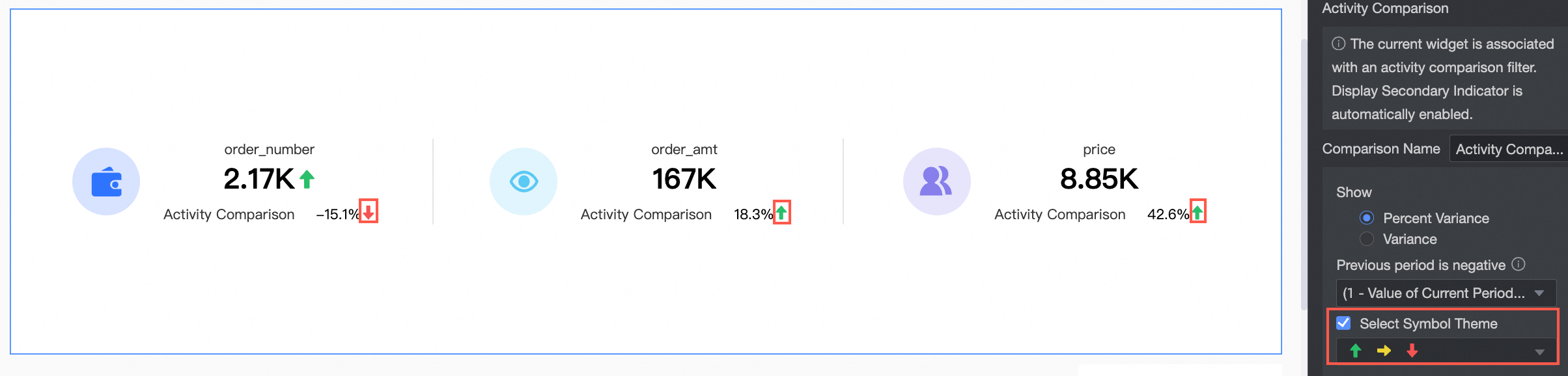
Metric cards and indicator card trend charts support selection of up and down markers.
|
|
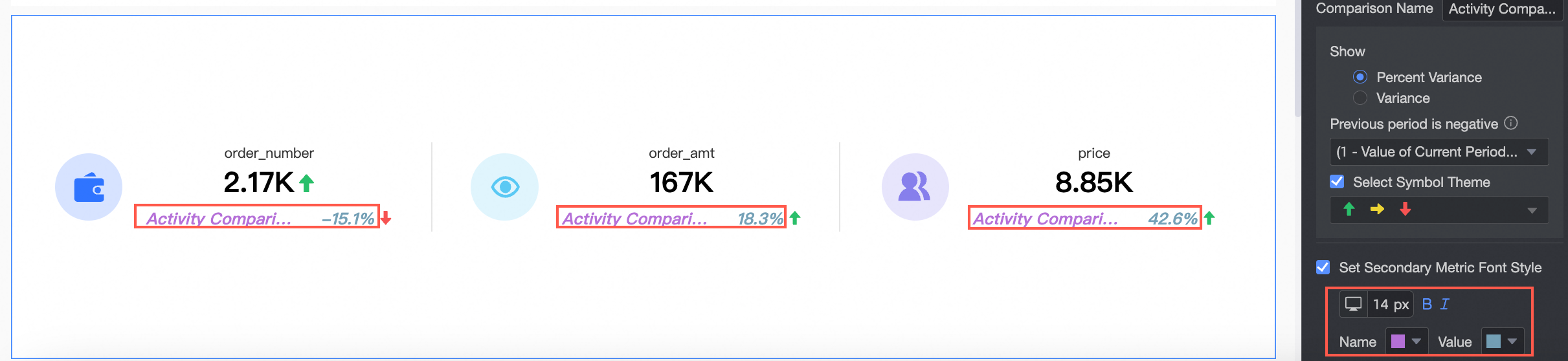
Set the secondary indicator font style |
Set the secondary indicator font style for metric cards and card trend charts.
|
|
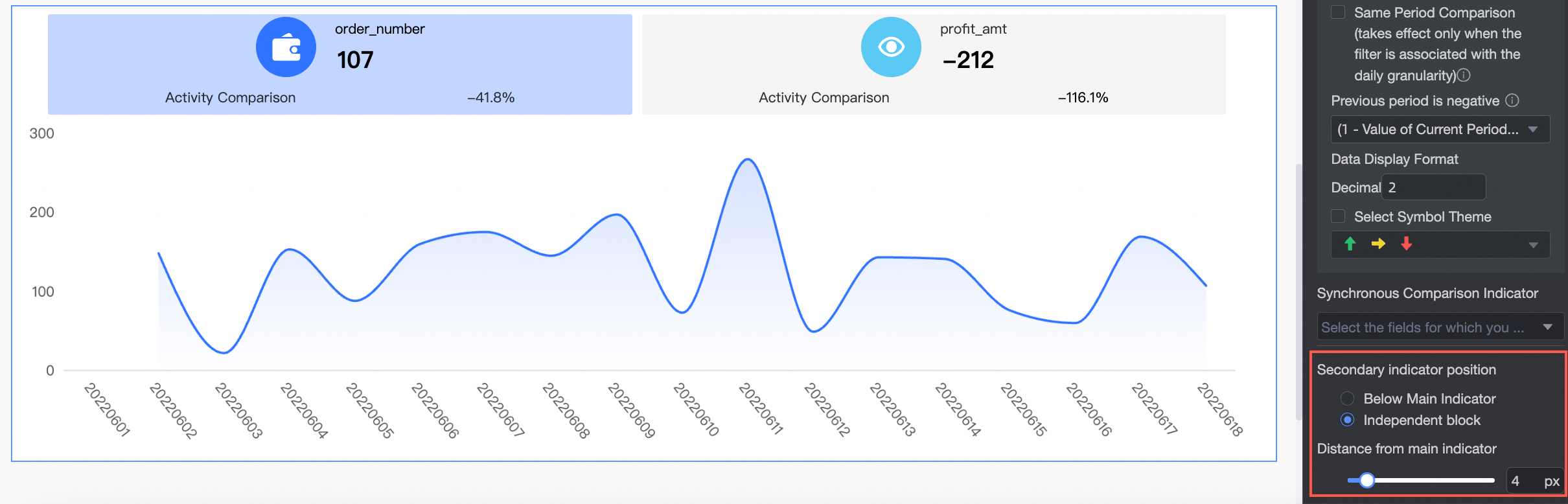
Secondary Indicator Position |
Set the Secondary Indicator Position for the metric trend chart.
|

Results
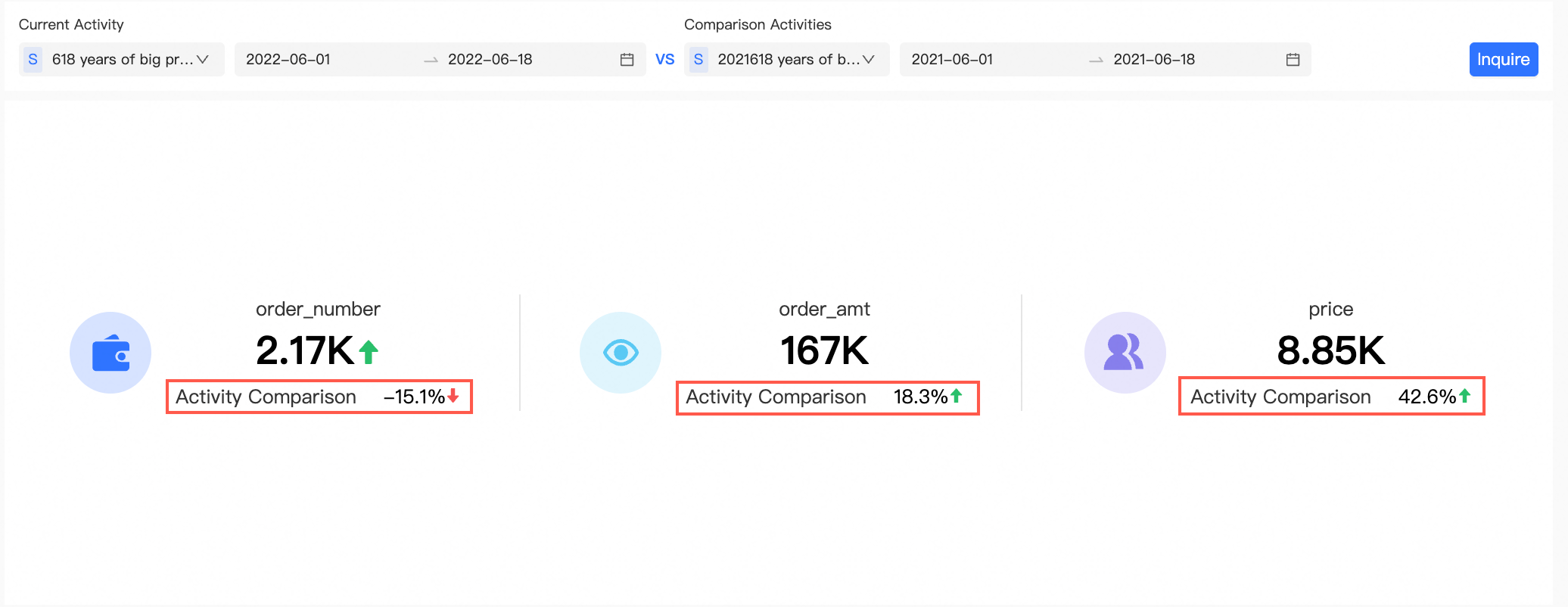
After completing the configuration, the control is associated with five charts. Select current and comparison activity content to view data such as order amount and price activity comparison in the associated chart.