Video
Add and manage video controls on a Visualization Screen.
Prerequisites
A Visualization Screen is created. For more information, see Create a Visualization Screen.
Effect

Add video controls
-
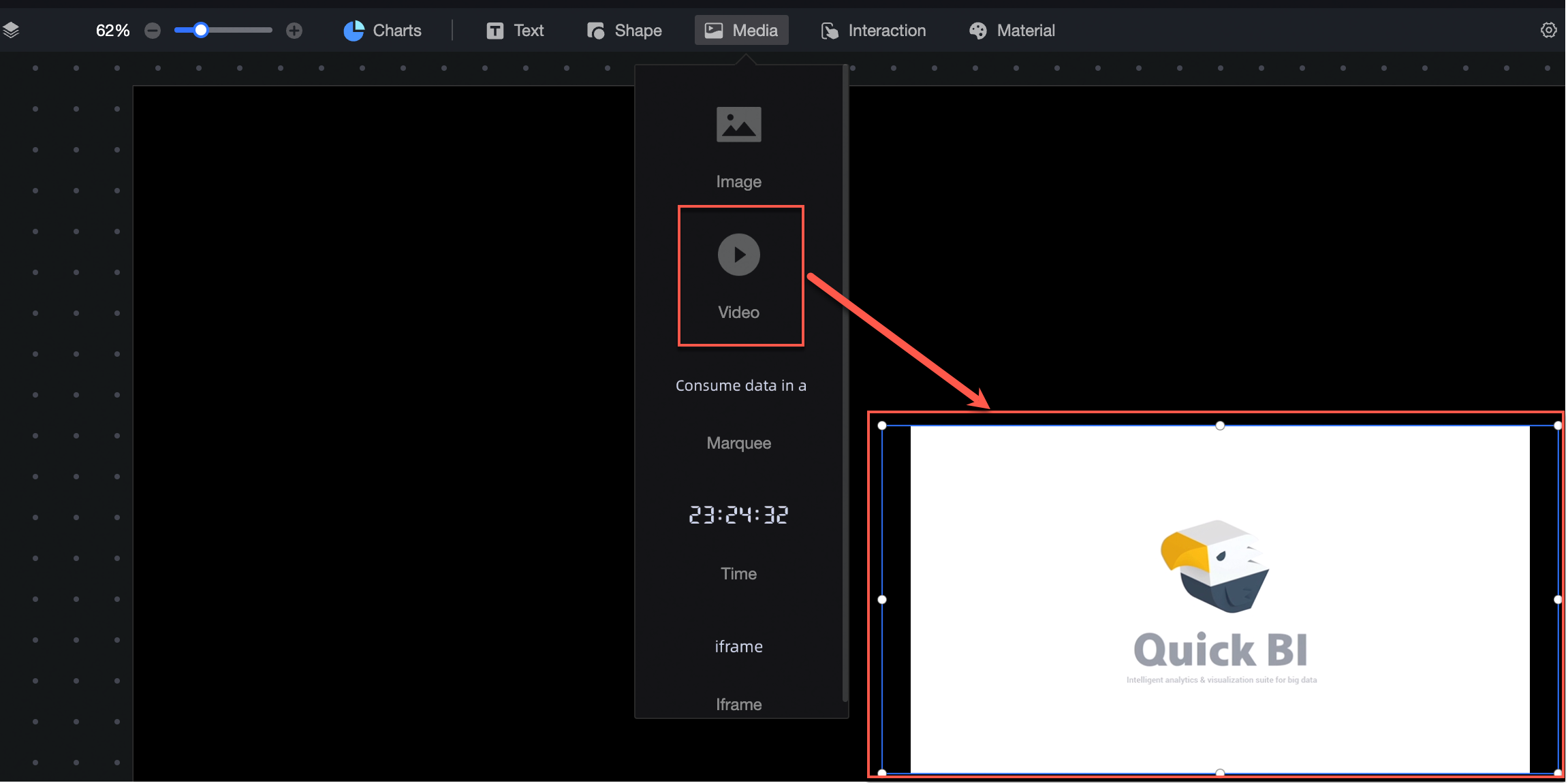
On the dashboard edit page, click Media in the top navigation bar to add an image widget.
-
On the Video tab in the right-side pane, configure the video style.
NoteThe video address must be entered in HTTPS mode.
-
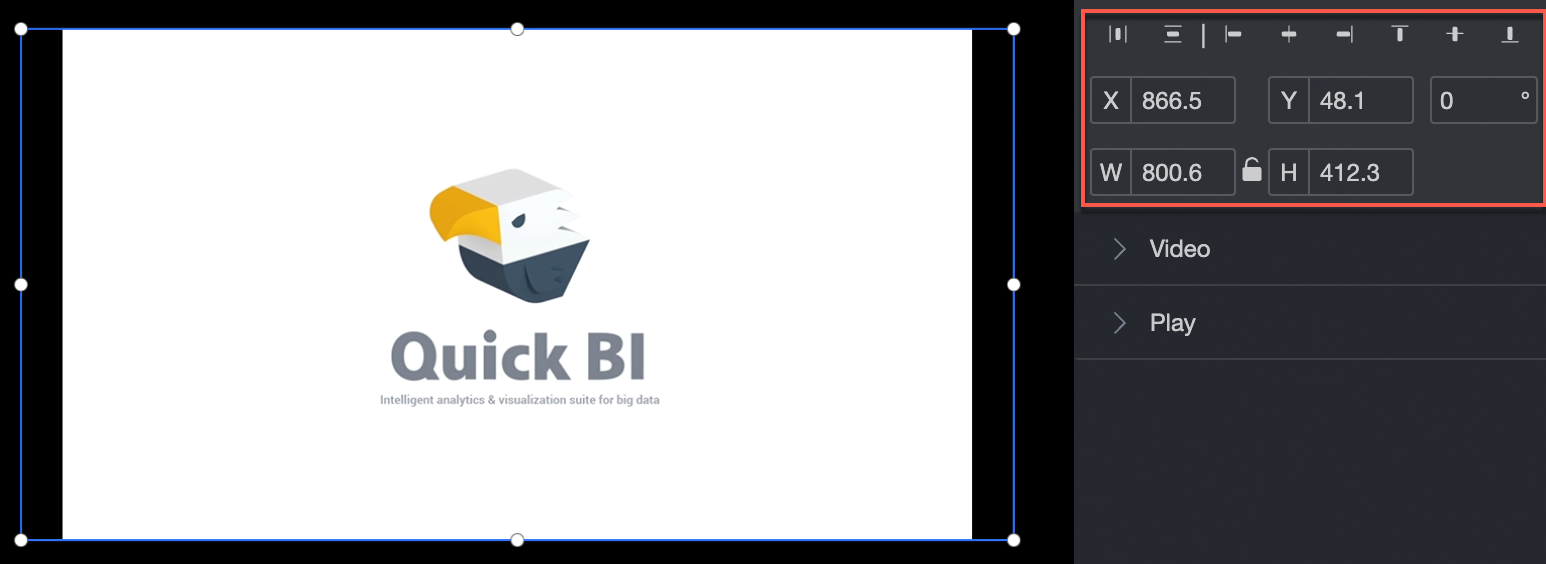
Location and size
Configure the following settings:
-
Alignment: Set the widget to left-aligned, centered, or right-aligned.
-
Position: Set the X and Y values to move the widget relative to the upper-left origin.
-
Rotation angle: Set the rotation value to adjust the widget angle.
-
Size: Set the W and H values to adjust the widget width and height.
-
Lock: Lock the widget to prevent changes to its size and position.
-
-
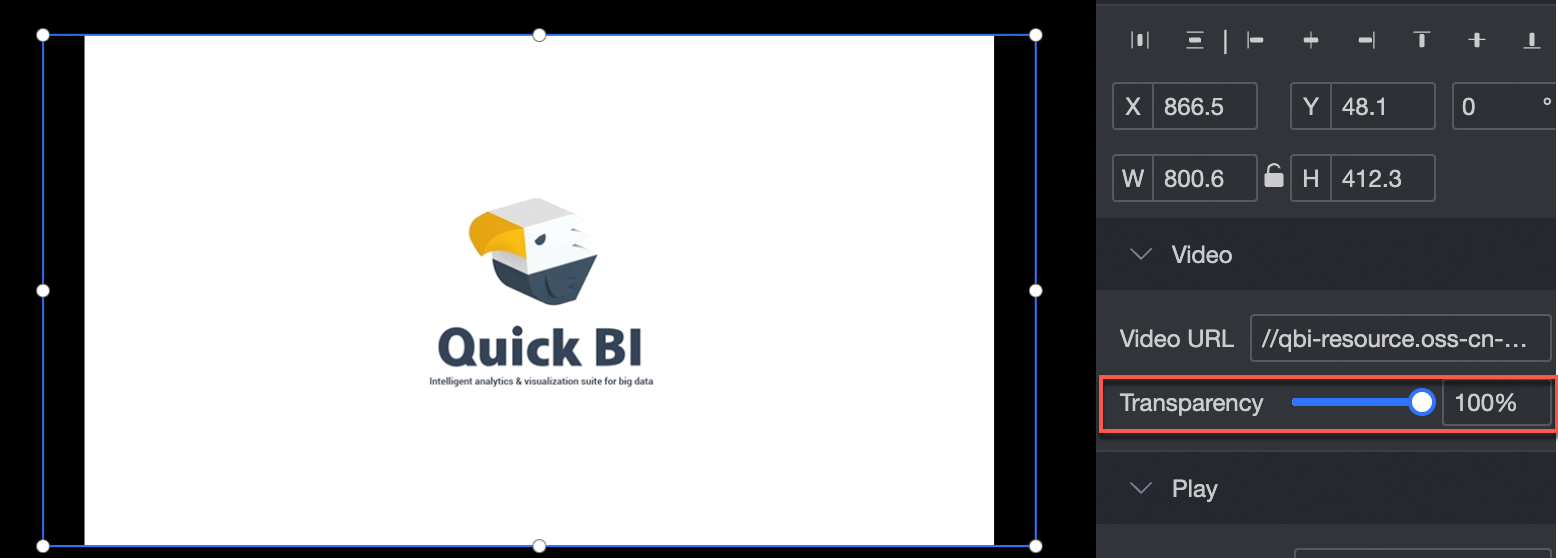
Video Link
Enter the URL of the video.
-
Video Transparency
Adjust the transparency of the video on the canvas.
-
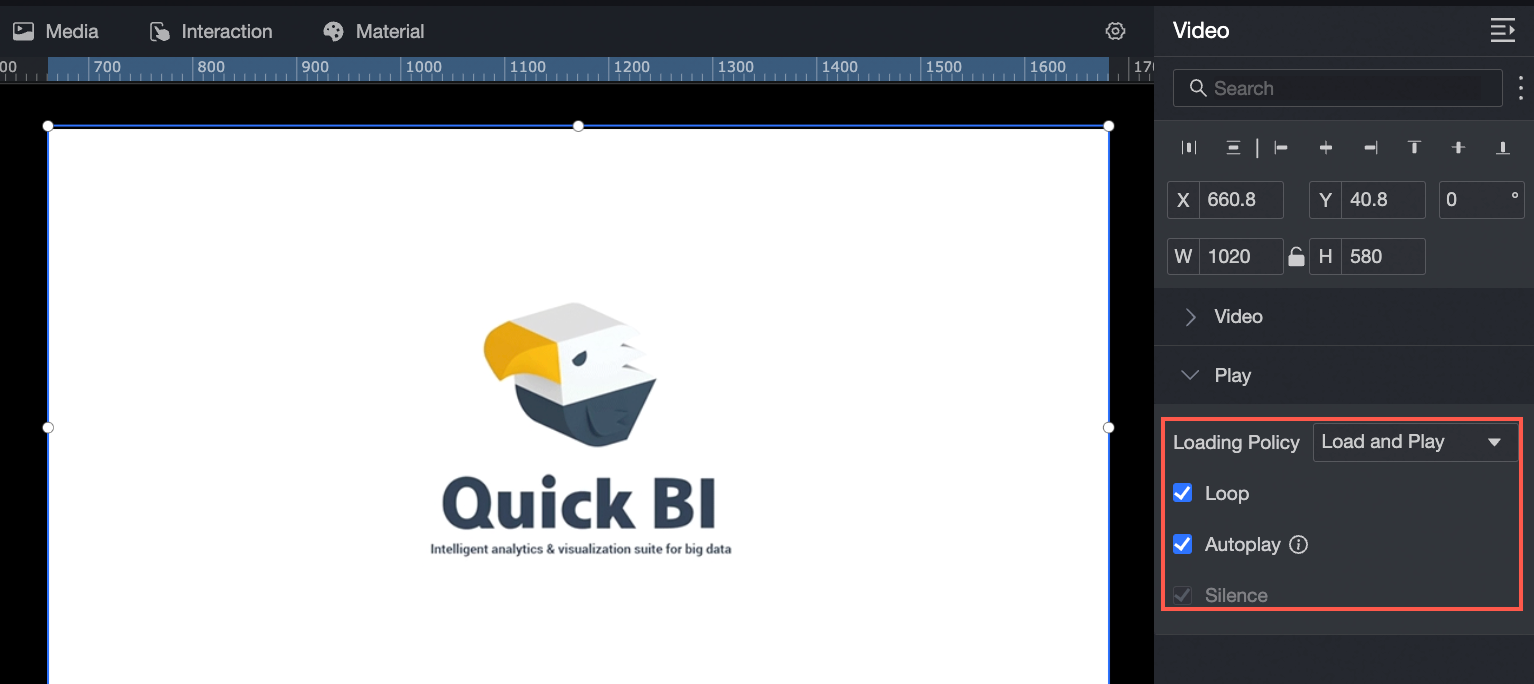
Configure Play
Configure the following playback settings:
-
Video loading policy: Select whether to load the video in the background first or stream it directly.
-
Video play mode:
-
Loop Play: Play the video in a continuous loop.
-
Auto Play: Play the video automatically. Due to browser restrictions, auto-played videos are muted by default and cannot be unmuted.
-
Mute: Turn off audio during video playback.
-
-
-