WeChat Work robot channel
Robot channels manage push notifications for your enterprise. Quick BI supports WeChat Work robot channels to send alerts across multiple platforms. You can create a reusable WeChat Work robot channel for multiple metric monitoring alerts, improving efficiency. This topic shows you how to create a WeChat Work robot channel.
Prerequisites
Ensure you have added a WeChat Work robot to the target WeChat Work group.
Background
When you configure metric monitoring alerts, if you select WeChat Work Group as the alert method, you must configure the robot webhook and key. Configuring the same robot individually for multiple monitoring metrics can be time-consuming. To simplify this process, Quick BI provides WeChat Work robot channels. After creating a channel, simply select it when configuring metric monitoring alerts to send notifications to the corresponding WeChat Work group.
Create a WeChat Work robot channel
Log in to the Quick BI console.
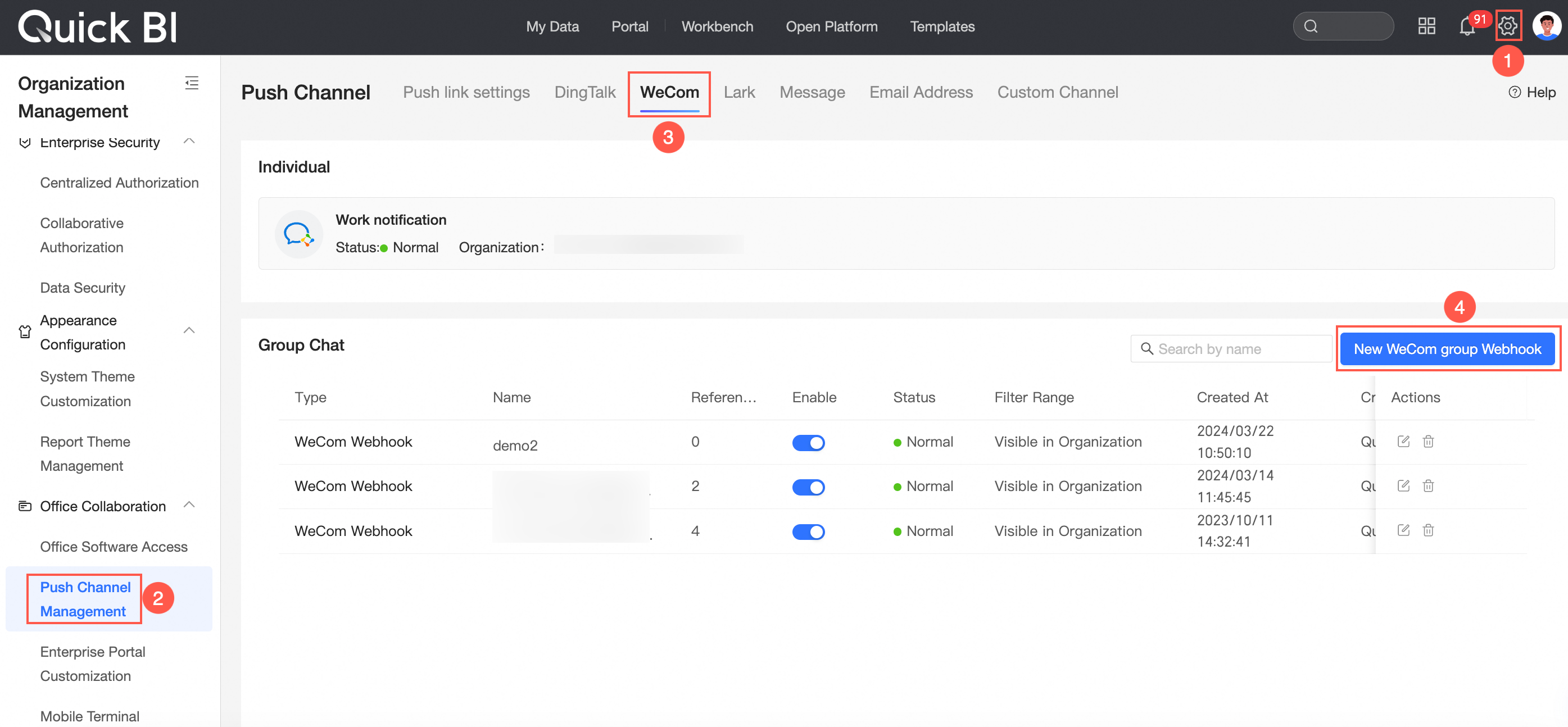
From the Quick BI homepage, navigate to the New WeChat Work Group Webhook page as shown in the figure.
In the New WeChat Work Group Webhook dialog box, configure the following parameters.
Parameter
Description
Name
Enter a name for the WeChat Work robot.
If you have multiple WeChat Work robots, we recommend using the format
WeChat Work group name_robot namefor clarity.Enterprise Source
Select the robot's enterprise. Click the
 icon and select the enterprise organization from the drop-down list.
Push Address
Enter the webhook address for the WeChat Work robot.
NoteTo learn how to obtain the webhook address for a WeChat Work robot, see How to set up a group robot in WeChat Work.
Click Save and Test.
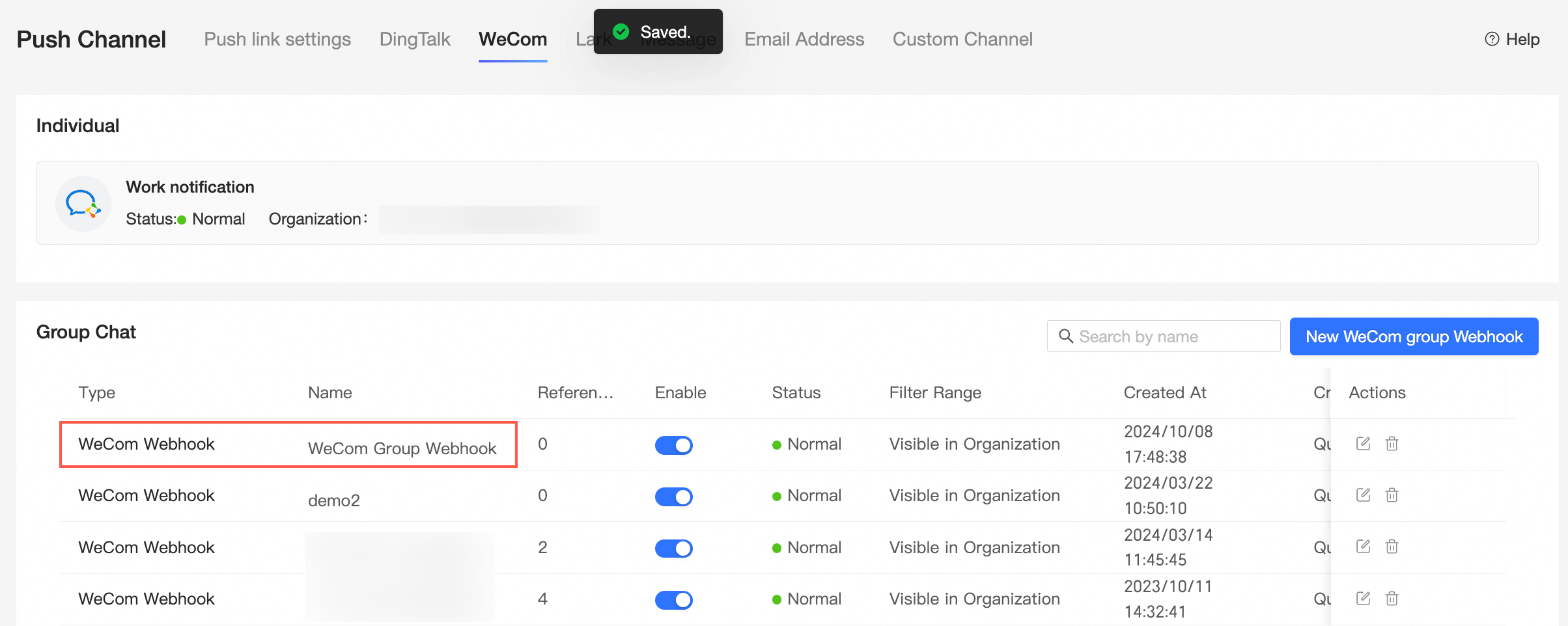
After saving the configuration, the new WeChat Work robot appears in the robot channel list.
Use a WeChat Work robot for alerts
When configuring alerts for metric monitoring, you can add a WeChat Work robot to a custom push channel.
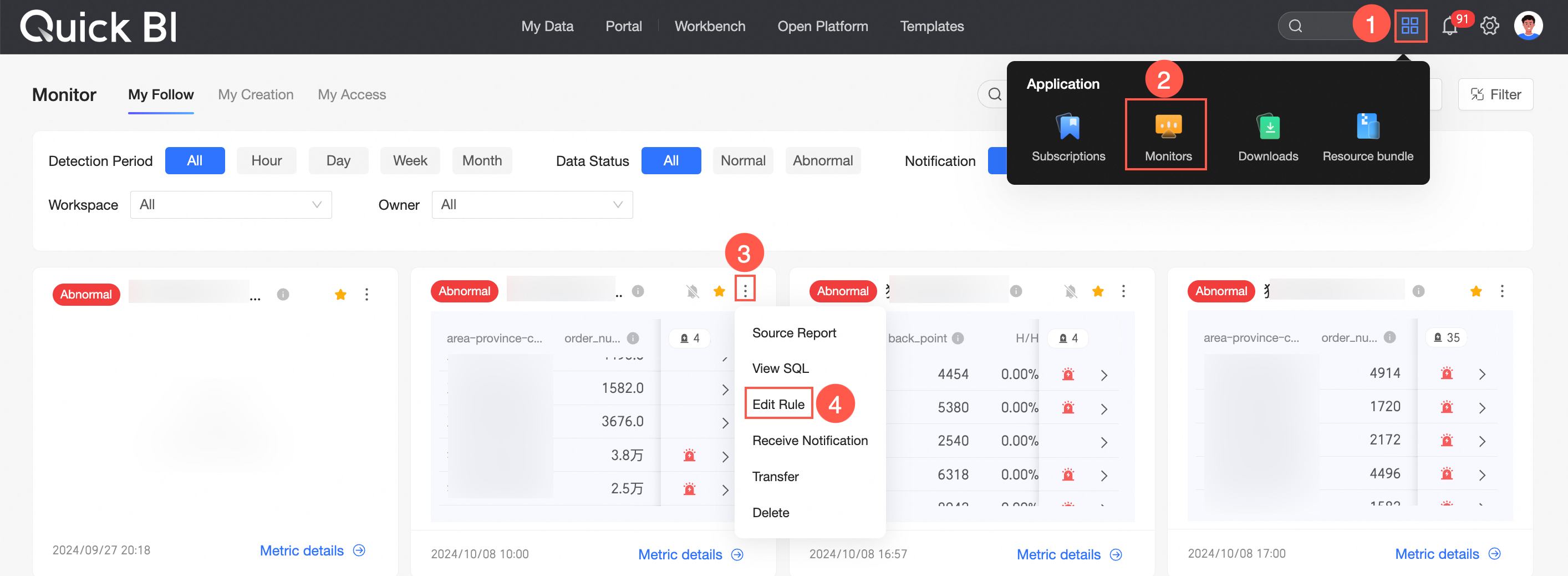
From the Quick BI homepage, navigate to the metric monitoring page as shown in the figure.
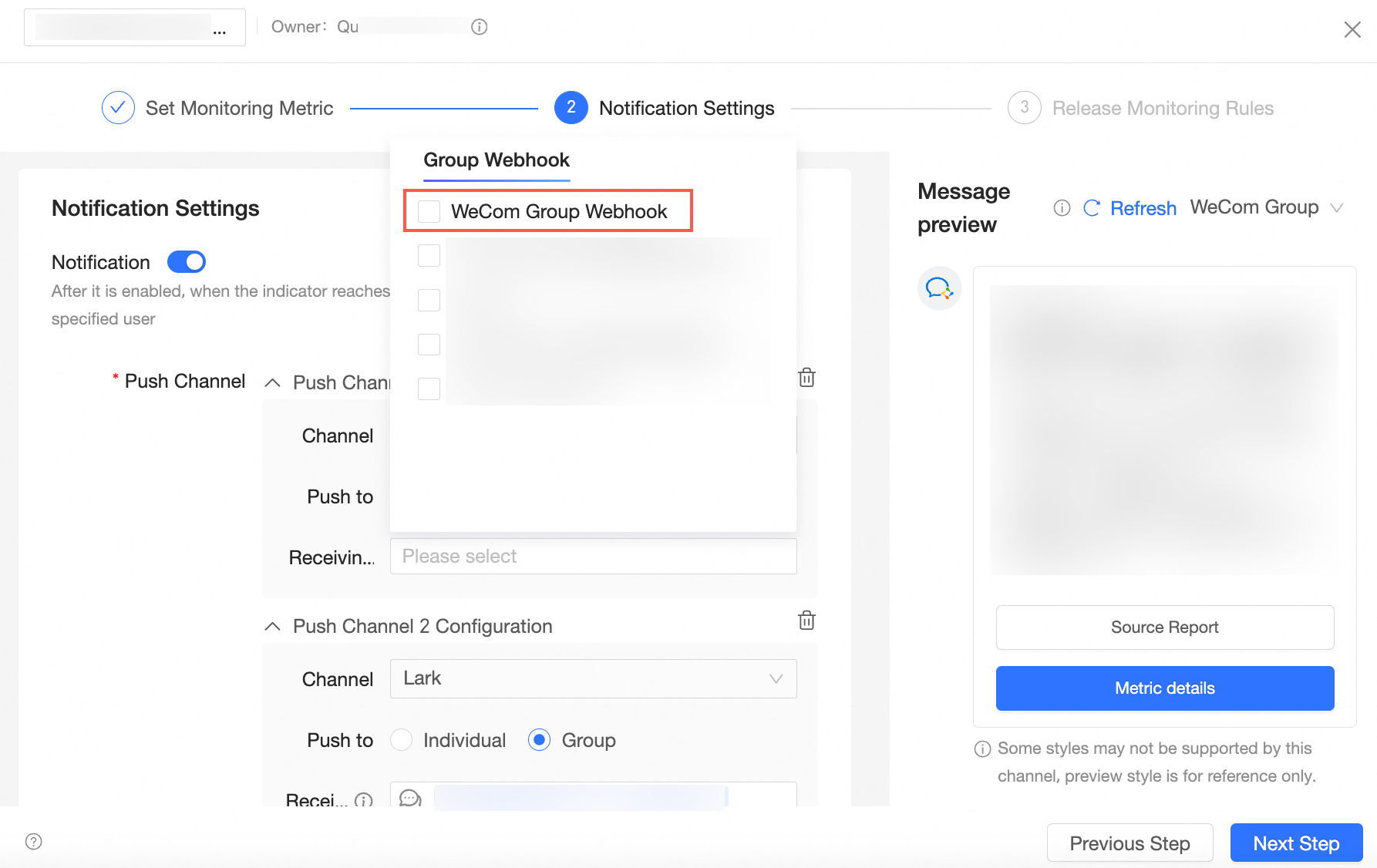
In the Monitoring and Alerting Settings->Push Message Settings dialog box, select WeChat Work as the push channel. Then, when pushing to a group, select your newly created WeChat Work robot.