Create and authorize RAM users
This guide explains how to create RAM users and grant them the appropriate permissions for the Raascall through Resource Access Management (RAM), helping you implement secure and efficient team collaboration management.
Target audience:
-
Alibaba Cloud account administrators
-
System administrators
-
IT personnel responsible for permission management
Why use RAM
Directly using the Alibaba Cloud account to access the Raascall poses the following risks:
-
Excessive permissions: The Alibaba Cloud account has full control over all resources. Accidental operations may cause data loss or service interruptions.
-
Lack of traceability: Multiple users sharing the same account makes it impossible to identify who performed specific operations. Security auditing becomes difficult and accountability cannot be traced.
-
AccessKey leakage risk: If an AccessKey is compromised, attackers can control all resources, which may lead to malicious use of resources or data breaches.
-
Employee departure risk: If permissions are not revoked promptly after an employee leaves, data breaches may occur.
Raascall permission policies
The Raascall provides three system permission policies for different roles:
|
Policy name |
Permission scope |
Applicable roles |
Available operations |
|
AliyunOutboundDigitalHumanFullAccess |
Full management permissions |
Product owners, system administrators |
• View all features and data |
|
AliyunOutboundDigitalHumanOperatorAccess |
Operator permissions |
Outbound operators, business executives |
• Create/manage outbound tasks |
|
AliyunOutboundDigitalHumanReadOnlyAccess |
Read-only permissions |
Data analysts, auditors |
• View all configurations and data |
Steps to create a RAM user
Step 1: Create a user
-
Log on to the RAM console with the Alibaba Cloud account or an account that has access control management permissions.
-
In the left-side navigation pane, choose Identities > Users.
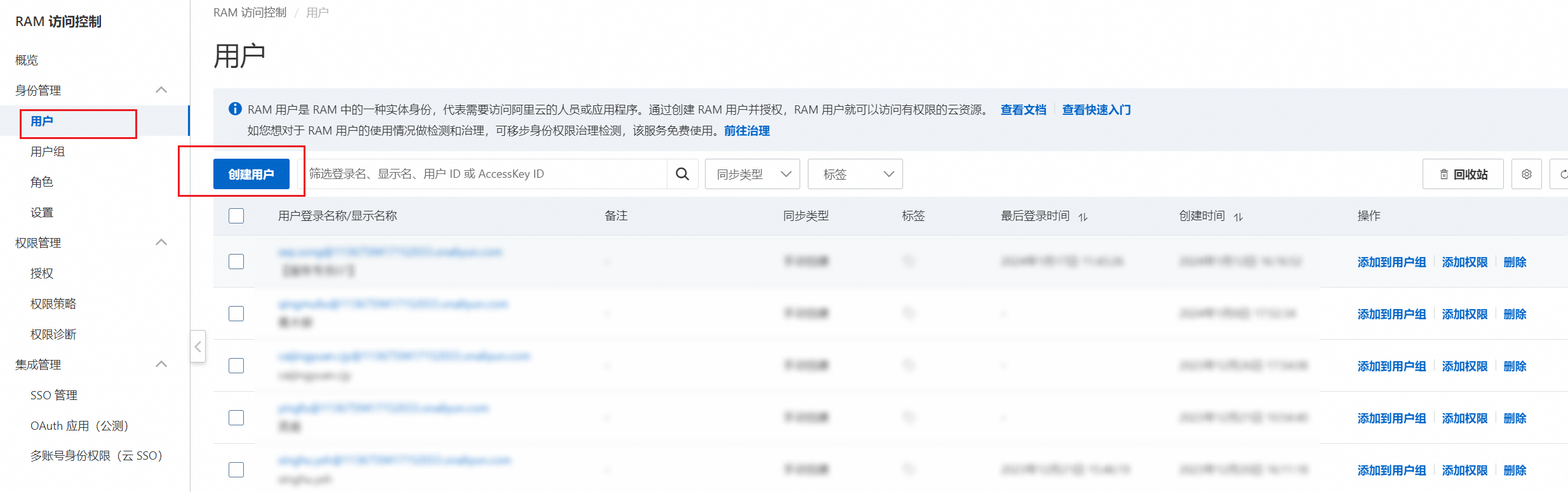
-
Fill in the user information and select the access method. For more information, see Create a RAM user.
Step 2: Add permissions
After creating the user, you need to grant the user the appropriate permission policy.
-
In the RAM console > Users list, find the user you just created.
You can also select multiple RAM users and click Add Permissions below the user list to grant permissions to multiple RAM users at a time.
-
Click the Add Permissions button in the Actions column of the user.
-
In the Add Permissions dialog box:
-
Authorization Scope: Select the resource scope.
-
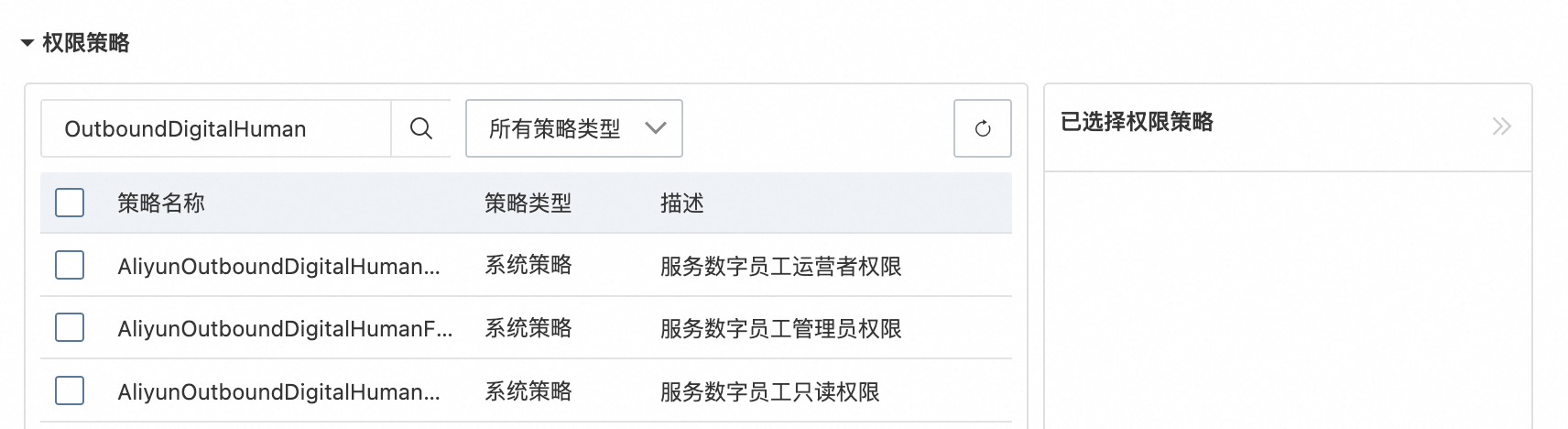
Select Policy: Enter
OutboundDigitalHumanin the search box. -
Select the corresponding permission policy from the search results (see the table below).
-
-
Click OK to complete the authorization.
Step 3: Log on as a RAM user
-
Go to the RAM User Logon page.
-
On the RAM User Logon tab, enter the username and click Next. The username format is typically:
<RAM username>@<default domain name>or<RAM username>@<domain alias>. For more information about how to view and modify the default domain name and domain alias, see Manage RAM user logon domains.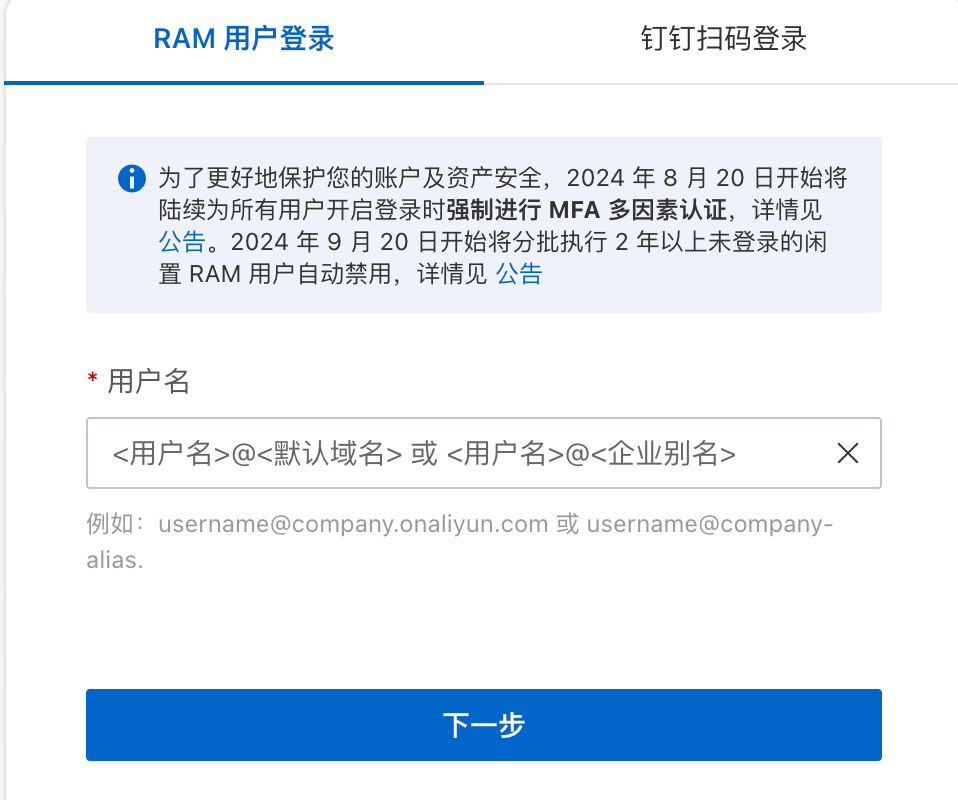
-
Enter the logon password of the RAM user and click Log On. For more logon methods, see Log on to the Alibaba Cloud console as a RAM user.
-
Go to the Raascall console.