Use pgvector
pgvector adds vector storage and similarity search to ApsaraDB RDS for PostgreSQL. Use it to store embeddings generated by machine learning models and query them by cosine distance, Euclidean distance, or inner product.
How it works
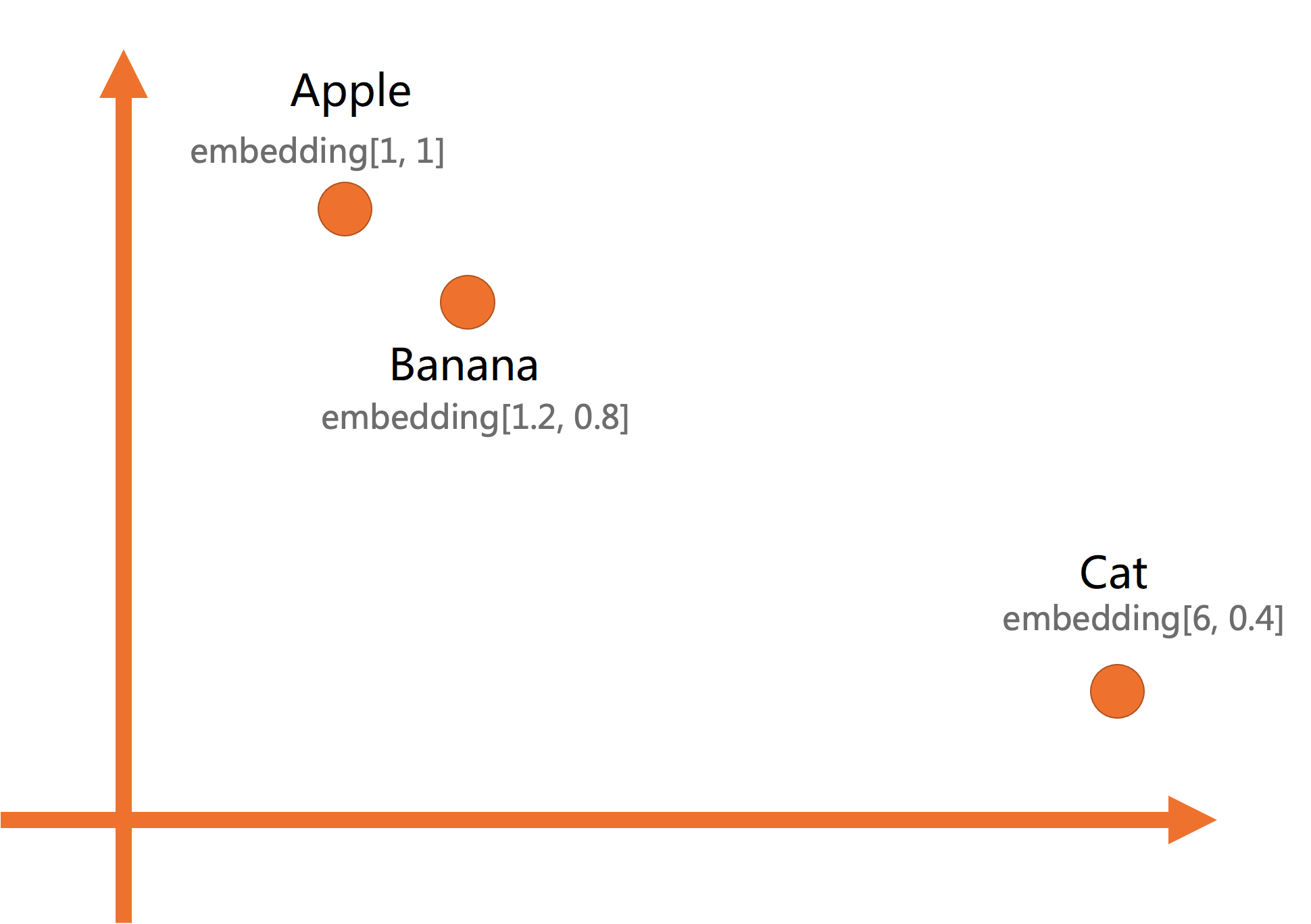
Embeddings are numerical representations of data — text, images, audio, or video — expressed as vectors in a high-dimensional space. Objects that are semantically similar map to vectors that are close together.
For example, if you represent an apple as [1, 1], a banana as [1.2, 0.8], and a cat as [6, 0.4], a vector search ranks the banana as most similar to the apple because they share properties as fruits.
pgvector supports:
-
Exact nearest neighbor and approximate nearest neighbor (ANN) searches
-
Hierarchical Navigable Small World (HNSW) indexes and IVFFLAT parallel indexes for fast ANN search
-
Vectors with up to 16,000 dimensions; indexes on vectors with up to 2,000 dimensions
-
Distance metrics: L2 Euclidean distance, cosine similarity, and inner product
-
Additional operations: L1 distance, element-wise multiplication, and sum aggregation
Prerequisites
Before you begin, make sure that:
-
Your RDS instance runs PostgreSQL 14 or later, with minor engine version 20230430 or later. For PostgreSQL 17, the minor engine version must be 20241030 or later.
-
A privileged account exists for the RDS instance.
To upgrade the major engine version, see Upgrade the major engine version of an ApsaraDB RDS for PostgreSQL instance. To update the minor engine version, see Update the minor engine version of an ApsaraDB RDS for PostgreSQL instance. To create a privileged account, see Create an account.
Install the extension
Install from the console (recommended)
-
Go to the Instances page. In the top navigation bar, select the region where your RDS instance resides. Click the instance ID.
-
In the left-side navigation pane, click Plug-ins.
-
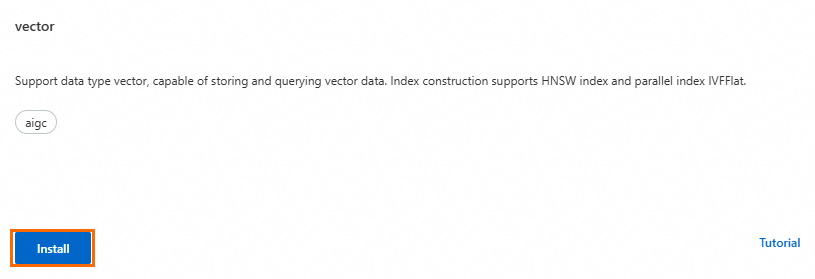
On the Extension Marketplace tab, find the vector extension and click Install. Alternatively, switch to the Extension Management tab, search for the vector extension, and click Install in the Actions column.
-
In the dialog box, set Database Name and Database Account, then click Install.
The extension is installed when the instance status changes from Maintaining Instance to Running.
To update or uninstall the extension:
On the Extension Management tab, go to Installed Extensions, find the extension, and click Upgrade Version or Uninstall in the Actions column.
If Upgrade Version is not displayed, the extension is already at the latest version.
Install with SQL
These operations require a privileged account. To create one, see Create an account.
-- Create
CREATE EXTENSION IF NOT EXISTS vector;

-- Update
ALTER EXTENSION vector UPDATE [ TO new_version ];

-- Delete
DROP EXTENSION vector;
new_version is the target version of the pgvector extension. For version history and features, see the pgvector documentation.Store and query vectors
This section walks through storing embeddings and running similarity searches. For the full API reference, see the pgvector documentation.
Create a table
CREATE TABLE items (
  id        bigserial PRIMARY KEY,
  item      text,
  embedding vector(2)
);
This example uses 2-dimensional vectors for illustration. pgvector supports up to 16,000 dimensions.
Insert vectors
INSERT INTO items (item, embedding)
VALUES
  ('Apple',  '[1,1]'),
  ('Banana', '[1.2,0.8]'),
  ('Cat',    '[6,0.4]');
Query by similarity
Use a distance operator to rank results by similarity. The shorter the distance, the more similar the items.
Distance operators:
| Operator | Metric |
|---|---|
<-> |
L2 (Euclidean) distance |
<=> |
Cosine distance |
<#> |
Inner product |
Basic similarity query:
-- Find items most similar to Banana, ranked by cosine distance
SELECT item,
       embedding <=> '[1.2, 0.8]' AS cosine_distance
FROM items
ORDER BY cosine_distance;
Sample output:
  item  |    cosine_distance
--------+------------------------
 Banana |                      0
 Apple  | 0.019419362524530137
Cat | 0.13289443670962842-
A distance of
0is an exact match. -
A distance of
0.019indicates high similarity. -
A distance of
0.133indicates low similarity.
You can specify a similarity threshold based on your business requirements to exclude results with low similarities.
Create indexes
Without an index, pgvector performs an exact search over the full table. For large datasets, create a vector index to speed up ANN searches.
Create an HNSW index
CREATE INDEX ON items USING hnsw (embedding vector_cosine_ops)
WITH (m = 16, ef_construction = 64);
Parameters:
| Parameter | Description |
|---|---|
m |
Maximum number of connections per node at each layer. Higher values increase graph density, recall rate, and the time required to create and query the index. |
ef_construction |
Size of the candidate set during index construction. Higher values improve recall at the cost of the time required to create and query the index. |
Access methods (`vector_cosine_ops` field):
| Value | Distance metric |
|---|---|
vector_cosine_ops |
Cosine distance |
vector_l2_ops |
L2 (Euclidean) distance |
vector_ip_ops |
Inner product |
Create an IVF index
CREATE INDEX ON items USING ivfflat (embedding vector_cosine_ops)
WITH (lists = 100);
Parameters:
| Parameter | Description |
|---|---|
lists |
Number of lists the dataset is partitioned into. More lists means faster search but may reduce recall. If lists > 2000, you may see ERROR: memory required is xxx MB, maintenance_work_mem is xxx MB — increase maintenance_work_mem to resolve. See Set instance parameters. |
ivfflat.probes |
Number of lists to scan during a query. More probes improves recall but slows search. |
Set ivfflat.probes at the session or transaction level:
-- Session level
SET ivfflat.probes = 10;

-- Transaction level
BEGIN;
SET LOCAL ivfflat.probes = 10;
SELECT ...;
COMMIT;If ivfflat.probes equals the lists value used during index creation, the index is ignored and a full table scan runs instead. This can significantly degrade search performance.
Tune ivfflat.probes alongside lists based on your dataset and recall requirements.
Performance data
For benchmark data on HNSW and IVF indexes, see:
What's next
Build production AI applications on top of pgvector: