Case study
This example shows how to change the font and font size in SQuirrel SQL. It demonstrates actions such as clicking, selecting check boxes, and selecting items from drop-down lists. You can use the same method to select and clear check boxes, retrieve table content, and double-click.
Implementation
Coding mode
Open the Java application. This example uses SQuirrel SQL, which you can open by running the squirrel-sql.jar file. The following steps use this application.
Open the Alibaba Cloud Robotic Process Automation (RPA) editor in administrator mode. Create a cloud project from the basic coding project template.
The editor page is displayed as shown in the following figure.
Click Start Capturing (left figure) to open the control recording tool (right figure).
Click Capture Control [F2] or press the F2 keyboard shortcut to record a control. Move the cursor to the target location in the Java application. A blue overlay is displayed.
If the overlay is not displayed, click the location. A dialog box appears that prompts you to install the Java plugin. Click Yes to start the installation. The following figure shows the result after the installation is complete.
After the plugin is installed, restart the Java application.
Click Capture Control [F2]. Move the cursor over the global preferences button, which is indicated by the arrow in the figure, and then click to select it.
The control properties are displayed as shown in the following figure.
Click Highlight Control [F5]. A blue box flashes twice around the recorded control on the page.
Select an action, configure its parameters, and then click Validate Action [F4] to test it. For this step, select the Click action and set the action parameter to disable click impersonation. Do not change the other parameters.
After the validation is complete, the page that is shown in the following figure is displayed.
The validation is successful and meets the requirements. Enter global preferences as the control name and copy the following code sample to the editor.
java_obj = rpa.ui.java.catch('SQuirreL SQL Client snapshot-20190714_0016', mode='exact', process_name='^javaw$', class_name='^SunAwtFrame$')
java_obj.click('global preferences', button='left', simulate=False, send_window_message=False, index=1, offset_x=0, offset_y=0)
Click Continue Capturing Control to record the next operation.
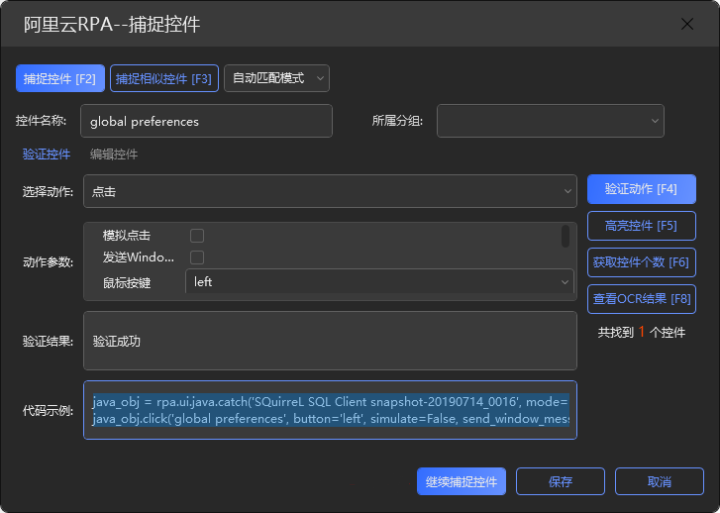
Move the cursor over the Fonts button and click. The recording is complete.
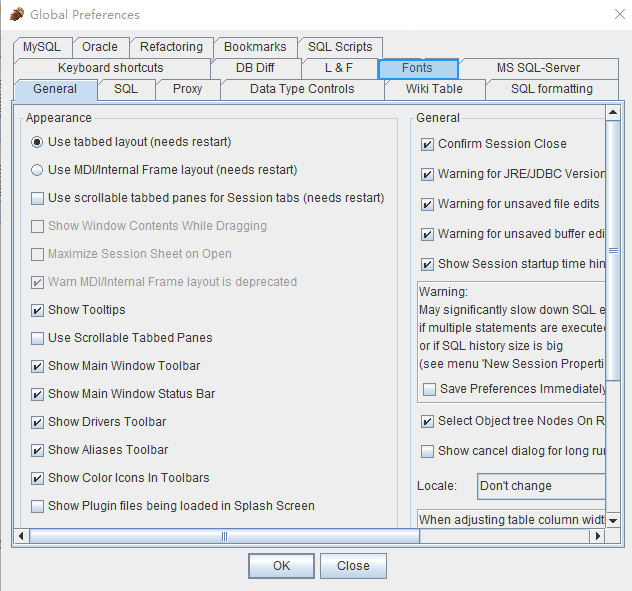
Select the action to validate, configure its parameters, and click Validate Action [F4] to check whether it meets the requirements.
After the validation is complete, the Java application switches to the Fonts page.
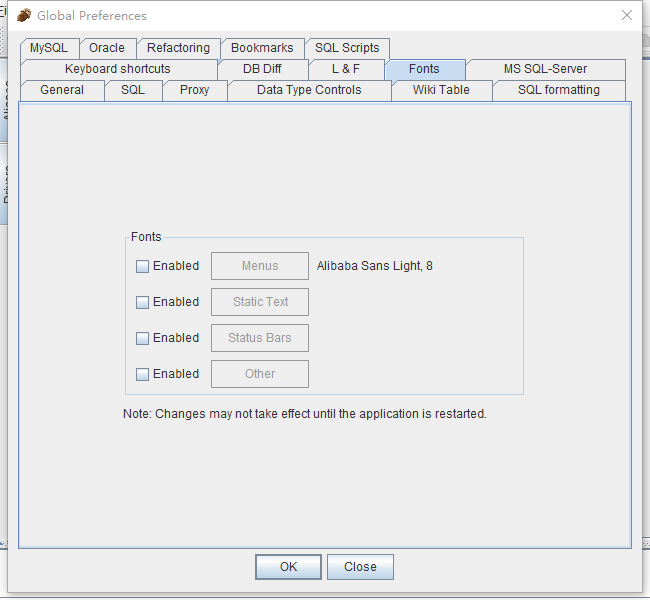
The action meets the requirements. Enter a name for the control and copy the code sample to the editor. Note: A new page opens, so you must change the variable name for the new page object. Remember that when the page changes during development, the page object and the controls that you search for also change.
java_obj1 = rpa.ui.java.catch('Global Preferences', mode='exact', process_name='^javaw$', class_name='^SunAwtDialog$')
java_obj1.click('Fonts', button='left', simulate=False, send_window_message=False, index=1, offset_x=0, offset_y=0)
Click Continue Capturing Control to record the next operation.
Move the mouse cursor to the position shown in the following figure to record the control and retrieve its checked state.
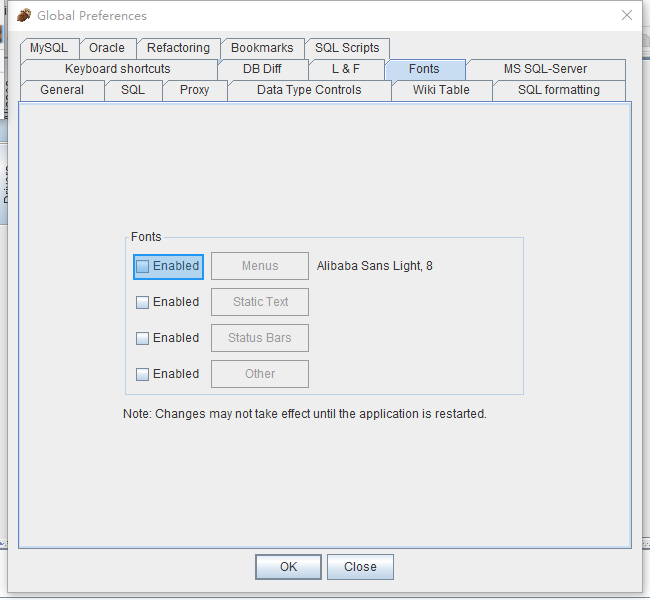
This step checks whether the check box is selected. If it is not selected, the action selects it. If it is already selected, the process proceeds to changing the font. This involves conditional logic, which is shown in the code sample later.
After recording, enter Enabled as the name. Select the action to validate, configure its parameters, and click Validate Action [F4] to check whether it meets the requirements. In this case, validate the Check Box/Radio Button — Get State action.
23. The requirement is not met because the component is unselected. Copy the current code to the editor and select the validation for the Check box/Radio button—Get status action again.
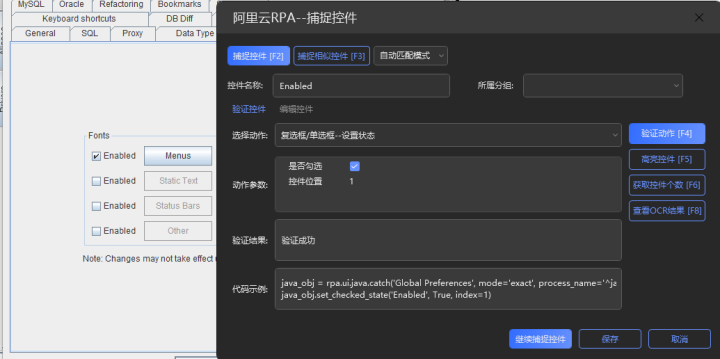
After validation, the check box is selected, which meets the requirement. Copy the code to the editor and continue to capture controls. Add the conditional logic. Note: The page object here is the modified variable name.
result = java_obj1.get_checked_state('Enabled', index=1)
if result == False:
java_obj1.set_checked_state('Enabled', True, index=1)
Next, record the Menus button and perform a click action. This step is similar to the previous ones and is not described in detail here.
java_obj1.click('Menus', button='left', simulate=True, send_window_message=False, index=1, offset_x=0, offset_y=0)After you click Menus, the page that is shown in the following figure is displayed.
Click Continue Capturing Control to record the next operation. Move the cursor to the position shown in the following figure and click to complete the recording.
Because this is a drop-down list, select the Dropdown — Get Content action to validate. Configure the action parameters and click Validate Action [F4] to check whether it meets the requirements.
From the validation results, copy a font type, such as Calibri.
Select the Dropdown — Select Item action to validate. For the action parameter, enter the item to select, such as Calibri. Click Validate Action [F4] to check whether it meets the requirements.
After the validation is complete, enter Font as the control name and copy the code to the editor. Note: A new page opens, so you must change the variable name for the new page object.
java_obj2 = rpa.ui.java.catch('Font Chooser', mode='exact', process_name='^javaw$', class_name='^SunAwtDialog$')
java_obj2.set_selected_item_by_text('Font', r'Calibri', index=1)
The font is now changed. The next step is to close the page.
You can close the page in one of two ways. Method 1: Click the OK button. Method 2: Call the close method on the page object.
Method 1: Record the OK button as described in the previous steps. This part is not described in detail. The code is as follows:
java_obj2.click('Font', button='left', simulate=False, send_window_message=False, index=1, offset_x=0, offset_y=0)Method 2: Call the close method on the page object. The code is as follows:
java_obj2.close()Close the other pages in the same way.