The win32 module provides a software development kit (SDK) to operate Windows controls. You can use it to perform complex operations by calling simple methods with specific parameters. To use the win32 module, call rpa.ui.win32. Before you start this tutorial, familiarize yourself with the API documentation. The specific features of the SDK are not detailed in this tutorial. This tutorial contains one section: Application control operations.
Case study one
This section provides a test application that covers various win32 scenarios. SDK features that have been demonstrated in previous tutorials are not included. You can practice with the corresponding scenarios to familiarize yourself with the win32 SDK. To download the test tool, click the following link:
Implementation
Create an application
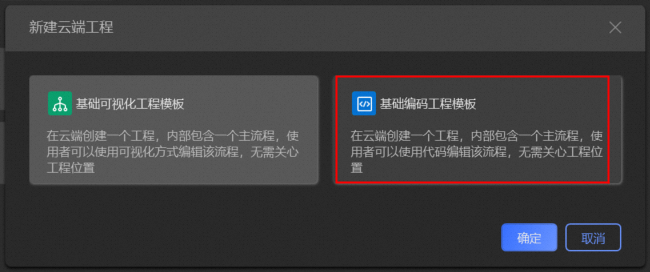
Click Create cloud project, select the Basic encoding project template, and then click Confirm.
**
Write the code
from rpa.core import *
from rpa.core import *
from rpa.utils import *
import rpa4 as rpa
import os

def start():

    win32_get_select_items_comboBox()
    win32_set_get_datetimepicker_time()
    win32_wincheck_chkbox_wfm()
    win32_screeenshot()
    win32_mouse_move()


def win32_get_select_items_comboBox():
    '''
    Get the value of the drop-down list. This corresponds to control ① in the figure below.

    '''
    try:
        wnd = rpa.ui.win32.catch('WinForm')
        items = wnd.get_selected_items('comboBox',mode='all', index = 1)
        if items == ['1234','12345']:
            print('Successfully retrieved comboBox items. The retrieved array is: '+str(items))
        else:
            print('Failed to retrieve comboBox items.')
    except Exception as e:
        print('Exception:e ->' + str(e))


def win32_set_get_datetimepicker_time():
    '''
    Set or get the time of the date control in the win32 module. This corresponds to control ② in the figure below.

    '''
    try:
        rpa.ui.win32.elem_set_datetimepicker("time",year=2020,month=11,day=11,hour=11,minute=30,second=30)# 1. Assign a date to the date control.
        sleep(3)
        time = rpa.win32.get_datetimepicker(element="Time")# 2. Get the date from the control after setting the time.
        result=(time == [2019,8,8,8,30,30])
        print('Verify the assignment and retrieval of the date control value: '+'Set to [2019,8,5,8,30,30]'+'Retrieved value is: '+str(result))
    except Exception as e:
        print('Exception:e ->' + str(e))


def win32_wincheck_chkbox_wfm():
    """
    Check and uncheck a checkbox in a WinForm. This corresponds to controls ③ and ④ in the figure below.
    """
    try:
        wnd = rpa.ui.win32.catch('WinForm')
        # Check the box.
        rpa.ui.win32.elem_set_checked_state("cb_Name",value=True)
        sleep(2)
        value = rpa.ui.win32.elem_get_checked_state("cb_Name")
        print('Was the check operation for cb_name successful: '+str(value))
        # Uncheck the box.
        rpa.ui.win32.elem_set_checked_state("cb_Name",value=False)
        sleep(2)

        value = rpa.ui.win32.elem_get_checked_state("cb_Name")
        print('Was the uncheck operation for cb_name successful: '+str(value))

        # Check the box using set_check.
        wnd.set_checked_state(element='cb_Sex',value=True)
        sleep(2)
        value = rpa.ui.win32.elem_get_checked_state("cb_Sex")
        print('Was the check operation for cb_sex successful: '+str(value))
        # Get the checked state of the element. True means checked, False means unchecked.
        state = wnd.get_checked_state('cb_Sex')
        print(state)
        # Uncheck the box.
        wnd.set_checked_state(element='cb_Sex',value=False)
        sleep(2)
        value = rpa.ui.win32.elem_get_checked_state("cb_Sex")
        print('Was the uncheck operation for cb_sex successful: '+str(not value))
        state = wnd.get_checked_state('cb_Sex')
        print('cb_name checked state is: '+str(state))
    except Exception as e:
        print('Exception e:'+str(e))


def win32_screeenshot():
    '''
    Take a screenshot of a control in win32. This corresponds to control ⑥ in the figure below.
    '''
    cnd = rpa.ui.win32.catch('WinForm')
    cnd.screenshot('Calendar',file=r'\\Mac\Home\Desktop\CalendarControlScreenshot.jpg')


def win32_mouse_move():
		'''
		Perform a mouseover operation in win32. This corresponds to control ⑥ in the figure below.
		'''
    cnd = rpa.ui.win32.catch('WinForm')
    cnd.mouse_move(element='comboBox')
    text = cnd.text('mouse_move')
    if text == 'Mouseover comboBox':
        print("Result of win32 mouseover operation: True")
    cnd.close()
Record controls
Step 1: Open the WinForm application.
Step 2: Record the controls. The following video shows the operation to record elements:
Debug and run
Click the Debug and Run option in the Studio toolbar. The following video shows the program execution: WinForm