This topic describes how to automate web pages using 360 Browser.
Prepare for browser automation
This product relies on the 360 Browser extension system for web page automation. To ensure the product works correctly, complete the following steps:
Automatic installation of the 360 Browser extension is not supported. You must install the extension manually before proceeding.
Manually install the browser extension in 360 Browser.
Navigate to the RPA client installation directory. The path is available in the client's About menu.
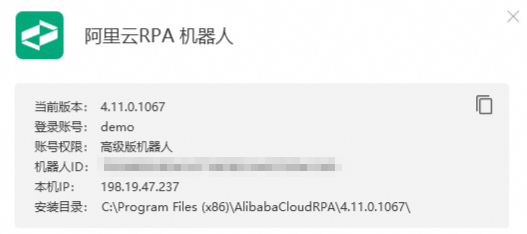
In the installation directory, go to
\extension\browser\chrome\chrome_v3.1.0and find thelpalkccnhoonbaaajhfgfbmhgnodcebi.crxfile.Open 360 Browser and drag the
.crxfile into the browser window. Click Add to confirm the installation.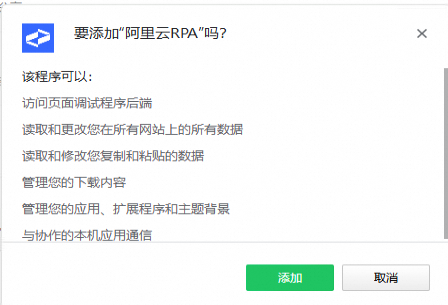
Check whether the extension is enabled. Open 360 Browser and enter
se://extensions/in the address bar. Verify that the RPA extension is installed and enabled.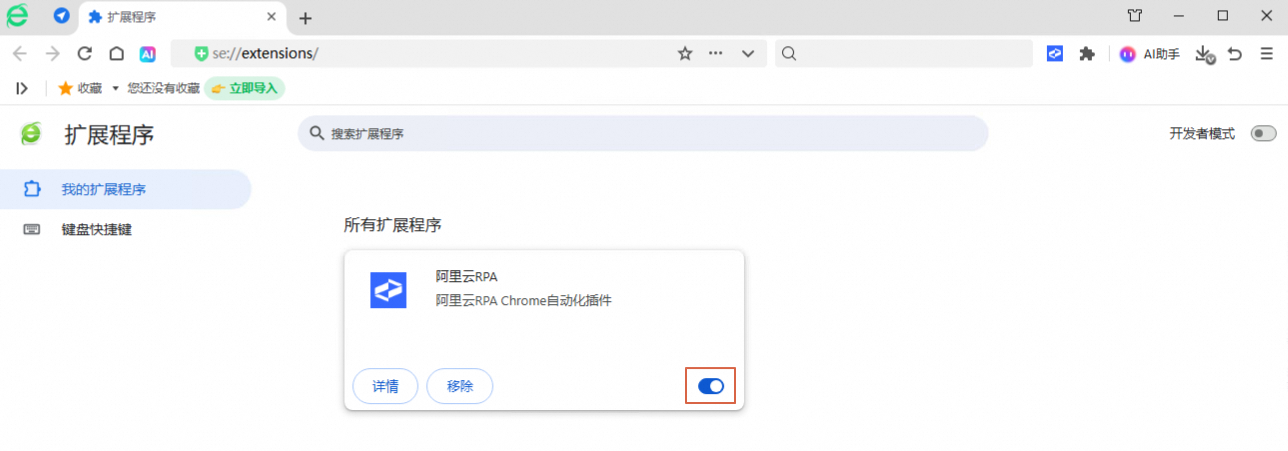
Code development mode
This example is also used in the code development mode topic.
from rpa.core import *
from rpa.utils import *
import rpa4 as rpa # Use the V4 engine

def start():
    # Open a web page in 360 Browser and return a page object
    page = rpa.app.se360.create("www.taobao.com")
    # Enter a product name in the "Input content" search box, then click the "Click search" button.
    page.input_text("Input content", "Washing machine")
    page.click("Click search")
    # Wait for results to load. The number of "Get price" UI elements represents the number of search results.
    for i in range(10):
        ele_count = page.count("Get price")
        if ele_count:
            break
        else:
            sleep(1)
            continue
    # Using the similar control feature, loop through each product to retrieve and print its details.
    for i in range(1, ele_count+1):
        print(page.text(element="Get product name", index=i))
        print(page.text(element="Get price", index=i))
        print(page.attr("Get product name","href", index=i))
360 Browser automation is currently supported only in coding mode.