This topic describes how to handle common Captchas. This process typically requires using an API from a third-party Captcha solving platform.
1. Case one
The validation method is shown in the following figure:
Capture the following controls:
Before logon: Capture the username and password input boxes, the Captcha input box, the image Captcha, and the logon button.
After logon: Capture "Homepage" as shown in the following figure to verify a successful logon.
1.1 Code-based development example
from rpa.core import *
from rpa.utils import *
import rpa4 as rpa # Use the V4 engine
import requests
from hashlib import md5

# You can call the Captcha recognition API provided by any third-party platform. This topic uses a public API from a third-party Captcha solving platform as an example. Download the API script file and copy the API code after the following code. For more information, see https://www.******.com/api-14.html

def start():
    # Path to save the Captcha screenshot
    screenshot_path = r'C:\Users\User\Desktop\Captcha.png'
    page = rpa.app.chrome.catch('Alibaba Cloud RPA', mode='title', pattern='contain', timeout=10)

    # If the first logon fails, you can loop up to 10 times
    for i in range(10):
        page.input_text('Enter account','123', simulate=True)
        page.input_text('Enter password','123', simulate=True)
        bool1 = page.wait_loaded('Captcha screenshot', timeout=3)
        if bool1:
            # Take a screenshot of the Captcha
            page.screenshot('Captcha screenshot',screenshot_path)
            # Recognize the Captcha
            dis_code = OCR_recognition(screenshot_path)
            # Enter the Captcha
            page.input_text('Enter Captcha',dis_code, simulate=True)
        page.click('Click logon')
        # Determine if the logon is successful based on the control on the console homepage
        bool2 = page.wait_loaded('Console homepage', timeout=3)
        if bool2:
            break


def OCR_recognition(screenshot_path):
    '''
    Call the OCR API of a third-party Captcha solving platform to recognize the Captcha
    '''
    captcha_user = 'captcha_platform_username'
    captcha_pwd = 'captcha_platform_user_password'
    captcha_soft = '96001' # User Center>>Software ID. Generate one to replace 96001
    captcha_cjy = code_Client(captcha_user, captcha_pwd, captcha_soft)
    im = open(screenshot_path, 'rb').read()
    dis_result = captcha_cjy.PostPic(im, 1902) # 1902 is the Captcha type
    dis_code = dis_result['pic_str']
    print(dis_result)
    return dis_code
1.2 Visualization development example
You can call a Captcha recognition API from any third-party platform. This topic uses a public API from a third-party platform as an example.
Use the Call Custom Script component. In the expression editor, enter the Python script for the third-party OCR API and the method for calling it. For an example of the API call function, see the `OCR_recognition()` function in the preceding code-based example.

Use the Set Variable Value component to set the local path to save the image.
Use the Get Opened Web Page component to retrieve the browser logon page object.
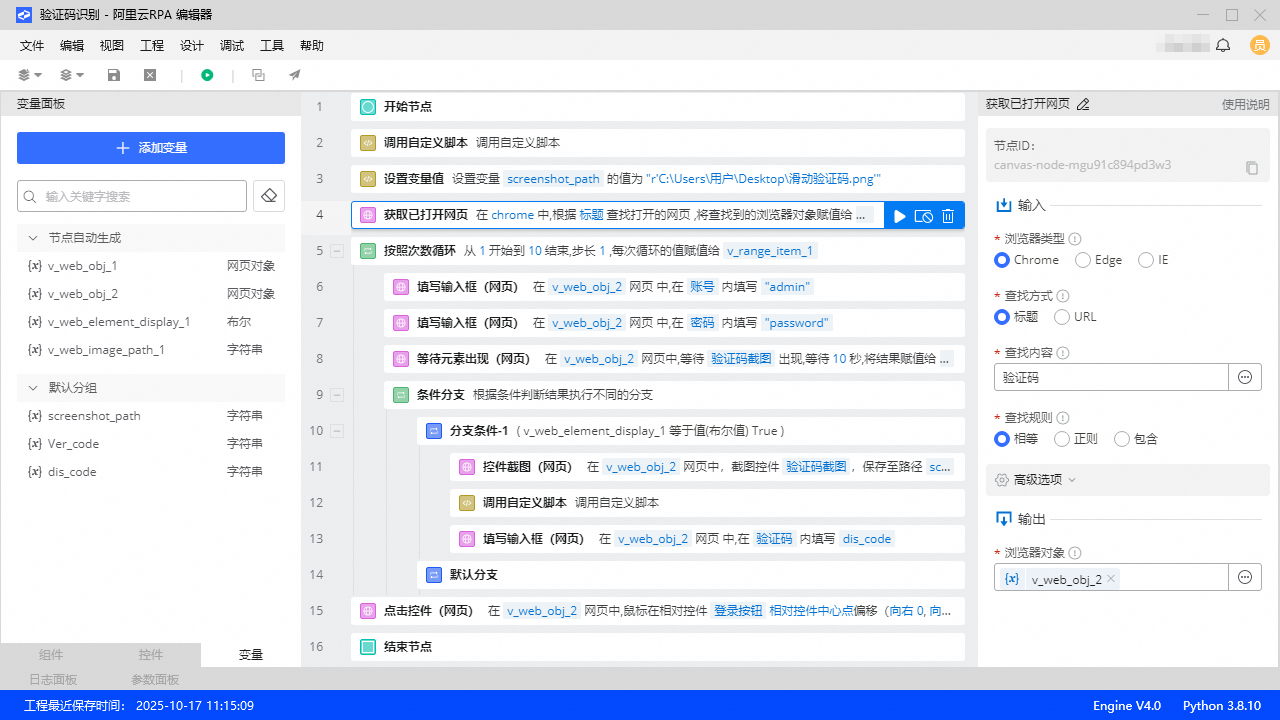
Repeatedly enter an incorrect username and password to trigger the alphanumeric image Captcha. In the loop, wait for the Captcha to load.
Use the Get Opened Web Page component to take a screenshot of the Captcha image and save it locally. Then, pass the image path to the OCR API function. The function recognizes the Captcha image and returns the result.

Use the Fill in Input Box (Web) component to enter the recognized Captcha value.

2. Case two
The validation method is shown in the following figure:
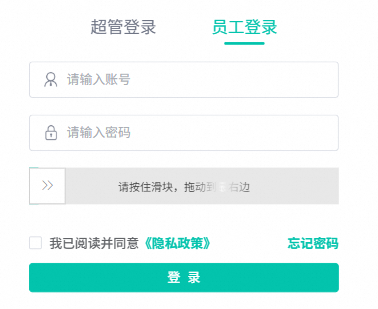
Capture the following control:
Capture the drag arrow.

2.1 Visualization development example
Use the Drag Element (Web) component for this operation.
3. Case three
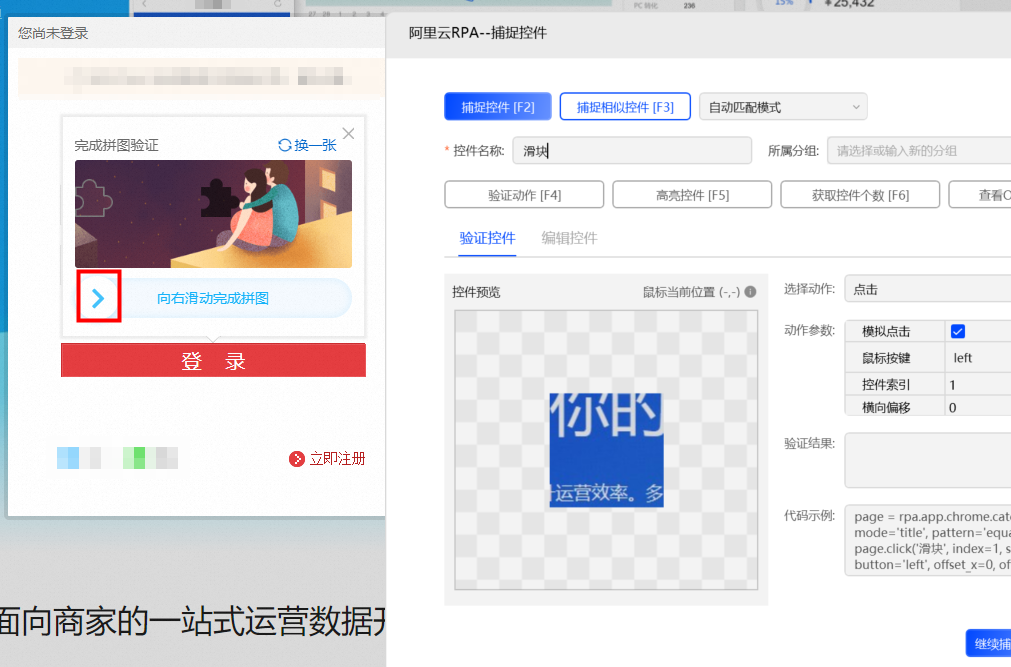
The validation method is shown in the following figure:

Capture the following controls:
Capture the jigsaw puzzle image.

Capture the drag arrow.
3.1 Code-based development example
from rpa.core import *
from rpa.utils import *
import rpa4 as rpa # Use the V4 engine
import requests
from hashlib import md5

# You can call the Captcha recognition API provided by any third-party platform. This topic uses a public API from a third-party Captcha solving platform as an example. Download the API script file and copy the API code after the following code. For more information, see https://www.******.com/api-14.html

def start():
    # Path to save the Captcha screenshot
    screenshot_path = r'C:\Users\User\Desktop\SliderCaptcha.png'
    page = rpa.app.chrome.catch('Website logon page', mode='title', pattern='contain')
    page.screenshot('Slider Captcha screenshot',screenshot_path)
    # Recognize the Captcha
    dis_code = OCR_recognition(screenshot_path)
    # The recognition returns the center coordinate of the notch (dis_code). The required sliding distance is the distance between the center of the slider and the center of the notch.
    # Subtract half the width of the slider from the returned x-axis coordinate value.
    distance_x = int(dis_code.split(',')[0])-27   # Half the width of the slider is 27
    print(distance_x)
    # Drag the slider horizontally to the specified distance
    page.drag('Slider',x=distance_x,y=0,speed_mode='uniform')

def OCR_recognition(screenshot_path):
    '''
    Call the OCR API of a third-party Captcha solving platform to recognize the Captcha
    '''
    captcha_user = 'captcha_platform_username'
    captcha_pwd = 'captcha_platform_user_password'
    captcha_soft = '96001' # User Center>>Software ID. Generate one to replace 96001
    captcha_cjy = code_Client(captcha_user, captcha_pwd, captcha_soft)
    im = open(screenshot_path, 'rb').read()
    dis_result = captcha_cjy.PostPic(im, 9101) # 9101 is the Captcha type
    dis_code = dis_result['pic_str']
    print(dis_result)
    return dis_code
3.2 Visualization development example
You can call a Captcha recognition API from any third-party platform. This topic uses a public API from a third-party platform as an example.
Use the Call Custom Script component. In the expression editor, enter the Python script for the third-party OCR API and the method for calling it. For an example of the API call function, see the `OCR_recognition()` function in the preceding code-based example.

Use the Set Variable Value component to set the local path to save the image.
Use the Get Opened Web Page component to retrieve the browser logon page object.
Use the Call Custom Script component. First, use the control screenshot component in code-based mode to capture the Captcha image and save it locally. Then, pass the image path to the OCR API function. The function recognizes the Captcha image and returns the coordinate result.
Use the Set Variable Value component. In the expression editor, enter the script to calculate the required sliding distance.
NoteThe recognition result is the center coordinate of the notch (`dis_code`). The required sliding distance is the distance between the center of the slider and the center of the notch.
To calculate the distance, subtract half the width of the slider from the returned x-axis coordinate value.
Use the Drag Element (Web) component to move the slider to the specified position.


