1. Component introduction
Prerequisites: None
Use this component to accurately recognize text from images with various layouts, complex backgrounds, and different lighting conditions (Example).
2. Input items
For information about each input item, see the help text in the component panel of the application flow editor.
3. Output items
For information about each output item, see the help text in the component panel of the application flow editor.
3.1. Key API return results
This output is a dictionary that contains key recognition results from the API. The following table describes the keys in the dictionary.
Key |
Key description |
Value data type |
content |
A collection of recognized text blocks from the image. |
String |
3.2. Error message
This output returns the error code and error message as a string. For more information, see the OCR Error Center.
https://next.api.aliyun.com/document/ocr-api/2021-07-07/errorCode
4. Component usage example
4.1. Component configuration example
For
AI engine, select "Alibaba Cloud OCR".For
Path of the image file to be recognized, enter the file path of the image. This example uses the image shown below.
Keep the default values for the advanced options.
4.2. Example execution result
5. Flow example
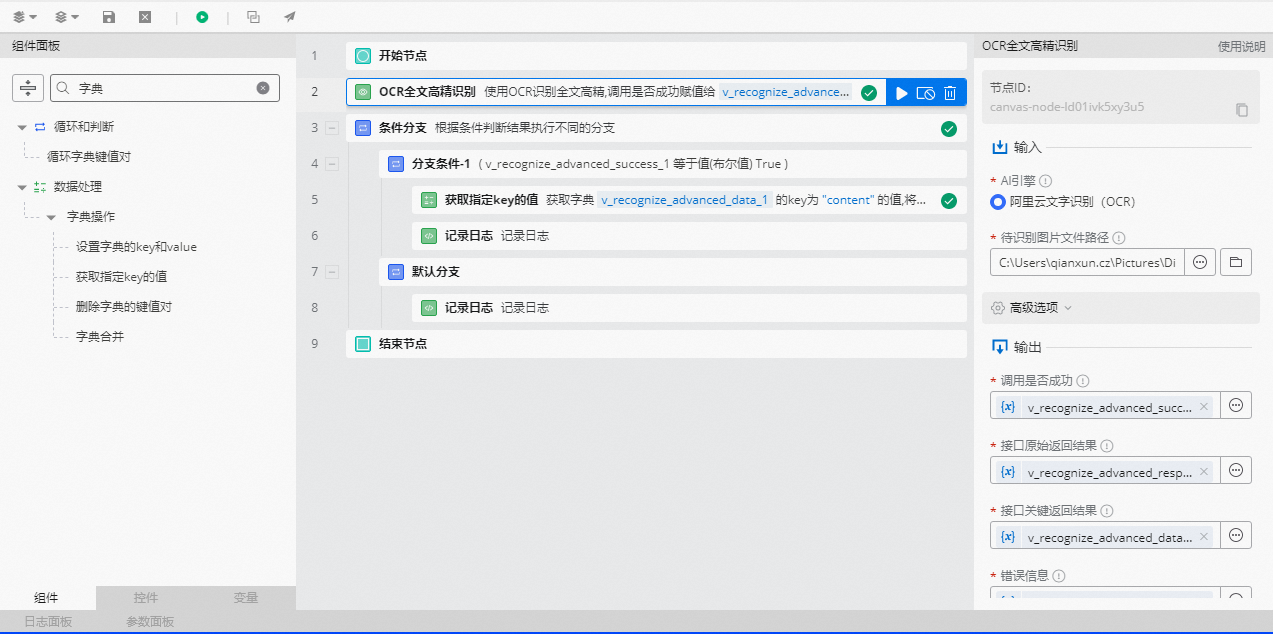
5.1. Build the flow
Use the High-precision Full-text OCR component to select the path of the image file to be recognized.
Use the Conditional Branch component to check if the OCR call is successful. Set the branch condition to `v_recognize_advanced_success_1` is `True` (a Boolean value).
In the success branch, use the Get Value of Specified Key component to retrieve a specific key from the key API return results dictionary.
Use the Log Record component to print the key recognition result.
In the failure branch, use the Log Record component to print the error message.
5.2. Execution result
The following figure shows the recognition result printed in the log panel after a successful OCR component call.