License management
Bots and the editor require a license to function. This feature allows you to manage licenses.
Purchase and renewal
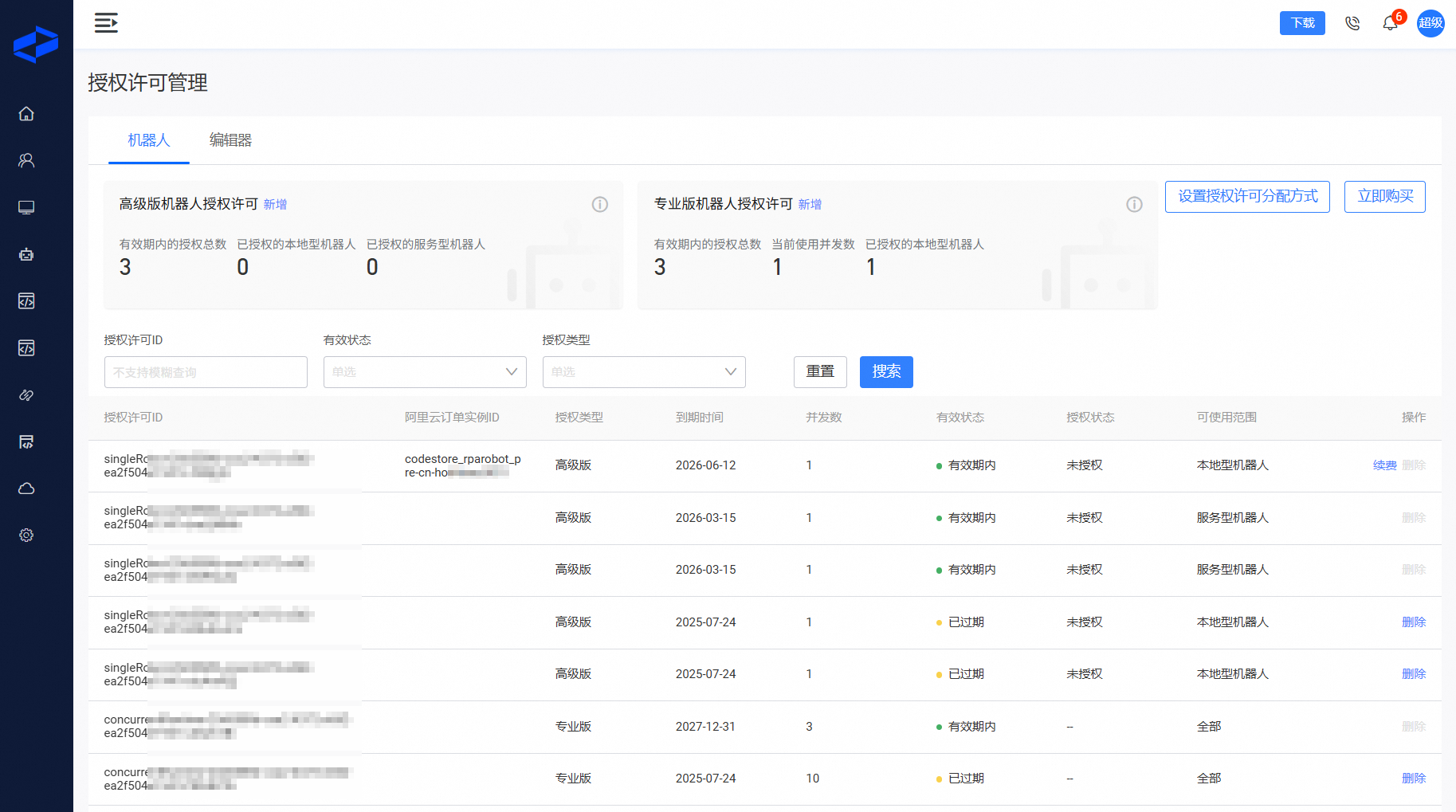
Purchase. Click Buy Now to go to the public cloud purchase page. For details about product specifications, see Product Billing.
Renew
Enable auto-renewal during purchase to ensure your products are renewed automatically.
For active licenses, click Renew on this page to go to the renewal page.
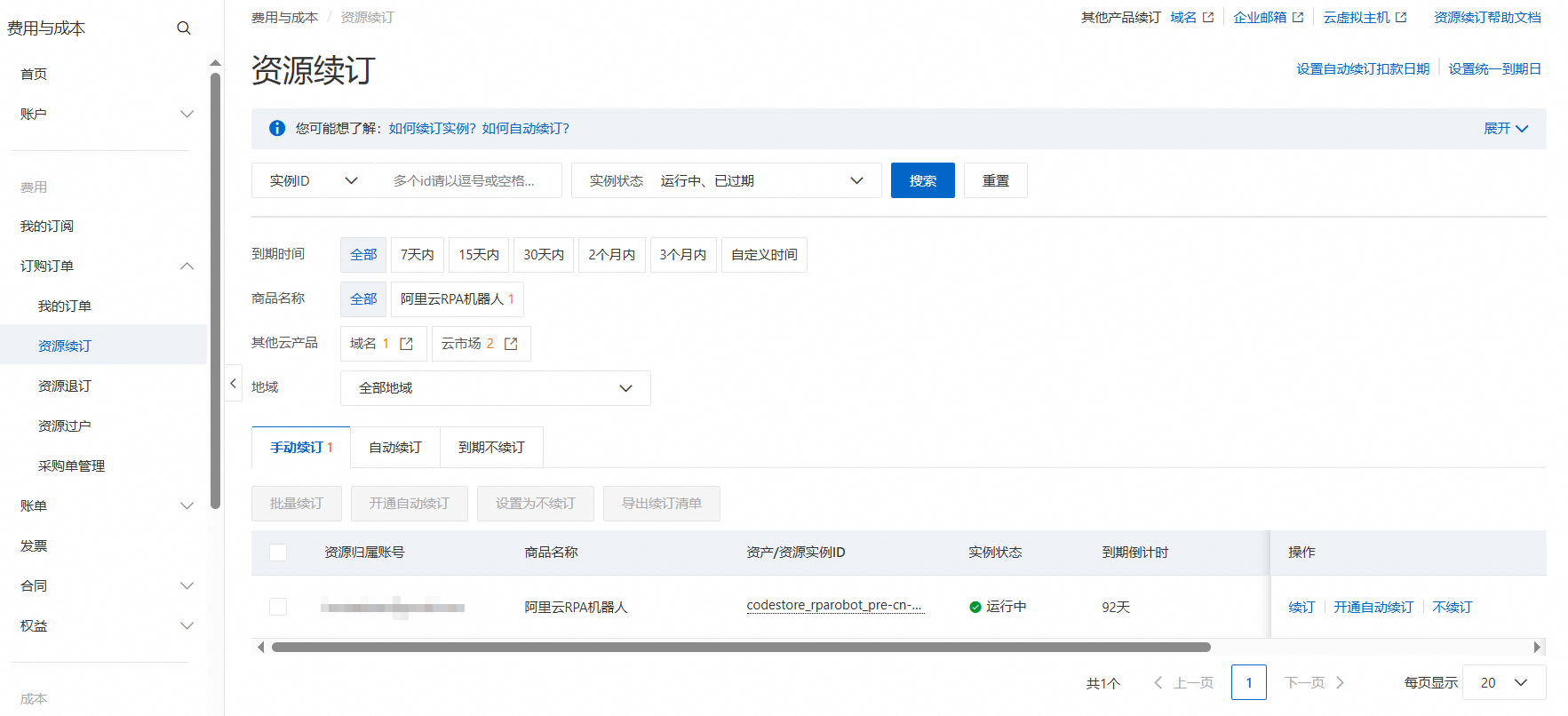
To enable or disable auto-renewal, see Renew Expired Resources. As shown in the following figure, you can use the Alibaba Cloud order instance ID from the license management page to renew resources on the resource renewal page.
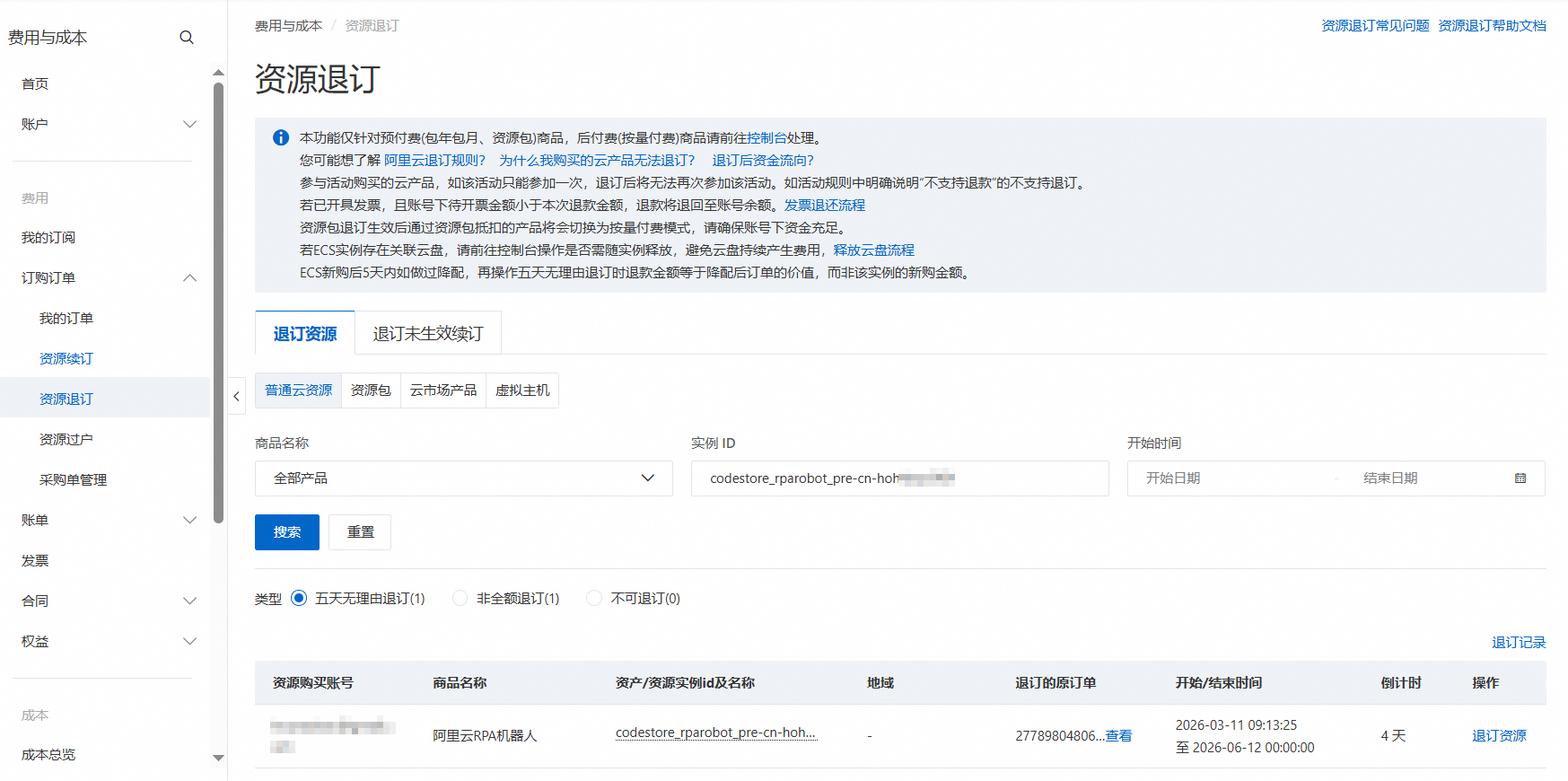
Unsubscribe. See Initiate Unsubscription. As shown in the following figure, you can use the Alibaba Cloud order instance ID from the license management page to unsubscribe on the resource unsubscription page.
Assign licenses to bots
Bots require a license to function:
Available licenses for bots are the Advanced bot license and the Professional bot license. For details about the feature differences, see Product Billing.
Bot types include local bots and server bots. For details about the differences, see Select a bot type.
The following table summarizes the information.
Advanced bot license | Professional bot license | |
Local bot |
| In member management, assign a license to a specific account. For detailed steps, see Assign Licenses to Members. |
Server bot |
| When a server bot connects to the server, the server automatically assigns a license to the bot. |
As shown in the following figure, on the license management - bot page, click Set License Allocation Method in the upper-right corner to define the allocation scope for the Advanced bot license.
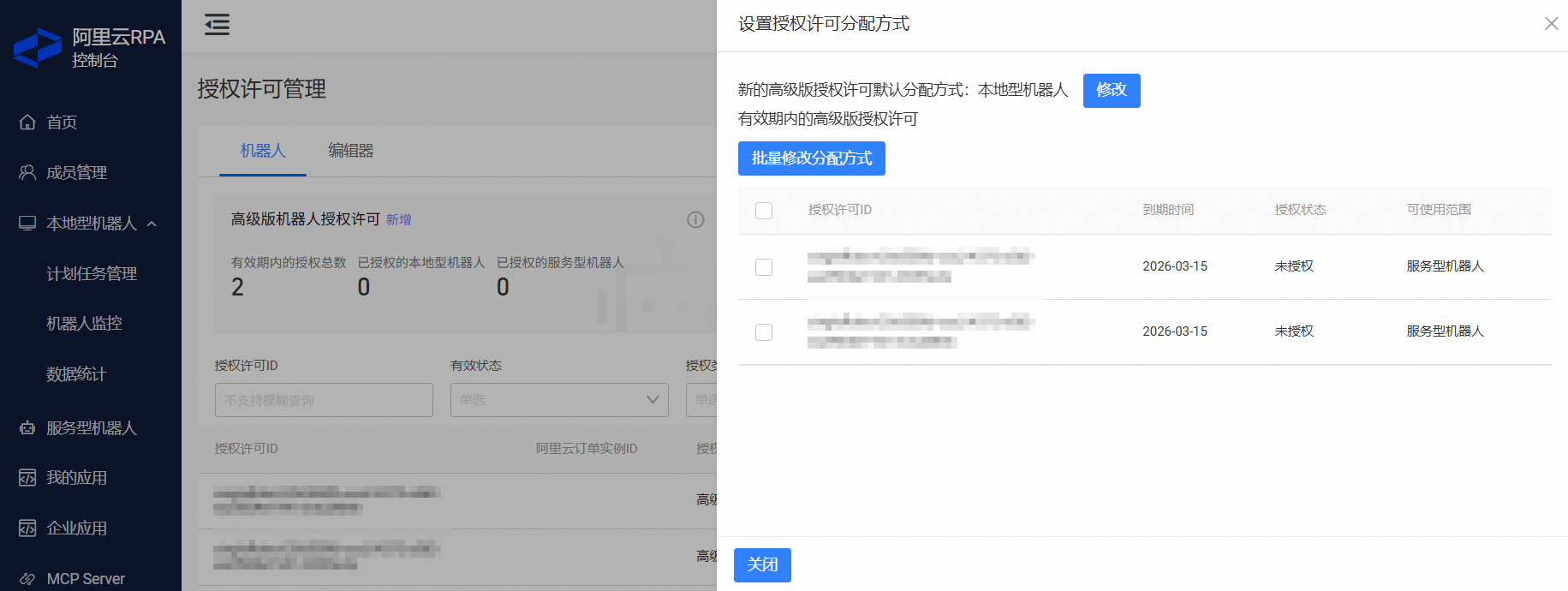
This involves two configuration settings:
Default allocation method for new Advanced bot licenses. This setting determines to which bot type new Advanced bot licenses are assigned by default, eliminating the need for manual adjustments. Set this to your most frequently used bot type, such as server bot if that is the only type you use.
Advanced bot licenses within their validity period. Use this setting to allocate your active Advanced bot licenses. If you modify the allocation of a license that is already in use, the bot using it may stop functioning correctly.