Manage sub-accounts and assign licenses
Using RPA involves multiple parties, such as developers, business users, and administrators. The Member Management feature lets you centrally manage member accounts—including creating, modifying, and deleting them—and assign robot and editor licenses.
Overview
Super administrator
For public cloud RPA, the super administrator is your Alibaba Cloud primary account. Therefore, to perform operations as a super administrator, you must log in to the console with your Alibaba Cloud primary account.
Sub-accounts
The following table describes the permissions involved at different stages.
Stage | Permissions |
Developers: Develop automation flows |
|
Users: Run automation flows |
|
Administration |
|
Manage sub-accounts (public cloud)
Public cloud RPA offers two account management systems, Alibaba Cloud RAM and Alibaba Cloud IDaaS. Choose the system that best suits your needs.
Account system | Use cases |
Alibaba Cloud RAM (default) |
|
Alibaba Cloud IDaaS |
|
Manage sub-accounts (RAM)
Create a RAM user. Before adding a sub-account in the RPA console's Member Management menu, you must create a RAM user in the Alibaba Cloud RAM console, as shown in the following figure.
 Important
To ensure Alibaba Cloud RPA functions correctly, confirm the following settings when creating a RAM user:
Access mode: You must select Console access.
MFA: We recommend selecting 'Not required'.
If enabled, you must perform MFA when you log in to a client (robot or editor) as a RAM user.
If your corporate security policies require MFA, you can use a dynamic logon code to log in to clients.
In the Alibaba Cloud RPA console, return to the Member Management page and click Create Account, as shown in the following figure.
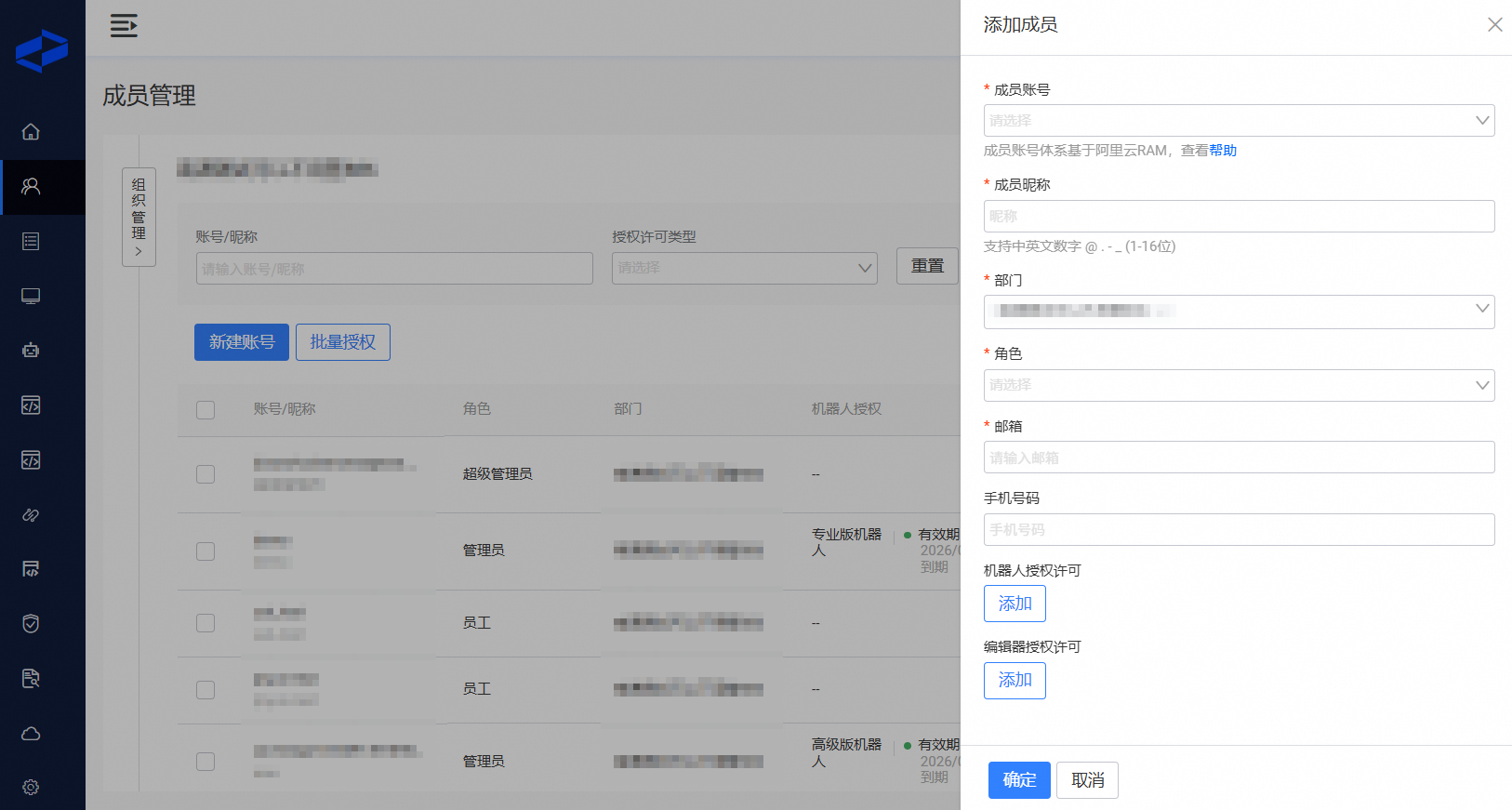
Parameter
Description
Member Account
Select the existing RAM user that you want to bind.
Member Nickname
Enter a nickname for the account. It must be 1 to 16 characters long and can contain Chinese characters, letters, digits, and the following special characters: @, ., -, and _.
Department
By default, the top-level department in the organization tree is selected. To change this, you must first create the desired organizational structure.
Role
Select a role for the account from the drop-down list. The role defines the account's permissions and visible scope within the console. You can create or modify roles on the System Settings > Role List page.
Email
Enter the account's email address.
Robot license
An account needs a robot license to log in to the robot client. This process is described later.
Editor license
An account needs an editor license to log in to the editor client. This process is described later.
Manage sub-accounts (IDaaS)
For more information, see Manage sub-accounts by using Alibaba Cloud IDaaS.
Switch account systems
Public cloud RPA offers two account management systems: Alibaba Cloud RAM and Alibaba Cloud IDaaS.
The chosen system stores account information, such as usernames, passwords, and other login methods. Public cloud RPA only links these accounts to the product.
You can use only one of these two systems at a time.
You can switch account systems in the Settings menu in the upper-right corner of the Member Management page.
ImportantEffects of switching account systems:
All sub-accounts in RPA are deleted, leaving only the primary account. However, the accounts that you previously created in Alibaba Cloud RAM or Alibaba Cloud IDaaS are not affected.
All assigned editor and robot licenses are revoked. The corresponding clients become unusable.
You must re-create the sub-accounts and re-assign editor and robot licenses based on the new account system.
Assign editor and local robot licenses
After sub-accounts are created, a user with access to the Member Management menu, such as a super administrator, must assign robot licenses and permissions to them.
Assign an editor license
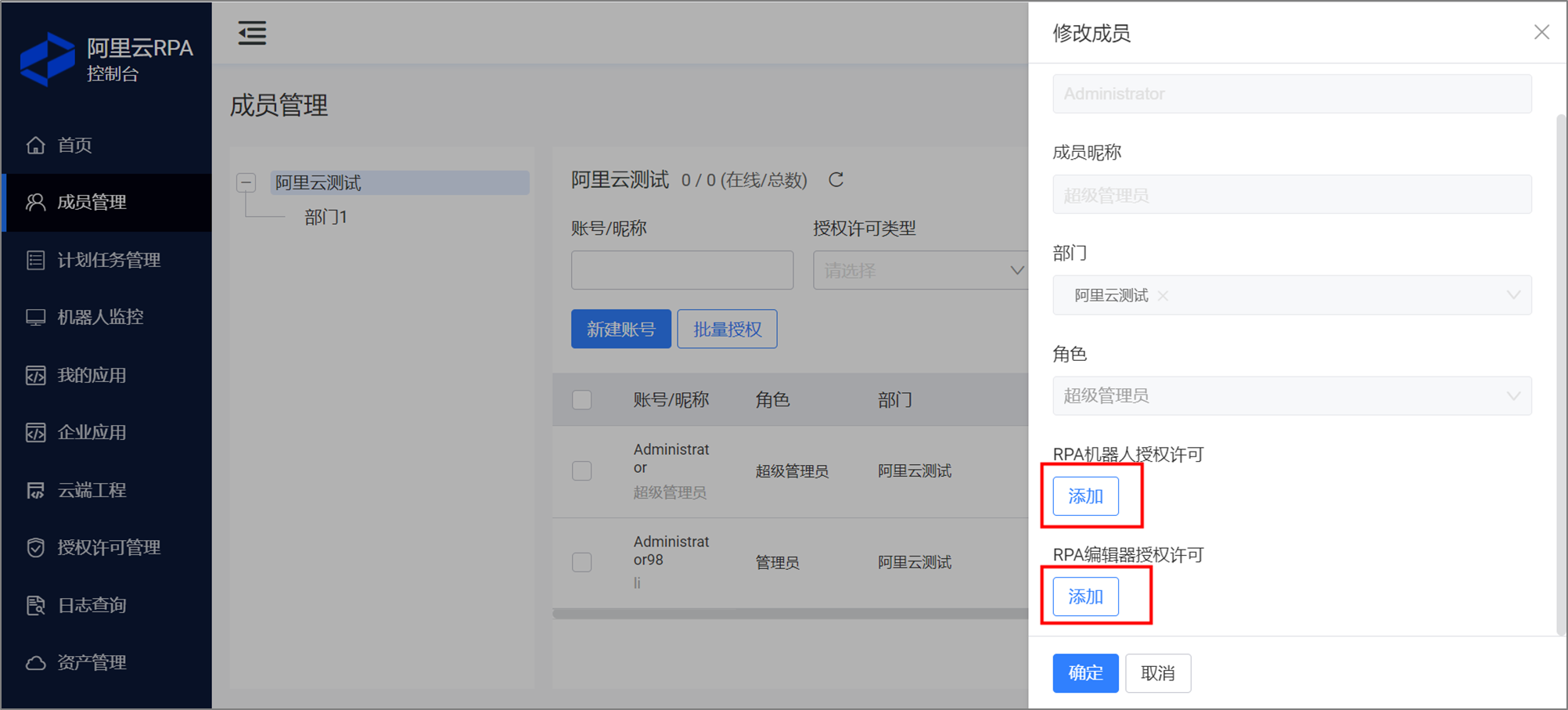
Assigning an editor license allows a user to log in to the editor client with that account to develop automation flows. You can assign editor licenses in two ways.
Method 1: Select and modify a member (primary account or sub-account) to add or change the license.
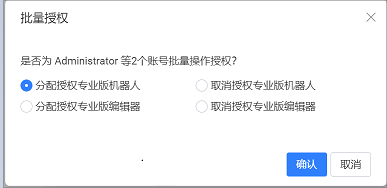
Method 2: Use Batch Authorization to assign licenses to multiple members at once. This method only supports Professional Edition editor and robot licenses.
Assign local robots
Assign a local robot license
Assigning a robot license allows a user to log in to the robot client with that account to run automation flows. The procedure is the same as for assigning an editor license.
Set accessible local robots
For on-premises deployments, this feature requires RPA server version 4.15.0 or later.
In the Member Management menu, you can configure which local robots an account can use. By default, an account can use all local robots.
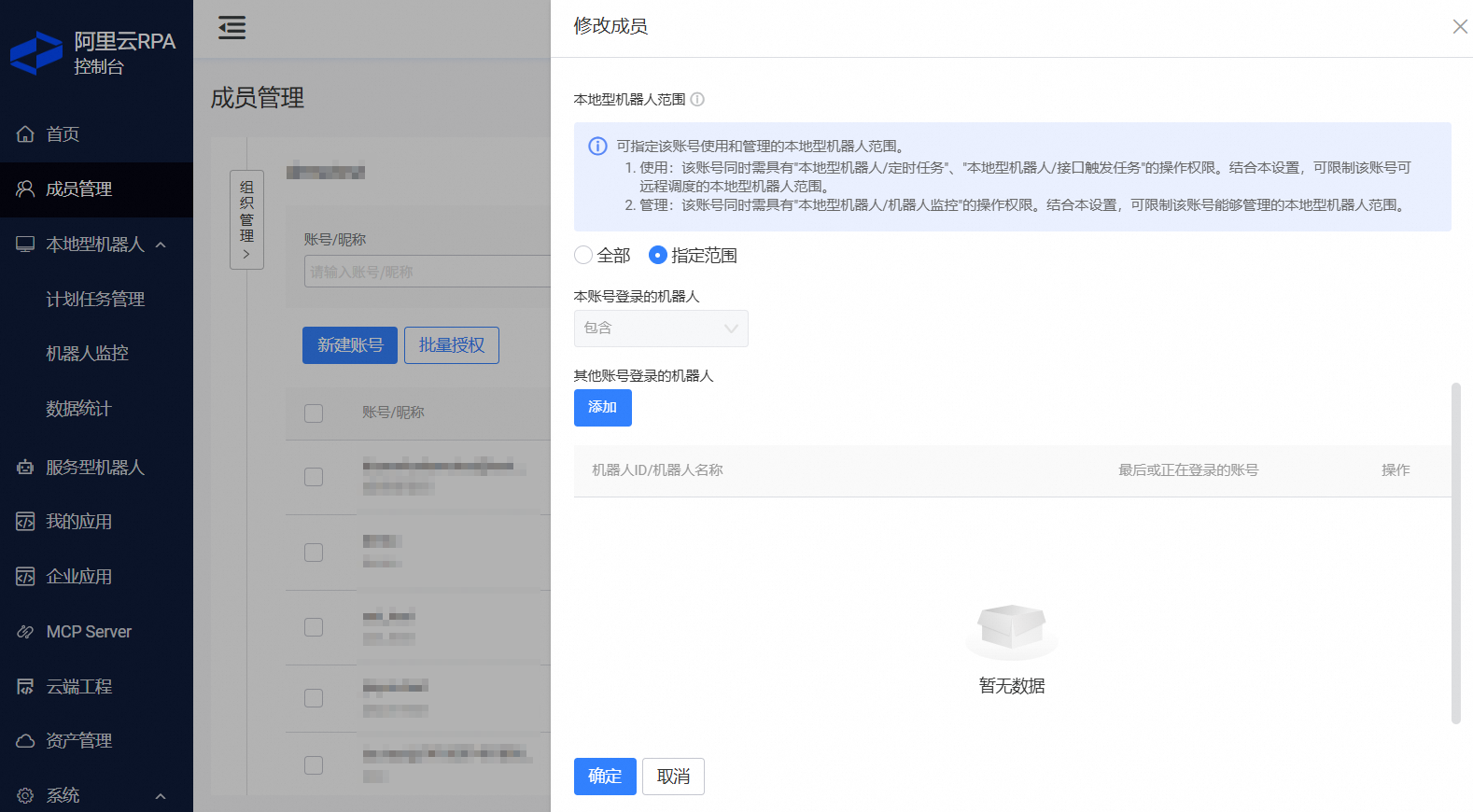
If some local robots are missing from the selection list, log in to the local robot client again and retry.
This configuration controls:
Running local robots
Scope: All
Scope: Specified
Manual client execution
Runs only on the robot where the current account is logged in.
Runs only on the robot where the current account is logged in.
Remote execution
All local robots
The robot where the current account is logged in, plus any other specified local robots.
Managing local robots. On the Robot Monitoring page in the console, the user can view and manage only the local robots within their permitted scope.
Log in to a client
After you create sub-accounts and assign licenses, you can log in to the clients. The table below summarizes the supported login methods for different account types. For detailed steps, see Log in to a client.
Account type | Client login methods |
Primary account |
|
Sub-account (Alibaba Cloud RAM) |
|
Sub-account (Alibaba Cloud IDaaS) |
|
Department management
To manage many member accounts, you can create sub-departments. You can then create accounts within specific sub-departments or move existing accounts to different departments from the account list.
Manage console roles
Public cloud RPA provides three built-in roles by default, which you can view on the System Settings > Role List page:
Super administrator: This role is exclusive to your Alibaba Cloud primary account and cannot be assigned to sub-accounts.
Administrator: Lacks the Member Management permission of the super administrator. If a sub-account requires administrator privileges, see Grant a sub-account administrator permissions for the RPA console.
Employee: Intended for business users, this role only grants permissions to request and use RPA applications.
You can also add custom roles on the System Settings > Role List page.