Set drop-down list (window)
1. Component introduction
Prerequisite component: Get window
Use this component to select an option from a drop-down list in a window of a running Windows program.
2. Input parameters
For information about each input parameter, see the help text in the component panel of the ROS Visual Editor.
3. Output parameters
For information about each output parameter, see the help text in the component panel of the ROS Visual Editor.
4. Component usage example
4.1. Component configuration example
For Window Object, select
v_win_obj_1, the output of the preceding Get window component.Use the Catch control feature to capture a drop-down list in the window. Name the control 'Control1'.
For
Drop-down Control, select the captured control 'Control1'.Set
Selection Methodto 'Ordinal Number'.For
Ordinal Number of Drop-down Option, enter '1'.
4.2. Example execution result
The first option in the drop-down list is selected.
5. Flow creation example
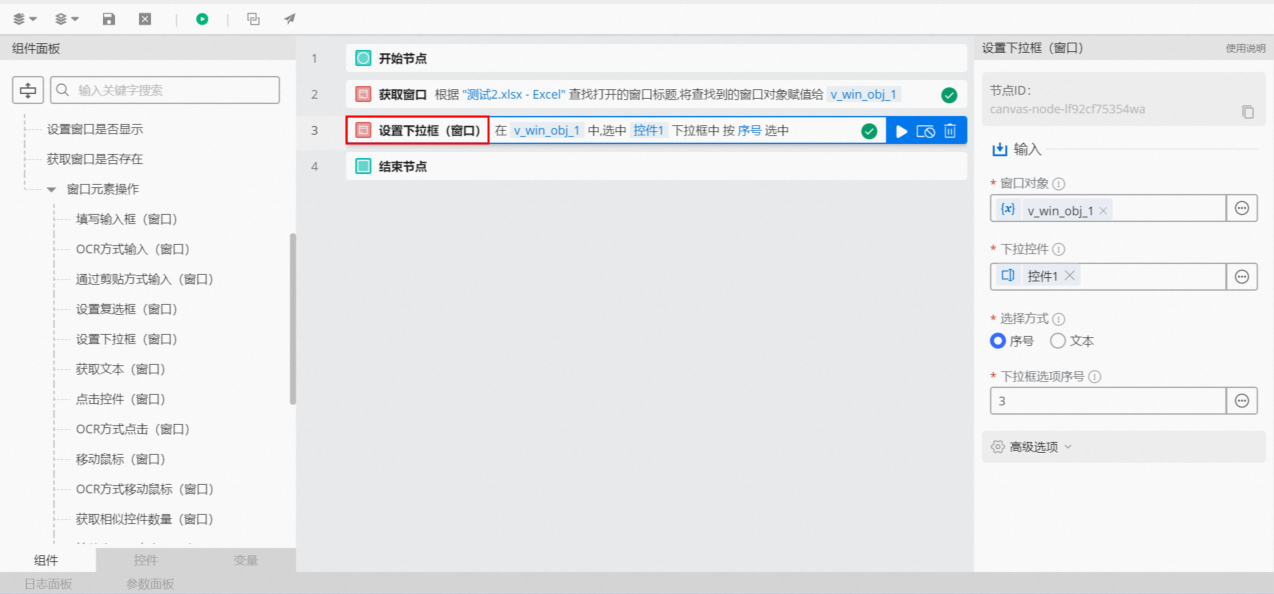
Setup flow
Use the Get window component to obtain the 'Excel file' object.
Use the Catch control feature to capture the drop-down list control in the Excel file.

Use the
Set drop-down list (window)component to select the third item in the drop-down list by its ordinal number.
Execution result
As shown in the following figure, the flow selects the third option from the drop-down list in the Excel sheet.