General OCR
1. Component overview
Required preceding component: None.
Recommended succeeding component: Conditional Branch. You can use branch conditions to determine whether the OCR call is successful and design the subsequent flow.
Use this component to recognize unstructured text in various scenarios using Optical Character Recognition (OCR). The component returns the text content and its coordinates. For an example, see this sample.
2. Inputs
For more information about each input, see the help text on the component panel in the application flow editor.
3. Outputs
For more information about each output, see the help text on the component panel in the application flow editor.
3.1. Key API return results
This output returns a dictionary that contains the key recognition results from the API. The keys and values in the dictionary are described below.
Key |
Key description |
Value data type |
content |
A collection of all recognized text blocks from the image. |
String |
3.2. Error message
This output returns the error code and error message as a string. For more information, see the OCR Error Center.
https://next.api.aliyun.com/document/ocr-api/2021-07-07/errorCode
4. Component usage example
4.1. Sample configuration
For AI engine, select Alibaba Cloud OCR.
For Path of the image file to recognize, enter the file path of the image that you want to recognize. The following image is used in this example.
Keep the default values for the advanced options.
4.2. Sample execution result
5. Sample flow
5.1. Build the flow
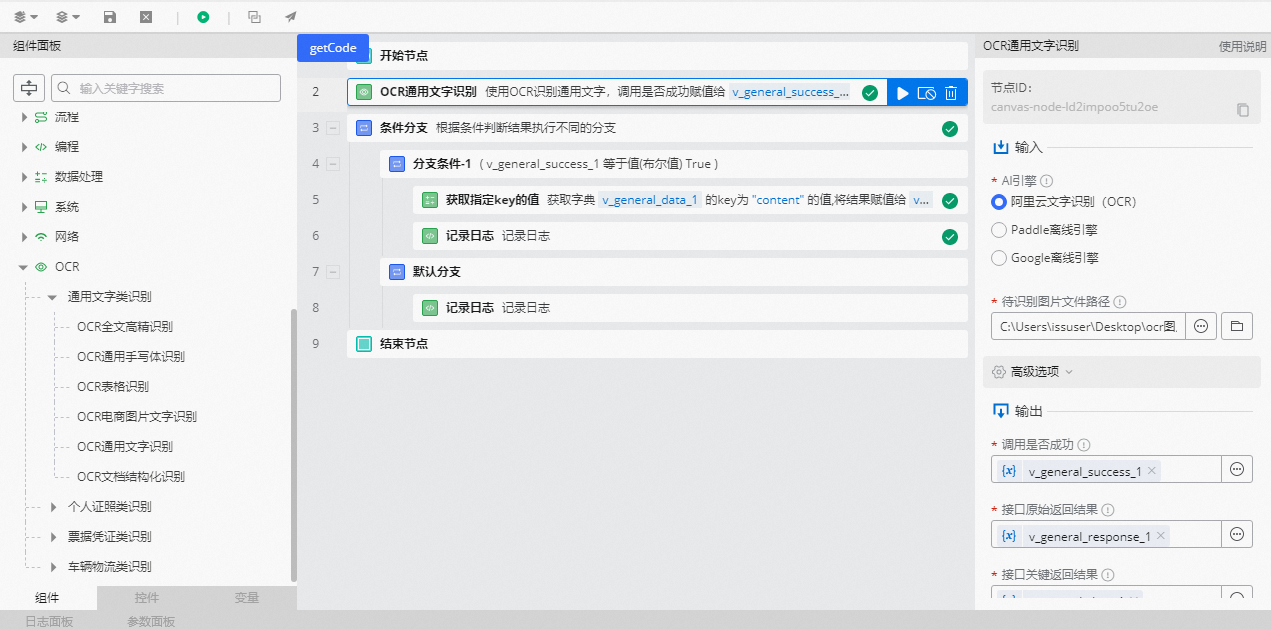
Use the General OCR component to select the path of the image file to recognize.
Use the Conditional Branch component to determine whether the OCR call is successful. Use the branch condition `v_general_success_1` equals the Boolean value `True`.
In the branch for a successful call, use the Get Value of Specified Key component to retrieve the value of the `content` key from the `v_general_data_1` dictionary, which contains the key API return results.
Use the Record Log component to print the key recognition result.
In the branch for a failed call, use the Record Log component to print the error message.
5.2. Execution result
As shown in the following figure, after the OCR call succeeds, the recognition result is printed in the log panel.