Sheet
Activate
activate()
Description
Activates the current sheet.
Code sample: rpa.app.wps.excel.Sheet.activate
# Note: This method requires WPS to be installed.
# Calling this method and saving the Excel file sets the sheet as the default active sheet.
# Code sample:
excel_file_path = r"D:\2_Test_File_Archive\TestExcel.xlsx"
excel = rpa.app.wps.excel.open(excel_file_path, visible=True)
sheet = excel.get_sheet("Non-default sheet")

sheet.activate()

excel.close()
Read
read(range, only_visible=False, skip=0, max=1000)
Description
When reading data from Excel, all numbers are returned as float values. For example, the value 1 in a cell is read as 1.0.
Parameters
range<str>Specified in A1 notation. For example, 'A' represents a column, '1' represents a row, 'A1' represents a cell, and 'A1:B2' represents a range of cells.
only_visible<bool>Controls whether to read only visible cells.
skip<int>The number of rows to skip before reading.
max<int>The maximum number of rows to read from a column or range.
Example: rpa.app.wps.excel.Sheet.read
# Note: Ensure WPS is installed before running this code.
# Example:
excel_file_path = r"D:\test_files\TestExcel.xlsx"
excel = rpa.app.wps.excel.open(excel_file_path,visible=True)
sheet = excel.get_sheet()

cell_value = sheet.read('A1')
row_value = sheet.read('1')
column_value = sheet.read('A')
range_value = sheet.read('A1:C3')

excel.close()
Write
write(range, value, start_row=1, start_col='A', max=1000)
Description
Write data to Excel
Parameters
range<str>Specifies the row, column, cell, or range to write to. For example, 'A' represents a column, '1' a row, and 'A1' a cell. To write to a range, specify only the start cell.
value<list>Use a one-dimensional array for a column or row, a str, int, or float for a single cell, and a two-dimensional array for a range.
start_row<int>The row to start writing from. This parameter is valid only when writing to a column.
start_col<str>The starting column when writing to a row. The value can be a column index like '1' or a column letter like 'A' or 'a'.
max<int>Specifies the maximum number of rows to write to a column.
Example: rpa.app.wps.excel.Sheet.write
# Note: Ensure WPS is installed before running this code.
excel_file_path = r"D:\test_files\TestExcel.xlsx"
excel = rpa.app.wps.excel.open(excel_file_path,visible=True)
sheet = excel.get_sheet()

row_value = ["Row data 1", "RPA test"]
cell_value = "RPA cell value"
column_value = ["Column data 1", "RPA test"]
range_value = [["Range data 1", "Range data 2"], ["Range data 3", "Range data 4"]]

sheet.write('1', row_value)
sheet.write('C', column_value)
sheet.write('A2', cell_value)
sheet.write('A4', range_value)

excel.close()
copy
copy(range)
Description
Copies data from the specified range. This is equivalent to manually selecting a range in Excel and pressing Ctrl+C.
It can be used with paste or the system clipboard.
Parameters
range<str>The range to copy. For example: 'A' for a column, '1' for a row, 'A1' for a cell, and 'A1:B2' for a range.
Examplerpa.app.wps.excel.Sheet.copy
Use with the paste method
# Note: Make sure that WPS Office is installed before you run this code.
# The following is a sample of how to use the method.
excel_file_path = r"D:\test.xlsx"
excel = rpa.app.wps.excel.open(excel_file_path,visible=True)
sheet = excel.get_sheet()
# Copy the range A1:B2.
sheet.copy('A1:B2')
# Paste the copied range, starting at cell D6.
sheet.paste('D6')
Use with the system clipboard
from rpa.core import *
from rpa.utils import *
import rpa4 as rpa
import subprocess

def start():
    xls_path = r"D:\test.xlsx"
    xls = rpa.app.wps.excel.open(xls_path,visible = True)
    sheet = xls.get_sheet()
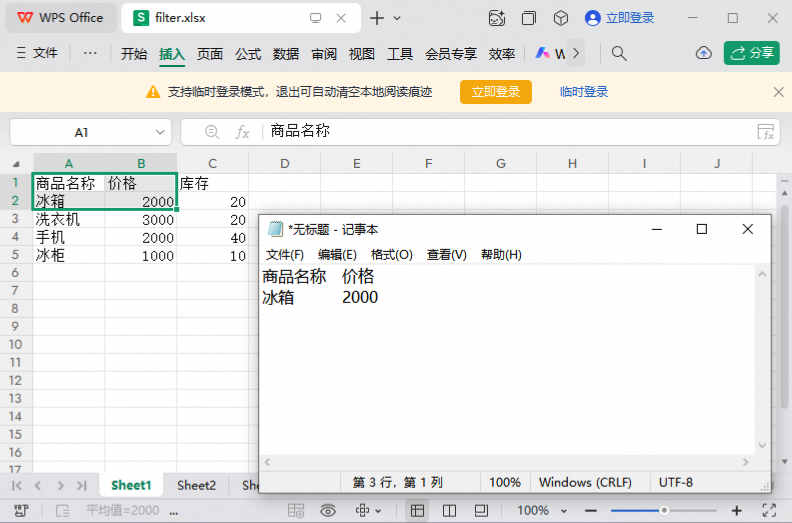
    sheet.copy("A1:B2")
    # Open a new Notepad window.
    subprocess.Popen(["notepad.exe"], shell=True)
    wnd = rpa.ui.win32.catch("Notepad", mode="substr")
    # Use the Ctrl+V shortcut to paste at the current cursor position.
    rpa.ui.win32.send_key("^{V}")
The result is as follows:
paste
paste(range, paste_type='value', retry=3)
Description
Pastes data into a specified range. This is equivalent to pressing Ctrl+V in Excel.
This method can be used with copy or by pasting from the system clipboard.
Parameters
range<str> The paste destination. Supported formats include a row, a column, or the starting cell of the destination range. For example, 'A' specifies a column, '1' specifies a row, and 'A1' specifies a cell.
paste_type<str> The type of content to paste.
Possible values:
all: Pastes all cell content and formatting.formula: Pastes only the formulas.value: Pastes only the values.format: Pastes only the formatting.comment: Pastes only the comments.validation: Pastes only the data validation rules.sourceUnit: Pastes all cell content and formatting using the source theme.exceptBorder: Pastes all cell content and formatting except borders.colWidth: Pastes only column widths.FormulasNumber: Pastes formulas and number formats.valueNumber: Pastes values and number formats.mergeCondition: Pastes merged conditional formatting.
retry<int> The number of retries if the operation fails.
Examples
# Note: This code requires WPS Office.
excel_file_path = r"D:\test_files\TestExcel.xlsx"
excel = rpa.app.wps.excel.open(excel_file_path,visible=True)
sheet = excel.get_sheet()

# Copy a row
sheet.copy('1')
sheet.paste('2')

# Copy a column
sheet.copy('C')
sheet.paste('D')

# Copy a cell
sheet.copy('A2')
sheet.paste('B2')

# Copy a range
sheet.copy('A4:B5')
sheet.paste('C4')
row_count
row_count()
Description
Returns the row count of the specified sheet.
Return values
Row count<str>
Example: rpa.app.wps.excel.Sheet.row_count
# Note: Ensure WPS is installed before running this code.
# Sample code:
excel_file_path = r"D:\test_files\TestExcel.xlsx"
excel = rpa.app.wps.excel.open(excel_file_path,visible=True)
sheet = excel.get_sheet()

count = sheet.row_count()
col_count
col_count()
Description
Returns the number of columns in the specified sheet.
Return value
Number of columns<str>
Example: rpa.app.wps.excel.Sheet.col_count
# Note: Ensure WPS is installed before running this code.
# Get the column count.
excel_file_path = r"D:\2_Test_File_Archive\TestExcel.xlsx"
excel = rpa.app.wps.excel.open(excel_file_path,visible=True)
sheet = excel.get_sheet()

count = sheet.col_count()
Sort
sort(sort_fields, range=None, match_case=False, sort_method='pinyin', contains_header=False)
Method description
Sort
Parameters
sort_fields<list>Specifies the sort fields in the format [(<column name>, <sort type>, <sort order>)].
Excel column name, such as
A,B, orAA.Sort type:
value: Sorts by cell value.cell_color: Sorts by cell color.font_color: Sorts by font color.
Sort order:
asc: Ascending order.desc: Descending order.
range<str>The search range in A1 notation, such as 'A1:C5'. Defaults to the entire sheet.
match_case<bool>Whether the match is case-sensitive.
False (default): Sorts are case-insensitive.
True: Sorts are case-sensitive.
sort_method<str>The sorting method.
Options:
pinyin: default value. Sorts characters by pinyin.stroke: Sorts characters by stroke count.
contains_header<bool>Specifies whether the data has a header.
False (default): Sorts the entire range.
True: Does not sort the entire range.
Sample code: RPA.app.WPS.Excel.sheet.sort
# Note: Ensure WPS is installed before running this code.
# Code sample:
excel_file_path = r"D:\test_files\TestExcel.xlsx"
excel = rpa.app.wps.excel.open(excel_file_path,visible=True)
sheet = excel.get_sheet()
# Sorts column A by value in descending order.
sort_fields1 = [('A','value','desc')]
sheet.sort(sort_fields1)
# Sorts column B by cell color in ascending order.
sort_fields2 = [('B','cell_color','asc')]
sheet.sort(sort_fields2)
# Sorts column C by font color in ascending order.
sort_fields3 = [('C','font_color','asc')]
sheet.sort(sort_fields3)
filter
filter(col, array, delete=False)
Description
Filters a specified column.
Parameters
col<str> The column letter.
array<list> A list of filter criteria.
delete<bool> If True, deletes rows that do not match the filter criteria.
The delete parameter is only supported in client versions earlier than 3.4.3.
Code example
# Note: Make sure WPS is installed before running this code.
# The following code demonstrates various filter types.
excel_file_path = r"D:\test_files\TestExcel.xlsx"
excel = rpa.app.wps.excel.open(excel_file_path,visible=True)
sheet = excel.get_sheet()
# Basic filter
filter_value = ['rpa_test1','rpa_test2']
# Advanced Filter: Supports wildcards. For example, '?' matches a single character and '*' matches any sequence of characters.
filter_value = ['rpa_test?']
# Filter for blank cells
filter_value = ['=']

sheet.filter('A',filter_value)
remove_filter
remove_filter()
Description
Removes all active filters from the sheet.
Examples
# Make sure the WPS software is installed before running this code.
# The following example shows how to apply and then remove a filter.
excel_file_path = r"D:\test_files\TestExcel.xlsx"
excel = rpa.app.wps.excel.open(excel_file_path,visible=True)
sheet = excel.get_sheet()
filter_value = ['rpa_test1','rpa_test2']

sheet.filter('A',filter_value)
sheet.remove_filter()
merge_cell
merge_cell(range, each_row=False)
Description
Merges a specified range of cells.
Parameters
range<str>The range to merge, specified in A1 notation (e.g., 'A1:B2').
each_row<bool>Specifies the merge behavior. If True, merges each row in the specified range into a separate cell. If False (the default), merges the entire range into a single cell.
Code Example
# Note: Ensure WPS Office is installed before running this code.
# The each_row parameter controls how cells are merged.
# - False (default): Merges the entire specified range into one cell.
# - True: Merges each row within the specified range into a separate cell.
xls_path = r"D:\test.xlsx"
xls = rpa.app.wps.excel.open(xls_path,visible = True)
sheet = xls.get_sheet()
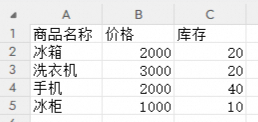
sheet.merge_cell(range = 'A1:B2',each_row = True)
The source Excel file:
Result when
each_rowisTrue: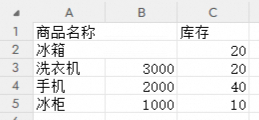
Result when
each_rowisFalse: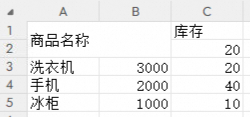
insert
insert(range, insertDirection=None)
Description
Inserts a blank cell, row, column, or range into the sheet and shifts existing cells to make space.
Parameters
range<str> Specifies the target location for insertion using A1 notation. For example: 'A' for a column, '1' for a row, 'A1' for a cell, or 'A1:B2' for a range.
insertDirection<str> The shift direction for existing cells.
Options:
down: Shifts existing cells down.right: Shifts existing cells to the right.
Examples
# Ensure WPS is installed before running this code.
# The `insertDirection` parameter specifies how to shift existing cells. Valid options are 'down' and 'right'.
# The following example inserts a blank range at 'A1:B2' and shifts the original cells down.
excel_file_path = r"D:\test_files\TestExcel.xlsx"
excel = rpa.app.wps.excel.open(excel_file_path,visible=True)
sheet = excel.get_sheet()

# Insert a new range at 'A1:B2' and shift existing cells down.
sheet.insert(range = 'A1:B2',insertDirection = 'down')
Delete
delete(range, insertDirection=None)
Method Description
Deletion
Parameters
range<str> For example, 'A' refers to a column, '1' to a row, 'A1' to a cell, and 'A1:B2' to a range.
insertDirection<str>Specifies the insertion direction.
Optional:
up: Move up.
left: Move left.
Example: rpa.app.wps.excel.Sheet.delete
# Note: Ensure WPS is installed before running this code.
# Deletes cell A1. By default, cells below shift up.
excel_file_path = r"D:\test_files\TestExcel.xlsx"
excel = rpa.app.wps.excel.open(excel_file_path,visible=True)
sheet = excel.get_sheet()

sheet.delete('A1')
remove_duplicated_cols
remove_duplicated_cols(range, cols)
Method Description
Column deduplication
Parameters
range<str>'A' specifies a column, and 'A1:B2' specifies a range.
cols<list>A list of column numbers for deduplication.
Example: rpa.app.wps.excel.Sheet.remove_duplicated_cols
# Note: This method requires WPS software.
# The columns for deduplication must be within the deduplication range. For example, for the range 'A1:C3', valid columns are 'A', 'B', and 'C'.
# This code removes duplicate rows from the 'A1:C9' range. A row is removed only if its values in all specified columns ('A', 'B', and 'C') are identical to those of another row.
excel_file_path = r"D:\test_files\TestExcel.xlsx"
excel = rpa.app.wps.excel.open(excel_file_path,visible=True)
sheet = excel.get_sheet()

sheet.remove_duplicated_cols('A1:C9',['A','B','C'])
set_region_font_pattern_in_sheet
set_region_font_pattern_in_sheet(range, font_pattern='general')
Description
Sets the font of a specific region.
Parameters
range<str>A range of cells, such as 'A1:B2'.
font_pattern (str): Specifies the font pattern for the area.
Options:
general: Regular
bold: Bold
italic: Italic
bold & italic: Bold & Italic
Example: rpa.app.wps.excel.Sheet.set_region_font_pattern_in_sheet
# Ensure WPS software is installed before use.
excel_file_path = r"D:\test_files\TestExcel.xlsx"
excel = rpa.app.wps.excel.open(excel_file_path, visible=True)
sheet = excel.get_sheet()
# Bolds the font in the A1:B2 region.
sheet.set_region_font_pattern_in_sheet('A1:B2',font_pattern='bold')
set_region_border
set_region_border(range, border_type, color='000000')
Description
Set the style for the specified scope.
Parameters
range<str>An Excel range, such as 'A1:B2'
border_type<str>The border style.
Options:
no_border: No border (default)
all_borders: All borders
bottom_border: Bottom border
top_border: Top border
left_border: Left border
right_border: Right border
outline_borders: Outline borders
thick_outline_borders: Thick outline borders
double_bottom_borders: Double bottom borders
thick_bottom_borders: Thick bottom borders
upper_and_lower_borders: Top and bottom borders
top_and_thick_bottom_borders: Top and thick bottom borders
top_and_double_bottom_borders: Top and double bottom borders
color<str>The color, as a hex value. Defaults to '#000000'.
Code sample: rpa.app.wps.excel.Sheet.set_region_border
# Note: Ensure WPS Office is installed before running this code.
# Sets borders for a cell range.
excel_file_path = r"D:\test_files\TestExcel.xlsx"
excel = rpa.app.wps.excel.open(excel_file_path, visible=True)
sheet = excel.get_sheet()
# Sets all borders of the A1:B2 range to black.
sheet.set_region_border('A1:B2','all_borders',color='000000')
find
find(text, range=None, count=0)
Description
Finds cells that contain the specified text.
Parameters
text<str> The text to find.
range<str> The range to search, such as 'A1:C5'. If omitted, the method searches the entire sheet.
count<int> The maximum number of matches to return. Specify 0 to return all matches (default: 0).
Return value
A 2D array where each row represents a match. Each row contains the row number, the column number, and the value of the matched cell. Returns an empty list if no matches are found.<list>
Code example
# Note: Make sure that WPS Office is installed before you run this code.
# You can use the count parameter to specify the number of matches to return. The default is 0, which returns all matches. If set to 1, the method returns the first match found, searching from left to right and then top to bottom.
excel_file_path = r"D:\test.xlsx"
excel = rpa.app.wps.excel.open(excel_file_path,visible=True)
sheet = excel.get_sheet()
result = sheet.find('Machine')
print(result)
The source Excel sheet:
Result:


add_picture
add_picture(file, col, row, width=None, height=None)
Description
Inserts an image at a given position.
Parameters
file<str>The path to the image to be inserted.
col<str> Column number of the top-left cell.
row<str>The row number of the top-left cell.
width<float>The width of the image.
height<float> The height of the image.
Example: RPA.app.WPS.Excel.Sheet.add_picture
# Note: Ensure WPS is installed before running this code.
# code sample:
excel_file_path = r"D:\2_Test_File_Archive\TestExcel.xlsx"
excel = rpa.app.wps.excel.open(excel_file_path,visible=True)
sheet = excel.get_sheet()

pic_path = r'D:\2_Test_File_Archive\OCR.png'
sheet.add_picture(pic_path,'C','2')
get_row_height
get_row_height(row)
Description
Returns the height of the specified row.
Parameters
row<str>The row number.
Return value
Returns the row height<str>
Example: rpa.app.wps.excel.Sheet.get_row_height
# Note: Ensure the WPS software is installed before use.
# Function call example:
excel_file_path = r"D:\test_files\TestExcel.xlsx"
excel = rpa.app.wps.excel.open(excel_file_path,visible=True)
sheet = excel.get_sheet()

row_height = sheet.get_row_height('1')
set_row_height
set_row_height(row, height)
Description
Sets the line height.
Parameters
row<str>Row number.
height<str>Row height.
Example: RPA.app.WPS.Excel.sheet.set_row_height
# Note: Ensure WPS software is installed before running this code.
excel_file_path = r"D:\test_files\TestExcel.xlsx"
excel = rpa.app.wps.excel.open(excel_file_path,visible=True)
sheet = excel.get_sheet()

sheet.set_row_height('1','20')
get_col_width
get_col_width(col)
Description
Returns the specified column width.
Parameters
col<str>Column number.
Return value
The column width<str>
Sample call: rpa.app.wps.excel.Sheet.get_col_width
# Note: Make sure WPS software is installed before running this code.
# Code sample:
excel_file_path = r"D:\2_Test_File_Archive\TestExcel.xlsx"
excel = rpa.app.wps.excel.open(excel_file_path,visible=True)
sheet = excel.get_sheet()

col_width = sheet.get_col_width('A')
set_col_width
set_col_width(col, width)
Method description
Set the width of the specified column.
Parameters
col<str>Column number.
width<str>The width of the column.
Code sample: rpa.app.wps.excel.Sheet.set_col_width
# Note: Ensure WPS is installed before use.
# Example:
excel_file_path = r"D:\test_files\TestExcel.xlsx"
excel = rpa.app.wps.excel.open(excel_file_path,visible=True)
sheet = excel.get_sheet()

sheet.set_col_width('A','20')
get_formula
get_formula(range)
Description
Retrieves the formulas for the specified range.
Parameters
range<str> Specifies a column (A), a row (1), a cell (A1), or a range of cells (A1:B2).
Return value
Returns the formula for the specified range<str>
Example: RPA.app.WPS.Excel.sheet.get_formula
# This code requires WPS software to be installed.
excel_file_path = r"D:\test_files\TestExcel.xlsx"
excel = rpa.app.wps.excel.open(excel_file_path,visible=True)
sheet = excel.get_sheet()

formula = sheet.get_formula("A1")
set_formula
set_formula(range, formula)
Description
Set a formula for a specific range.
Parameters
range<str>: 'A' represents a column, '1' a row, 'A1' a cell, and 'A1:B2' a range.
formula<str> Formula
Code example: rpa.app.wps.excel.Sheet.set_formula
# Note: Ensure WPS software is installed before running this code.
# Code sample:
excel_file_path = r"D:\test_files\TestExcel.xlsx"
excel = rpa.app.wps.excel.open(excel_file_path,visible=True)
sheet = excel.get_sheet()

formula = "=TODAY()"
sheet.set_formula("E2:F3",formula)
get_style
get_style(range, style, color_format='RGB')
Method Description
Returns the style of a specified range.
Parameters
range<str>'A' represents a column, '1' a row, 'A1' a cell, and 'A1:B2' a range.
style<str>Specifies the style.
Optional:
fontsize: Font size
fontcolor: Font color
fontname: Font name
bgcolor: Background color
color_format<str>The color format. This parameter takes effect only when style is set to fontcolor or bgcolor. Valid values: HEX or RGB.
Example: rpa.app.wps.excel.Sheet.get_style
# WPS must be installed.
excel_file_path = r"D:\Test_File_Archive\TestExcel.xlsx"
excel = rpa.app.wps.excel.open(excel_file_path,visible=True)
sheet = excel.get_sheet()

style = sheet.get_style("A1:B2","fontsize")
set_style
set_style(range, style, value, color_format='RGB')
Description
Apply a style to a range.
Parameters
range<str>The range in A1 notation. Examples: 'A' for a column, '1' for a row, 'A1' for a cell, or 'A1:B2' for a range of cells.
style<str>The style.
Options:
fontsize: font size
fontcolor: font color
fontname: font name
bgcolor: background color
value<str>Specifies the value for the property. If style is fontcolor or bgcolor, the value can be a hexadecimal (e.g., '#FFFFFF') or RGB (e.g., '255,255,255') string.
color_format<str>Specifies the color format. Use 'HEX' or 'RGB' when the style parameter is fontcolor or bgcolor.
Example: rpa.app.wps.excel.Sheet.set_style
# Note: Ensure WPS Office is installed.
# Code sample:
excel_file_path = r"D:\test_files\TestExcel.xlsx"
excel = rpa.app.wps.excel.open(excel_file_path,visible=True)
sheet = excel.get_sheet()

sheet.set_style("A3","bgcolor","#FF0000","HEX")
get_comment
get_comment(range)
Description
Get the comment for a cell.
Parameters
range<str>A reference to a cell, such as 'A1'.
Return value
Returns the cell's comment, or None<str> if none exists.
Sample call: rpa.app.wps.excel.Sheet.get_comment
# Note: Requires WPS software to be installed.
# If the target cell does not have a comment, this method returns None.
# Example:
excel_file_path = r"D:\test_files\TestExcel.xlsx"
excel = rpa.app.wps.excel.open(excel_file_path,visible=True)
sheet = excel.get_sheet()

comment = sheet.get_comment("A1")
set_comment
set_comment(range, comment)
Description
Add a comment to a cell.
Parameters
range<string>The cell range, for example, 'A1'.
comment<str>The comment.
Code example: rpa.app.wps.excel.Sheet.set_comment
# Note: Ensure WPS Office is installed before running this code.
# Code sample:
excel_file_path = r"D:\test_files\TestExcel.xlsx"
excel = rpa.app.wps.excel.open(excel_file_path,visible=True)
sheet = excel.get_sheet()

comment = "RPA test"
sheet.set_comment("A1",comment)
Replace
replace(text, replacement, range=None, match_case=False)
Method
replacement
Parameters
text<string>The replacement text.
replacement<str>The replacement string.
range<str>The search range, such as 'A1:C5'. Defaults to the entire sheet.
match_case<bool>Specifies whether the match is case-sensitive.
Example - rpa.app.wps.excel.Sheet.replace
# Note: Requires WPS Office.
# Code sample:
excel_file_path = r"D:\test_files\TestExcel.xlsx"
excel = rpa.app.wps.excel.open(excel_file_path,visible=True)
sheet = excel.get_sheet()

sheet.replace("test","RPA_TEST")
to_pdf
to_pdf(file)
Description
Convert to PDF
Parameters
file<str>Path where the PDF file is saved.
Example - RPA.app.WPS.Excel.sheet.to_PDF
# Note: Ensure WPS is installed before running this code.
# This code exports a sheet to a PDF file.
excel_file_path = r"D:\test_files\TestExcel.xlsx"
excel = rpa.app.wps.excel.open(excel_file_path,visible=True)
sheet = excel.get_sheet()

path = r"D:\test_files\sheet_to_pdf.pdf"
sheet.to_pdf(path)
Select pivot field items
select_pivot_field_items(name, array, index=1, select=True)
Method
Select or deselect pivot table filters.
Parameter
index<int>The index of the pivot table. This parameter is required only when the sheet contains multiple pivot tables.
name<string>The name of the field.
array<list>A list of selectable values.
select<bool>Specifies whether to select or deselect the item.
Example: rpa.app.wps.excel.Sheet.select_pivot_field_items
# Note: Ensure WPS software is installed before running this code.
# The following code sample deselects the 'AA' and 'BB' items in the 'Buyer' field, hiding the corresponding data in the pivot table.
excel_file_path = r"D:\test_files\TestExcel.xlsx"
excel = rpa.app.wps.excel.open(excel_file_path, visible=True)
sheet = excel.get_sheet('Pivot Table')

sheet.select_pivot_field_items('Buyer', ['AA','BB'], select=False)
clear_range
clear_range(range, clear_format=True)
Method Description
Clears data from an Excel range.
Parameters
range<str>An Excel range, such as 'A1:B2'.
clear_format<bool>Specifies whether to clear formatting.
Code sample: rpa.app.wps.excel.Sheet.clear_range
# Note: Ensure WPS software is installed before running this code.
# Code sample:
excel_file_path = r"D:\test_files\TestExcel.xlsx"
excel = rpa.app.wps.excel.open(excel_file_path, visible=True)
sheet = excel.get_sheet()

sheet.clear_range('A1:B2')
Calculate sum of column
calculate_sum_of_col(col, start_row=1, condition='<>')
Description
Calculate the column sum
Parameters
col<str>Column number.
start_row<int>The starting row number.
condition<str>Specifies which cells to sum. The condition can be a number, an expression, or text. For example, <> sums all numeric cells, and >32 sums cells with a value greater than 32.
Return values
Returns the column sum <float>
Example: RPA.app.WPS.Excel.Sheet.calculate_sum_of_col
# Ensure the WPS software is installed before running this code.
# Example:
excel_file_path = r"D:\test_files\TestExcel.xlsx"
excel = rpa.app.wps.excel.open(excel_file_path, visible=True)
sheet = excel.get_sheet()

col_sum = sheet.calculate_sum_of_col('A', start_row=1)
print(col_sum)
calculate_sum_of_range
calculate_sum_of_range(range, condition='<>')
Description
Calculate the regional sum.
Parameters
range<str>The Excel cell range, such as 'A1:B2'.
condition<str>The condition that specifies which cells to sum. This can be a number, an expression, or text. For example, <> sums all numeric cells, and >32 sums cells with a value greater than 32.
Return value
Returns the column sum as a float.
Example: rpa.app.wps.excel.Sheet.calculate_sum_of_range
# Ensure WPS Office is installed before running this code.
# Code sample:
excel_file_path = r"D:\test_files\TestExcel.xlsx"
excel = rpa.app.wps.excel.open(excel_file_path, visible=True)
sheet = excel.get_sheet()

range_sum = sheet.calculate_sum_of_range('A1:C5')
print(range_sum)
hide_region
hide_region(hide_region_type='row', start_row=None, end_row=None, start_col=None, end_col=None)
Description
Hidden area
Parameters
hide_region_type<str>The region type to hide.
Optional:
row: Hide one or more rows.
col: Hide one or more columns.
start_row<str>The starting row number, e.g., '1'. This parameter takes effect only when hide_region_type is set to row.
end_row<str>The end row number (e.g., '3'). Applies only when the hidden area type is row.
start_col<str>The start column for the area, effective only when the hidden area type is col (e.g., 'A' or 'a').
end_col<str>The letter of the end column for the area (e.g., 'D' or 'd'), which applies only when the hidden area type is col.
Code sample: rpa.app.wps.excel.Sheet.hide_region
# Note: Ensure WPS is installed before running this code.
# This sample shows how to hide rows and columns.
excel_file_path = r"D:\test_files\TestExcel.xlsx"
excel = rpa.app.wps.excel.open(excel_file_path, visible=True)
sheet = excel.get_sheet()

sheet.hide_region(hide_region_type='row', start_row='1', end_row='4', start_col=None, end_col=None)
sheet.hide_region(hide_region_type='col', start_row=None, end_row=None, start_col="a", end_col="f")
Show_region
show_region(show_region_type='row', start_row=None, end_row=None, start_col=None, end_col=None)
Description
display area
Parameters
show_region_type<str> Specifies the type of region to display.
Optional:
row: Displays one or more rows.
col: Displays one or more columns.
start_row<str>The starting row number of the region, such as '1'. This parameter is valid only when the region type is row.
end_row<str>The end row number of the range. This parameter is valid only when the range type is row. For example: '3'.
start_col<str>The starting column of the area, such as 'A' or 'a'. Applies only when the area type is col.
end_col<str>The end column of the area (e.g., 'D' or 'd'), applicable only when the area type is col.
Example: RPA.app.wps.excel.Sheet.show_region
# Note: Ensure that WPS software is installed.
# code sample:
excel_file_path = r"D:\test_files\TestExcel.xlsx"
excel = rpa.app.wps.excel.open(excel_file_path, visible=True)
sheet = excel.get_sheet()

sheet.show_region(show_region_type='row', start_row='1', end_row='3', start_col=None, end_col=None)
sheet.show_region(show_region_type='col', start_row=None, end_row=None, start_col="b", end_col="c")
multi_filter
multi_filter(filters_val, range=None, delete=False)
Method
Filter multiple columns.
Parameters
filters_val<dictionary> Filter criteria, for example: {'A':['testA1','testA2','testA3'],'B':['testB1','testB2']...}
range<str>The cell range to filter, for example, 'A1:C5'. If omitted, the entire sheet is filtered by default.
delete<bool>Specifies whether to delete data that does not match the filter. This parameter is obsolete and has no effect in version 3.4.3 and later.
Example: rpa.app.wps.excel.Sheet.multi_filter
# Note: Ensure WPS Office is installed before running this code.
# Filters rows where the value in column A is 'test01' or 'test02', and the value in column B is '1' or '2'.
excel_file_path = r"D:\test_files\TestExcel.xlsx"
excel = rpa.app.wps.excel.open(excel_file_path, visible=True)
sheet = excel.get_sheet()
filter_exp = {
    'A':['test01','test02'],
    'B':['1','2']
}
sheet.multi_filter(filter_exp)
create_pivot_table
create_pivot_table(data_sheet, data_range, pivot_sheet, pivot_range, pivot_settings)
Description
Creates a pivot table.
Parameters
data_sheet<str> The name of the sheet containing the source data for the pivot table, such as 'Sheet1'.
data_range<str> The source data range for the pivot table, such as 'A1:C10'.
pivot_sheet<str> The name of the sheet where the pivot table will be created, such as 'Sheet2'. Ensure this sheet already exists. Use the add_sheet method to create it beforehand.
pivot_range<str> The destination cell for the top-left corner of the pivot table, such as 'A1'.
pivot_settings<PivotTableSettings> The configuration object for the pivot table.
Code Sample- rpa.app.wps.excel.Sheet.create_pivot_table-
# Note: Ensure WPS Office is installed before running this code.
# The following example creates a pivot table to summarize the total transaction amount for each buyer by type.
# It uses 'Date' as a filter, 'Buyer' as a row label, 'Type' as a column label, and calculates the sum of 'Amount'.
excel_file_path = r"D:\test_files\TestExcel.xlsx"
excel = rpa.app.wps.excel.open(excel_file_path, visible=True)
sheet = excel.get_sheet('Sales Data')
new_sheet_name = "Pivot Table"
excel.add_sheet(new_sheet_name ,"Sales Data", relative='before')

pivot_settings = rpa.app.wps.excel.PivotTableSettings('Pivot Table Settings')
pivot_settings.filters['Date'] = {} # Add a filter field
pivot_settings.rows['Buyer'] = {} # Add a row label
pivot_settings.columns['Type'] = {} # Add a column label
pivot_settings.values['Amount'] = {"Function": "xlSum"} # Add a value field

sheet.create_pivot_table('Sales Data', 'A:D', 'Pivot Table', 'A1', pivot_settings)

excel.save()
excel.close()
Notes
The pivot_settings.values parameter defines the summary function for the value fields in the pivot table. The following table lists the available options for the Function key.
Function | Description |
xlSum | sum |
xlCount | count |
xlAverage | average |
xlMax | maximum |
xlMin | minimum |
xlProduct | product |
xlCountNums | numeric count |
xlStDev | standard deviation |
xlStDevP | population standard deviation |
xlVar | variance |
xlVarP | population variance |
Refresh pivot table
refresh_pivot_table(index=1)
Method
Refresh pivot table
Parameters
index<int>The index of the pivot table, required when a sheet contains multiple pivot tables.
Code sample: rpa.app.wps.excel.Sheet.refresh_pivot_table
# Note: Ensure WPS Office is installed.
# Refreshes a pivot table from its data source.
excel_file_path = r"D:\test_files\TestExcel.xlsx"
excel = rpa.app.wps.excel.open(excel_file_path, visible=True)
sheet = excel.get_sheet('Pivot Table')

sheet.refresh_pivot_table(index=1)
get_all_pivot_field_items
get_all_pivot_field_items(name, index=1)
Description
Retrieves all items from a filter column in a pivot table.
Parameters
index<int>Specifies which pivot table to use when multiple exist.
name<str>The name of the field.
Return value
Returns the filtered results.<list>
Example: rpa.app.wps.excel.Sheet.get_all_pivot_field_items
# Ensure WPS Office is installed before running this code.
# Gets all unique values from the 'Buyer' field of a pivot table.
excel_file_path = r"D:\test_files\TestExcel.xlsx"
excel = rpa.app.wps.excel.open(excel_file_path, visible=True)
sheet = excel.get_sheet('Pivot Table')

options_of_field = sheet.get_all_pivot_field_items('Buyer')
get_number_format
get_number_format(range, format)
Description
Returns the number format of the specified range.
Parameters
range<str>'A' specifies a column, '1' a row, 'A1' a cell, and 'A1:B2' a range.
Code Sample: rpa.app.wps.excel.Sheet.get_number_format
# Note: This code requires WPS Office.
# Code sample:
excel_file_path = r"D:\test_files\TestExcel.xlsx"
excel = rpa.app.wps.excel.open(excel_file_path, visible=True)
sheet = excel.get_sheet()

sheet.get_number_format("D2")
set_number_format
set_number_format(range, format)
Description
Apply a number format to a range.
Parameters
range<str>e.g., 'A' for a column, '1' for a row, 'A1' for a cell, or 'A1:B2' for a range.
format<str>Specifies the format code, such as '@'. For details, see Excel's documentation on custom cell formats.
Example: RPA.app.WPS.Excel.sheet.set_number_format
# This code requires WPS to be installed.
# Sample code:
excel_file_path = r"D:\2_test_file_archive\TestExcel.xlsx"
excel = rpa.app.wps.excel.open(excel_file_path, visible=True)
sheet = excel.get_sheet()

sheet.set_number_format("D2","0.00")
Note
To find the available values for the format parameter, refer to Excel's custom format syntax, which can be found under Format Cells > Number > Custom.