Keyboard input best practices
An automation process often requires inputting information or data into a target interface accurately and quickly. RPA provides several atomic capabilities. This topic describes common input methods for automating browsers and software clients and helps you choose the most suitable one.
Automate browsers
The examples in this section use the Chrome browser. For information about automating other browsers, see the relevant SDK methods for the code-based development mode or the help documentation for the visual development mode components.
Input text
Code-based development mode
Client version 4.10.3.1033 or later
We recommend using input_text_simulated for most scenarios.
If you have strict requirements for input speed, try one of the following methods:
Method 1: input_text_directed. Note that this method's effectiveness depends on the target page's technical implementation. It may not work on all pages and requires testing.
Method 2: Use the system clipboard for input. This method has specific runtime environment requirements.
Earlier client versions
Use input_text.
If you have strict requirements for input speed, try to use the system clipboard for input. This method has specific runtime environment requirements.
Visual development mode
We recommend trying the Fill in input box (web) component first, as it meets most requirements.
Alternatively, try to use the system clipboard for input. This method has specific runtime environment requirements.
Input passwords
Password fields on web pages generally fall into two categories:
HTML password fields, which are common input fields, such as those on the Alibaba Cloud sign-in page.
Refer to the methods described in the Input text section.
For secure password handling, use an asset variable.
Security controls are often found on online banking websites. For this scenario, see Automate software windows.
Use hotkeys
To use a hotkey on a web page, such as pressing Enter to submit after filling a search box, see input_hotkey usage and virtual key code list.
To automate the browser application itself, for example, to use a feature in Chrome's developer tools, you must treat Chrome as a software window. For more information, see Use hotkeys.
Automate software windows
This section uses Windows applications as an example.
Input text
Use input_text.
If you have strict requirements for input speed, try to use the system clipboard for input. This method has specific runtime environment requirements.
Input passwords
You must use the drive input method to enter passwords.
Code-based development mode
Visual development mode
The drive input method is not directly supported. You must use it with the invoke custom script component.
For more information about the limitations of drive input, see Drive input limitations.
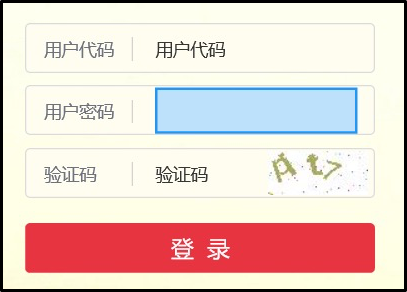
For example, to sign in to an online banking website that uses a security control, you must automatically enter the password in a window like the one below:
Code-based development mode
from rpa.core import *
from rpa.utils import *
import rpa4 as rpa

def start():
    wnd = rpa.ui.win32.catch('Your online banking sign-in window title', mode='title', pattern='equal')
    wnd.drive_input("Password input box", "1234abcd")
Visual development mode
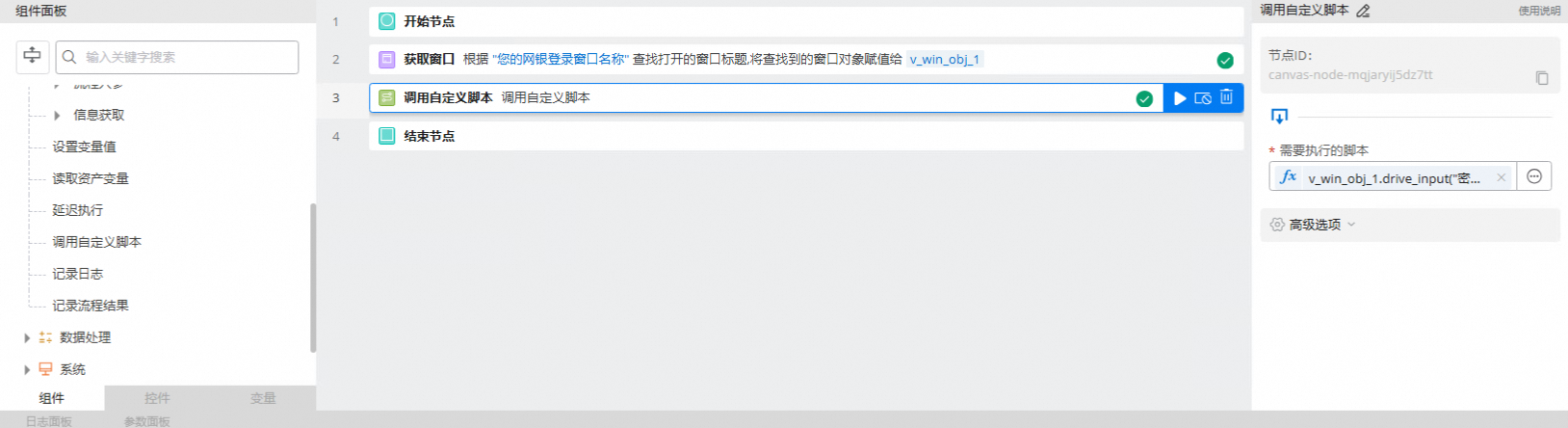
The "invoke custom script" component contains the following code:
v_win_obj_1.drive_input("Password input box", "1234abcd")Use hotkeys
When automating a software window, you might use a hotkey in two common situations:
To simplify the input process, such as pressing Enter to submit after entering text. For an example, see Use CV mode to send a message in the DingTalk client.
To perform an action that cannot be automated by interacting with a control, such as selecting a menu item. If the application supports a hotkey for that action, we recommend using it. For an example, see Use hotkeys to operate software.
There are two methods for sending hotkeys to a software window: input_hotkey and send_key. The following table helps you choose the right one.
Method | Result | When to use |
input_hotkey | Identical result |
|
send_key |
|
Use the system clipboard for input
Use cases
Fast text entry. This method is typically more than twice as fast as other methods, such as input_text and drive_input.
If a previous step in the automation process copied content from the target interface, for example by clicking a "Copy" button, a later step can paste the content directly using the Ctrl+V hotkey.
Limitations
How it works: This method uses the standard Windows copy (Ctrl+C) and paste (Ctrl+V) functionality.
Important considerations
WarningBecause this method relies on the system clipboard, it can conflict with copy operations performed by a user or another application on the same Windows host. For example, if the automation process is designed to input "123", but a user presses Ctrl+C to copy "456" before the bot can paste, the bot will incorrectly input "456".
We do not recommend this method for attended automation, such as when a local bot performs a manual execution on the client.
When using this method with a service bot, you must disable the clipboard in the Elastic Desktop Service policy (see Standardize the bot runtime environment). This prevents conflicts if a user connects with the Elastic Desktop Service client. If the clipboard is not disabled, the user's host machine clipboard is shared with the cloud desktop, which can cause the bot to input incorrect content.
How to use
Browser operations
Code-based development mode
The following example automates Chrome:
from rpa.core import *
from rpa.utils import *
import rpa4 as rpa  # Use the V4 engine
import pyperclip  # The RPA client has this Python library pre-installed


def start():
    page = rpa.app.chrome.create("URL of the target web page")
    text_content = "abc123"
    # "input" is the name of a text input control on the page.
    # To overwrite text in the input box, first clear its content.
    # For client versions earlier than 4.10.3.1033, use page.clear_input("input").
    page.clear_input_simulated("input")
    # Copy the content to the clipboard.
    pyperclip.copy(text_content)
    # Use the hotkey Ctrl+V to paste the clipboard content into the text box.
    page.input_hotkeys("input", "VK_CONTROL|V")
Visual development mode
You can use the following components:
Visual component
Usage
How it works
This is the recommended method.
Enters content into the text area of a specific control.
This is equivalent to performing a copy (Ctrl+C) followed by a paste (Ctrl+V).
Pastes content into the text area of a specific control.
Requires a previous step in the automation process to have copied content to the clipboard (using Ctrl+C).
This is equivalent to performing a paste (Ctrl+V).
Pastes content at the current cursor position. This component does not depend on a control.
Requires previous steps in the automation process to copy content (using Ctrl+C) and position the cursor (for example, using the Click mouse component).
This is equivalent to performing a paste (Ctrl+V).
Software window operations
Code-based development mode
The following example automates Notepad in Windows:
from rpa.core import *
from rpa.utils import *
import rpa4 as rpa # Use the V4 engine
import pyperclip  # The RPA client has this Python library pre-installed

def start():
    wnd = rpa.ui.win32.catch("Notepad", mode="substr")
    # Activate the window and bring it to the foreground.
    wnd.activate()
    text_content = "abc123"
    # Copy the content to be entered into the clipboard.
    pyperclip.copy(text_content)
    # "notepad-input" is the captured window control for the Notepad input area.
    # Use the hotkey Ctrl+V to paste the clipboard content into the input area.
    wnd.input_hotkeys("notepad-input", "VK_CONTROL|v")
Visual development mode
Use the following components:
Visual component
Usage
How it works
This is the recommended method.
Enters content into the text area of a specific control.
This is equivalent to performing a copy (Ctrl+C) followed by a paste (Ctrl+V).
Pastes content into the text area of a specific control.
Requires a previous step in the automation process to have copied content to the clipboard (using Ctrl+C).
This is equivalent to performing a paste (Ctrl+V).
Pastes content at the current cursor position. This component does not depend on a control.
Requires previous steps in the automation process to copy content (using Ctrl+C) and position the cursor (for example, using the Click mouse component).
This is equivalent to performing a paste (Ctrl+V).