Organization Settings and Member SSO Login
Manage organization information and SSO login configuration.
The Settings page is used to manage the organization's basic information and SSO login configuration.
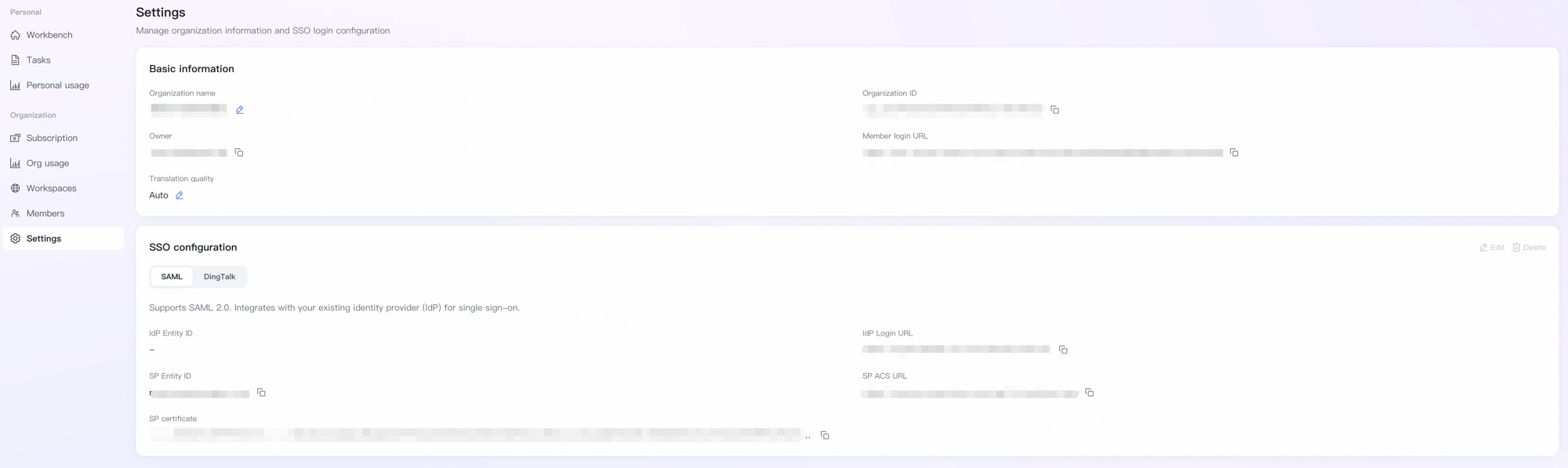
Basic information
|
Field |
Description |
|
Organization Name |
Display name of the organization, editable. |
|
Organization ID |
Unique organization identifier. |
|
Owner |
Account ID of the organization Owner. |
|
Member Login URL |
Members use this URL to log in via SSO and join the organization. See SSO Configuration below. |
|
Translation Mode |
Translation Mode, editable. Standard (uses only domestic models, stable and reliable) or Ultra (uses the best-fit models for higher quality) |
SSO configuration
SSO uses the SAML or OAuth protocol to establish trust between Real Translation Buddy (SP, service provider) and your enterprise identity system (IdP, identity provider). Once configured, members can sign in with their existing enterprise account and automatically join the organization — no separate registration needed.
Two SSO methods are supported — SAML and DingTalk — switchable via the tabs at the top of the SSO configuration section.
Important: Once the first member signs in via SSO, the SSO configuration is locked and cannot be modified. Always verify the complete login flow with a test account before sharing the URL with production members.
SAML integration
Integrate with your enterprise identity provider (IdP) via standard SAML 2.0. Both sides exchange identifiers and certificates to establish trust before members can sign in with their enterprise account.
-
SSO Setup Guide: Microsoft Entra ID — For enterprises using Teams / Microsoft 365, with detailed steps and troubleshooting
Configuration steps (using Alibaba Cloud IDaaS as an example)
Prerequisite: You have provisioned an Alibaba Cloud IDaaS EIAM instance. If not, sign in to the IDaaS console and click "Create instance for free" on the EIAM instance list page.
-
Create a SAML application in IDaaS
Sign in to the IDaaS instance management console, go to "Applications", click "Add application", choose the "Standard SAML 2.0" application template, enter an application name, and create.
-
Get IdP information from IDaaS and fill it into Real Translation Buddy
On the IDaaS application's "Single Sign-On" page, find the "Application configuration" area at the bottom and copy the IdP information. In the Real Translation Buddy console, go to the "Settings" page, find the "SSO configuration" section, switch to the "SAML" tab and click "Edit". Enter a custom "SP Entity ID" and the following IdP information, then save:
IDaaS application field
Real Translation Buddy field
Description
IdP Entity ID
IdP Entity ID
The unique identifier of IDaaS in the application.
IdP Sign-in URL
IdP ACS URL
The authentication endpoint members are redirected to for SSO sign-in.
Certificate
IdP Certificate
Click "Copy certificate" to copy the full certificate content.
-
Copy SP information back to IDaaS
After saving, the Real Translation Buddy SSO configuration section displays the auto-generated "SP ACS URL". In the IDaaS application's "Access > Single Sign-On" page, fill in the following parameters:
Real Translation Buddy SP field
IDaaS field
Description
SP Entity ID
Application Entity ID (SP Entity ID)
Enter the custom "SP Entity ID" set in Real Translation Buddy.
SP ACS URL
Single sign-on URL (ACS URL)
Enter the SP ACS URL auto-generated by Real Translation Buddy.
-
Create accounts and authorize in IDaaS
In the IDaaS instance management console, go to "Account management" and create IDaaS accounts for team members who need to use Real Translation Buddy. Then, in the SAML application's "Access > Application authorization" page, click "Add authorization" and select the accounts, groups, or organizational units that should sign in via SSO. To add more users later, repeat this step — no need to reconfigure SSO parameters.
-
Share the Member Login URL
Copy the "Member Login URL" from the "Basic information" section and share it with the authorized members. They visit the URL and choose SSO sign-in to join the organization.
Other IdP integrations
If you use Microsoft Entra ID, Okta, Auth0, or another identity provider, the core flow is the same: obtain the IdP triplet (Entity ID, Sign-in URL, certificate) → fill it into Real Translation Buddy → copy the SP information generated by Real Translation Buddy back to your IdP. Refer to your IdP's documentation for specific field names and locations.
Parameter reference
SP information (Real Translation Buddy side):
|
Field |
Description |
|
SP Entity ID |
The unique identifier of Real Translation Buddy in the SSO flow. Customize this value and enter it into the enterprise IdP's SSO application configuration. |
|
SP ACS URL |
The address that the IdP posts the authentication response to. Generated automatically by Real Translation Buddy after saving; must be filled into the enterprise IdP. |
|
SP Certificate |
The signing certificate on the Real Translation Buddy side, auto-generated after saving the SSO Configuration. |
IdP information (enterprise side, obtained from your IdP):
|
Field |
Description |
|
IdP Entity ID |
The unique identifier of your enterprise IdP (Entity ID). |
|
IdP ACS URL |
The enterprise IdP sign-in endpoint that members are redirected to for authentication. |
|
IdP Certificate |
The signing certificate of your enterprise IdP. Real Translation Buddy uses it to verify that the response actually comes from your enterprise. |
DingTalk integration
Enterprises using DingTalk as their identity system can integrate directly. Once configured, members signing in with their DingTalk account automatically join the organization.

Prerequisites
-
You have created a DingTalk enterprise.
-
Target members have been added to the enterprise.
Configuration steps
-
Create a DingTalk in-house app and obtain credentials
Sign in to the DingTalk developer console, go to "App Development > In-house Apps > DingTalk App", and click "Create application". Enter an application name and description, then save.
On the application detail page, go to "Basic info > Credentials & basics" and record the Client ID and Client Secret (i.e. the app's AppKey and AppSecret). You will use them in the Real Translation Buddy console.
-
Configure the redirect URL and permissions
On the application detail page, go to "Development > Security", and fill the following URL into "Redirect URL (callback domain)", then save:
https://account.uac.aliyun.com/api/v1/auth/dingtalk/callback
Then go to the application's "Permissions" page and enable Read personal contact information. This permission is used to identify the member's DingTalk account during sign-in.
-
Release the application
Go to "Release > Version management and release" and create a new version to release.
-
Fill credentials into Real Translation Buddy
In the Real Translation Buddy console, go to the "Settings" page, find the "SSO configuration" section, switch to the "DingTalk" tab, and fill in "Config name", "DingTalk AppKey" and "DingTalk AppSecret" (the Client ID / Client Secret from step 1), then save.
-
Share the Member Login URL
Copy the "Member Login URL" from the "Basic information" section and share it with team members. They visit the URL and choose DingTalk sign-in to join the organization.
Parameter reference
|
Field |
Description |
|
Config name |
SSO connection name, customizable. |
|
DingTalk AppKey |
DingTalk application AppKey (i.e. the Client ID from the developer console). |
|
DingTalk AppSecret |
DingTalk application AppSecret (i.e. the Client Secret from the developer console); masked after saving. |
Use "Edit" in the top-right corner of the SSO configuration section to modify the configuration, or "Delete" to remove the SSO connection.