A phased release updates a multi-instance application in batches, gradually rolling out a new version to minimize risks and downtime. You can configure the number of batches, monitor progress, and roll back if issues arise.
Prerequisites
The application must have more than one instance.
Background
A phased release deploys an application in batches, updating only a portion of the instances at a time. If an issue occurs during the process, you can immediately terminate the release and roll back to the previous version. After fixing the issue, you can restart the release.
During a phased release, SAE distributes the application's instances across the specified number of batches as evenly as possible. You can choose to approve each batch manually or automatically. If the instances cannot be distributed evenly, earlier batches will contain fewer instances than later batches.
You can use a phased release only for applications with more than one instance. If you try to perform a phased release for a single-instance application from the command line in IntelliJ IDEA, the system reports an error.
Example scenario
For example, an application has 10 instances running Ver.1 and needs to be upgraded to Ver.2. You decide to deploy the update in three batches. The phased release process is illustrated in the following figure.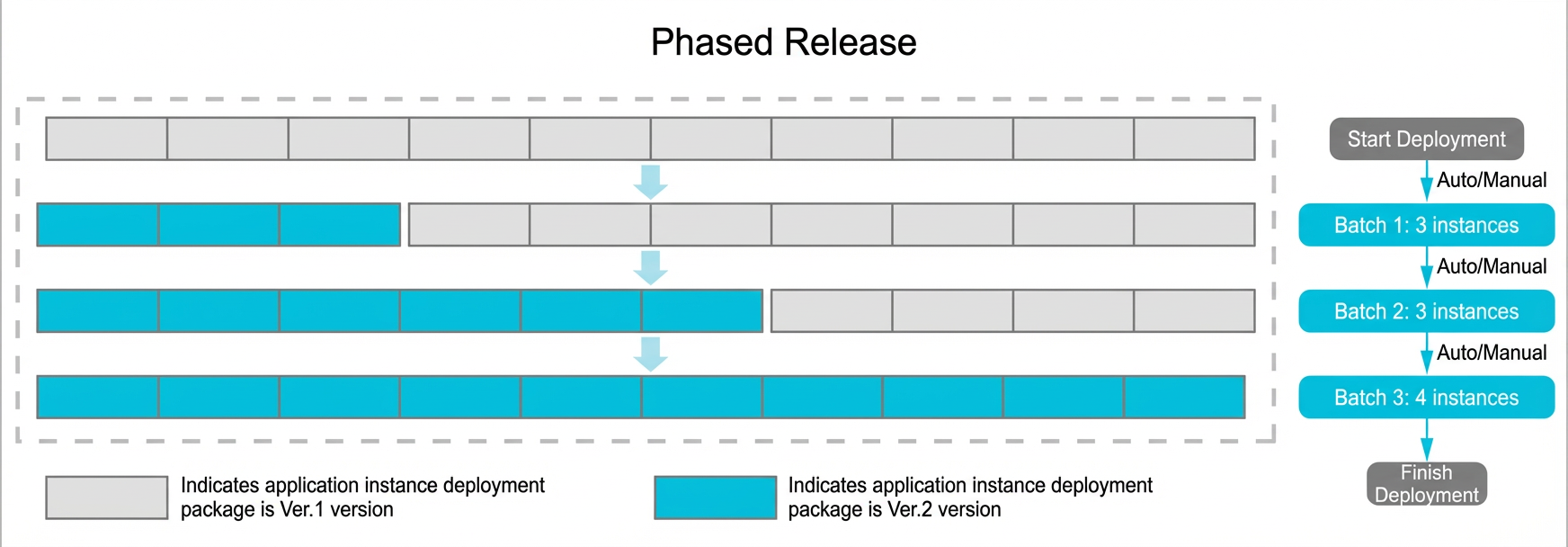
Procedure
After you redeploy an application, the application is restarted. To prevent unpredictable errors such as business interruptions, we recommend that you deploy applications during off-peak hours.
On the SAE Application List page, select a region and namespace at the top, and click the ID of the target application to open the application details page.
-
On the Basic Information page, click Deploy Application.
-
Configure deployment parameters.
NoteThe deployment method of an application is based on the deployment method that you selected for the application for the first time. Configure the parameters based on the selected method.
-
Deployment with WAR Packages: Upload another WAR package or enter the path of a newly deployed WAR package, and configure the runtime environment and other settings.
-
Deployment with JAR Packages: Upload another JAR package or enter the path of a newly deployed JAR package, and configure the runtime environment and other settings.
-
Deployment with ZIP Packages: Upload another ZIP package or enter the path of a newly deployed ZIP package, and configure the runtime environment and other settings.
-
Image: In the Configure Image section, click Modify Image. In the Modify Image panel, select another image repository or image version.
-
-
In the Release Policy Settings section, configure the phased release.
Parameter
Description
Release Policy
Select Batch Release.
Release Batch
The number of batches for the instance deployment.
Interval Within Batch
The interval, in seconds, between deploying each instance within a batch. This applies only when a batch contains more than one instance.
Peak Volume
The maximum number of instances that can be created beyond the desired count during an update.
ImportantThis feature is in invitational preview. To request access, contact our team in the DingTalk group (ID: 32874633).
Note-
If Minimum Available Instances is set to 100% (which means MaxUnavailable is 0), Peak Volume cannot be 0.
-
If you set a percentage, SAE rounds up the calculated value. For example, if you have 5 instances and set this parameter to 25%, the actual Peak Volume value is 2.
Minimum Available Instances
The minimum number of instances that must remain available during each rolling update.
Note-
Set Minimum Available Instances to 1 or greater to ensure business continuity. A value of 0 will cause service interruptions during the upgrade.
-
If you set a percentage, SAE rounds the calculated number up to the nearest integer. For example, if you have 5 instances and set this parameter to 25% (1.25 instances), the actual number of Minimum Available Instances is 2.
-
-
After completing the configuration, click OK.
-
Use one of the following methods to verify the deployment.
-
Method 1: On the Change Details page, monitor the release status. The update is complete when all batches have been successfully deployed.
-
Method 2: On the Basic Information page, click the Instances tab. The deployment is successful when the Status of all instances is Running.
-
Application rollback
During a canary or phased release, the application's upgrade status remains Executing until all instances are upgraded.
If a batch fails during the release (for example, instances stop responding), you can click Roll Back Now on the Change Details page. This action reverts any upgraded instances to the previous version and restores the original configuration.
If an application update fails due to exceptions such as an unavailable deployment package or a failed health check, SAE automatically stops the process and performs a rollback.
Application upgrades in SAE have a timeout of approximately 30 minutes. If an upgrade exceeds this limit, SAE reports a timeout exception and pauses the change process. You must then go to the Change Details page to manually terminate the release and roll back.
Terminate a release
To stop an ongoing release, click Stop Deployment on the Change Details page.
Terminating a release does not roll back any instances. This can result in multiple application versions running simultaneously:
-
Instances that have completed deployment: These instances continue to run the new version and are not rolled back.
-
Instances being deployed: These instances complete their current deployment and then run the new version.
-
Instances that have not started deployment: These instances remain on the previous version, and the release process for them is stopped.
-
New instances from auto scaling: These instances are launched using the new version from this release.
After terminating a release, redeploy or roll back to a previous version as soon as possible to ensure that all instances of the application are running a consistent version.
More information
After deploying an application in SAE, you can perform the following operations:
|
Actions |
References |
|
Application lifecycle management operations, such as updating, scaling, starting, stopping, and deleting applications. |
|
|
Operations to improve application performance, such as auto scaling, CLB binding, and batch start and stop. |
|
|
Operations related to application status, such as log management, monitoring management, and viewing application events and change records. |