Create multiple client accounts and distribute them to end users, who can then log on to the Smart Access Gateway (SAG) app to access cloud services.
Procedure
Log on to the SAG console.
In the top navigation bar, select the region.
In the left-side navigation pane, choose .
- On the SAG App Instances page, click the instance ID.
- On the instance details page, click the Client Accounts tab.
- Click Create Client Account. In the dialog box, configure the client account parameters, and then click OK.
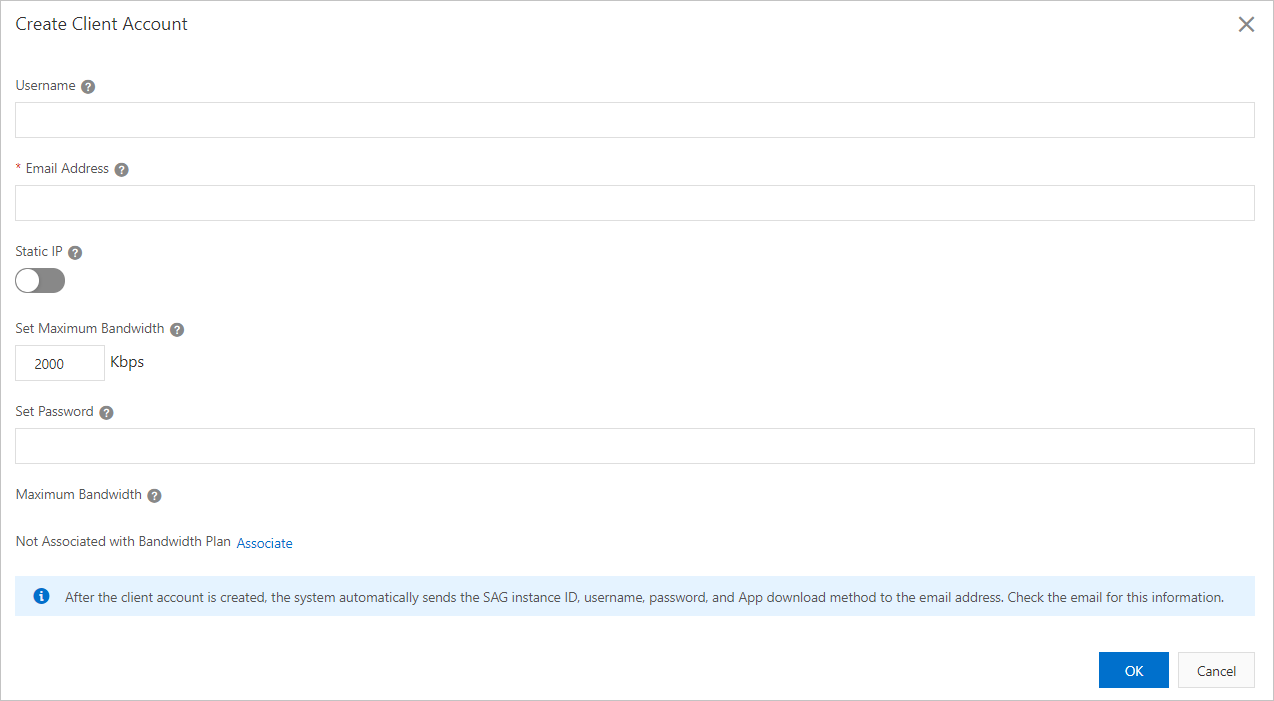
Parameter Description Username Enter a username for the client account. The username must be 7–33 characters long and start with a letter or digit. It can contain underscores (_), at signs (@), periods (.), and hyphens (-).
Important- Usernames must be unique per Smart Access Gateway App instance.
- If you enter only an email address when you create the client account, the system automatically uses the email address as the username and generates a password.
Email Address (Required) Enter the email address for the client account. After the client account is created, the system sends the account credentials to this email address.
Static IP Whether to assign a static IP address to the client account. - If enabled, you must specify an IP address from the private CIDR block of the Smart Access Gateway App instance.
The client will always use this IP address to connect to Alibaba Cloud.
- If disabled, the system automatically assigns an available IP address from the private CIDR block of the Smart Access Gateway App instance.
A new IP address is assigned each time the client reconnects.
Set Maximum Bandwidth Specify the maximum bandwidth for the client account. Default value: 2,000 Kbps. Valid values: 1 Kbps to 20,000 Kbps.
Set Password Enter a password for the client account. The password must be 8–32 characters long and start with a letter or digit. It can contain underscores (_), at signs (@), and hyphens (-).
Maximum Bandwidth for Application Acceleration Maximum bandwidth for application acceleration for this client account, in Kbps. Instructions- If the Smart Access Gateway App instance is associated with an application acceleration plan instance, you can set the maximum bandwidth for application acceleration for the client account.
- If the current Smart Access Gateway App instance is not associated with an application acceleration plan instance, perform the following steps:
- If you have not purchased an application acceleration plan instance in the current region, purchase one. For more information, see Purchase an application acceleration plan.
After the purchase is complete, return to the Create Client Account page.
- In the Maximum Bandwidth for Application Acceleration section, click Associate. In the Associate with Bandwidth Plan dialog box, select the target application acceleration plan instance, set the maximum bandwidth for application acceleration for the Smart Access Gateway App instance, and then click OK.
The system associates the application acceleration plan instance with the Smart Access Gateway App instance.
- In the Maximum Bandwidth for Application Acceleration section, set the maximum bandwidth for application acceleration for the client account.
- If you have not purchased an application acceleration plan instance in the current region, purchase one. For more information, see Purchase an application acceleration plan.
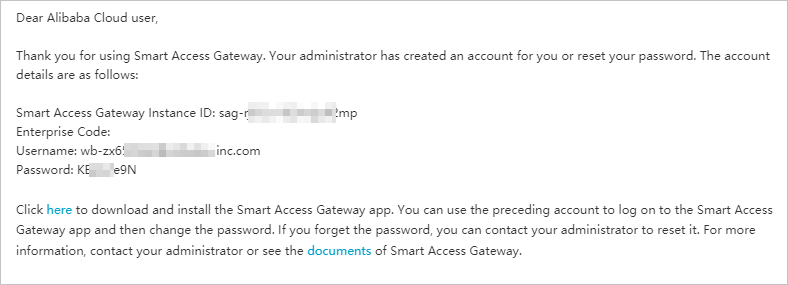
After the account is created, the system sends an email with the Smart Access Gateway App instance ID, username, and password to the specified email address, as shown in the following figure.