Use the Workbench AI Agent mode for smart cloud O&M
In complex command-line Operations and Maintenance (O&M) scenarios for Simple Application Servers, you can use the Workbench AI Agent mode to simplify tasks such as software installation and issue diagnosis. You can also plan and execute operations using natural language instructions to improve O&M efficiency.
Features
The Workbench AI Agent mode is an intelligent assistant built into Alibaba Cloud Workbench. This mode lets you interact directly with the terminal using natural language. It transforms complex command-line operations that require memorization and manual entry into simple, conversational tasks.
Core capabilities
Recognizes Shell commands and natural language instructions: For example, if you enter
ls, the agent recognizes it as a Shell command and does not start a conversation.Breaks down tasks: When it receives a high-level request, such as
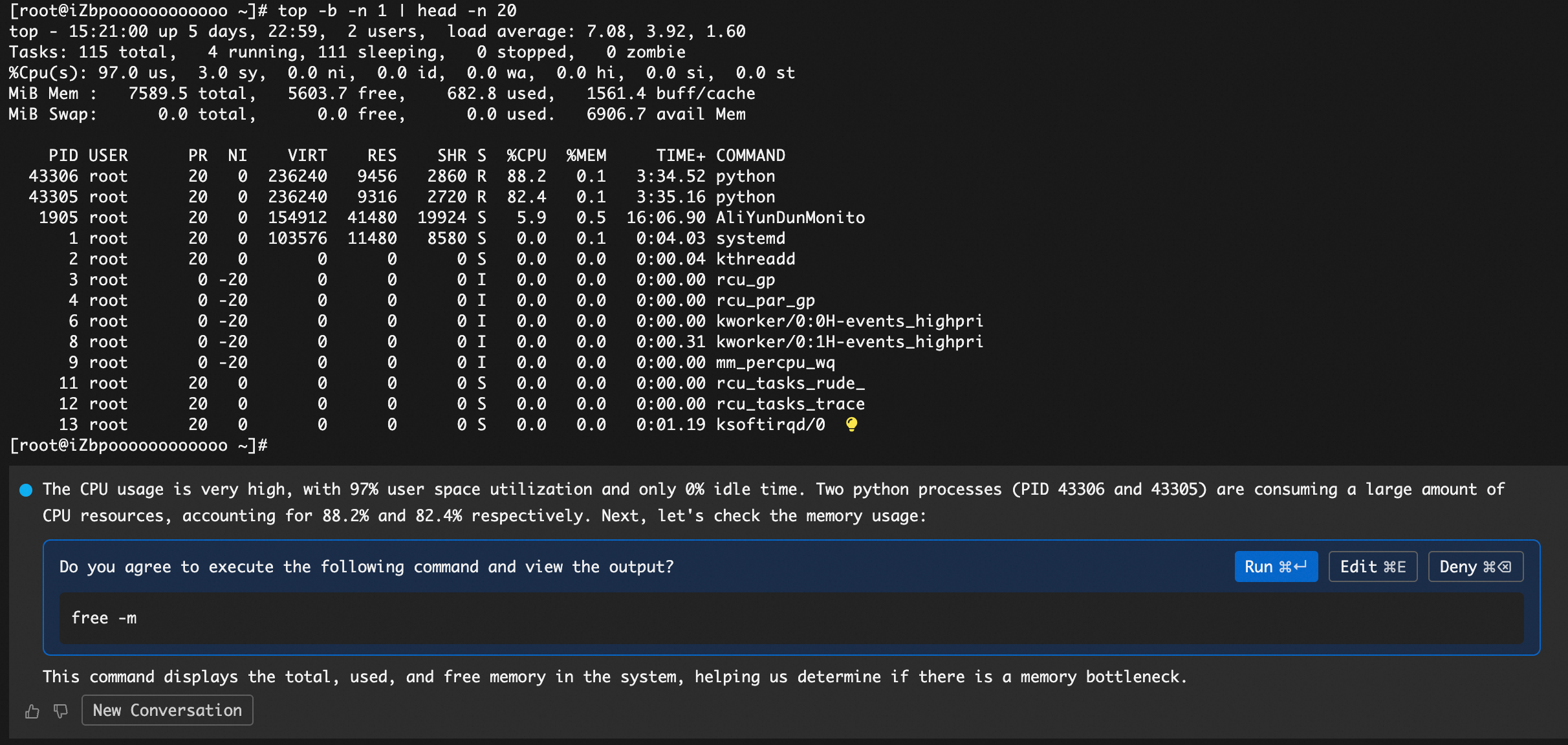
install Dockerorcheck CPU, the agent automatically breaks the request down into a series of specific, executable command-line steps.Adjusts workflows dynamically: The agent does not just run preset scripts. It adjusts the next steps in real time based on the result of the previous command, such as success, failure, or a specific output.
Makes decisions and plans: With clear instructions, the agent can plan the steps needed to complete a task. For example, it can automatically handle dependencies when installing software.
Understands context: The agent understands contextual information, such as the current directory and previous command history. This allows it to provide more accurate and relevant suggestions.
Scenarios
Scenario 1: Issue diagnosis | Scenario 2: Software installation | Scenario 3: System O&M |
For example, when the server response is slow. Input: | For example, when you need to install Docker. Input: | For example, when you need to disable SSH password logon. Input: |
Use the AI Agent mode
Log on to a Linux instance using Workbench
Log on to the Simple Application Server console. Find the target instance, and in the Actions column, click Remote Connection. In the Workbench Quick Connect section, click Log On Now.
Enter the AI Agent mode
After you log on to the instance, you can enter the Agent mode in one of the following ways:
Method 1 (Keyboard shortcut): In the terminal interface, press
Command + I(macOS) orCtrl + Shift + I(Windows).Method 2 (Right-click menu): In the terminal interface, right-click and select AI Terminal Mode.
Enter an instruction
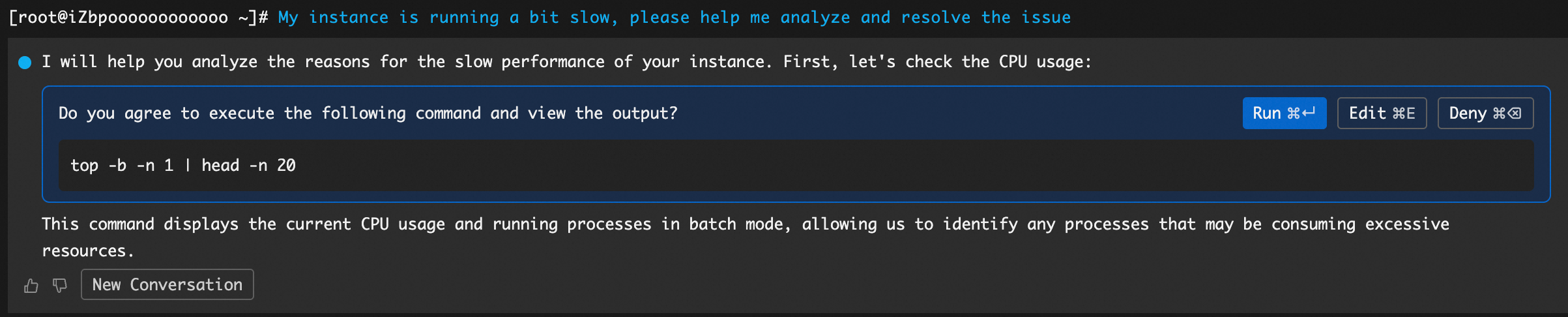
After you enter this mode, the input prompt changes to a style specific to the Agent mode. Enter a simple natural language instruction and press Enter. For example:
My instance is a bit slow. Help me analyze and fix it.To force the AI Agent to process your input as natural language, press
Shift + Enter.Review and execute
The agent understands your intent and plans the corresponding Shell commands. Before you execute the command, review it to make sure that it meets your expectations. After you confirm that the command is correct, click Run.
ImportantThe content generated by the AI is a suggestion and for reference only. You must confirm the final operation. You are responsible for any related risks and consequences.
Before you execute a high-risk command, such as using the
killcommand to stop a process, the command box is highlighted in red as shown in the following figure. You must confirm the command again before you execute it. Make sure that the command is correct to ensure operational safety.
When the AI is replying, you can stop the output by clicking the
 icon to the right of the AI output (or by pressing
 Ctrl/Command + C).
To modify the command in the AI response, click Edit above the command (or press
Ctrl/Command + E). When you are done, click Save (or pressEsc).
Start a new session (clears conversation history)
When you complete the task, click New Conversation below the AI output to clear the conversation history.

FAQ
Is there an extra charge for using the Workbench AI Agent mode?
No, there is no extra charge.