Enabling session persistence for an Application Load Balancer (ALB) ensures that requests from the same client are always forwarded to the same backend server. This maintains a consistent user experience and data integrity.
Background
By default, ALB distributes requests to different backend servers. After you enable session persistence, requests from the same client are forwarded to the same backend server. This allows the backend server to maintain status information and provide continuous service to the client.
Session persistence disabled: Requests from the same client may be distributed to different backend servers of ALB. In some scenarios, such as scenarios in which you log on to a backend server to obtain interaction information, you may need to log on to the backend server multiple times.
Session persistence enabled: Requests from the same client are distributed to the same backend server of ALB. In some scenarios, such as scenarios in which you log on to a backend server to obtain interaction information, you do not need to log on to the backend server multiple times.
When you enable session persistence for an ALB instance, you must select a cookie strategy: insert cookie or rewrite cookie.
-
Insert cookie: When a client sends its first request, the ALB instance inserts a cookie into the response. The ALB instance inserts two cookies, SERVERID and SERVERCORSID. SERVERCORSID is based on SERVERID and includes the samesite=None attribute. When the client sends subsequent requests that contain these cookies, the ALB instance routes the requests to the previously recorded backend server.
NoteThe
SameSite=Noneattribute is automatically included when you use the insert cookie strategy. You do not need to perform any configurations. This prevents browsers from discarding the cookie in Cross-Origin Resource Sharing (CORS) scenarios that are configured in the forwarding rules of the ALB instance. -
Rewrite cookie: When the ALB instance detects a user-defined cookie, it rewrites the original cookie. When the client sends subsequent requests that contain the new cookie, the ALB instance routes the requests to the previously recorded backend server.
Limitations
You do not need to configure session persistence for Function Compute server groups. For more information, see Create or delete a server group.
Prerequisites
-
You have created an Internet-facing ALB instance in the Running state. For more information, see Create and manage an ALB instance.
-
You have created a server group of the server or IP type. For more information, see Create or delete a server group.
-
You have created two backend servers, ECS01 and ECS02, to receive requests. Different backend services are deployed on ECS01 and ECS02 to return different content. For example, accessing ECS01 returns
"Hello World ! This is ECS01.", and accessing ECS02 returns"Hello World ! This is ECS02.". Ensure the security group rules allow traffic on the relevant service ports. -
You have added ECS01 and ECS02 to the server group. For more information, see Add or remove backend servers.
-
You have configured a listener for the instance. For more information, see Add an HTTP listener, Add an HTTPS listener, or Add a QUIC listener.
Step 1: Configure session persistence
-
Log on to the ALB console.
-
In the top navigation bar, select the region where the server group is deployed.
-
In the left-side navigation pane, choose .
-
On the Server Groups page, find the target server group and click Modify Basic Information in the Actions column.
-
In the Modify Basic Information dialog box, enable session persistence.
Turn on the Session Persistence switch and select a Cookie Option.
-
Select Insert Cookie, enter a value for Session Persistence Timeout Period, and then click Save.
Do not set the timeout too long. For short-lived connections, a value of 60 to 300 seconds is recommended. If the timeout is too long, all requests from the same client are routed to the same backend server, which can cause an imbalanced load.
-
Select Rewrite Cookie, enter a Cookie, and then click Save.
In this example, the cookie name is set to
BACKEND_SERVER. This name is for demonstration only. You can specify a custom name.
-
(Optional) Step 2: Configure cookies on backend servers
Configure cookies on backend servers only if you enable session persistence and set the cookie strategy to rewrite cookie.
-
Log on to the ECS instance remotely. For more information, see ECS Remote Connection Guide.
-
Configure cookies based on your web server.
NoteCookie configuration varies by web server. The following examples are for common web servers. If your server is not listed, consult its official documentation.
NGINX
This example uses CentOS 7.9 and NGINX 1.20.1. The actual configuration depends on your environment.
-
Modify and save the Nginx configuration file. For the required changes, see the description below. Run the
nginx -tcommand to find the path of the configuration file. The default path is typically/etc/nginx/nginx.conf, but the actual path may vary based on your environment.http { # ... server { listen 80; # BACKEND_SERVER is the cookie name that you specified when you selected Rewrite cookie. Set value to any string. add_header Set-Cookie "BACKEND_SERVER=value"; # ... } } -
Run the following command to reload the NGINX configuration:
sudo nginx -s reload
Apache
This example uses CentOS 7.9 and Apache 2.4.6. The actual configuration depends on your environment.
-
Modify and save the Apache service configuration file. For the required changes, refer to the instructions below. The file is typically located at
/etc/httpd/conf/httpd.conf, but the actual path may vary depending on your environment.# ... Listen 80 # BACKEND_SERVER is the cookie name that you specified when you selected Rewrite cookie. Set value to any string. Header always set Set-Cookie "BACKEND_SERVER=value" # ... -
Run the following command to reload the Apache configuration and apply the changes:
sudo systemctl reload httpd.service
-
-
Repeat these steps for all other backend servers in the server group.
Step 3: Verify session persistence
-
Log on to the ALB console.
-
In the top navigation bar, select the region of your ALB instance. Find the instance and copy its domain name.
-
Paste the domain name into your browser. The page from one of your backend servers is displayed. Refresh the page several times.
For example, if your first request is routed to ECS01, subsequent requests are also routed to ECS01 after you refresh the page multiple times.
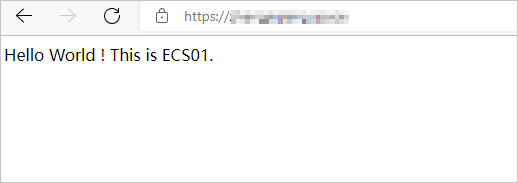
If responses alternate between ECS01 and ECS02 after several refreshes, session persistence is not working correctly. Review your configuration and test again.
Related documents
-
If you encounter issues during configuration, see ALB FAQ for troubleshooting.
-
If you encounter health check issues, see Troubleshoot ALB health check issues.