DMS operation logs
Alibaba Cloud Simple Log Service (SLS) and Data Management (DMS) offer a log export feature. This feature integrates SLS capabilities into DMS to support real-time queries, visual analytics, and alerting for operation logs. This topic describes the assets, common scenarios, billing, and limits of the log export feature. It also explains how to export DMS operation logs to SLS for query and analysis.
Supported logs
Data Management (DMS) supports delivering operation logs to Simple Log Service for query and analysis. Operation logs are detailed records of all operations that users perform in DMS. These logs include user information, the names of the feature modules used, operation times, operation types, and SQL statements. For more information, see Operation audit.
Resource description
Custom Simple Log Service projects and Logstores
ImportantDo not delete the Simple Log Service project and Logstore that are associated with DMS operation logs. Otherwise, log collection will fail.
When you create a custom Logstore, different billable items are generated depending on the billing mode. For more information, see Billable items.
Dedicated dashboards
No dedicated dashboards are provided.
Billing
Data Management (DMS) does not charge for the log export feature.
If the Logstore uses the pay-by-feature billing mode, Simple Log Service charges for storage, read traffic, requests, data transformation, and data shipping for the collected logs. For more information, see Billable items of the pay-by-feature mode.
If the Logstore uses the pay-by-ingested-data billing mode, Simple Log Service charges for the raw data ingested. For more information, see Billable items of the pay-by-ingested-data mode.
Enable the operation log export feature
Prerequisites
An activated Simple Log Service account. For more information, see Activate Simple Log Service.
-
A Simple Log Service project and Logstore are created. Create a project. Create a Logstore.
-
The destination Logstore must be empty with full-text indexing enabled. Create indexes manually.
Procedure
Step 1: Register the project with DMS
-
Log on to the DMS console V5.0 as an administrator.
-
On the console home page, in the Database Instances area, click the
 icon.Note
If you use the DMS console in Simple mode, click Database Instances in the navigation pane on the left. In the Database Instances section, click
. -
On the Add Instance page, enter the SLS information.
Category
Parameter
Description
Data Source
-
Select Alibaba Cloud.
Basic Information
File and Log Storage
Select SLS.
Instance Region
Select the region of your SLS project.
Connection Method
Default: Connection String Address.
Connection String Address
Auto-generated after you select an Instance Region.
Project name
Enter your SLS project name.
AccessKey ID
Enter your Alibaba Cloud AccessKey ID for identity verification.
NoteFor more information about how to obtain an AccessKey ID, see Create an AccessKey.
AccessKey Secret
Enter the AccessKey secret for the AccessKey ID above.
NoteFor more information about how to obtain an AccessKey secret, see Create an AccessKey.
Advanced Feature Pack
Not supported. Defaults to Flexible Management mode.
Advanced Information
Environment Type
Select an environment type: Dev, Test, Production, Pre-release, SIT, UAT, Stress Testing, or STAG. Instance environment types.
Instance Name
Custom display name for the SLS project in DMS.
NoteYou can change the instance name later. Edit instance information.
DBA
Select a DBA for the instance. The DBA handles subsequent processes such as permission applications.
Query Timeout (s)
A security policy that controls the execution time of query statements to protect the database.
Export Timeout (s)(s)
A security policy that controls the execution time of export statements to protect the database.
Note-
After configuring the basic information, click Test Connection at the bottom of the page and wait for the test to pass.
-
If the error message "The execution result of the 'getProject' command is null" appears, confirm that the project is created by the Alibaba Cloud account that you use to log on to DMS.
-
-
Click Submit.
Step 2: Create a task in DMS to export operation logs
Log in to DMS 5.0.
-
Move the pointer over the
 icon in the upper-left corner and choose . Note
If you use the DMS console in normal mode, choose in the top navigation bar.
-
Click the Export logs tab. Then, in the upper-right corner, click New Task.
-
In the New Export Task dialog box, configure the following parameters.
Parameter
Required
Description
Task Name
Yes
The export task name. Use a descriptive name for easy identification.
Destination Log Service
Yes
The Simple Log Service project, which is a resource management unit, used for log storage.
SLS Logstore
Yes
The Logstore for exported DMS operation logs. Click the input box and select the destination Logstore.
NoteIf the destination Logstore is not in the drop-down list, click Sync Dictionary and then click OK. DMS automatically collects the metadata of the Logstore.
Feature Module
Yes
Select the DMS feature modules whose logs you want to export. These modules correspond to the modules on the Operation Logs tab. The modules include features such as instance management, user management, permissions, and data query in the SQL Window. By default, logs of All Features are exported.
Scheduling Method
Yes
Select a scheduling method for the task.
-
One-time Tasks: After the export task is created, it runs only once.
-
Periodic Tasks: You can select Day, Week, or Month to export logs to the Logstore multiple times in a loop. The first time a recurring task runs, it exports all DMS operation logs generated from the log start time to the first scheduled start time. Subsequent runs export only incremental logs. For more information, see Recurring schedule.
Log Time Range
No
NoteThis parameter is available only when you set Scheduling Method to One-time Tasks.
Time range for log export. Default: last three years.
Log Start Time
No
Note-
This parameter is available only when you set Scheduling Method to Periodic Tasks.
-
Periodic tasks do not have an end time.
Start time for log records. Default: three years before task creation.
-
-
Click OK. A log export task is created. The system also creates index fields, such as dbId, dbName, and dbUser, in your Logstore for subsequent data queries and analysis.
-
A one-time task exports logs only once. When the task status is Successful, the logs are exported.
NoteDue to Logstore index delay, one-time tasks start approximately 90 seconds after creation.
-
A periodic task exports logs multiple times. The status shows Pending Scheduling before and after each export. View task logs to check whether a run succeeded.
You can also perform the following operations in the Actions column:
-
Query: Click Query. You are redirected to the SQL Console page. Click Query. In the execution result section at the bottom of the page, you can view the logs that are exported to the Logstore.
-
Task Logs: Click Task Logs to view information such as the task start and end times, the number of delivered logs, and the task status.
-
Pause: Click Pause. In the dialog box that appears, click OK. The recurring task is paused.
-
Restart: Click Restart. In the dialog box that appears, click OK to restart a paused periodic task.
Note-
The restart operation is not supported for one-time tasks. However, other operations are supported.
-
All operations, such as query and pause, are supported for periodic tasks.
-
-
Step 3: Query and analyze the exported DMS operation logs in the SLS console
Log on to the Simple Log Service console.
In the Projects section, click the one you want.

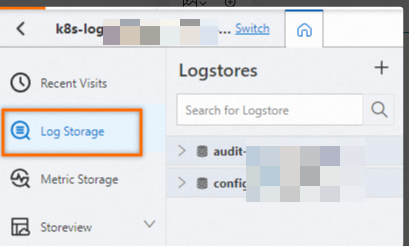
On the tab, click the logstore you want.
-
In the search box, enter a query and analysis statement.
A query and analysis statement consists of a search statement and an analytic statement in the format of
Search statement|Analytic statement. For more information about the syntax, see Search syntax and functions and SQL analytic functions.You can query and analyze the following information in SLS:
NoteThe dmstest Logstore is used as an example.
-
Users who failed to log on to a database most frequently.
__topic__ : DMS_LOG_DELIVERY AND subModule : LOGIN | SELECT concat(cast(operUserId as varchar), '(', operUserName, ')') user, COUNT(*) cnt FROM dmstest WHERE state = '0' GROUP BY operUserId, operUserName ORDER BY cnt DESC LIMIT 10; -
Users with an abnormal source IP address. The IP address 127.0.0.1 is used as an example.
NoteThe source IP address of an instance is your local IP address when you register the instance with DMS. This address identifies the source of the instance access.
__topic__ : DMS_LOG_DELIVERY | SELECT concat(cast(operUserId as varchar), '(', operUserName, ')') user, COUNT(*) cnt FROM dmstest WHERE state = '0' and requestIp in ('127.0.0.1') GROUP BY operUserId, operUserName ORDER BY cnt DESC LIMIT 10; -
The user who accessed DMS most frequently.
__topic__ : DMS_LOG_DELIVERY| SELECT concat(cast(operUserId as varchar), '(', operUserName, ')') user, COUNT(*) cnt FROM dmstest GROUP BY operUserId, operUserName ORDER BY cnt DESC LIMIT 10; -
Users who accessed and operated multiple databases on the same day.
__topic__: DMS_LOG_DELIVERY | SELECT concat(cast(operUserId as varchar), '(', operUserName, ')') user, date_trunc('day', gmtCreate) time, dbId, COUNT(*) qpd from dmstest GROUP BY time, operUserId, operUserName, dbId ORDER BY time, qpd DESC; -
Users who failed to perform database operations in DMS.
__topic__ : DMS_LOG_DELIVERY AND moudleName : SQL_CONSOLE | SELECT concat(cast(operUserId as varchar), '(', operUserName, ')') user, actionDesc as sqlStatement, subModule as sqlType, remark as failReason FROM dmstest WHERE state = '-1' order by id; -
Users who downloaded sensitive data most frequently.
__topic__ : DMS_LOG_DELIVERY AND moudleName : DATA_EXPORT | SELECT concat(cast(operUserId as varchar), '(', operUserName, ')') user, COUNT(*) cnt FROM dmstest WHERE hasSensitiveData = 'true' GROUP BY operUserId, operUserName ORDER BY cnt DESC LIMIT 10; -
SQL statements that are run for batch operations, such as deleting and updating sensitive data.
__topic__ : DMS_LOG_DELIVERY | SELECT subModule, COUNT(*) cnt, COUNT(affectRows) affectRow FROM dmstest WHERE subModule != '' GROUP BY subModule ORDER BY cnt DESC; -
Whether the data watermark feature is enabled during data export.
__topic__ : DMS_LOG_DELIVERY AND moudleName : DATA_EXPORT | SELECT targetId as orderId, concat(cast(operUserId as varchar), '(', operUserName, ')') user, COUNT(*) cnt FROM dmstest where actionDesc like '%Enable data watermark: false' GROUP BY targetId, operUserId, operUserName ORDER BY cnt DESC LIMIT 10;Note-
To query for users who enabled the data watermark feature, use the statement:
'%Enable data watermark: true'. -
To query for users who disabled the data watermark feature, use the statement:
'%Enable data watermark: false'.
-
-
Users who downloaded SQL result sets from the execution result section of the SQL Console page.
__topic__ : DMS_LOG_DELIVERY AND moudleName : SQL_CONSOLE_EXPORT | SELECT concat(cast(operUserId as varchar), '(', operUserName, ')') user, COUNT(*) cnt FROM dmstest GROUP BY operUserId, operUserName ORDER BY cnt DESC LIMIT 10;
-
(Optional) Step 4: Pause the recurring task
If you created a recurring task in Step 2 (with Scheduling Method set to Periodic Tasks) and have finished analyzing the DMS operation logs, you can pause the task.
Log in to DMS 5.0.
-
Move the pointer over the
 icon in the upper-left corner and choose . Note
If you use the DMS console in normal mode, choose in the top navigation bar.
-
Click the Export Logs tab.
-
In the Actions column for the recurring task, click Pause.
-
In the dialog box that appears, click OK.
What to do next
The SLS project is not automatically deleted after the export task completes or pauses. To avoid unnecessary charges, go to the Simple Log Service console and delete the project that you selected for the log export when you finish your analysis.
What to do next
After you export DMS operation logs to Simple Log Service, you can perform operations in Simple Log Service, such as query, analysis, download, and alerting. For more information, see Common operations on logs of Alibaba Cloud services.