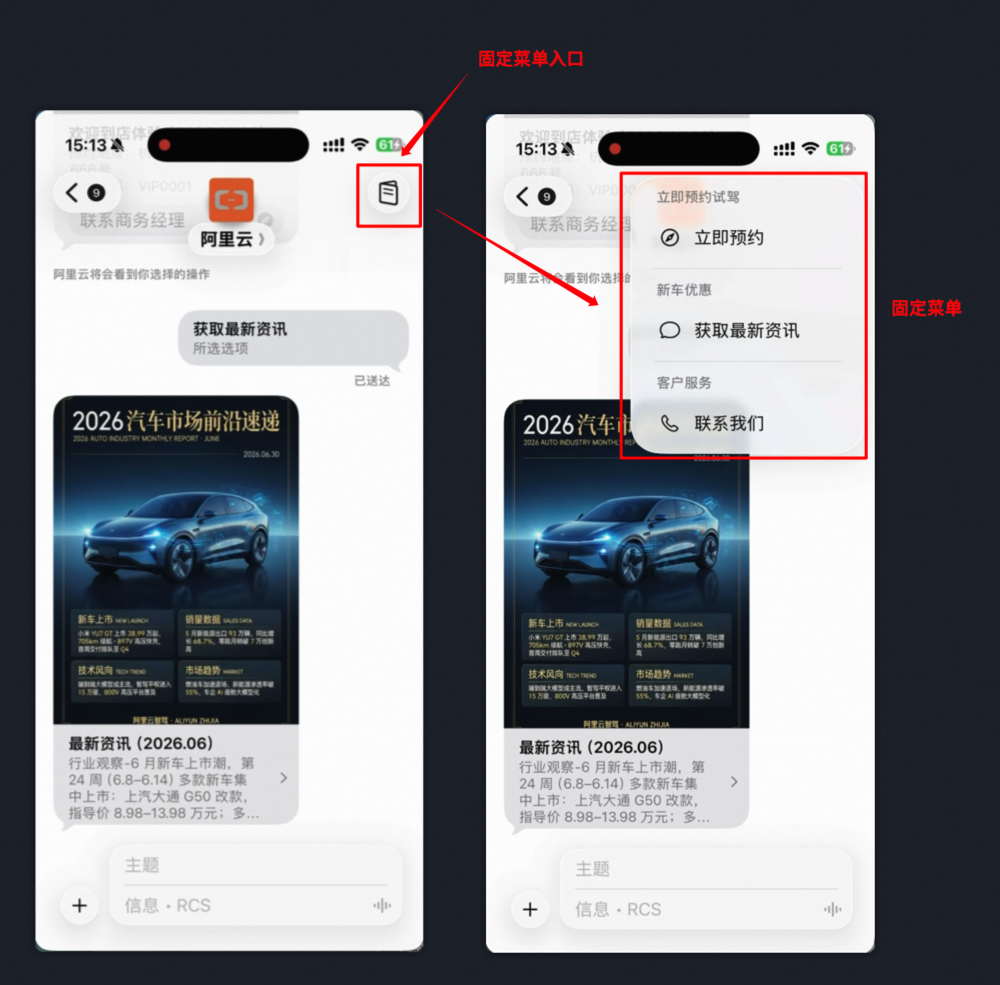
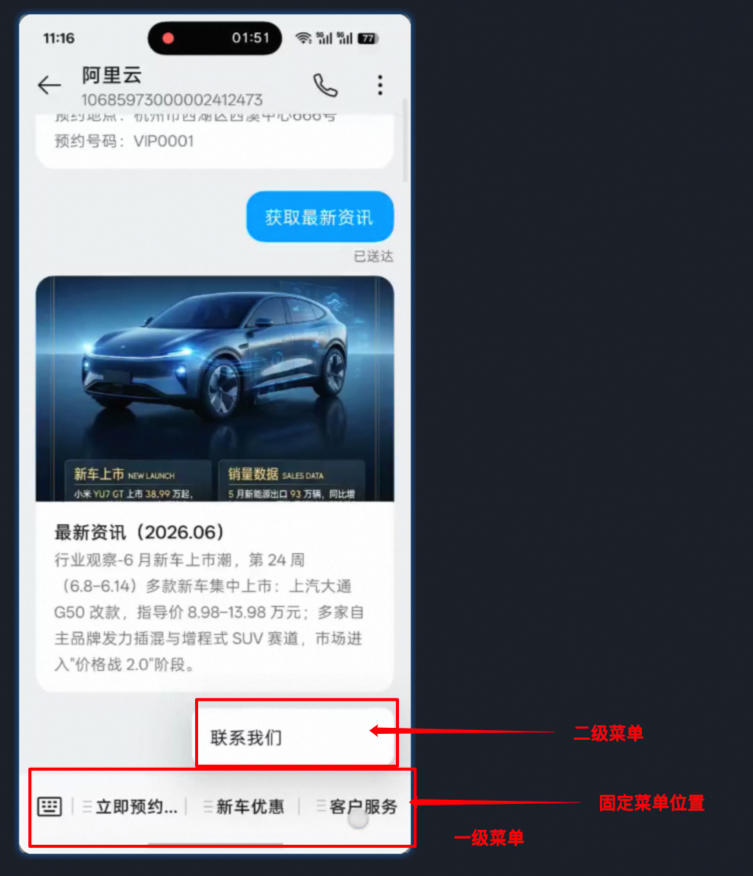
Edit 5G message fixed menu
A fixed menu is a menu that appears in a 5G message conversation between an end user and your enterprise. The menu lets the end user trigger an interaction, such as a suggested reply or a phone call, without remembering any command. This topic describes how to configure a fixed menu for a 5G message signature in the Short Message Service console.
Considerations
A fixed menu is not required for a signature. Before you configure one, review the following:
One fixed menu per signature — A 5G message signature can have only one fixed menu.
Limited edits after configuration — Because of carrier limits, after a fixed menu is configured, later edits can change only the content of level-1 menus and level-2 menus.
A fixed menu cannot be cleared after it is configured.
Edit a fixed menu
You can configure a fixed menu when you add a signature or for an existing signature. On the edit page, set the levels and names of the menu, and then configure an interaction type for each menu item.
Entry points
Use either of the following entry points to open the fixed menu edit page:
Configure the menu when you add a signature — Log on to the Short Message Service console. In the left-side navigation pane, choose 5G Messages > Signatures. Click the button to create a signature, and then click Edit fixed menu on the right side of the signature creation page.
Configure the menu for an existing signature — Log on to the Short Message Service console. In the left-side navigation pane, choose 5G Messages > Signatures. Find the target signature in the signature list, and then click Edit fixed menu in the Actions column.
Configuration limits
The levels and names of a fixed menu are subject to the following limits:
Item | Limit |
Number of level-1 menus | Up to 3. |
Number of level-2 menus | Up to 5 level-2 menus for each level-1 menu. |
Length of a menu name | Up to 25 bytes. A Chinese character takes 3 bytes and an English character takes 1 byte, which allows up to 25 English characters. |
If a level-1 menu already contains level-2 menus, you cannot configure an interaction for that level-1 menu. To configure an interaction for the level-1 menu, remove its level-2 menus first.
Interaction types
You can configure one interaction type for each menu item, at level 1 or level 2. The following table describes the supported interaction types and the additional information that you must provide.
Interaction type | Additional settings | Description |
Suggested reply | None. | After the end user taps the menu item, the name of the menu item is sent as the reply content. |
Open browser | Browser URL (required). Example: | After the end user taps the menu item, the specified URL opens in the browser. |
Dial | Phone number (required). Digits only. Example: | After the end user taps the menu item, a phone call is initiated. |
Open map | Longitude and Latitude. | After the end user taps the menu item, the specified coordinates open in the map application. |
Request the current location of the user | None. | After the end user taps the menu item, the device requests the current geographic location and reports it. |
Callback ID
When you configure the interaction for a menu item, you can specify the Callback ID field. After an end user taps the menu item, the system returns this ID to you in the mobile originated callback, which helps you identify the menu item that the user tapped.
After you edit the menu
After you edit a fixed menu, the carrier reviews it. The review usually takes about one day.
After the review is approved, the previous and new menu versions may coexist for about one day because the refresh time varies with device models.
Interaction callbacks
When an end user taps an interactive item of the fixed menu, you receive a callback message over the 5G mobile originated message callback. The callback message contains the display text of the menu item and the Callback ID that you specified in the console. For the structure and values of the callback fields, see 5GSmsUp.
{
  "response": {
      "reply/action": {
        "displayText": "menu or item",
        "postback": {
          "data": "b3a1f8e2-7c4d-4e9a-bc56-1a2d3f4e5678"
        }
      }
    }
}
Appendix
Display on end-user devices
After a fixed menu is configured and approved by the carrier, the end user sees the menu entry at the bottom of the 5G message conversation. The display varies with device models, and Alibaba Cloud cannot control the style on the device.
iOS | Android |
|
|