Use an Alibaba Cloud service to convert Tablestore data into vectors
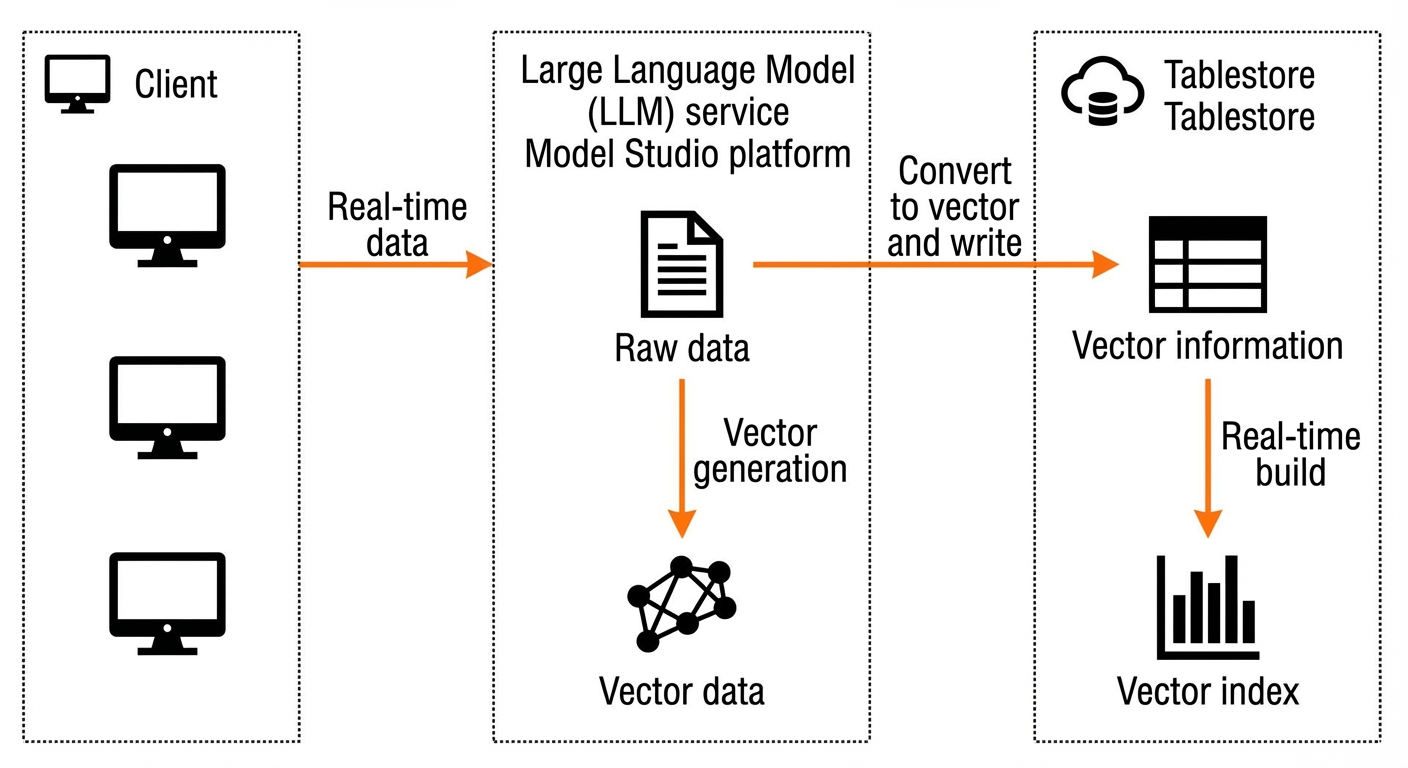
This topic uses text data as an example to demonstrate how to use Alibaba Cloud Model Studio to generate vectors from data stored in Tablestore and write the vectors to a Tablestore data table.
Solution overview
Alibaba Cloud Model Studio (Model Studio) is a one-stop platform for large language model (LLM) development and application building. Model Studio provides various vector models that can convert text, images, and audio into vectors. For more information, see What is Alibaba Cloud Model Studio?.
This topic uses the text-embedding-v2 text embedding model from Model Studio. You can generate vectors from text data in Tablestore and write them back to Tablestore in three steps:
Activate the model calling service and obtain an API-KEY: In the Model Studio console, activate the model calling service and obtain an API-KEY.
Generate vectors and write them to Tablestore: Use the Java software development kit (SDK) to generate vector data and write it to a Tablestore data table.
Verify the results: Use the Tablestore data read API or the search index vector search feature to query the data.
Usage instructions
Programming language: Java
Java version: Java 8 or later
Notes
The dimension, type, and distance algorithm of the vector field in a Tablestore search index must be consistent with the text embedding model in Model Studio. For example, this topic uses the text-embedding-v2 model from Model Studio to generate vectors. When you create a search index in Tablestore, you must set the vector dimension to 1536, the type to FLOAT_32, and the distance algorithm to DOT_PRODUCT.
Prerequisites
Perform the operations using an Alibaba Cloud account or a RAM user that has the permissions to manage Tablestore and Model Studio.
To use a RAM user, you must first create the RAM user using your Alibaba Cloud account. Then, grant the RAM user permissions to access Tablestore (AliyunOTSFullAccess) and to manage and use Alibaba Cloud Model Studio. For more information, see Grant permissions on Tablestore to a RAM user and Permission management for Model Studio.
An AccessKey has been created for the Alibaba Cloud account or RAM user. For more information, see Create an AccessKey.
WarningA leaked AccessKey for your Alibaba Cloud account threatens the security of all your resources. To reduce the risk of leaks, we recommend that you use a RAM user's AccessKey for operations.
1. Activate the model calling service and obtain an API-KEY
Activate the model calling service and obtain an API-KEY in the Model Studio console.
Configure the API-KEY as an environment variable. This practice prevents you from explicitly configuring the API-KEY in your code and reduces the risk of leaks.
1.1 Activate the model calling service
Go to the Model Studio console. If the message shown in the following figure appears at the top of the page, you must activate the model calling service of Model Studio to obtain a free quota. If the message does not appear, the service is already activated.
1.2 Obtain credentials for API calls
In the upper-right corner of the Model Studio console, choose API-KEY. On the My API-KEY page, you can create an API key.
2. Generate vectors and write them to Tablestore
Use the Java SDK to generate vectors with a Model Studio model and write the data to a Tablestore data table. Perform the following steps:
This section uses the text-embedding-v2 text embedding model from Model Studio as an example to demonstrate how to generate vectors. For more information about other models, see Model List.
Install the DashScope Java SDK and the Tablestore Java SDK.
To use the DashScope SDK and Tablestore SDK in a Maven project, add the following dependencies to the pom.xml file:
<!-- Install the DashScope Java SDK -->
<dependency>
    <groupId>com.alibaba</groupId>
    <artifactId>dashscope-sdk-java</artifactId>
    <!-- Replace the following with the latest version number from https://mvnrepository.com/artifact/com.alibaba/dashscope-sdk-java -->
    <version>LATEST_VERSION</version>
</dependency>
<!-- Install the Tablestore Java SDK -->
<dependency>
    <groupId>com.aliyun.openservices</groupId>
    <artifactId>tablestore</artifactId>
    <!-- Replace the following with the latest version number -->
    <version>LATEST_VERSION</version>
</dependency>
Generate vectors and write the vector data to Tablestore.
NoteBefore you use Tablestore features, you must initialize the OTSClient. For more information, see Initialization.
Configure the AccessKey (including the AccessKey ID and AccessKey secret), instance name, and instance endpoint as environment variables.
The following example shows two methods: writing vector data that is generated by the text model directly to Tablestore, and generating vectors from existing data in Tablestore before writing the vector data to Tablestore.
import com.alibaba.dashscope.embeddings.TextEmbedding;
import com.alibaba.dashscope.embeddings.TextEmbeddingParam;
import com.alibaba.dashscope.embeddings.TextEmbeddingResult;
import com.alicloud.openservices.tablestore.SyncClient;
import com.alicloud.openservices.tablestore.model.BatchWriteRowRequest;
import com.alicloud.openservices.tablestore.model.BatchWriteRowResponse;
import com.alicloud.openservices.tablestore.model.ColumnValue;
import com.alicloud.openservices.tablestore.model.CreateTableRequest;
import com.alicloud.openservices.tablestore.model.Direction;
import com.alicloud.openservices.tablestore.model.GetRangeRequest;
import com.alicloud.openservices.tablestore.model.GetRangeResponse;
import com.alicloud.openservices.tablestore.model.PrimaryKey;
import com.alicloud.openservices.tablestore.model.PrimaryKeyBuilder;
import com.alicloud.openservices.tablestore.model.PrimaryKeySchema;
import com.alicloud.openservices.tablestore.model.PrimaryKeyType;
import com.alicloud.openservices.tablestore.model.PrimaryKeyValue;
import com.alicloud.openservices.tablestore.model.RangeRowQueryCriteria;
import com.alicloud.openservices.tablestore.model.Row;
import com.alicloud.openservices.tablestore.model.RowPutChange;
import com.alicloud.openservices.tablestore.model.RowUpdateChange;
import com.alicloud.openservices.tablestore.model.TableMeta;
import com.alicloud.openservices.tablestore.model.TableOptions;
import com.alicloud.openservices.tablestore.model.UpdateRowRequest;
import com.alicloud.openservices.tablestore.model.search.CreateSearchIndexRequest;
import com.alicloud.openservices.tablestore.model.search.FieldSchema;
import com.alicloud.openservices.tablestore.model.search.FieldType;
import com.alicloud.openservices.tablestore.model.search.IndexSchema;
import com.alicloud.openservices.tablestore.model.search.vector.VectorDataType;
import com.alicloud.openservices.tablestore.model.search.vector.VectorMetricType;
import com.alicloud.openservices.tablestore.model.search.vector.VectorOptions;

import java.util.Arrays;
import java.util.Collections;
import java.util.UUID;
import java.util.stream.Collectors;

public class DashScopeToTableStoreTests {

    private static final String DASH_SCOPE_API_KEY = "YOUR_API_KEY";

    public static void main(String[] args) throws Exception {
        // Initialize tableStoreClient.
        SyncClient tableStoreClient = new SyncClient(System.getenv("endPoint"), System.getenv("accessId"), System.getenv("accessKey"), System.getenv("instanceName"));
        // Create a data table and a search index.
        {
            createTable(tableStoreClient);
            createSearchIndex(tableStoreClient);
        }

        // Method 1: Directly write vector data to Tablestore.
        {
            batchWriteRow(tableStoreClient);
        }
        // Method 2: Generate vectors from existing data in Tablestore and then write the vectors to Tablestore.
        {
            getRangeAndUpdateVector(tableStoreClient);
        }
    }

    // Convert text to a vector.
    private static String textToVector(String text) throws Exception {
        TextEmbeddingParam param = TextEmbeddingParam
                .builder()
                .model(TextEmbedding.Models.TEXT_EMBEDDING_V2) // The vectors of the V2 model are normalized. We recommend that you use dot_product for vector search.
                .apiKey(DASH_SCOPE_API_KEY)
                .texts(Collections.singleton(text)) // Multiple rows can be generated at the same time. This example uses one row. In practice, consider setting multiple rows in a single request to reduce calls.
                .build();
        TextEmbedding textEmbedding = new TextEmbedding();
        TextEmbeddingResult result = textEmbedding.call(param);
        // Convert the result to a format that Tablestore supports, which is a float32 array string. For example, [1, 5.1, 4.7, 0.08 ].
        return result.getOutput().getEmbeddings().get(0).getEmbedding().stream().map(Double::floatValue).collect(Collectors.toList()).toString();
    }

    // Create a data table.
    private static void createTable(SyncClient tableStoreClient) {
        TableMeta tableMeta = new TableMeta("TABLE_NAME");
        tableMeta.addPrimaryKeyColumn(new PrimaryKeySchema("PK_1", PrimaryKeyType.STRING));
        int timeToLive = -1; // The time-to-live (TTL) of the data in seconds. A value of -1 means the data never expires. To set the TTL to one year, use 365 * 24 * 3600.
        int maxVersions = 1;
        TableOptions tableOptions = new TableOptions(timeToLive, maxVersions);
        CreateTableRequest request = new CreateTableRequest(tableMeta, tableOptions);
        tableStoreClient.createTable(request);
    }

    // Create a search index and specify the information for the vector index field.
    private static void createSearchIndex(SyncClient tableStoreClient) {
        CreateSearchIndexRequest request = new CreateSearchIndexRequest();
        request.setTableName("TABLE_NAME");
        request.setIndexName("INDEX_NAME");
        IndexSchema indexSchema = new IndexSchema();
        indexSchema.setFieldSchemas(Arrays.asList(
                // A string field that supports text-matching queries.
                new FieldSchema("field_string", FieldType.KEYWORD).setIndex(true),
                // An integer field that supports numeric range queries.
                new FieldSchema("field_long", FieldType.LONG).setIndex(true),
                // A full-text index field.
                new FieldSchema("field_text", FieldType.TEXT).setIndex(true).setAnalyzer(FieldSchema.Analyzer.MaxWord),
                // A vector search field that uses dot product as the distance measure and has 1536 vector dimensions.
                new FieldSchema("field_vector", FieldType.VECTOR).setIndex(true).setVectorOptions(new VectorOptions(VectorDataType.FLOAT_32, 1536, VectorMetricType.DOT_PRODUCT))
        ));
        request.setIndexSchema(indexSchema);
        tableStoreClient.createSearchIndex(request);
    }

    // Write data in batches.
    private static void batchWriteRow(SyncClient tableStoreClient) throws Exception {
        // Write 1,000 rows of data in batches of 100 rows.
        for (int i = 0; i < 10; i++) {
            BatchWriteRowRequest batchWriteRowRequest = new BatchWriteRowRequest();
            for (int j = 0; j < 100; j++) {
                // The user's business data.
                String text = "A string for full-text search. An embedding vector is generated for this field and written to the field_vector field below for vector semantic similarity search";
                // Convert the text to a vector.
                String vector = textToVector(text);
                RowPutChange rowPutChange = new RowPutChange("TABLE_NAME");
                // Set the primary key.
                rowPutChange.setPrimaryKey(PrimaryKeyBuilder.createPrimaryKeyBuilder().addPrimaryKeyColumn("PK_1", PrimaryKeyValue.fromString(UUID.randomUUID().toString())).build());
                // Set the attribute columns.
                rowPutChange.addColumn("field_string", ColumnValue.fromLong(i));
                rowPutChange.addColumn("field_long", ColumnValue.fromLong(i * 100 + j));
                rowPutChange.addColumn("field_text", ColumnValue.fromString(text));
                // The vector format is a float32 array string, such as [1, 5.1, 4.7, 0.08 ]. This example directly uses DashScope to generate the vector.
                rowPutChange.addColumn("field_vector", ColumnValue.fromString(vector));

                batchWriteRowRequest.addRowChange(rowPutChange);
            }
            BatchWriteRowResponse batchWriteRowResponse = tableStoreClient.batchWriteRow(batchWriteRowRequest);
            System.out.println("All rows in the batch write successful: " + batchWriteRowResponse.isAllSucceed());
            if (!batchWriteRowResponse.isAllSucceed()) {
                for (BatchWriteRowResponse.RowResult rowResult : batchWriteRowResponse.getFailedRows()) {
                    System.out.println("Failed row: " + batchWriteRowRequest.getRowChange(rowResult.getTableName(), rowResult.getIndex()).getPrimaryKey());
                    System.out.println("Failure reason: " + rowResult.getError());
                }
            }
        }
    }

    // Traverse all data and update the field_vector vector field.
    private static void getRangeAndUpdateVector(SyncClient tableStoreClient) throws Exception {
        int total = 0;
        RangeRowQueryCriteria rangeRowQueryCriteria = new RangeRowQueryCriteria("TABLE_NAME");

        PrimaryKeyBuilder start = PrimaryKeyBuilder.createPrimaryKeyBuilder();
        start.addPrimaryKeyColumn("PK_1", PrimaryKeyValue.INF_MIN);
        rangeRowQueryCriteria.setInclusiveStartPrimaryKey(start.build());

        PrimaryKeyBuilder end = PrimaryKeyBuilder.createPrimaryKeyBuilder();
        end.addPrimaryKeyColumn("PK_1", PrimaryKeyValue.INF_MAX);
        rangeRowQueryCriteria.setExclusiveEndPrimaryKey(end.build());

        rangeRowQueryCriteria.setMaxVersions(1);
        rangeRowQueryCriteria.setLimit(5000);
        rangeRowQueryCriteria.addColumnsToGet(Arrays.asList("field_text", "other_fields_to_return"));
        rangeRowQueryCriteria.setDirection(Direction.FORWARD);
        GetRangeRequest getRangeRequest = new GetRangeRequest(rangeRowQueryCriteria);
        GetRangeResponse getRangeResponse;
        while (true) {
            getRangeResponse = tableStoreClient.getRange(getRangeRequest);
            for (Row row : getRangeResponse.getRows()) {
                total++;
                PrimaryKey primaryKey = row.getPrimaryKey();
                // Get the user's text content.
                String text = row.getLatestColumn("field_text").getValue().asString();
                // Convert the text to a vector.
                String vector = textToVector(text);
                // Update the vector in the data table. This example uses a single-row update. You can use batchWriteRow for batch execution.
                {
                    RowUpdateChange rowUpdateChange = new RowUpdateChange("TABLE_NAME");
                    // Set the primary key.
                    rowUpdateChange.setPrimaryKey(primaryKey);
                    // Set the attribute columns to update.
                    rowUpdateChange.put("field_vector", ColumnValue.fromString(vector));
                    // Perform a single-row update.
                    tableStoreClient.updateRow(new UpdateRowRequest(rowUpdateChange));
                }
            }
            if (getRangeResponse.getNextStartPrimaryKey() != null) {
                rangeRowQueryCriteria.setInclusiveStartPrimaryKey(getRangeResponse.getNextStartPrimaryKey());
            } else {
                break;
            }
        }
        System.out.println("Total data processed: " + total);
    }
}
3. Verify the results
You can view the vector data written to Tablestore in the Tablestore console. You can use data read APIs, such as GetRow, BatchGetRow, and GetRange, or the vector search feature of a search index to query vector data.
Use data read APIs to query vector data
After vector data is written to Tablestore, you can directly read the vector data from the table. For more information, see Read data.
Use the vector search feature to query vector data
After you configure a vector field when you create a search index, you can use the vector search feature to query vector data. For more information, see Use vector search.
Billing
When you use the model service of Model Studio, usage is measured and billed after you call the API. For more information, see Text embedding billing.
When you use Tablestore, the data volume of data tables and search indexes occupies storage space. Reading from and writing to tables and using the vector search feature of a search index to query data consume computing resources. In VCU mode (formerly Reserved mode), computing resources are billed based on capacity units. In CU mode (formerly Pay-As-You-Go mode), computing resources are billed based on read and write throughput. For more information, see Tablestore billing.
References
You can also use free, open source models to convert data in Tablestore to vectors. For more information, see Use an open source model to convert Tablestore data into vectors.