App authentication integration
Use the Real-Person Verification server-side SDK to implement face authentication in your app. This topic provides detailed instructions and code examples.
For questions about API integration, usage, or the visual AI capabilities of the Alibaba Cloud Vision AI Open Platform, join DingTalk group 23109592.
Become a developer
Log on to the Alibaba Cloud Vision AI Open Platform with your Alibaba Cloud account. If you do not have an Alibaba Cloud account, register for one first.
Activate the service
- Log on to the Alibaba Cloud Vision AI Open Platform.
- In the top navigation bar, click Capabilities and then click Face and Body.
- On the Face and Body page, click Activate Now.Note For services in public preview, the button displays Activate for Free. For commercial services, it displays Activate Now. After activation, you are not charged until you make an API call.
- Confirm the region, select the service agreement checkbox, and then click Activate Now.
A success message appears.
Note After activating the Face and Body service, you can directly call all its APIs without activating them individually.
RAM authorization
You must also grant RAM authorization to your account to access required Alibaba Cloud resources. For details, see Use RAM policies to control access permissions.
Add dependencies
Add the appropriate dependency based on your programming language.
Java
(Recommended) Add the POM dependency for the Face and Body service to your Java project.
<!-- https://mvnrepository.com/artifact/com.aliyun/facebody20191230 -->
<dependency>
    <groupId>com.aliyun</groupId>
    <artifactId>facebody20191230</artifactId>
    <version>${aliyun.facebody.version}</version>
</dependency>
Alternatively, you can download and reference the SDK for the Face and Body service directly.
AI category
SDK package name
SDK link
GitHub link
Face and Body
facebody20191230
Python
Open Command Prompt and run the following command to install the Python SDK.
pip install alibabacloud_facebody20191230
Configure environment variables
Configure the ALIBABA_CLOUD_ACCESS_KEY_ID and ALIBABA_CLOUD_ACCESS_KEY_SECRET environment variables.
An AccessKey pair of an Alibaba Cloud account has full permissions on all APIs. We recommend using a RAM user for API calls or daily operations. For more information, see Create a RAM user.
Do not hard-code your AccessKey ID and AccessKey Secret in your project code. Leaking your AccessKey pair may compromise the security of all resources in your account.
For Linux and macOS
In IntelliJ IDEA, open the Terminal.
Run the following commands to configure the environment variables.
Replace
<access_key_id>with the AccessKey ID and<access_key_secret>with the AccessKey Secret of your RAM user. For information about configuring advanced permissions, see Use RAM policies to control access permissions.export ALIBABA_CLOUD_ACCESS_KEY_ID=<access_key_id> export ALIBABA_CLOUD_ACCESS_KEY_SECRET=<access_key_secret>
For Windows
Add the
ALIBABA_CLOUD_ACCESS_KEY_IDandALIBABA_CLOUD_ACCESS_KEY_SECRETenvironment variables, and enter your AccessKey ID and AccessKey Secret. Then, restart your Windows system. This tutorial uses Windows 10 as an example.Open File Explorer, right-click This PC, and then select Properties.
In the right navigation pane, click Advanced system settings.
In the System Properties dialog box, on the Advanced tab, click Environment Variables.
In the Environment Variables dialog box, click New.
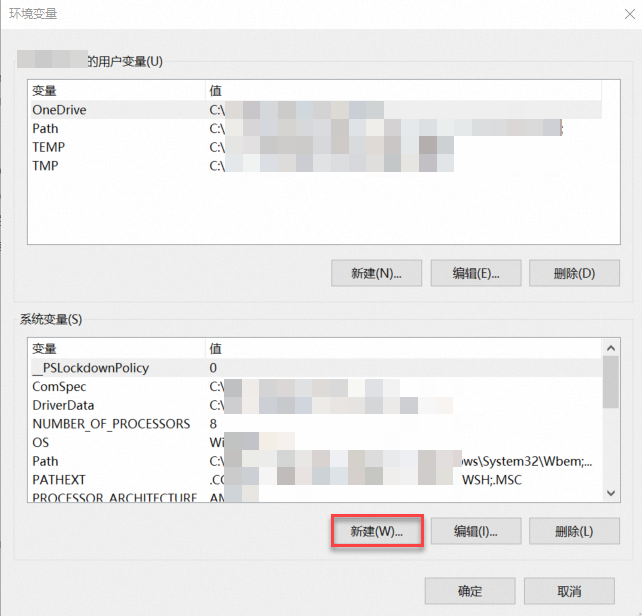
In the New System Variable dialog box, add the
ALIBABA_CLOUD_ACCESS_KEY_IDandALIBABA_CLOUD_ACCESS_KEY_SECRETenvironment variables, and enter your AccessKey ID and AccessKey Secret.Restart Windows for the changes to take effect.
Request examples
The following are sample requests.
Java sample request
Note Replace<accessKeyId>and<accessSecret>in the following code sample with your AccessKey ID and AccessKey Secret. To obtain an AccessKey pair, see Create an AccessKey pair.Mobile client verification request.
package com.lixin.test.viapi.facebody; import com.aliyun.facebody20191230.models.GenRealPersonVerificationTokenResponse; public class GenRealPersonVerificationToken { /** * Use the AccessKey ID and AccessKey Secret to initialize the client. * @param accessKeyId * @param accessKeySecret * @return Client * @throws Exception */ public static com.aliyun.facebody20191230.Client createClient(String accessKeyId, String accessKeySecret) throws Exception { /* Initialize the configuration object com.aliyun.teaopenapi.models.Config. The Config object stores configurations such as AccessKeyId, AccessKeySecret, and endpoint. */ com.aliyun.teaopenapi.models.Config config = new com.aliyun.teaopenapi.models.Config() .setAccessKeyId(accessKeyId) .setAccessKeySecret(accessKeySecret); config.endpoint = "facebody.cn-shanghai.aliyuncs.com"; return new com.aliyun.facebody20191230.Client(config); } public static void main(String[] args) throws Exception { // For information about how to create an AccessKey ID and an AccessKey Secret, see https://help.aliyun.com/document_detail/175144.html. // If you use the AccessKey pair of a RAM user, you must grant the AliyunVIAPIFullAccess permission to the RAM user. For more information, see https://help.aliyun.com/document_detail/145025.html. // Read the AccessKey ID and AccessKey Secret from environment variables. You must configure environment variables before running the sample code. com.aliyun.facebody20191230.Client client = GenRealPersonVerificationToken.createClient(System.getenv("ALIBABA_CLOUD_ACCESS_KEY_ID"), System.getenv("ALIBABA_CLOUD_ACCESS_KEY_SECRET")); com.aliyun.facebody20191230.models.GenRealPersonVerificationTokenRequest genRealPersonVerificationTokenRequest = new com.aliyun.facebody20191230.models.GenRealPersonVerificationTokenRequest() .setCertificateName("Your Name") .setCertificateNumber("Your ID Number") .setMetaInfo("metainfo_parameters"); // Obtain this from the client-side SDK. com.aliyun.teautil.models.RuntimeOptions runtime = new com.aliyun.teautil.models.RuntimeOptions(); try { GenRealPersonVerificationTokenResponse resp = client.genRealPersonVerificationTokenWithOptions(genRealPersonVerificationTokenRequest, runtime); // Print the VerificationToken. System.out.println(resp.getBody().getData().getVerificationToken()); } catch (com.aliyun.tea.TeaException teaException) { // Print the complete error message. System.out.println(com.aliyun.teautil.Common.toJSONString(teaException)); // Print a single field. System.out.println(teaException.getCode()); } } }NoteThe verificationToken returned by the mobile client verification request API is valid for 30 minutes from the time it is generated. If you perform face authentication after the token expires, an error occurs. Make sure to complete the verification within the validity period.
Initiate the request and integrate the data in your iOS or Android client. For details, see the iOS client integration tutorial or Android client integration tutorial.
Query mobile client verification result.
package com.lixin.test.viapi.facebody;

import com.aliyun.facebody20191230.models.GetRealPersonVerificationResultResponse;

public class GetRealPersonVerificationResult {

    /**
     * Use the AccessKey ID and AccessKey Secret to initialize the client.
     * @param accessKeyId
     * @param accessKeySecret
     * @return Client
     * @throws Exception
     */
    public static com.aliyun.facebody20191230.Client createClient(String accessKeyId, String accessKeySecret) throws Exception {
        /*
          Initialize the configuration object com.aliyun.teaopenapi.models.Config.
          The Config object stores configurations such as AccessKeyId, AccessKeySecret, and endpoint.
         */
        com.aliyun.teaopenapi.models.Config config = new com.aliyun.teaopenapi.models.Config()
                .setAccessKeyId(accessKeyId)
                .setAccessKeySecret(accessKeySecret);
        config.endpoint = "facebody.cn-shanghai.aliyuncs.com";
        return new com.aliyun.facebody20191230.Client(config);
    }

    public static void main(String[] args) throws Exception {
        // For information about how to create an AccessKey ID and an AccessKey Secret, see https://help.aliyun.com/document_detail/175144.html.
        // If you use the AccessKey pair of a RAM user, you must grant the AliyunVIAPIFullAccess permission to the RAM user. For more information, see https://help.aliyun.com/document_detail/145025.html.
        // Read the AccessKey ID and AccessKey Secret from environment variables. You must configure environment variables before running the sample code.
        com.aliyun.facebody20191230.Client client = GenRealPersonVerificationToken.createClient(System.getenv("ALIBABA_CLOUD_ACCESS_KEY_ID"), System.getenv("ALIBABA_CLOUD_ACCESS_KEY_SECRET"));
        com.aliyun.facebody20191230.models.GetRealPersonVerificationResultRequest getRealPersonVerificationResultRequest = new com.aliyun.facebody20191230.models.GetRealPersonVerificationResultRequest()
                .setVerificationToken("verificationToken"); // The result from the first step.
        com.aliyun.teautil.models.RuntimeOptions runtime = new com.aliyun.teautil.models.RuntimeOptions();
        try {
            GetRealPersonVerificationResultResponse resp = client.getRealPersonVerificationResultWithOptions(getRealPersonVerificationResultRequest, runtime);
            // Print whether the verification passed.
            System.out.println(resp.getBody().getData().getPassed());
        } catch (com.aliyun.tea.TeaException teaException) {
            // Print the complete error message.
            System.out.println(com.aliyun.teautil.Common.toJSONString(teaException));
            // Print a single field.
            System.out.println(teaException.getCode());
        }
    }
}
Python sample request
Note Replace<accessKeyId>and<accessSecret>in the following code sample with your AccessKey ID and AccessKey Secret. To obtain an AccessKey pair, see Create an AccessKey pair.Mobile client verification request.
# -*- coding: utf-8 -*-
import os
from alibabacloud_facebody20191230.client import Client
from alibabacloud_facebody20191230.models import GenRealPersonVerificationTokenRequest
from alibabacloud_tea_util.models import RuntimeOptions
from alibabacloud_tea_openapi.models import Config

# Initialize Config.
config = Config(
  # For information about how to create an AccessKey ID and an AccessKey Secret, see https://help.aliyun.com/document_detail/175144.html.
  # If you use the AccessKey pair of a RAM user, you must grant the AliyunVIAPIFullAccess permission to the RAM user. For more information, see https://help.aliyun.com/document_detail/145025.html.
  # Read the AccessKey ID and AccessKey Secret from environment variables. You must configure environment variables before running the sample code.
  access_key_id=os.environ.get('ALIBABA_CLOUD_ACCESS_KEY_ID'),
  access_key_secret=os.environ.get('ALIBABA_CLOUD_ACCESS_KEY_SECRET'),
  endpoint='facebody.cn-shanghai.aliyuncs.com',
  # The region corresponding to the endpoint.
  region_id='cn-shanghai'
)

request = GenRealPersonVerificationTokenRequest(
  certificate_name='Your Name',
  certificate_number='Your ID Number',
  meta_info='metainfo_parameters' # Obtain this from the client-side SDK.
)
# Initialize RuntimeOptions.
runtime_option = RuntimeOptions()

try:
  # Initialize Client.
  client = Client(config)

  response = client.gen_real_person_verification_token_with_options(request, runtime_option)
  # Print the VerificationToken.
  print(response.body.data.verification_token)
  # Tip: You can view attribute names by using response.body.__dict__.
except Exception as error:
  # Print the complete error message.
  print(error)
  # Print a single field.
  print(error.code)
  # Tip: You can view attribute names by using error.__dict__.
Initiate the request and integrate the data in your iOS or Android client. For details, see the iOS client integration tutorial or Android client integration tutorial.
Query mobile client verification result.
# -*- coding: utf-8 -*-
import os
from alibabacloud_facebody20191230.client import Client
from alibabacloud_facebody20191230.models import GetRealPersonVerificationResultRequest
from alibabacloud_tea_util.models import RuntimeOptions
from alibabacloud_tea_openapi.models import Config

# Initialize Config.
config = Config(
  # For information about how to create an AccessKey ID and an AccessKey Secret, see https://help.aliyun.com/document_detail/175144.html.
  # If you use the AccessKey pair of a RAM user, you must grant the AliyunVIAPIFullAccess permission to the RAM user. For more information, see https://help.aliyun.com/document_detail/145025.html.
  # Read the AccessKey ID and AccessKey Secret from environment variables. You must configure environment variables before running the sample code.
  access_key_id=os.environ.get('ALIBABA_CLOUD_ACCESS_KEY_ID'),
  access_key_secret=os.environ.get('ALIBABA_CLOUD_ACCESS_KEY_SECRET'),
  endpoint='facebody.cn-shanghai.aliyuncs.com',
  # The region corresponding to the endpoint.
  region_id='cn-shanghai'
)

request = GetRealPersonVerificationResultRequest(
  verification_token='verificationToken' # The result from the first step.
)
# Initialize RuntimeOptions.
runtime_option = RuntimeOptions()

try:
  # Initialize Client.
  client = Client(config)

  response = client.get_real_person_verification_result_with_options(request, runtime_option)
  # Print the 'passed' status.
  print(response.body.data.passed)
  # Tip: You can view attribute names by using response.body.__dict__.
except Exception as error:
  # Print the complete error message.
  print(error)
  # Print a single field.
  print(error.code)
  # Tip: You can view attribute names by using error.__dict__.
Response example
The following code shows a sample response.
{
  "RequestId" : "10FC953D-7C0C-4915-8949-34E3246E5B79",
  "Data" : {
    "Pass" : "true"
  }
}
This response indicates a successful verification: the face in the image matches the provided name and ID number.
Request ID: A unique identifier for the request.
Pass: The verification result. A value of
trueindicates that the verification is successful.