Change billing method
If the cost of your Web Application Firewall (WAF) instance no longer suits your business, you can change its billing method by unsubscribing from your current instance and purchasing a new one.
Billing method conversion
WAF does not currently support direct billing method changes. To switch, unsubscribe from your current instance and then activate a new instance with the desired billing method.
-
Data loss risk: Unsubscribing from or terminating an instance releases the instance. All assets and protection rule configurations that have been added will be lost and must be reconfigured.
-
Business interruption risk: If your domain uses CNAME access, requests cannot be forwarded after the instance is released, making your website inaccessible. Before proceeding, ensure that all web traffic has been switched back to the origin server.
Subscription to pay-as-you-go
1. Unsubscribe from a subscription instance
Unsubscribing from an instance releases it and provides a refund based on the unsubscription rules. Refunds apply only to payments made with cash or prepaid cards. Amounts covered by coupons or vouchers are not refundable.
1.1 Unsubscription rules
Subscription instances with Multi-cloud/Hybrid Cloud Protection, Bot Management for Web, Bot Management for App, Major Event Protection, or API Security enabled do not support self-service unsubscription in the console.
Renewal orders that have not taken effect: Full refunds are available.
Active resources: Partial refunds are available. You will receive a refund for the unused portion of the subscription, as shown in the following diagram.

Formula: Refund amount = Paid amount for the original order - Consumed amount
Consumed amount = (Daily subscription price × Usage duration in days × Applicable discount for the usage duration) × 1.5
For example, you purchased a 3-year subscription with an original price of CNY 193,680.00 and paid CNY 135,576.00 (a 30% discount for a 3-year term). If you request to unsubscribe on the 365th day, the actual usage is one year, which qualifies for a 15% discount. The refund amount is calculated as follows: CNY 135,576.00 - [CNY 193,680.00 / (365 × 3)] × 365 × 0.85 × 1.5 = CNY 77,956.20.
1.2 Procedure
-
Log on to the Web Application Firewall 3.0 console. From the top menu bar, select the resource group and region (Chinese Mainland or Outside Chinese Mainland) for the WAF instance.
-
In the left navigation pane, click Overview.
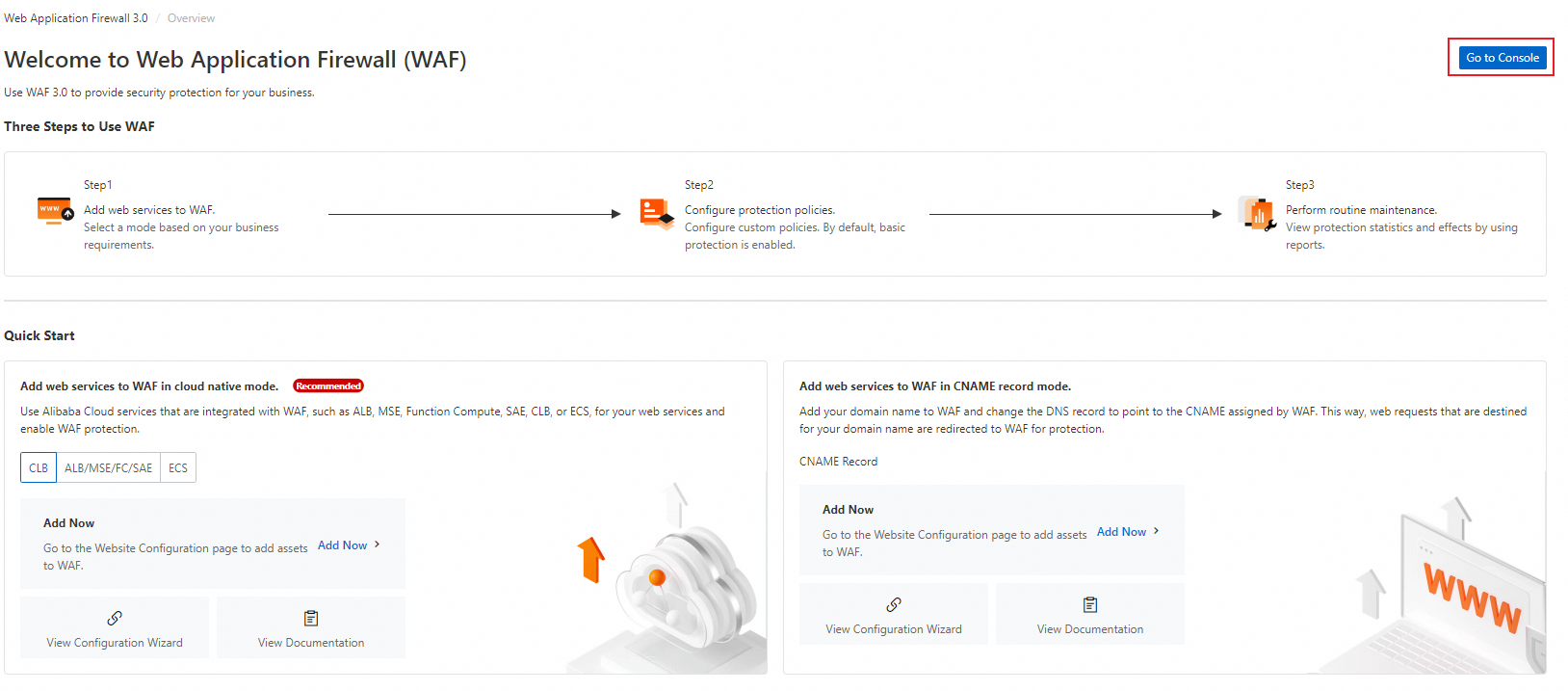
If you are already protecting services with WAF, skip this step. Otherwise, click Go to Console to go to the Overview page.
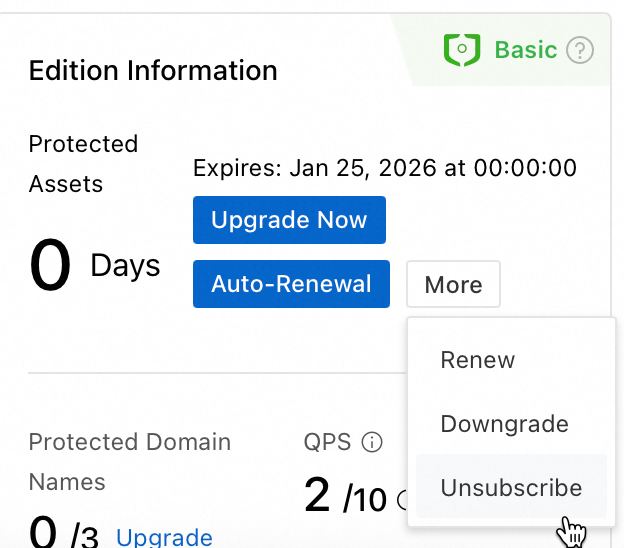
On the Overview page, in the instance information card, click . You will be redirected to the Resource Unsubscription page in the Billing Management console.
Unactivated renewals
Click the Unsubscribe from Unactivated Renewals tab. Find the instance you want to unsubscribe from and click Refund Renewal in the Actions column.
Active resources
Click the Unsubscribe from Resources tab, click the General Cloud Products tab, and then select Partial Refund. Find the instance you want to unsubscribe from and click Unsubscribe from Resource in the Actions column.
Confirm the resource information, specify an Unsubscription Reason, read and select I have read the Unsubscription Rules and confirm the refund amount and I have confirmed that the data of the instance to be unsubscribed from has been backed up and migrated, and then click Unsubscribe Now.
After you submit the unsubscription request, you can click Order List to view the details. If you encounter any issues during the process, contact your account manager or solution architect.
2. Purchase a pay-as-you-go instance
Go to the Web Application Firewall 3.0 (Pay-as-you-go) buy page.
-
Set the Billing method to Pay-as-you-go and configure the instance based on your business requirements.
Click Purchase Now and complete the order.
When you purchase a pay-as-you-go instance, you can also purchase a SeCU resource plan to offset request processing and feature fees to reduce your costs. For more information about SeCU resource plans and how to purchase them, see SeCU resource plan.
Pay-as-you-go to subscription
1. Terminate a pay-as-you-go instance
Pay-as-you-go instances are billed in real-time based on actual usage, so refunds are not applicable. If you no longer need a pay-as-you-go instance, you can stop it after ensuring that your data is backed up or migrated and your services are not affected. Billing for the instance stops on the day after you stop it (T+1 day).
-
Log on to the Web Application Firewall 3.0 console. From the top menu bar, select the resource group and region (Chinese Mainland or Outside Chinese Mainland) for the WAF instance.
-
In the left-side navigation pane, click Overview.
If you are already protecting services with WAF, skip this step. Otherwise, click Go to Console to go to the Overview page.
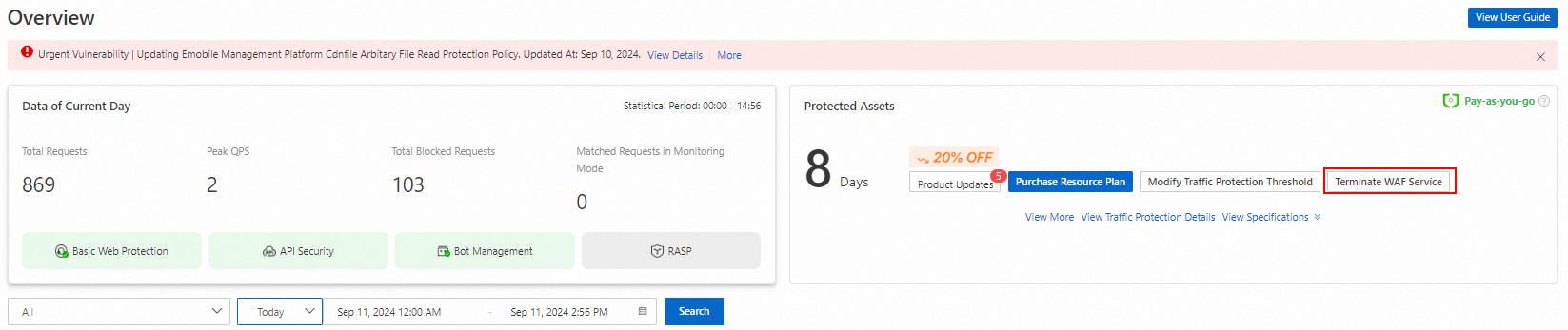
On the Overview page, in the instance information card in the upper-right corner, click Terminate WAF Service.
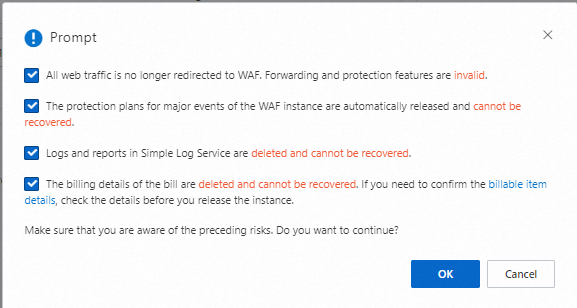
In the Note dialog box, review the risks of releasing the instance, select all risk acknowledgment checkboxes, and then click OK.

If you purchased a SeCU resource plan to offset fees for a pay-as-you-go instance, you can contact your account manager to request a refund, provided the following conditions are met:
-
The SeCU resource plan was purchased within the last 5 days.
-
The SeCU resource plan is unused.
2. Purchase a subscription instance
Go to the Web Application Firewall 3.0 (Subscription) buy page.
-
Set the Billing method to Subscription and configure the instance edition you want to purchase. For more information about the features of different editions, see Editions and features.
Click Buy Now and complete the payment.
Seamless conversion to subscription (by invitation)
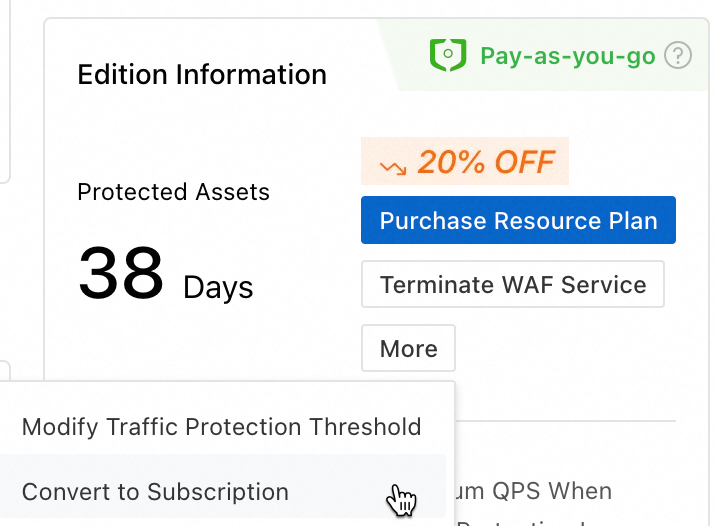
By default, changing from pay-as-you-go to subscription requires you to terminate the pay-as-you-go instance and purchase a subscription instance. For a seamless change that ensures service continuity, contact your account manager to request access to this feature.
After the feature is enabled, follow these steps to make the change:
If you have enabled Simple Log Service (SLS), your Logstore will change after the billing method is converted. You must re-enable logging for your protected objects and reselect the log fields. The original Logstore for the pay-as-you-go instance is retained, and its fees will continue to be billed by SLS.
-
Log on to the Web Application Firewall 3.0 console. From the top menu bar, select the resource group and region (Chinese Mainland or Outside Chinese Mainland) for the WAF instance.
-
In the left-side navigation pane, click Overview.
-
On the Overview page, in the edition information card, choose , then follow the on-screen instructions to complete the conversion.
Related documents
-
To quickly select a suitable WAF edition, see Quick selection guide.
-
For more information about how subscription and pay-as-you-go instances are billed, see Subscription billing and Pay-as-you-go billing.